The Tech Edvocate

Top Menu

  • Advertisement
  • Apps
  • Home Page
  • Home Page Five (No Sidebar)
  • Home Page Four
  • Home Page Three
  • Home Page Two
  • Home Tech2
  • Icons [No Sidebar]
  • Left Sidbear Page
  • Lynch Educational Consulting
  • My Account
  • My Speaking Page
  • Newsletter Sign Up Confirmation
  • Newsletter Unsubscription
  • Our Brands
  • Page Example
  • Privacy Policy
  • Protected Content
  • Register
  • Request a Product Review
  • Shop
  • Shortcodes Examples
  • Signup
  • Start Here
    • Governance
    • Careers
    • Contact Us
  • Terms and Conditions
  • The Edvocate
  • The Tech Edvocate Product Guide
  • Topics
  • Write For Us
  • Advertise

Main Menu

  • Start Here
    • Our Brands
    • Governance
      • Lynch Educational Consulting, LLC.
      • Dr. Lynch’s Personal Website
      • Careers
    • Write For Us
    • The Tech Edvocate Product Guide
    • Contact Us
    • Books
    • Edupedia
    • Post a Job
    • The Edvocate Podcast
    • Terms and Conditions
    • Privacy Policy
  • Topics
    • Assistive Technology
    • Child Development Tech
    • Early Childhood & K-12 EdTech
    • EdTech Futures
    • EdTech News
    • EdTech Policy & Reform
    • EdTech Startups & Businesses
    • Higher Education EdTech
    • Online Learning & eLearning
    • Parent & Family Tech
    • Personalized Learning
    • Product Reviews
  • Advertise
  • Tech Edvocate Awards
  • The Edvocate
  • Pedagogue
  • School Ratings

logo

The Tech Edvocate

  • Start Here
    • Our Brands
    • Governance
      • Lynch Educational Consulting, LLC.
      • Dr. Lynch’s Personal Website
        • My Speaking Page
      • Careers
    • Write For Us
    • The Tech Edvocate Product Guide
    • Contact Us
    • Books
    • Edupedia
    • Post a Job
    • The Edvocate Podcast
    • Terms and Conditions
    • Privacy Policy
  • Topics
    • Assistive Technology
    • Child Development Tech
    • Early Childhood & K-12 EdTech
    • EdTech Futures
    • EdTech News
    • EdTech Policy & Reform
    • EdTech Startups & Businesses
    • Higher Education EdTech
    • Online Learning & eLearning
    • Parent & Family Tech
    • Personalized Learning
    • Product Reviews
  • Advertise
  • Tech Edvocate Awards
  • The Edvocate
  • Pedagogue
  • School Ratings
  • 100 Best Resource Management Apps

  • The Startling Truth About Viral Weight Loss Drugs You Need to Know

  • 57% Failure Rate: The Unsettling Truth About AI Financial Advice You Need to Know

  • AI’s Quiet Takeover: 179,542 Tech Layoffs 2023 Signal a Troubling Future

  • The Billion-Dollar Race: Why U.S. Tech Giants Are Scrambling for Israeli Startups

  • The Secret Way Activision Blizzard May Be Exploiting Kids for Millions

  • This One AI Change Could Cost You Thousands in Medical Bills

  • The Billion-Dollar AI Learning Boom: Why Experts Are Sounding the Alarm

  • Your Student Loans Just Got a Massive Overhaul — Here’s What It Means For Your Future

  • Identity Theft Nightmare: Johnson Investment Counsel Data Breach Exposes SSNs

Tech Advice
Home›Tech Advice›How to Set Different Wallpapers for Multiple Monitors in Windows 10

How to Set Different Wallpapers for Multiple Monitors in Windows 10
By Matthew Lynch
July 17, 2023
0
Spread the love

Using multiple monitors can enhance your productivity and provide a more immersive computing experience. One way to personalize your setup is by setting different wallpapers on each monitor. While Windows 10 allows you to span a single wallpaper across all displays, it also provides options for customizing wallpapers individually. In this article, we will guide you through the steps of setting different wallpapers for multiple monitors in Windows 10.

Method 1: Using File Explorer

This method involves manually selecting and applying separate wallpapers using File Explorer:

1. Open File Explorer by pressing Win + E or searching for “File Explorer” in the Start menu.

2. Navigate to the folder where your desired images are located.

3. Select and right-click on the first image you want as your wallpaper, then click “Set as desktop background”.

4. The selected image will become the wallpaper for your primary monitor.

5. To set a different wallpaper for another monitor:

• Right-click on an additional image.

• Choose “Set as desktop background”.

• Repeat this step for each monitor until all desired wallpapers are applied.

Method 2: Using Settings App

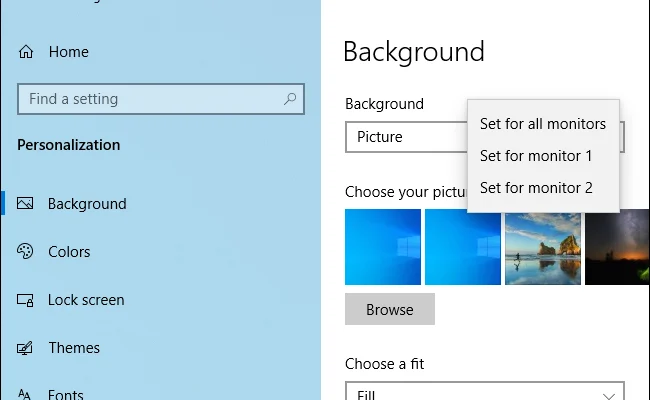
Windows 10 includes a built-in feature that allows you to set individual wallpapers through the Settings app:

1 . Right-click anywhere on an empty area of your desktop and select “Display settings” from the context menu.

2 . Scroll down until you find the section labeled “Multiple displays”.

3 . Click/tap on Identify, which will display numbers corresponding with each connected display—helping identify them easily.

4 . Underneath, locate and click/tap on ‘Advanced display settings’

5 . A new window titled ‘**Display adapter properties’ should appear.

6 . From here: – Switch tabs at top (e.g., ‘Monitor’ or ‘Adapter’) to find the ‘Monitor’ tab. – Under ‘Monitor Settings’, you should see a section labeled ‘Screen resolution’. – Select individual monitors from the drop-down menu.

7 . Once you have identified and selected a monitor, scroll down to an area labeled “Choose your picture”.

1. Click/tap on Browse, navigate to the desired image file, select it, then click/tap on Open.

2. Repeat steps 6-8 for each connected monitor, choosing different images as wallpapers.

3. After selecting wallpapers for all monitors:

• Click/press Apply, followed by OK, to save your changes.

Conclusion

Personalizing your multi-monitor setup in Windows 10 by setting different wallpapers allows you to add a touch of creativity and uniqueness to your workspace. Whether using File Explorer or the Settings app, both methods provide straightforward ways of customizing wallpaper settings individually across multiple displays.

Experiment with various images or themes that resonate with you personally or align with your workflow requirements—creating an aesthetically pleasing and visually stimulating work environment!

Remember that updating display settings may require additional adjustments if changing screen resolutions or rearranging monitor positions within Windows 10’s Display settings panel or graphics driver software associated with your specific hardware configuration

Previous Article

iPhone 8 vs. iPhone 12: What you’ll ...

Next Article

Set Up a VPN on Your iPhone: ...

Matthew Lynch

Related articles More from author

  • Tech Advice

    Best Online Banks for 2023: Top Picks Worth Considering

    July 10, 2023
    By Matthew Lynch
  • Tech Advice

    Google Pixel Watch: After 5 Months, Still the Best-Looking Android Watch

    July 17, 2023
    By Matthew Lynch
  • Tech Advice

    2024 Honda CR-V Launches With New Hybrid Sport-L Trim

    August 21, 2023
    By Matthew Lynch
  • Tech Advice

    Amazon Alexa Voice Remote Pro Review

    July 20, 2023
    By Matthew Lynch
  • Tech Advice

    5 fun ways to use Google’s Santa Tracker this Christmas and beyond

    July 4, 2023
    By Matthew Lynch
  • Tech Advice

    It’s Time to Stop Waiting for Apple’s Next iPhone Moment

    July 17, 2023
    By Matthew Lynch

Search

Login & Registration

  • Log in
  • Entries feed
  • Comments feed
  • WordPress.org

Newsletter

Signup for The Tech Edvocate Newsletter and have the latest in EdTech news and opinion delivered to your email address!

About Us

Since technology is not going anywhere and does more good than harm, adapting is the best course of action. That is where The Tech Edvocate comes in. We plan to cover the PreK-12 and Higher Education EdTech sectors and provide our readers with the latest news and opinion on the subject. From time to time, I will invite other voices to weigh in on important issues in EdTech. We hope to provide a well-rounded, multi-faceted look at the past, present, the future of EdTech in the US and internationally.

We started this journey back in June 2016, and we plan to continue it for many more years to come. I hope that you will join us in this discussion of the past, present and future of EdTech and lend your own insight to the issues that are discussed.

Newsletter

Signup for The Tech Edvocate Newsletter and have the latest in EdTech news and opinion delivered to your email address!

Contact Us

The Tech Edvocate
910 Goddin Street
Richmond, VA 23231
(601) 630-5238
[email protected]

Copyright © 2026 Matthew Lynch. All rights reserved.