The Tech Edvocate

Top Menu

  • Advertisement
  • Apps
  • Home Page
  • Home Page Five (No Sidebar)
  • Home Page Four
  • Home Page Three
  • Home Page Two
  • Home Tech2
  • Icons [No Sidebar]
  • Left Sidbear Page
  • Lynch Educational Consulting
  • My Account
  • My Speaking Page
  • Newsletter Sign Up Confirmation
  • Newsletter Unsubscription
  • Our Brands
  • Page Example
  • Privacy Policy
  • Protected Content
  • Register
  • Request a Product Review
  • Shop
  • Shortcodes Examples
  • Signup
  • Start Here
    • Governance
    • Careers
    • Contact Us
  • Terms and Conditions
  • The Edvocate
  • The Tech Edvocate Product Guide
  • Topics
  • Write For Us
  • Advertise

Main Menu

  • Start Here
    • Our Brands
    • Governance
      • Lynch Educational Consulting, LLC.
      • Dr. Lynch’s Personal Website
      • Careers
    • Write For Us
    • The Tech Edvocate Product Guide
    • Contact Us
    • Books
    • Edupedia
    • Post a Job
    • The Edvocate Podcast
    • Terms and Conditions
    • Privacy Policy
  • Topics
    • Assistive Technology
    • Child Development Tech
    • Early Childhood & K-12 EdTech
    • EdTech Futures
    • EdTech News
    • EdTech Policy & Reform
    • EdTech Startups & Businesses
    • Higher Education EdTech
    • Online Learning & eLearning
    • Parent & Family Tech
    • Personalized Learning
    • Product Reviews
  • Advertise
  • Tech Edvocate Awards
  • The Edvocate
  • Pedagogue
  • School Ratings

logo

The Tech Edvocate

  • Start Here
    • Our Brands
    • Governance
      • Lynch Educational Consulting, LLC.
      • Dr. Lynch’s Personal Website
        • My Speaking Page
      • Careers
    • Write For Us
    • The Tech Edvocate Product Guide
    • Contact Us
    • Books
    • Edupedia
    • Post a Job
    • The Edvocate Podcast
    • Terms and Conditions
    • Privacy Policy
  • Topics
    • Assistive Technology
    • Child Development Tech
    • Early Childhood & K-12 EdTech
    • EdTech Futures
    • EdTech News
    • EdTech Policy & Reform
    • EdTech Startups & Businesses
    • Higher Education EdTech
    • Online Learning & eLearning
    • Parent & Family Tech
    • Personalized Learning
    • Product Reviews
  • Advertise
  • Tech Edvocate Awards
  • The Edvocate
  • Pedagogue
  • School Ratings
  • 100 Best Apps for Active Recall

  • 100 Best Apps for Spaced Repetition

  • 100 Best Apps for Building a Second Brain

  • 100 Best Apps for Second Brain

  • A Casino Bonus Is Not Its Cash Value: How to Read Reviews Clearly

  • 100 Best Apps for Zettelkasten

  • 100 Best Apps for Bullet Journaling

  • 100 Best Apps for Getting Things Done

  • 100 Best Apps for GTD Method

  • 100 Best Apps for Overcoming Writer’s Block

Digital & Mobile Technology
Home›Digital & Mobile Technology›How to Restore SteamOS on the Steam Deck Using Valve’s Recovery Image

How to Restore SteamOS on the Steam Deck Using Valve’s Recovery Image
By Matthew Lynch
June 14, 2023
0
Spread the love

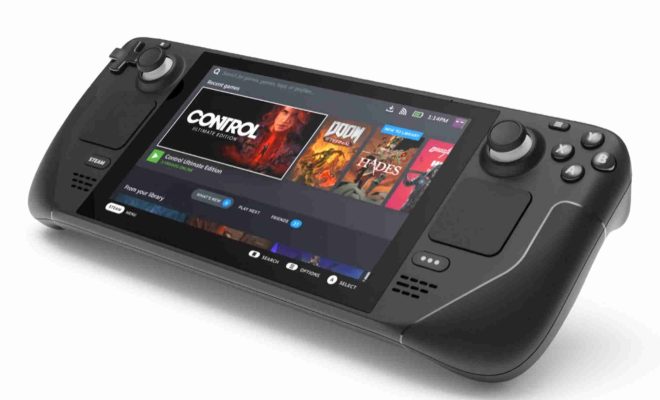
Valve’s upcoming handheld gaming device, the Steam Deck, runs on a customized version of the Linux operating system called SteamOS. While SteamOS is designed to be user-friendly, it’s always possible that things can go wrong and the system may become corrupted or unresponsive. In this article, we will guide you through the steps to restore SteamOS on the Steam Deck using Valve’s recovery image.

Step 1: Download Valve’s Recovery Image

The first step is to download the recovery image from Valve’s website. You will need a USB drive with at least 8GB of space and a tool to write the image to the USB drive like Rufus. Once you have these, follow the steps below to download the recovery image:

1. Navigate to Valve’s Steam Deck support page.
2. Scroll down to the “Downloads” section and click on “Steam Deck recovery image”.
3. Select your language and download the image file to your computer.

Step 2: Create a Bootable USB Drive

Now that you have downloaded the recovery image, you need to create a bootable USB drive to use it on your Steam Deck. To create a bootable USB drive, follow the steps below:

1. Insert the USB drive into your computer.
2. Download and install Rufus, a free tool for creating bootable USB drives.
3. Launch Rufus and select the USB drive you want to use.
4. Under “Create a bootable disk using”, select “DD Image”.
5. Click on the “Select” button and browse to the location where you saved the recovery image file.
6. Click “Start” to begin creating the bootable USB drive. This process may take a few minutes.

Step 3: Restore the Steam Deck

With the bootable USB drive ready, it’s time to restore the Steam Deck. Follow the steps below to restore the Steam Deck:

1. Power off your Steam Deck.
2. Insert the bootable USB drive into the USB-C port on the bottom of the device.
3. Press and hold the power button on the Steam Deck until the Valve logo appears.
4. Release the power button and the Steam Deck will boot from the USB drive.
5. Follow the on-screen instructions to complete the restoration process.

Note: Keep in mind that restoring the Steam Deck with the recovery image will erase all your data and settings. Ensure that you have backed up your data before proceeding.

Conclusion:

In conclusion, restoring SteamOS on the Steam Deck using Valve’s recovery image is an easy process as long as you follow the steps outlined in this article. If you encounter any issues during the process, you can visit Steam Deck’s support page for further assistance. Remember to always backup your data to avoid losing it during the restoration process.


Previous Article

Not Getting Notifications on Your Mac? Fixes ...

Next Article

Best iPhone Tips for Complete Beginners

Matthew Lynch

Related articles More from author

  • Digital & Mobile Technology

    Can You Make Skype Calls on Chromebook?

    August 3, 2023
    By Matthew Lynch
  • Digital & Mobile Technology

    What Kind of Laptop Are You? Take Our Quiz to Find Out

    June 14, 2023
    By Matthew Lynch
  • Digital & Mobile Technology

    What Is a PPT File?

    June 8, 2023
    By Matthew Lynch
  • Digital & Mobile Technology

    Best FTP Clients for Linux

    June 23, 2023
    By Matthew Lynch
  • Digital & Mobile Technology

    How to Find the IP Address of an Email Sender

    June 9, 2023
    By Matthew Lynch
  • Digital & Mobile Technology

    What Is Bitstream and How Does It Work?

    June 3, 2023
    By Matthew Lynch

Search

Login & Registration

  • Log in
  • Entries feed
  • Comments feed
  • WordPress.org

Newsletter

Signup for The Tech Edvocate Newsletter and have the latest in EdTech news and opinion delivered to your email address!

About Us

Since technology is not going anywhere and does more good than harm, adapting is the best course of action. That is where The Tech Edvocate comes in. We plan to cover the PreK-12 and Higher Education EdTech sectors and provide our readers with the latest news and opinion on the subject. From time to time, I will invite other voices to weigh in on important issues in EdTech. We hope to provide a well-rounded, multi-faceted look at the past, present, the future of EdTech in the US and internationally.

We started this journey back in June 2016, and we plan to continue it for many more years to come. I hope that you will join us in this discussion of the past, present and future of EdTech and lend your own insight to the issues that are discussed.

Newsletter

Signup for The Tech Edvocate Newsletter and have the latest in EdTech news and opinion delivered to your email address!

Contact Us

The Tech Edvocate
910 Goddin Street
Richmond, VA 23231
(601) 630-5238
[email protected]

Copyright © 2026 Matthew Lynch. All rights reserved.