
The Tech Edvocate

Top Menu

  • Advertisement
  • Apps
  • Home Page
  • Home Page Five (No Sidebar)
  • Home Page Four
  • Home Page Three
  • Home Page Two
  • Home Tech2
  • Icons [No Sidebar]
  • Left Sidbear Page
  • Lynch Educational Consulting
  • My Account
  • My Speaking Page
  • Newsletter Sign Up Confirmation
  • Newsletter Unsubscription
  • Our Brands
  • Page Example
  • Privacy Policy
  • Protected Content
  • Register
  • Request a Product Review
  • Shop
  • Shortcodes Examples
  • Signup
  • Start Here
    • Governance
    • Careers
    • Contact Us
  • Terms and Conditions
  • The Edvocate
  • The Tech Edvocate Product Guide
  • Topics
  • Write For Us
  • Advertise

Main Menu

  • Start Here
    • Our Brands
    • Governance
      • Lynch Educational Consulting, LLC.
      • Dr. Lynch’s Personal Website
      • Careers
    • Write For Us
    • The Tech Edvocate Product Guide
    • Contact Us
    • Books
    • Edupedia
    • Post a Job
    • The Edvocate Podcast
    • Terms and Conditions
    • Privacy Policy
  • Topics
    • Assistive Technology
    • Child Development Tech
    • Early Childhood & K-12 EdTech
    • EdTech Futures
    • EdTech News
    • EdTech Policy & Reform
    • EdTech Startups & Businesses
    • Higher Education EdTech
    • Online Learning & eLearning
    • Parent & Family Tech
    • Personalized Learning
    • Product Reviews
  • Advertise
  • Tech Edvocate Awards
  • The Edvocate
  • Pedagogue
  • School Ratings

logo

The Tech Edvocate

  • Start Here
    • Our Brands
    • Governance
      • Lynch Educational Consulting, LLC.
      • Dr. Lynch’s Personal Website
        • My Speaking Page
      • Careers
    • Write For Us
    • The Tech Edvocate Product Guide
    • Contact Us
    • Books
    • Edupedia
    • Post a Job
    • The Edvocate Podcast
    • Terms and Conditions
    • Privacy Policy
  • Topics
    • Assistive Technology
    • Child Development Tech
    • Early Childhood & K-12 EdTech
    • EdTech Futures
    • EdTech News
    • EdTech Policy & Reform
    • EdTech Startups & Businesses
    • Higher Education EdTech
    • Online Learning & eLearning
    • Parent & Family Tech
    • Personalized Learning
    • Product Reviews
  • Advertise
  • Tech Edvocate Awards
  • The Edvocate
  • Pedagogue
  • School Ratings
  • Viaim Opennote Review: The AI Note-Taker That Disappears Into Your Daily Routine

  • A Visitors Guide to Long Beach (CA), United States

  • A Visitor’s Guide to Fresno (CA), United States

  • A Visitors Guide to New Orleans (LA), United States

  • A Visitors Guide to Sacramento (CA), United States

  • A Visitors Guide to Lyon, France

  • JisuLife Ultra2 Portable Fan: A Powerful Multi-Function Cooling Solution

  • A Visitors Guide to Viña del Mar, Chile

  • A Visitors Guide to Århus, Denmark

  • A Visitors Guide to Bakersfield (CA), United States

How To
Home›How To›How to Record a Video on PC: 10 Steps

How to Record a Video on PC: 10 Steps
By Matthew Lynch
March 24, 2024
0
Spread the love

Introduction:

Recording a video on your PC can be an easy and efficient way to capture moments, create tutorials, or share your thoughts with the world. In this article, we will walk you through 10 simple steps to help you record a video on your PC.

Step 1: Choose a recording software

There are numerous video recording software options available, both free and paid. Some popular choices include OBS Studio (free), Camtasia (paid), and Bandicam (free trial available). Research which one suits your needs best and download it.

Step 2: Install the recording software

Installation is generally straightforward. Follow the on-screen instructions provided by your chosen software’s installer. Once installed, open the program to begin setting it up.

Step 3: Configure the recording settings

Most recording software offers pre-set configuration options for quality, resolution, and other settings. Choose the most appropriate settings for your video needs – higher quality files will result in larger file sizes.

Step 4: Select the audio source

In the program’s audio settings, select your preferred microphone as the audio input source. Ensure that your microphone is properly connected and functioning, so you can record clear audio along with your video.

Step 5: Decide how to record

Depending on your chosen software and computer capabilities, decide whether to record using a window capture, display capture, or game capture mode. This selection may vary depending on what you want to record on your screen.

Step 6: Adjust capture area

Some programs allow you to adjust the capture area size. Adjust this according to whether you want to record a full-screen video or just a specific section of your screen.

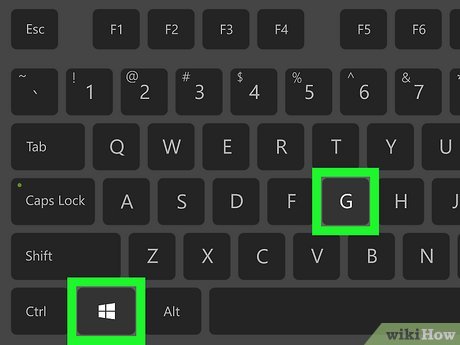
Step 7: Set up hotkeys (optional)

Setting up hotkeys can be helpful for starting, stopping, or pausing recordings quickly without having to manually click within the program. Assign convenient hotkeys for these functions in your chosen software’s settings.

Step 8: Perform a test recording

Before recording your final video, it is a good idea to perform a short test recording. This allows you to check for any issues with video or audio quality, capture area, or settings that may need adjustment.

Step 9: Start recording

Once you are satisfied that everything is set correctly, press the record button (or your assigned hotkey) to begin your video. Keep track of the elapsed time as needed, and try to minimize unnecessary noise or movement.

Step 10: Stop and save the recording

When you have completed your video, press the stop button (or your assigned hotkey) to cease recording. Your software will typically prompt you to save the file – choose a name and destination folder for easy retrieval later.

Conclusion:

With technology at our fingertips, recording a video on your PC has never been easier. By following the steps outlined in this article, you’ll be well on your way to capturing great videos for personal or professional use. Happy recording!


Previous Article

The Best Galentine’s Day Gifts To Show ...

Next Article

20 Best Hotels In Austin, Texas, For ...

Matthew Lynch

Related articles More from author

  • How To

    How to Move to Hawaii

    February 13, 2024
    By Matthew Lynch
  • How To

    3 Easy Ways to Get Your Beard to Connect

    December 6, 2023
    By Matthew Lynch
  • How To

    How to Play Seven Nation Army on Guitar

    January 7, 2024
    By Matthew Lynch
  • How To

    How to Tape Handlebars: 13 Steps

    March 7, 2024
    By Matthew Lynch
  • How To

    How to Become a Criminologist: 14 Steps

    March 23, 2024
    By Matthew Lynch
  • How To

    How to Set a Mousetrap: 14 Steps

    February 28, 2024
    By Matthew Lynch

Search

Login & Registration

  • Register
  • Log in
  • Entries feed
  • Comments feed
  • WordPress.org

Newsletter

Signup for The Tech Edvocate Newsletter and have the latest in EdTech news and opinion delivered to your email address!

About Us

Since technology is not going anywhere and does more good than harm, adapting is the best course of action. That is where The Tech Edvocate comes in. We plan to cover the PreK-12 and Higher Education EdTech sectors and provide our readers with the latest news and opinion on the subject. From time to time, I will invite other voices to weigh in on important issues in EdTech. We hope to provide a well-rounded, multi-faceted look at the past, present, the future of EdTech in the US and internationally.

We started this journey back in June 2016, and we plan to continue it for many more years to come. I hope that you will join us in this discussion of the past, present and future of EdTech and lend your own insight to the issues that are discussed.

Newsletter

Signup for The Tech Edvocate Newsletter and have the latest in EdTech news and opinion delivered to your email address!

Contact Us

The Tech Edvocate
910 Goddin Street
Richmond, VA 23231
(601) 630-5238
[email protected]

Copyright © 2025 Matthew Lynch. All rights reserved.