The Tech Edvocate

Top Menu

  • Advertisement
  • Apps
  • Home Page
  • Home Page Five (No Sidebar)
  • Home Page Four
  • Home Page Three
  • Home Page Two
  • Home Tech2
  • Icons [No Sidebar]
  • Left Sidbear Page
  • Lynch Educational Consulting
  • My Account
  • My Speaking Page
  • Newsletter Sign Up Confirmation
  • Newsletter Unsubscription
  • Our Brands
  • Page Example
  • Privacy Policy
  • Protected Content
  • Register
  • Request a Product Review
  • Shop
  • Shortcodes Examples
  • Signup
  • Start Here
    • Governance
    • Careers
    • Contact Us
  • Terms and Conditions
  • The Edvocate
  • The Tech Edvocate Product Guide
  • Topics
  • Write For Us
  • Advertise

Main Menu

  • Start Here
    • Our Brands
    • Governance
      • Lynch Educational Consulting, LLC.
      • Dr. Lynch’s Personal Website
      • Careers
    • Write For Us
    • The Tech Edvocate Product Guide
    • Contact Us
    • Books
    • Edupedia
    • Post a Job
    • The Edvocate Podcast
    • Terms and Conditions
    • Privacy Policy
  • Topics
    • Assistive Technology
    • Child Development Tech
    • Early Childhood & K-12 EdTech
    • EdTech Futures
    • EdTech News
    • EdTech Policy & Reform
    • EdTech Startups & Businesses
    • Higher Education EdTech
    • Online Learning & eLearning
    • Parent & Family Tech
    • Personalized Learning
    • Product Reviews
  • Advertise
  • Tech Edvocate Awards
  • The Edvocate
  • Pedagogue
  • School Ratings

logo

The Tech Edvocate

  • Start Here
    • Our Brands
    • Governance
      • Lynch Educational Consulting, LLC.
      • Dr. Lynch’s Personal Website
        • My Speaking Page
      • Careers
    • Write For Us
    • The Tech Edvocate Product Guide
    • Contact Us
    • Books
    • Edupedia
    • Post a Job
    • The Edvocate Podcast
    • Terms and Conditions
    • Privacy Policy
  • Topics
    • Assistive Technology
    • Child Development Tech
    • Early Childhood & K-12 EdTech
    • EdTech Futures
    • EdTech News
    • EdTech Policy & Reform
    • EdTech Startups & Businesses
    • Higher Education EdTech
    • Online Learning & eLearning
    • Parent & Family Tech
    • Personalized Learning
    • Product Reviews
  • Advertise
  • Tech Edvocate Awards
  • The Edvocate
  • Pedagogue
  • School Ratings
  • Is AuraCam Pro’s Emotional AI a Privacy Nightmare or Security Breakthrough?

  • Unprecedented: N-able’s Global Shutdown After 30+ Zero-Days Revealed

  • The Urgent Truth: Your AI Tools for Financial Advisors Could Be a Compliance Nightmare

  • Unmasking the Troubling Truth About EU’s Digital Omnibus and Your Data

  • Outrageous: Your US Car Insurance 2026 Bill Is About to Explode – Here’s Why

  • Uncovering the Truth: Are AI Spending Concerns About to Tank Your Portfolio?

  • The Silent Revolution: How AI Property Valuation Is Quietly Reshaping Real Estate

  • The Astonishing Truth: Why Your Dream Car Is Now a $52,000 Illusion

  • Toxic Algorithms: Why Your Bank’s AI Could Cost You Everything

  • OpenAI’s GPT-6 Cyber: A Dangerous New AI Threat or Our Ultimate Digital Guardian?

Digital & Mobile Technology
Home›Digital & Mobile Technology›How to Play DVDs on HP Laptops

How to Play DVDs on HP Laptops
By Matthew Lynch
June 10, 2023
0
Spread the love

Playing DVDs on a laptop is a common activity for people who love to watch movies or TV shows. For HP laptop users, playing DVDs is a simple process that requires a few steps. Here’s a complete guide on how to play DVDs on HP laptops.

Step 1: Make sure your HP laptop has a built-in optical drive

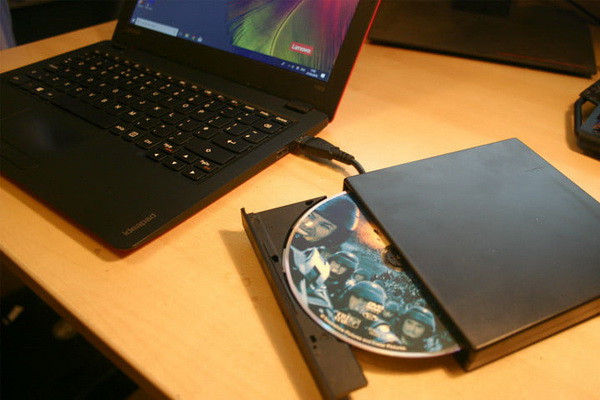
Before you can play DVDs on your HP laptop, you need to ensure that it has a built-in optical drive. Most laptops come with a DVD drive, but some newer models don’t have one. If your HP laptop doesn’t have a DVD drive, consider purchasing an external DVD drive that connects via USB.

Step 2: Insert the DVD into the optical drive

Once you have confirmed that your HP laptop has a DVD drive, insert the DVD you want to play into the drive. Make sure you insert the DVD in the correct orientation (label side up).

Step 3: Open the DVD player application

Most HP laptops come with a default DVD player application. To open the DVD player application, go to the Start menu and look for the DVD player program. Click on the program to open it.

If your HP laptop doesn’t have a default DVD player application, you can download third-party software like VLC media player.

Step 4: Start the DVD

Once you have opened the DVD player application, the DVD should start playing automatically. If it doesn’t, click on the play button or navigate to the menu that shows the DVD’s contents.

Step 5: Adjust the settings

If you want to adjust the settings for the DVD player, click on the options or settings button in the application. You can adjust the aspect ratio, audio settings, subtitles, and other options.

Step 6: Eject the DVD

When you’re done watching the DVD, eject it from the drive by pressing the eject button or right-clicking on the drive in the file explorer and selecting eject.

In conclusion, playing DVDs on an HP laptop is a simple and straightforward process. By following the steps mentioned above, you can start watching your favorite movies or TV shows on your HP laptop in no time.


Previous Article

Magic Mouse 2: How Good is This ...

Next Article

Why Isn’t My Printer Printing?

Matthew Lynch

Related articles More from author

  • Digital & Mobile Technology

    How to Fix the “macOS Could Not Be Installed on Your Computer” Error

    August 5, 2023
    By Matthew Lynch
  • Digital & Mobile Technology

    How to Type an Exponent on a Keyboard

    June 1, 2023
    By Matthew Lynch
  • Digital & Mobile Technology

    How to Crop a Picture on Your Mac

    June 12, 2023
    By Matthew Lynch
  • Digital & Mobile Technology

    How to Program Arduino Through Visual Studio Code Using PlatformIO

    May 2, 2023
    By Matthew Lynch
  • Digital & Mobile Technology

    Best Shared Calendar Apps of 2023

    June 1, 2023
    By Matthew Lynch
  • Digital & Mobile Technology

    Canon PowerShot SX420 Review

    June 10, 2023
    By Matthew Lynch

Search

Login & Registration

  • Log in
  • Entries feed
  • Comments feed
  • WordPress.org

Newsletter

Signup for The Tech Edvocate Newsletter and have the latest in EdTech news and opinion delivered to your email address!

About Us

Since technology is not going anywhere and does more good than harm, adapting is the best course of action. That is where The Tech Edvocate comes in. We plan to cover the PreK-12 and Higher Education EdTech sectors and provide our readers with the latest news and opinion on the subject. From time to time, I will invite other voices to weigh in on important issues in EdTech. We hope to provide a well-rounded, multi-faceted look at the past, present, the future of EdTech in the US and internationally.

We started this journey back in June 2016, and we plan to continue it for many more years to come. I hope that you will join us in this discussion of the past, present and future of EdTech and lend your own insight to the issues that are discussed.

Newsletter

Signup for The Tech Edvocate Newsletter and have the latest in EdTech news and opinion delivered to your email address!

Contact Us

The Tech Edvocate
910 Goddin Street
Richmond, VA 23231
(601) 630-5238
[email protected]

Copyright © 2026 Matthew Lynch. All rights reserved.