The Tech Edvocate

Top Menu

  • Advertisement
  • Apps
  • Home Page
  • Home Page Five (No Sidebar)
  • Home Page Four
  • Home Page Three
  • Home Page Two
  • Home Tech2
  • Icons [No Sidebar]
  • Left Sidbear Page
  • Lynch Educational Consulting
  • My Account
  • My Speaking Page
  • Newsletter Sign Up Confirmation
  • Newsletter Unsubscription
  • Our Brands
  • Page Example
  • Privacy Policy
  • Protected Content
  • Register
  • Request a Product Review
  • Shop
  • Shortcodes Examples
  • Signup
  • Start Here
    • Governance
    • Careers
    • Contact Us
  • Terms and Conditions
  • The Edvocate
  • The Tech Edvocate Product Guide
  • Topics
  • Write For Us
  • Advertise

Main Menu

  • Start Here
    • Our Brands
    • Governance
      • Lynch Educational Consulting, LLC.
      • Dr. Lynch’s Personal Website
      • Careers
    • Write For Us
    • The Tech Edvocate Product Guide
    • Contact Us
    • Books
    • Edupedia
    • Post a Job
    • The Edvocate Podcast
    • Terms and Conditions
    • Privacy Policy
  • Topics
    • Assistive Technology
    • Child Development Tech
    • Early Childhood & K-12 EdTech
    • EdTech Futures
    • EdTech News
    • EdTech Policy & Reform
    • EdTech Startups & Businesses
    • Higher Education EdTech
    • Online Learning & eLearning
    • Parent & Family Tech
    • Personalized Learning
    • Product Reviews
  • Advertise
  • Tech Edvocate Awards
  • The Edvocate
  • Pedagogue
  • School Ratings

logo

The Tech Edvocate

  • Start Here
    • Our Brands
    • Governance
      • Lynch Educational Consulting, LLC.
      • Dr. Lynch’s Personal Website
        • My Speaking Page
      • Careers
    • Write For Us
    • The Tech Edvocate Product Guide
    • Contact Us
    • Books
    • Edupedia
    • Post a Job
    • The Edvocate Podcast
    • Terms and Conditions
    • Privacy Policy
  • Topics
    • Assistive Technology
    • Child Development Tech
    • Early Childhood & K-12 EdTech
    • EdTech Futures
    • EdTech News
    • EdTech Policy & Reform
    • EdTech Startups & Businesses
    • Higher Education EdTech
    • Online Learning & eLearning
    • Parent & Family Tech
    • Personalized Learning
    • Product Reviews
  • Advertise
  • Tech Edvocate Awards
  • The Edvocate
  • Pedagogue
  • School Ratings
  • A Visitors Guide to Long Beach (CA), United States

  • A Visitor’s Guide to Fresno (CA), United States

  • A Visitors Guide to New Orleans (LA), United States

  • A Visitors Guide to Sacramento (CA), United States

  • A Visitors Guide to Lyon, France

  • JisuLife Ultra2 Portable Fan: A Powerful Multi-Function Cooling Solution

  • A Visitors Guide to Viña del Mar, Chile

  • A Visitors Guide to Århus, Denmark

  • A Visitors Guide to Bakersfield (CA), United States

  • A Visitors Guide to Aurora (CO), United States

Digital & Mobile Technology
Home›Digital & Mobile Technology›How to Make Your Amazon Fire Tablet Look Like Stock Android

How to Make Your Amazon Fire Tablet Look Like Stock Android
By Matthew Lynch
June 22, 2023
0
Spread the love

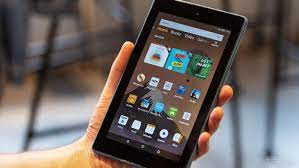
Amazon Fire tablets are great for watching videos, browsing the web, and playing games. However, the tablet’s user interface (UI) is customized with Amazon’s user interface called Fire OS, which is based on Android but doesn’t look like it. If you prefer the clean look and feel of stock Android, you can make your Amazon Fire tablet look more like it.

In this article, we will show you how to make your Amazon Fire tablet look like stock Android.

Step 1: Installing the Google Play Store

The first step to making your Amazon Fire tablet look like stock Android is to install the Google Play Store. Amazon’s app store doesn’t have all the apps available on the Google Play Store, so having access to it will give you a lot more choices.

To install the Google Play Store, open the settings app on your tablet, go to Security & Privacy, and enable the “Apps from Unknown Sources” option. Then download and install the Google Play Store APK.

Step 2: Installing a Launcher

A launcher is an app that controls how your home screen, app drawer, and widgets look and function. Amazon’s Fire OS comes with a built-in launcher, but it doesn’t look like stock Android.

There are a lot of launchers out there, but for a stock Android look, we recommend using the Nova Launcher. It’s available for free in the Google Play Store. Install and launch the app and follow the setup wizard to personalize your screen to your liking.

Step 3: Turn off the lock screen ads

By default, Amazon Fire tablets show ads on the lock screen, which can make your tablet look cluttered. If you want your tablet to look more like stock Android, we recommend turning off the lock screen ads.

To turn off lock screen ads, open the settings app on your tablet, go to Security & Privacy, then choose “Lock Screen Ads.” Tap the toggle to turn off the lock screen ads.

Step 4: Disable Amazon’s recommendations

The Amazon Fire tablet comes with a lot of bloatware, including personalized recommendation widgets and apps. This can make your tablet look cluttered and slow it down.

To disable Amazon’s recommendations, open the settings app on your tablet, go to Apps & Games, then tap on “Amazon Application Settings.” Choose “Recommendations” and turn off the “Amazon Home Recommendations” toggle.

Step 5: Change the Wallpaper

The wallpaper of your tablet is the background image that appears behind your home screen icons. The Amazon Fire tablet comes with a default wallpaper. You can customize your tablet and make it look like stock Android by changing the wallpaper.

To change the wallpaper, long-press on the home screen until the options menu appears. Choose “Wallpapers,” then select “Gallery” to choose an image of your own.

Step 6: Install Stock Android Apps

Google’s apps are what makes Android great. You can install Google’s apps from the Google Play Store. Here are some of the apps we recommend installing to make your Amazon Fire tablet look more like stock Android:

– Google Chrome: for a fast and reliable browser.
– Gmail: for accessing your email.
– Google Calendar: for managing your events and reminders.
– Google Maps: for navigation and location services.
– Google Drive: for cloud storage and document creation.

In conclusion, making your Amazon Fire tablet look like stock Android is not complicated. By installing the Google Play Store, a launcher, turning off the lock screen ads and bloatware, and customizing the wallpaper, you can make your tablet look more like an Android tablet. The Amazon Fire tablet is a great device, but with a few tweaks, it can look and feel like a more conventional Android tablet.

Previous Article

How to Scan Documents on Your Samsung ...

Next Article

How to Fix It When Internet Explorer ...

Matthew Lynch

Related articles More from author

  • Digital & Mobile Technology

    How to Unofficially Play Halo Infinite’s Split-Screen Co-Op

    June 26, 2023
    By Matthew Lynch
  • Digital & Mobile Technology

    Why You Shouldn’t Learn to Code With Codecademy

    July 4, 2023
    By Matthew Lynch
  • Digital & Mobile Technology

    Best Online FPS Browser Games

    August 5, 2023
    By Matthew Lynch
  • Digital & Mobile Technology

    WhatsApp vs. Skype

    July 31, 2023
    By Matthew Lynch
  • Digital & Mobile Technology

    How to Connect Any Phone or Tablet to Your TV Using USB

    June 6, 2023
    By Matthew Lynch
  • Digital & Mobile Technology

    Samsung Galaxy A03: News, Price, Release Date, and Features

    June 14, 2023
    By Matthew Lynch

Search

Login & Registration

  • Register
  • Log in
  • Entries feed
  • Comments feed
  • WordPress.org

Newsletter

Signup for The Tech Edvocate Newsletter and have the latest in EdTech news and opinion delivered to your email address!

About Us

Since technology is not going anywhere and does more good than harm, adapting is the best course of action. That is where The Tech Edvocate comes in. We plan to cover the PreK-12 and Higher Education EdTech sectors and provide our readers with the latest news and opinion on the subject. From time to time, I will invite other voices to weigh in on important issues in EdTech. We hope to provide a well-rounded, multi-faceted look at the past, present, the future of EdTech in the US and internationally.

We started this journey back in June 2016, and we plan to continue it for many more years to come. I hope that you will join us in this discussion of the past, present and future of EdTech and lend your own insight to the issues that are discussed.

Newsletter

Signup for The Tech Edvocate Newsletter and have the latest in EdTech news and opinion delivered to your email address!

Contact Us

The Tech Edvocate
910 Goddin Street
Richmond, VA 23231
(601) 630-5238
[email protected]

Copyright © 2025 Matthew Lynch. All rights reserved.