The Tech Edvocate

Top Menu

  • Advertisement
  • Apps
  • Home Page
  • Home Page Five (No Sidebar)
  • Home Page Four
  • Home Page Three
  • Home Page Two
  • Home Tech2
  • Icons [No Sidebar]
  • Left Sidbear Page
  • Lynch Educational Consulting
  • My Account
  • My Speaking Page
  • Newsletter Sign Up Confirmation
  • Newsletter Unsubscription
  • Our Brands
  • Page Example
  • Privacy Policy
  • Protected Content
  • Register
  • Request a Product Review
  • Shop
  • Shortcodes Examples
  • Signup
  • Start Here
    • Governance
    • Careers
    • Contact Us
  • Terms and Conditions
  • The Edvocate
  • The Tech Edvocate Product Guide
  • Topics
  • Write For Us
  • Advertise

Main Menu

  • Start Here
    • Our Brands
    • Governance
      • Lynch Educational Consulting, LLC.
      • Dr. Lynch’s Personal Website
      • Careers
    • Write For Us
    • The Tech Edvocate Product Guide
    • Contact Us
    • Books
    • Edupedia
    • Post a Job
    • The Edvocate Podcast
    • Terms and Conditions
    • Privacy Policy
  • Topics
    • Assistive Technology
    • Child Development Tech
    • Early Childhood & K-12 EdTech
    • EdTech Futures
    • EdTech News
    • EdTech Policy & Reform
    • EdTech Startups & Businesses
    • Higher Education EdTech
    • Online Learning & eLearning
    • Parent & Family Tech
    • Personalized Learning
    • Product Reviews
  • Advertise
  • Tech Edvocate Awards
  • The Edvocate
  • Pedagogue
  • School Ratings

logo

The Tech Edvocate

  • Start Here
    • Our Brands
    • Governance
      • Lynch Educational Consulting, LLC.
      • Dr. Lynch’s Personal Website
        • My Speaking Page
      • Careers
    • Write For Us
    • The Tech Edvocate Product Guide
    • Contact Us
    • Books
    • Edupedia
    • Post a Job
    • The Edvocate Podcast
    • Terms and Conditions
    • Privacy Policy
  • Topics
    • Assistive Technology
    • Child Development Tech
    • Early Childhood & K-12 EdTech
    • EdTech Futures
    • EdTech News
    • EdTech Policy & Reform
    • EdTech Startups & Businesses
    • Higher Education EdTech
    • Online Learning & eLearning
    • Parent & Family Tech
    • Personalized Learning
    • Product Reviews
  • Advertise
  • Tech Edvocate Awards
  • The Edvocate
  • Pedagogue
  • School Ratings
  • Trader Joe’s March 2026 Arrivals: Affordable Gems and Customer Favorites

  • Mark Sprague Takes the Helm as Director of St. Pete-Clearwater International Airport

  • Consumer Attitudes Toward Editing Claim Images: A Growing Concern for Insurers

  • ProstaVive: A Comprehensive Review of the Prostate Health Supplement in 2026

  • Discover Trader Joe’s Top Picks for 2026: Customer Choice Awards Highlights

  • U.S. Stock Market Faces Uncertainty Amid Rising Oil Prices and Geopolitical Tensions

  • Asian Markets Show Mixed Results Amid Rising Oil Prices and U.S. Futures Decline

  • Stability in Fuel Prices Amidst Global Crude Market Turmoil: An Analysis

  • Crude Oil Prices Surge Amid Tensions in the Strait of Hormuz

  • Indian Stock Market Opens Flat Amid Geopolitical Tensions and Oil Price Fluctuations

Assistive Technology
Home›Assistive Technology›How to Install RAM in Your PC, Step-by-Step

How to Install RAM in Your PC, Step-by-Step
By Matthew Lynch
June 21, 2023
0
Spread the love

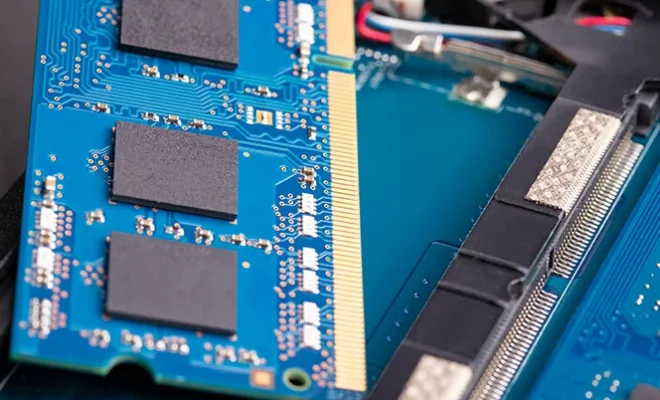
Adding more RAM to your computer is one of the easiest and most cost-effective ways to boost its performance. Installing RAM is a simple process that can be done in a matter of minutes, even if you have no technical expertise. In this step-by-step guide, we’ll walk you through the process of installing RAM in your PC.

Step 1: Check the compatibility

Before you buy a new RAM, check the compatibility with your PC. Make sure your motherboard supports the type and speed of RAM you are planning to install. You can find this information in the manual of your motherboard or on the manufacturer’s website.

Step 2: Power off your PC

Before you begin, make sure your PC is powered off, unplugged and grounded. This is important to prevent any static electricity from damaging the sensitive components of your system.

Step 3: Access the RAM slot

The RAM slot is located on the motherboard. Open your computer’s case to access the RAM slot. First, remove the screws holding the case in place. Then, gently lift off the case cover to reveal the internal parts of your computer.

Step 4: Locate the RAM slots

The RAM slots are long, thin slots located near the center of the motherboard. You should see two or four of these slots, depending on your motherboard.

Step 5: Remove the old RAM

If you are replacing the existing RAM, remove the old memory modules. To do this, press down on the tabs located on either side of the memory module to release it. This will cause the memory module to pop up on an angle, and then you can gently remove it from the slot.

Step 6: Insert the new RAM

Take the new memory module and align it with the slot, making sure that the notch on the bottom of the module matches with the notch in the slot. Press down on each side of the module until you hear a click. This indicates that the memory module has been securely attached.

Step 7: Power on your PC

Once you have inserted the new RAM, carefully close up your computer and power it on. Check to make sure that your system recognizes the new memory. To do this, go to your operating system’s settings and find the system information. Check whether the RAM is detected correctly in the memory section.


Previous Article

What Is an Automatic Mouse Mover?

Next Article

How Microtransactions Are Ruining the Gaming Industry

Matthew Lynch

Related articles More from author

  • Assistive Technology

    How to Fix a Dell Laptop That Won’t Turn On

    June 6, 2023
    By Matthew Lynch
  • Assistive Technology

    How to Fix “There Is Something Wrong With the Proxy Server” in Chrome on Windows

    June 23, 2023
    By Matthew Lynch
  • Assistive Technology

    How to Restore Tabs in Chrome

    June 8, 2023
    By Matthew Lynch
  • Assistive Technology

    How to Undo in Word

    June 10, 2023
    By Matthew Lynch
  • Assistive Technology

    How to Update Your AMD Radeon Graphics Drivers on Windows 11

    June 23, 2023
    By Matthew Lynch
  • Assistive Technology

    How to Stop Oversharing on Social Media

    June 22, 2023
    By Matthew Lynch

Search

Login & Registration

  • Register
  • Log in
  • Entries feed
  • Comments feed
  • WordPress.org

Newsletter

Signup for The Tech Edvocate Newsletter and have the latest in EdTech news and opinion delivered to your email address!

About Us

Since technology is not going anywhere and does more good than harm, adapting is the best course of action. That is where The Tech Edvocate comes in. We plan to cover the PreK-12 and Higher Education EdTech sectors and provide our readers with the latest news and opinion on the subject. From time to time, I will invite other voices to weigh in on important issues in EdTech. We hope to provide a well-rounded, multi-faceted look at the past, present, the future of EdTech in the US and internationally.

We started this journey back in June 2016, and we plan to continue it for many more years to come. I hope that you will join us in this discussion of the past, present and future of EdTech and lend your own insight to the issues that are discussed.

Newsletter

Signup for The Tech Edvocate Newsletter and have the latest in EdTech news and opinion delivered to your email address!

Contact Us

The Tech Edvocate
910 Goddin Street
Richmond, VA 23231
(601) 630-5238
[email protected]

Copyright © 2025 Matthew Lynch. All rights reserved.