
The Tech Edvocate

Top Menu

  • Advertisement
  • Apps
  • Home Page
  • Home Page Five (No Sidebar)
  • Home Page Four
  • Home Page Three
  • Home Page Two
  • Home Tech2
  • Icons [No Sidebar]
  • Left Sidbear Page
  • Lynch Educational Consulting
  • My Account
  • My Speaking Page
  • Newsletter Sign Up Confirmation
  • Newsletter Unsubscription
  • Our Brands
  • Page Example
  • Privacy Policy
  • Protected Content
  • Register
  • Request a Product Review
  • Shop
  • Shortcodes Examples
  • Signup
  • Start Here
    • Governance
    • Careers
    • Contact Us
  • Terms and Conditions
  • The Edvocate
  • The Tech Edvocate Product Guide
  • Topics
  • Write For Us
  • Advertise

Main Menu

  • Start Here
    • Our Brands
    • Governance
      • Lynch Educational Consulting, LLC.
      • Dr. Lynch’s Personal Website
      • Careers
    • Write For Us
    • The Tech Edvocate Product Guide
    • Contact Us
    • Books
    • Edupedia
    • Post a Job
    • The Edvocate Podcast
    • Terms and Conditions
    • Privacy Policy
  • Topics
    • Assistive Technology
    • Child Development Tech
    • Early Childhood & K-12 EdTech
    • EdTech Futures
    • EdTech News
    • EdTech Policy & Reform
    • EdTech Startups & Businesses
    • Higher Education EdTech
    • Online Learning & eLearning
    • Parent & Family Tech
    • Personalized Learning
    • Product Reviews
  • Advertise
  • Tech Edvocate Awards
  • The Edvocate
  • Pedagogue
  • School Ratings

logo

The Tech Edvocate

  • Start Here
    • Our Brands
    • Governance
      • Lynch Educational Consulting, LLC.
      • Dr. Lynch’s Personal Website
        • My Speaking Page
      • Careers
    • Write For Us
    • The Tech Edvocate Product Guide
    • Contact Us
    • Books
    • Edupedia
    • Post a Job
    • The Edvocate Podcast
    • Terms and Conditions
    • Privacy Policy
  • Topics
    • Assistive Technology
    • Child Development Tech
    • Early Childhood & K-12 EdTech
    • EdTech Futures
    • EdTech News
    • EdTech Policy & Reform
    • EdTech Startups & Businesses
    • Higher Education EdTech
    • Online Learning & eLearning
    • Parent & Family Tech
    • Personalized Learning
    • Product Reviews
  • Advertise
  • Tech Edvocate Awards
  • The Edvocate
  • Pedagogue
  • School Ratings
  • 100 Best Apps for Team Building

  • 100 Best Apps for Performance Reviews

  • 100 Best Apps for Employee Development

  • 100 Best Threat Detection Apps

  • 100 Best Apps for Employee Training

  • 100 Best Data Protection Apps

  • 100 Best Apps for Employee Onboarding

  • 100 Best Apps for Hospital Administrators

  • 100 Best Apps for Bloggers

  • 100 Best Computer Vision Apps

How To
Home›How To›How to Import an Image Into Photoshop

How to Import an Image Into Photoshop
By Matthew Lynch
March 21, 2024
0
Spread the love

Introduction

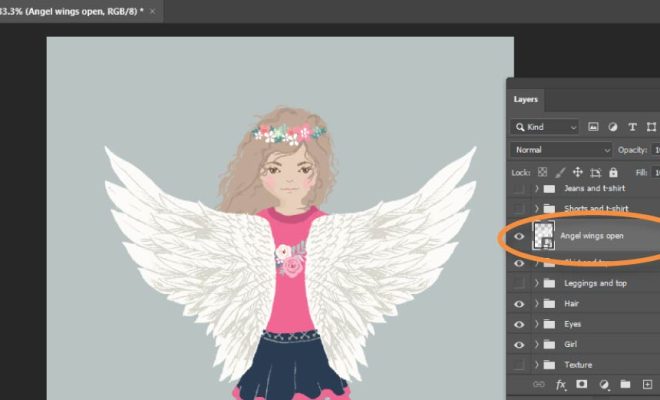
Adobe Photoshop is an incredibly powerful and versatile software for photo editing and graphic design. One of the fundamental tasks you will want to master in Photoshop is importing images. In this article, we will explore the process of importing images into Photoshop, offering step-by-step guidance and helpful tips.
Steps to Import an Image into Photoshop

1. Launch Adobe Photoshop

Open Adobe Photoshop on your computer by double-clicking the program icon or searching it in your application list.

2. Create a new document or open an existing one

If you’re starting a new project, create a new document by going to File > New and choose the desired dimensions and settings for your project. Alternatively, you can open an existing document via File > Open and navigate to the file location.

3. Import your image

Option A: Drag and drop

– Simply open the folder where your desired image is stored.

– Click on the image file and drag it right into the open Photoshop workspace.

– Release the mouse button to place the image into your document.

Option B: Use Place Embedded or Place Linked

– Choose File > Place Embedded or File > Place Linked from the top menu.

– Place Embedded adds the image as part of your document, while Place Linked references the original file location.

– Navigate to your desired image location in the file browser, click on the image file, then press “Place” to insert it into your document.

4. Adjust imported image (Optional)

Once your image is imported, you might want to resize it or position it within your canvas.

– To resize: Click on one of the corner handles that come with the placed image. Hold down Shift while resizing if you want to maintain aspect ratio.

– To position: Click on any non-corner handle or simply inside the bounding box that appears around your image once imported, then click and drag it into position within your canvas.

5. Confirm the placement

When you’re satisfied with your adjustments, press Enter to confirm your image placement, or click on the checkmark in the Options bar located at the top of the screen.

6. Save your work

Don’t forget to save your document by choosing File > Save. Choose your desired file format (e.g., .PSD, .JPEG, .PNG) and select an appropriate location on your computer to save it.

Conclusion

Importing images into Photoshop can be done in multiple ways, including drag and drop and using the Place Embedded or Place Linked options. Once you’ve imported an image, you can easily adjust its size and position within your document. By following this guide, you’ll be well on your way to becoming proficient in using Photoshop for all your photo editing and graphic design needs.


Previous Article

4 Easy Ways to Deal with Raccoons ...

Next Article

4 Ways to Play on Xbox Live ...

Matthew Lynch

Related articles More from author

  • How To

    How to Anodize Aluminum

    October 2, 2023
    By Matthew Lynch
  • How To

    3 Ways to Treat Diarrhea in Parakeets

    April 1, 2024
    By Matthew Lynch
  • How To

    How to Bathe a Tortoise: 11 Steps

    March 5, 2024
    By Matthew Lynch
  • How To

    How to Fix Felted Wool: 10 Steps

    November 2, 2023
    By Matthew Lynch
  • How To

    How to Retrieve Passwords from iCloud

    November 11, 2023
    By Matthew Lynch
  • How To

    3 Ways to Kill and Deter Invasive Toads

    February 12, 2024
    By Matthew Lynch

Search

Login & Registration

  • Log in
  • Entries feed
  • Comments feed
  • WordPress.org

Newsletter

Signup for The Tech Edvocate Newsletter and have the latest in EdTech news and opinion delivered to your email address!

About Us

Since technology is not going anywhere and does more good than harm, adapting is the best course of action. That is where The Tech Edvocate comes in. We plan to cover the PreK-12 and Higher Education EdTech sectors and provide our readers with the latest news and opinion on the subject. From time to time, I will invite other voices to weigh in on important issues in EdTech. We hope to provide a well-rounded, multi-faceted look at the past, present, the future of EdTech in the US and internationally.

We started this journey back in June 2016, and we plan to continue it for many more years to come. I hope that you will join us in this discussion of the past, present and future of EdTech and lend your own insight to the issues that are discussed.

Newsletter

Signup for The Tech Edvocate Newsletter and have the latest in EdTech news and opinion delivered to your email address!

Contact Us

The Tech Edvocate
910 Goddin Street
Richmond, VA 23231
(601) 630-5238
[email protected]

Copyright © 2026 Matthew Lynch. All rights reserved.