The Tech Edvocate

Top Menu

  • Advertisement
  • Apps
  • Home Page
  • Home Page Five (No Sidebar)
  • Home Page Four
  • Home Page Three
  • Home Page Two
  • Home Tech2
  • Icons [No Sidebar]
  • Left Sidbear Page
  • Lynch Educational Consulting
  • My Account
  • My Speaking Page
  • Newsletter Sign Up Confirmation
  • Newsletter Unsubscription
  • Our Brands
  • Page Example
  • Privacy Policy
  • Protected Content
  • Register
  • Request a Product Review
  • Shop
  • Shortcodes Examples
  • Signup
  • Start Here
    • Governance
    • Careers
    • Contact Us
  • Terms and Conditions
  • The Edvocate
  • The Tech Edvocate Product Guide
  • Topics
  • Write For Us
  • Advertise

Main Menu

  • Start Here
    • Our Brands
    • Governance
      • Lynch Educational Consulting, LLC.
      • Dr. Lynch’s Personal Website
      • Careers
    • Write For Us
    • The Tech Edvocate Product Guide
    • Contact Us
    • Books
    • Edupedia
    • Post a Job
    • The Edvocate Podcast
    • Terms and Conditions
    • Privacy Policy
  • Topics
    • Assistive Technology
    • Child Development Tech
    • Early Childhood & K-12 EdTech
    • EdTech Futures
    • EdTech News
    • EdTech Policy & Reform
    • EdTech Startups & Businesses
    • Higher Education EdTech
    • Online Learning & eLearning
    • Parent & Family Tech
    • Personalized Learning
    • Product Reviews
  • Advertise
  • Tech Edvocate Awards
  • The Edvocate
  • Pedagogue
  • School Ratings

logo

The Tech Edvocate

  • Start Here
    • Our Brands
    • Governance
      • Lynch Educational Consulting, LLC.
      • Dr. Lynch’s Personal Website
        • My Speaking Page
      • Careers
    • Write For Us
    • The Tech Edvocate Product Guide
    • Contact Us
    • Books
    • Edupedia
    • Post a Job
    • The Edvocate Podcast
    • Terms and Conditions
    • Privacy Policy
  • Topics
    • Assistive Technology
    • Child Development Tech
    • Early Childhood & K-12 EdTech
    • EdTech Futures
    • EdTech News
    • EdTech Policy & Reform
    • EdTech Startups & Businesses
    • Higher Education EdTech
    • Online Learning & eLearning
    • Parent & Family Tech
    • Personalized Learning
    • Product Reviews
  • Advertise
  • Tech Edvocate Awards
  • The Edvocate
  • Pedagogue
  • School Ratings
  • Zola Suite pricing 2026

  • How to become Airbnb Superhost

  • Yelp Elite status how to get

  • Rocket Matter vs CosmoLex comparison

  • Lawyaw vs Documate which is better

  • How to use Yelp for marketing

  • How many templates in Lawyaw

  • Can TripAdvisor reviews be edited

  • How to manage documents in Zola Suite

  • Filevine vs Litify features

Digital & Mobile Technology
Home›Digital & Mobile Technology›How to Generate 2FA Codes on Windows 10 With Google Authenticator

How to Generate 2FA Codes on Windows 10 With Google Authenticator
By Matthew Lynch
June 12, 2023
0
Spread the love

In this digital age, online security is of utmost importance. Hackers are becoming more sophisticated in their methods, making it imperative for users to strengthen their authentication process. Two-factor authentication, also known as 2FA, is an additional layer of security that makes it more difficult for unauthorized users to access one’s account. Google Authenticator is a popular application that generates 2FA codes, and here’s how you can use it on Windows 10.

Step 1: Install Google Authenticator

The first step is to install the Google Authenticator application on your mobile device. It can be downloaded for free from the Apple App Store or Google Play Store. Once installed, open the app and click on the “Get Started” button.

Step 2: Add an Account

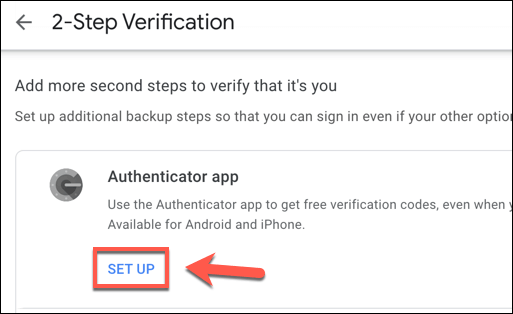
Click on the “+” icon to add an account. You will be prompted to either scan a QR code or manually enter a key. The QR code or key is provided by the website or app you want to enable 2FA on. For example, if you want to enable 2FA on your Google account, go to your Google account settings and enable 2FA. It will provide you with a QR code to scan or a key to enter into the Google Authenticator app.

Step 3: Generate 2FA codes

Once you have added an account, the Google Authenticator app will generate a 6-digit code that changes every 30 seconds. To log in to your account, you will need to enter this code in addition to your password. This means that even if a hacker obtains your password, they won’t be able to log in to your account without the 2FA code.

Step 4: Use on Windows 10

Although Google Authenticator is primarily designed for mobile devices, it can also be used on Windows 10. To do this, you will need to download and install a third-party application called WinAuth. Once installed, open WinAuth and click on the “Add” button to add a new account. Select “Google” as the provider and either scan the QR code or manually enter the key provided by the website or app.

Step 5: Copy the 2FA code

Once the account is added, WinAuth will generate a 6-digit code just like the Google Authenticator app on your mobile device. To use this code, simply copy it and enter it along with your password when logging in to your account on Windows 10.

In conclusion, enabling 2FA on your accounts is essential in today’s digital world. Google Authenticator is a reliable and easy-to-use application that can generate 2FA codes for your accounts. Although primarily designed for mobile devices, it can also be used on Windows 10 with the help of a third-party application called WinAuth. By following these steps, you can enhance the security of your online accounts and protect your sensitive information from hackers.


Previous Article

What Is OpenWrt And Why Should I ...

Next Article

Buying a Refurbished Mac? Things You Need ...

Matthew Lynch

Related articles More from author

  • Digital & Mobile Technology

    How to Zoom in on Snapchat

    June 4, 2023
    By Matthew Lynch
  • Digital & Mobile Technology

    Free Excel Templates to Help Manage Your Budget

    April 10, 2023
    By Matthew Lynch
  • Digital & Mobile Technology

    What Is the “Hi Mom!” Scam? How to Avoid and Handle It

    June 23, 2023
    By Matthew Lynch
  • Digital & Mobile Technology

    The Dark Side of AI Art: Potential Issues With the Growing Trend

    June 12, 2023
    By Matthew Lynch
  • Digital & Mobile Technology

    All About the Status Bar in Excel and How to Use It

    June 10, 2023
    By Matthew Lynch
  • Digital & Mobile Technology

    How to Screenshot On a Lenovo Laptop

    May 31, 2023
    By Matthew Lynch

Search

Login & Registration

  • Log in
  • Entries feed
  • Comments feed
  • WordPress.org

Newsletter

Signup for The Tech Edvocate Newsletter and have the latest in EdTech news and opinion delivered to your email address!

About Us

Since technology is not going anywhere and does more good than harm, adapting is the best course of action. That is where The Tech Edvocate comes in. We plan to cover the PreK-12 and Higher Education EdTech sectors and provide our readers with the latest news and opinion on the subject. From time to time, I will invite other voices to weigh in on important issues in EdTech. We hope to provide a well-rounded, multi-faceted look at the past, present, the future of EdTech in the US and internationally.

We started this journey back in June 2016, and we plan to continue it for many more years to come. I hope that you will join us in this discussion of the past, present and future of EdTech and lend your own insight to the issues that are discussed.

Newsletter

Signup for The Tech Edvocate Newsletter and have the latest in EdTech news and opinion delivered to your email address!

Contact Us

The Tech Edvocate
910 Goddin Street
Richmond, VA 23231
(601) 630-5238
[email protected]

Copyright © 2026 Matthew Lynch. All rights reserved.