The Tech Edvocate

Top Menu

  • Advertisement
  • Apps
  • Home Page
  • Home Page Five (No Sidebar)
  • Home Page Four
  • Home Page Three
  • Home Page Two
  • Home Tech2
  • Icons [No Sidebar]
  • Left Sidbear Page
  • Lynch Educational Consulting
  • My Account
  • My Speaking Page
  • Newsletter Sign Up Confirmation
  • Newsletter Unsubscription
  • Our Brands
  • Page Example
  • Privacy Policy
  • Protected Content
  • Register
  • Request a Product Review
  • Shop
  • Shortcodes Examples
  • Signup
  • Start Here
    • Governance
    • Careers
    • Contact Us
  • Terms and Conditions
  • The Edvocate
  • The Tech Edvocate Product Guide
  • Topics
  • Write For Us
  • Advertise

Main Menu

  • Start Here
    • Our Brands
    • Governance
      • Lynch Educational Consulting, LLC.
      • Dr. Lynch’s Personal Website
      • Careers
    • Write For Us
    • The Tech Edvocate Product Guide
    • Contact Us
    • Books
    • Edupedia
    • Post a Job
    • The Edvocate Podcast
    • Terms and Conditions
    • Privacy Policy
  • Topics
    • Assistive Technology
    • Child Development Tech
    • Early Childhood & K-12 EdTech
    • EdTech Futures
    • EdTech News
    • EdTech Policy & Reform
    • EdTech Startups & Businesses
    • Higher Education EdTech
    • Online Learning & eLearning
    • Parent & Family Tech
    • Personalized Learning
    • Product Reviews
  • Advertise
  • Tech Edvocate Awards
  • The Edvocate
  • Pedagogue
  • School Ratings

logo

The Tech Edvocate

  • Start Here
    • Our Brands
    • Governance
      • Lynch Educational Consulting, LLC.
      • Dr. Lynch’s Personal Website
        • My Speaking Page
      • Careers
    • Write For Us
    • The Tech Edvocate Product Guide
    • Contact Us
    • Books
    • Edupedia
    • Post a Job
    • The Edvocate Podcast
    • Terms and Conditions
    • Privacy Policy
  • Topics
    • Assistive Technology
    • Child Development Tech
    • Early Childhood & K-12 EdTech
    • EdTech Futures
    • EdTech News
    • EdTech Policy & Reform
    • EdTech Startups & Businesses
    • Higher Education EdTech
    • Online Learning & eLearning
    • Parent & Family Tech
    • Personalized Learning
    • Product Reviews
  • Advertise
  • Tech Edvocate Awards
  • The Edvocate
  • Pedagogue
  • School Ratings
  • Mind-Blowing: These Viral Amazon Products Are NOT What You Expect

  • Bizarre: AI-Generated Fake Health Influencers Are Invading Your Feed – Here’s How to Spot Them

  • Six Startups Launch IPOs in One Day: Is This India’s Most Audacious Bet Yet?

  • The Baffling Twitter Startup Name Change: Why ‘Bluebird’ Had to Die

  • The PlayStation Trump Tariff Refunds You Won’t Get: Why Sony’s Silence Is Infuriating Gamers

  • The White House ‘Arcade’ Scandal: Why the Tetris Controversy Is Just the Beginning

  • The Billion-Dollar Battle: Seattle Times’ AI Lawsuit Could Redefine Digital Rights

  • This OpenAI Pause Reveals a Disturbing Truth About AI’s Future

  • Stunning: Feds Quietly Erase Data on Gender-Based Bullying – What It Means for Vulnerable Students

  • The Raw Truth About the Colorado Student Walkout You Haven’t Heard

Assistive Technology
Home›Assistive Technology›How to Fix Windows 11 When It Keeps Restarting

How to Fix Windows 11 When It Keeps Restarting
By Matthew Lynch
June 23, 2023
0
Spread the love

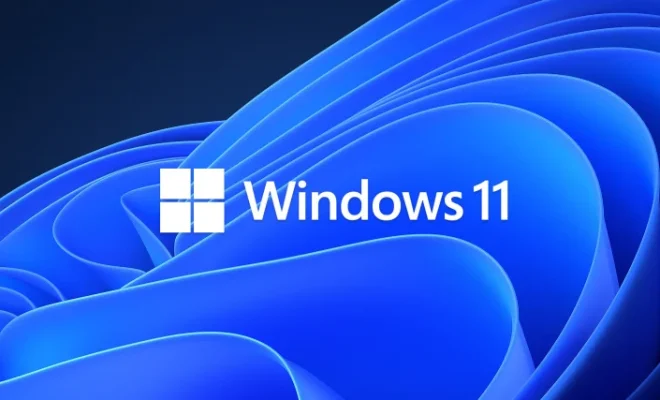
If you have recently upgraded your computer to Windows 11, you might be experiencing the dreaded problem of constant restarts. This issue can be annoying and disruptive to your workflow. Fortunately, there are several methods to fix this problem. In this article, we will discuss some of the most effective solutions to resolve the issue of Windows 11 constant restarting.

Solution 1: Disable Automatic Restart

One of the first things that you can do is to disable Windows 11 from restarting automatically. This way, you will be able to troubleshoot the problem more effectively. To disable automatic restart, follow these steps:

1. Press the Windows + R key combination to open the Run dialog box.

2. Type “sysdm.cpl” and press Enter.

3. Click on the Advanced tab and then click on the Settings button under the Startup and Recovery section.

4. In the System Properties window, untick the box that says “Automatically restart” under the System Failure section.

5. Click OK to save the changes made.

Solution 2: Use Safe Mode

Another effective method to fix the problem of constant restarts is to use Safe Mode. This mode allows the system to start with only the essential drivers and services, which can help identify and fix the issue. Follow the steps below to enter Safe Mode:

1. Restart your computer and keep pressing the F8 key until the Advanced Boot Options menu appears.

2. From the menu, select Safe Mode with Networking.

3. Once in Safe Mode, try to identify the source of the problem, such as a faulty driver or program.

Solution 3: Use System Restore

If the above solutions do not work, you can try using System Restore. This tool allows you to restore your computer to a previous state when it was working correctly. Here’s how you can use System Restore to fix the problem:

1. Press the Windows key + R to open the Run dialog box.

2. Type “rstrui.exe” and press Enter.

3. Select a restore point from the available options that predates the problem you are experiencing.

4. Follow the on-screen instructions to complete the restoration process.

Solution 4: Check for Hardware Issues

If the problem persists, it is possible that there is a problem with your hardware. Check for any loose cables, damaged components, or other hardware issues that could be causing the computer to restart. You can also run a hardware diagnostic test to identify the issue. If you find any hardware problems, you may need to replace or repair the affected components.

Conclusion

Windows 11 constant restarting can be a frustrating problem, but there are several ways to fix it. Try disabling automatic restart, entering Safe Mode, using System Restore, or checking for hardware issues to identify and resolve the problem. With these solutions, you can get your computer back up and running smoothly in no time.

Previous Article

Projects for a Raspberry Pi Pico

Next Article

How to Unclog a 3D Printer Nozzle

Matthew Lynch

Related articles More from author

  • Assistive Technology

    How to Fix It When Disney Plus Is Not Working on Fire Stick

    June 6, 2023
    By Matthew Lynch
  • Assistive Technology

    Quick Ways to Transfer Photos From iPhone to iPhone

    June 22, 2023
    By Matthew Lynch
  • Assistive Technology

    How to Set up Donations on Twitch

    June 6, 2023
    By Matthew Lynch
  • Assistive Technology

    How to Use or Disable Android’s Digital Wellbeing Dashboard

    June 21, 2023
    By Matthew Lynch
  • Assistive Technology

    How to Outline Text in Photoshop

    June 10, 2023
    By Matthew Lynch
  • Assistive Technology

    How to Encrypt Your Files or Folders on Your Windows PC

    June 6, 2023
    By Matthew Lynch

Search

Login & Registration

  • Log in
  • Entries feed
  • Comments feed
  • WordPress.org

Newsletter

Signup for The Tech Edvocate Newsletter and have the latest in EdTech news and opinion delivered to your email address!

About Us

Since technology is not going anywhere and does more good than harm, adapting is the best course of action. That is where The Tech Edvocate comes in. We plan to cover the PreK-12 and Higher Education EdTech sectors and provide our readers with the latest news and opinion on the subject. From time to time, I will invite other voices to weigh in on important issues in EdTech. We hope to provide a well-rounded, multi-faceted look at the past, present, the future of EdTech in the US and internationally.

We started this journey back in June 2016, and we plan to continue it for many more years to come. I hope that you will join us in this discussion of the past, present and future of EdTech and lend your own insight to the issues that are discussed.

Newsletter

Signup for The Tech Edvocate Newsletter and have the latest in EdTech news and opinion delivered to your email address!

Contact Us

The Tech Edvocate
910 Goddin Street
Richmond, VA 23231
(601) 630-5238
[email protected]

Copyright © 2026 Matthew Lynch. All rights reserved.