Fix Warzone Dev Errors: 10 Proven Methods for 2024
“`html
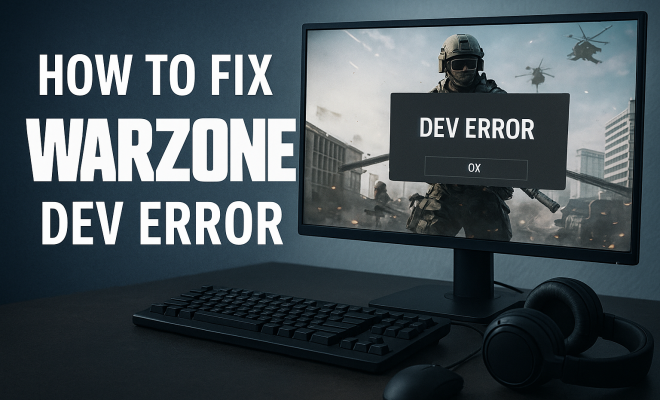
Call of Duty: Warzone has become a staple in the world of battle royale gaming. However, like many popular online games, it has its share of technical issues, particularly the notorious dev error that frustrates countless players. If you’ve been searching for how to fix Warzone dev error, you’re not alone. This guide will explore ten effective methods to resolve this issue, ensuring you can return to the battlefield without interruption.
1. Understanding the Warzone Dev Error
Before diving into solutions, it’s crucial to understand what the Warzone dev error actually is. This error can manifest in various forms, often identified by codes that signify different issues. Common reasons for these errors include software conflicts, corrupted files, or issues with your system’s settings. Distinguishing these codes can help narrow down the troubleshooting process, leading you to the correct fix.
Players frequently encounter dev error messages like 6068, 5573, or 6165, each indicating specific problems within the game or your computer system. For instance, error 6068 typically points to a DirectX-related issue, while 5573 can indicate a connection problem. Knowing these distinctions can save you time and frustration as you proceed with fixes.
Interestingly, player forums have noted that some errors are more common during specific updates or events, such as new season launches or during major game patches. It’s important to stay informed about the game’s updates, as sometimes dev errors are identified and fixed by the developers shortly after they are reported.
2. Update Your Graphics Drivers
Outdated graphics drivers can often be the culprit behind many technical hiccups, including dev errors in Warzone. Ensuring that your graphics drivers are up to date can make a significant difference in gameplay. To update your drivers, go to the official website of your graphics card manufacturer—whether it be NVIDIA, AMD, or Intel—and download the latest version for your specific card.
Once the drivers are updated, restart your computer. Launch Warzone again, and you might find that the dev error has vanished. Keeping your graphics drivers fresh not only enhances game performance but also minimizes the risk of running into issues like these in the future.
As a bonus tip, consider using software that can automatically check for and install driver updates. Tools like GeForce Experience for NVIDIA cards can help keep your graphics drivers current without having to manually check for updates.
3. Verify Game Files through Battle.net
Another effective way to fix Warzone dev error is to verify your game files. Sometimes, game files can get corrupted or deleted, leading to errors that disrupt your gaming experience. If you’re using Battle.net, follow these steps: open the Battle.net launcher, select Call of Duty: Warzone, click on the gear icon next to the “Play” button, and select “Scan and Repair.” This process can detect and fix any corrupted files automatically.
Verifying your game files is a straightforward yet powerful step in troubleshooting. It ensures that all necessary files are present and functional, potentially resolving issues that could lead to a dev error. Remember to allow the scan to complete fully to ensure all files are checked.
Additionally, keep in mind that sometimes the verification process may take longer, especially if your game is installed on a traditional hard drive rather than an SSD. The speed of the drive can affect how quickly the game files are scanned and repaired.
4. Adjust In-Game Settings
Sometimes, the settings within Warzone can contribute to encountering dev errors. High graphical settings or specific options may not be supported by your hardware, leading to crashes or errors. Try lowering your graphics settings, disabling unnecessary features like Ray Tracing, and ensuring your resolution is compatible.
In addition to graphical adjustments, consider changing the render resolution and texture settings. Players have reported that switching these to lower settings has effectively eliminated dev errors. Once you’ve made adjustments, restart the game to see if the issue persists. (See: Wikipedia page on Call of Duty: Warzone.)
Furthermore, enabling features like V-Sync or limiting the frame rate can provide stability to the game. While these settings can sometimes reduce the overall graphical fidelity, they might help prevent crashes and improve the overall experience.
5. Disable Overlays
Overlays from various applications such as Discord, GeForce Experience, or Steam can sometimes interfere with Warzone, causing dev errors. These overlays may conflict with the game’s processes, leading to crashes or error messages. Disabling these overlays can help you identify if they’re the source of your issues.
To disable overlays, go into the settings of each application you use and find the overlay options. Turn them off, save your changes, and then restart Warzone. This simple step may resolve your dev error issue, allowing you to play without interruptions.
Moreover, consider temporarily disabling any other background applications that might be running while you play. Applications that use significant CPU or GPU resources can cause conflicts, leading to dev errors. Task Manager can help identify resource-intensive applications.
6. Check Your Internet Connection
A stable internet connection is essential for a smooth gaming experience in Warzone. A poor connection can lead to various errors, including dev errors. Ensure that your connection is stable by running a speed test and troubleshooting any issues you find. If possible, connect your gaming device directly to your router using an Ethernet cable for a more reliable connection.
If you’re on Wi-Fi, consider moving closer to your router or eliminating potential interferences from other devices. Disconnect any unnecessary devices from your network while playing to improve your bandwidth availability. A strong and stable connection can significantly reduce the chances of encountering dev errors.
On top of that, you can try resetting your router or modem. Sometimes, simply refreshing your connection can resolve issues caused by temporary glitches in your network equipment. If you consistently face connectivity issues, it may be worth discussing with your Internet Service Provider (ISP).
7. Reinstall Call of Duty: Warzone
If you’ve tried all the previous solutions and are still facing the dev error, it may be time to consider a full reinstall of Warzone. This method can be a bit time-consuming, but sometimes the best way to resolve persistent issues is to wipe the slate clean.
First, uninstall the game from your system completely. Afterward, reinstall it through Battle.net. During the installation process, ensure there are no interruptions and that your internet connection remains stable. Once the installation is complete, launch the game and check for any remaining dev errors. This can refresh your game files and hopefully eliminate any lingering issues.
While reinstalling, be sure to check for any specific instructions from Activision regarding installation directories or settings that may optimize performance after reinstallation. Sometimes, improper installation paths can lead to additional errors.
8. Check for Windows Updates
Keeping your operating system updated is crucial for optimal performance in gaming. Sometimes, outdated Windows versions can lead to compatibility issues with games, resulting in errors. To check for updates, navigate to your Windows settings, go to the “Update & Security” section, and see if any updates are available.
Install any pending updates and restart your computer. Afterward, launch Warzone to see if the dev error still occurs. Regularly updating your OS not only enhances gaming performance but also adds security features, further protecting your gaming experience.
Additionally, consider updating any firmware for hardware components such as your motherboard or network card. Manufacturers often release updates that can improve compatibility with games and overall system stability. (See: CDC on ergonomics and gaming.)
9. Adjust Power Settings
Some users may not realize that their computer’s power settings can affect gaming performance. If your power settings are set to “Power Saver,” you may encounter issues like dev errors. Switching to a “High Performance” setting can provide your system with the resources it needs to run Warzone smoothly.
To change your power settings, head to the Control Panel, then to “Hardware and Sound,” and select “Power Options.” Choose the High Performance plan and save the changes. This adjustment can ensure your hardware operates at its full potential, minimizing the risk of errors during gameplay.
If you have a laptop, consider keeping it plugged in while gaming. Laptops often throttle performance when running on battery to save energy, which could lead to instability and errors in high-demand games like Warzone.
10. Community Forums and Support
Sometimes, the best solutions come from those who have faced similar issues. Community forums and support groups can be invaluable resources when you’re trying to fix Warzone dev error. Popular platforms such as Reddit or the official Activision support forums often have threads where players share their experiences and solutions.
Don’t hesitate to reach out and ask for help if you’re stuck. Sometimes, other players might have found a unique fix that isn’t widely known. Engaging with the community can also keep you updated with the latest patches or known issues that developers are addressing.
In addition to community forums, you can also follow the official Warzone Twitter account or subscribe to their YouTube channel for updates. They often post about known issues, patches, and tips that can help you navigate gameplay more effectively.
11. Understanding Specific Error Codes
As mentioned earlier, different dev error codes signify different issues. Understanding these codes can significantly simplify your troubleshooting process. For example, error 6068 typically relates to DirectX issues, which may necessitate reinstalling DirectX or updating it via Microsoft’s website.
On the other hand, error 5573 could indicate server-related issues or a need to adjust your connection settings. Knowing this information can help you avoid unnecessary steps when trying to fix Warzone dev error. Tailoring your approach based on the specific error code can lead to quicker resolutions.
For those who frequently experience dev errors, keeping a log of error codes and your attempts to fix them can be beneficial. This log can help you identify patterns or recurring issues, allowing you to focus your efforts on the most effective solutions.
12. FAQs About Fixing Warzone Dev Error
What is a dev error in Warzone?
A dev error in Warzone refers to a specific error message encountered while playing the game, often leading to crashes or disruptions. These errors can arise from various issues, ranging from software conflicts to corrupted game files.
How can I tell which dev error I’m experiencing?
Each dev error is associated with a unique code. When you receive an error message, it typically displays a specific code (e.g., 6068, 5573, etc.). Noting this code can help you research the exact nature of the issue and find targeted solutions.
Can hardware issues cause dev errors?
Yes, hardware incompatibility or failure can result in dev errors. Outdated drivers, failing components, or insufficient system specifications can all lead to these errors. Regular maintenance and updates can help mitigate hardware-related issues. (See: Study on online gaming and technical issues.)
What should I do if none of the fixes work?
If you’ve tried all the solutions and still encounter dev errors, consider reaching out to Activision Support. They can provide further assistance and may have specific fixes for known issues that aren’t widely published.
Can I get banned for using third-party software to fix dev errors?
Using third-party software can pose a risk of account bans if the software is found to interfere with game integrity or give unfair advantages. Always stick to official methods when troubleshooting the game.
Is there a way to prevent dev errors from occurring in the future?
While you can’t completely eliminate the chance of encountering dev errors, following best practices such as regular updates, maintaining a stable internet connection, and ensuring your hardware meets recommended specifications can significantly reduce their likelihood.
13. Common Causes of Dev Errors
Understanding the common causes of dev errors can further help you in troubleshooting and preventing them in the future. Here are some frequent culprits:
- DirectX Issues: As mentioned, some errors correlate with DirectX problems. Ensuring you have the latest version or reinstalling it can often help.
- Corrupted Game Files: During updates or gameplay, files can become corrupted. Regularly verifying your game files can mitigate this risk.
- System Resource Conflicts: Other software running on your computer can conflict with Warzone, particularly if they are resource-heavy programs.
- Incompatible Hardware: If you’re playing on older hardware, you may encounter errors due to insufficient performance capabilities.
14. Player Experiences and Solutions
Many players have faced dev errors and shared their unique fixes. Engaging with the community can uncover lesser-known solutions. Here are a few examples:
- Lowering Texture Settings: Some players reported that simply lowering texture quality resolved their dev errors.
- Switching to Windowed Mode: A few gamers found that playing in windowed mode instead of fullscreen helped eliminate crashes.
- Using VPN Services: A small number of users claimed that using a VPN to change their location helped with connectivity-related dev errors.
Each player’s experience is different, so what works for one may not work for another. It’s all about trial and error to find the best solution for your specific situation.
15. When to Seek Professional Help
While many dev errors can be resolved through the steps outlined above, there are times when you might need professional assistance. If you’ve tried everything and still face issues, it’s worth considering:
- Hardware Diagnostics: If you suspect a hardware issue, seek a professional to run diagnostics on components like your GPU, RAM, or motherboard.
- Technical Support Services: Some gamers prefer to contact gaming service providers who specialize in troubleshooting gaming issues.
- Local Repair Shops: If your system continues to malfunction, local tech experts can often provide a hands-on assessment.
In summary, encountering a dev error in Call of Duty: Warzone can be incredibly frustrating. However, armed with these twelve practical steps and insights, you can troubleshoot and resolve the issue effectively. Whether it’s updating drivers or adjusting settings, each method can contribute to a smoother gaming experience. Don’t let tech issues keep you from dominating the battlefield!
“`
Trending Now
Frequently Asked Questions
What is the Warzone dev error?
The Warzone dev error is a technical issue that players encounter, often identified by specific codes like 6068, 5573, or 6165. These codes indicate various problems, such as DirectX issues or connection problems. Understanding these errors can help in troubleshooting and finding the right fix.
How can I fix the Warzone dev error 6068?
To fix the Warzone dev error 6068, ensure your graphics drivers are updated, as this error is often related to DirectX issues. Additionally, check your game settings and system configurations to ensure compatibility with the game.
What causes the Warzone dev error?
The Warzone dev error can be caused by several factors, including software conflicts, corrupted game files, outdated graphics drivers, or improper system settings. Identifying the specific error code can help narrow down the cause and lead to an effective resolution.
Why do I keep getting dev errors in Warzone?
Frequent dev errors in Warzone can stem from various issues, such as outdated drivers, corrupted game files, or issues related to network connectivity. Keeping your game and system updated and troubleshooting based on specific error codes can help mitigate these problems.
Are there any official fixes for Warzone dev errors?
Yes, developers often release patches to address common dev errors in Warzone. It's important to stay updated with the game's latest news and patches, as many errors are resolved through these updates shortly after they are reported by players.
Have you experienced this yourself? We’d love to hear your story in the comments.