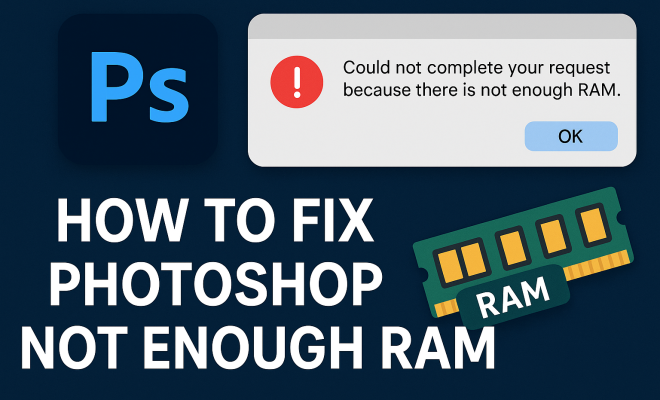
How to fix Photoshop not enough RAM
“`html
Adobe Photoshop is a powerful tool used by photographers, designers, and digital artists worldwide. However, one common issue that crops up frequently is the dreaded “not enough RAM” error. This warning can halt your creative process and lead to frustration, especially when you’re in the middle of an important project. If you’ve ever wondered how to fix Photoshop not enough RAM problems, you’re in the right place. Here are seven effective strategies to help you manage your memory usage and get Photoshop running smoothly again.
1. Optimize Photoshop’s Performance Settings
One of the first steps in fixing Photoshop’s RAM issues is to tweak its performance settings. Under the Preferences menu, go to the Performance section. Here, you can adjust how much RAM Photoshop is allowed to use. By default, Photoshop might not be utilizing all available resources on your machine. You can typically increase the RAM allocation to Photoshop to around 70-80% for optimal performance.
In addition to RAM settings, consider adjusting the cache levels and tile size. Higher cache levels can improve performance when working with larger documents or multiple layers. Conversely, if you’re working on smaller projects, reducing the cache level can help free up RAM. Remember, always restart Photoshop after making changes for them to take effect.
2. Close Unnecessary Applications
Your computer’s RAM is a shared resource, meaning other programs running in the background can eat into the memory available for Photoshop. If you’re seeing the “not enough RAM” error, take a moment to check what else is running on your computer. Close applications that you’re not actively using, especially those that are resource-heavy, like web browsers or video editing software.
Once you’ve freed up some memory, try re-launching Photoshop. You might be surprised at how much of a difference it can make. If you’re on a Windows system, using the Task Manager can help you see which applications are consuming the most RAM, allowing you to prioritize your efforts for closing those programs.
3. Upgrade Your RAM
If you frequently encounter RAM issues while using Photoshop, it might be time to consider a hardware upgrade. Modern Photoshop versions recommend at least 8 GB of RAM for optimal functionality, but 16 GB or more is preferable, especially for advanced users working on large files or multiple projects simultaneously.
Upgrading your RAM is often one of the most effective ways to improve your system’s performance. Depending on your computer’s specifications, adding more RAM can be a straightforward and relatively inexpensive task. If you’re not comfortable installing it yourself, consider enlisting the help of a professional.
4. Clear the Photoshop Cache
Photoshop uses a cache to manage temporary files and speed up your workflow. However, over time, this cache can become bloated and lead to performance problems, including RAM issues. To fix Photoshop not enough RAM errors, regularly clear your cache. You can do this by going to the Edit menu, selecting Purge, and choosing the types of cache you want to delete, such as Clipboard, Histories, or All.
Clearing the cache not only frees up memory but can also enhance the overall speed of Photoshop. It’s a good practice to incorporate this step into your routine, especially after working on extensive projects that have generated a lot of history and temporary files. (See: New York Times on optimizing computer performance.)
5. Use Smaller Files and Optimize Your Documents
Large files can strain your system’s memory, especially when working with multiple layers and high-resolution images. If you find that your projects consistently lead to RAM warnings, consider using smaller image files or optimizing your current documents.
One way to optimize a file is by flattening layers that are no longer needed. Merging layers reduces the amount of information Photoshop has to manage, thereby freeing up RAM. Additionally, save files in a format that balances quality with file size, such as using JPEG for photos when possible. Reducing the image resolution can also help, especially for projects that aren’t intended for print.
6. Increase Virtual Memory (Page File)
Virtual memory acts as a backup when your physical RAM is maxed out. By increasing the size of your page file, you can provide Photoshop with additional temporary memory space to work with. On Windows, you can adjust the virtual memory settings through the System Properties menu. Set your page file size to be about 1.5 times the size of your installed RAM.
While virtual memory is not as fast as physical RAM, it can prevent Photoshop from crashing and allow you to continue working on your projects. However, for intensive tasks, it’s always best to pair this strategy with a physical RAM upgrade for optimal performance.
7. Regular Updates and Maintenance
Finally, keeping Photoshop and your operating system regularly updated can help solve memory-related issues. Adobe frequently releases updates that enhance performance, fix bugs, and improve compatibility with your hardware. So, make it a habit to check for updates regularly.
In addition, perform routine maintenance on your computer. This can include scanning for malware, defragmenting your hard drive (if you’re using an older HDD), and cleaning up unnecessary files that can slow down performance. A well-maintained system is less likely to encounter RAM issues, allowing you to focus on your creative work without interruptions.
8. Understanding RAM Usage in Photoshop
To better comprehend how to fix Photoshop not enough RAM errors, it’s crucial to understand how Photoshop utilizes RAM. When you open a file, Photoshop loads it into RAM for quick access. This is why larger files need more RAM; they contain more data. Photoshop also caches certain actions and adjustments to enhance performance, which can further increase memory usage.
For example, if you’re working with a 200MB Photoshop file, it might require up to 4-5 times that amount of RAM to perform various operations, depending on the complexity and the number of layers used. This multiplication effect means that even if your file size appears manageable, the actual memory requirements can exceed your available resources.
9. Managing Layers Effectively
Layers are a fundamental part of working in Photoshop, but they can also consume a significant amount of RAM. To optimize your RAM usage when working with layers, consider these strategies: (See: Memory Management in Computer Science.)
- Flatten Layers When Possible: If you’re confident in your edits, flattening the image can significantly reduce RAM consumption.
- Use Smart Objects: Smart Objects allow you to preserve the original quality of images while reducing memory usage as they contain a linked file instead of a full resolution version in your project.
- Limit the Number of Open Files: Try to have only one or two projects open at a time. Each file consumes RAM, so managing how many you have open is critical.
10. Use External Storage for Large Files
If you’re handling particularly large files, consider using external storage solutions like SSDs (Solid State Drives). SSDs have faster read and write speeds, reducing the time it takes to load files into RAM. Additionally, you can set Photoshop to store its scratch disk on an SSD, which can alleviate the strain on your RAM when working with large projects.
To set up an external drive as a scratch disk, go to the Preferences menu, select Scratch Disks, and choose your external SSD from the list. This can boost performance dramatically, especially when working on memory-intensive projects like 3D rendering or high-resolution graphics.
11. Common Myths About RAM and Photoshop
There are many misconceptions about RAM usage and Photoshop that can lead users astray. Here are a few of the most common myths debunked:
- Myth: More RAM Always Equals Better Performance: While more RAM can help, it’s not a cure-all. If your CPU or GPU is outdated, upgrading RAM alone won’t improve performance significantly.
- Myth: RAM Usage is Always Visible: Some users believe they can simply monitor RAM usage via the task manager. However, Photoshop’s memory management is complex, and issues can arise even when usage appears normal.
- Myth: Closing Photoshop Frees Up All RAM: RAM is released immediately upon closing applications, but previously opened files or processes might still hold onto cached data, which can lead to unexpected performance issues on startup.
12. Frequently Asked Questions
What does “not enough RAM” mean in Photoshop?
The “not enough RAM” error indicates that Photoshop is unable to access sufficient memory to complete the requested task. This can happen when your projects are too large for your system’s current RAM capacity or if other applications are consuming available resources.
How much RAM do I need for Photoshop?
Adobe recommends a minimum of 8 GB of RAM for standard usage, but 16 GB is ideal for more intensive projects. For those working with 4K images or video files, 32 GB or more may be necessary.
Can I run Photoshop on a computer with low RAM?
While it’s possible to run Photoshop on low RAM, you may encounter significant performance issues. If you plan to use Photoshop for serious projects, upgrading your RAM is advisable.
What are scratch disks, and how do they relate to RAM?
Scratch disks are temporary storage drives that Photoshop uses when it runs out of RAM. By default, Photoshop uses your main drive, but you can configure it to use additional or external drives to boost performance.
How do I check my current RAM usage in Photoshop?
You can check RAM usage by going to the Performance section in Photoshop’s Preferences. Here, you can see how much RAM is allocated to Photoshop and how much is currently in use.
Will closing other Adobe applications help?
Yes, closing other Adobe applications can help free up RAM. Applications like Adobe Illustrator or After Effects can consume significant memory, potentially impacting Photoshop’s performance.
13. Advanced Techniques for Managing RAM in Photoshop
If you’re looking for more advanced techniques to manage RAM usage in Photoshop, consider these options:
- Utilizing Layer Comps: Layer Comps are powerful tools within Photoshop that let you create, manage, and view multiple versions of a design within a single document. Using Layer Comps can help keep your documents as lightweight as possible by consolidating different designs and states.
- Employing Adjustment Layers: Instead of applying direct edits to image layers, use adjustment layers. These non-destructive edits require less memory since they don’t alter the original image data.
- Working in Low-Resolution: For certain projects, start in a lower resolution. This approach allows you to work more fluidly and then increase the resolution as needed before finalizing your project. This can drastically reduce the initial RAM usage.
14. Performance Comparison: Different Photoshop Versions
Adobe regularly updates Photoshop, which often includes optimizations that can influence how the program uses RAM. If you’re encountering frequent “not enough RAM” warnings, consider comparing the performance of different versions:
- Photoshop CC 2015 vs. Photoshop CC 2020: Users have reported that newer versions, such as CC 2020, handle memory management more efficiently, allowing for better performance even with similar hardware specifications.
- Cloud vs. Local Installations: Some users find that the cloud-based versions of Photoshop (e.g., when using Creative Cloud) can be more resource-intensive due to syncing and additional features. Testing a local installation on the same machine may yield better RAM usage.
15. Real-World Examples: Users Share Their Experiences
Many Photoshop users have shared their experiences when it comes to tackling the “not enough RAM” error. Here are a few noteworthy cases:
- A Graphic Designer’s Journey: A freelance graphic designer faced persistent RAM issues while working on large marketing campaigns. By upgrading from 8 GB to 32 GB of RAM and optimizing her workflow with adjustment layers, her productivity surged, and the dreaded RAM warnings became a rarity.
- A Photographer’s Solution: A photographer regularly dealt with high-resolution images and heavy editing. He discovered that utilizing external SSDs for his scratch disk dramatically improved loading times and reduced crashes, allowing him to edit photos more efficiently.
16. Tips for Future-Proofing Your System
To avoid running into RAM issues in the future, consider these proactive tips:
- Invest in High-Quality Hardware: Beyond just RAM, ensure that your CPU and GPU are capable of handling your workloads. A balanced system can significantly reduce performance bottlenecks.
- Regularly Review Your Needs: As your projects grow in complexity, reassess your system’s capabilities. What worked two years ago may not be sufficient for your current needs.
- Back Up and Optimize: Regular backups can prevent loss of data and free up space on your main drive, which can enhance performance. Additionally, optimize your drive by clearing out unnecessary files.
Final Thoughts
By implementing these strategies, you can effectively fix Photoshop not enough RAM errors and get back to creating without the constant worries of crashing or slow performance. Whether it’s optimizing settings, upgrading your hardware, or managing your files better, each step you take can lead to a smoother, more enjoyable experience using Photoshop. Don’t let memory issues hold you back; take control and unleash your creativity!
“`
Trending Now
Frequently Asked Questions
How do I fix Photoshop not enough RAM error?
To fix the 'not enough RAM' error in Photoshop, you can optimize the performance settings by increasing the RAM allocation to around 70-80%. Additionally, close unnecessary applications running in the background to free up memory, and consider adjusting cache levels based on your project size.
What settings can I change in Photoshop to improve performance?
In Photoshop, go to Preferences and adjust the Performance settings. Increase the RAM allocation, and modify cache levels and tile sizes. Higher cache levels can enhance performance for larger projects, while lower levels can save RAM for smaller tasks.
Why does Photoshop say it doesn't have enough RAM?
Photoshop displays the 'not enough RAM' error when it cannot access sufficient memory due to high resource demands from the application itself or other programs running simultaneously. Closing unnecessary applications and optimizing Photoshop's settings can help alleviate this issue.
How can I check RAM usage on my computer?
To check RAM usage on a Windows computer, open the Task Manager by pressing Ctrl + Shift + Esc. In the Performance tab, you can view the memory usage details, including how much RAM is being used by different applications, which can help you identify what to close for better performance in Photoshop.
What should I do if Photoshop keeps crashing due to RAM issues?
If Photoshop is crashing due to RAM issues, try increasing the RAM allocation in the Performance settings, close any resource-heavy applications, and consider reducing the size of your projects. Restarting Photoshop after making these changes can also help stabilize performance.
Have you experienced this yourself? We’d love to hear your story in the comments.