The Tech Edvocate

Top Menu

  • Advertisement
  • Apps
  • Home Page
  • Home Page Five (No Sidebar)
  • Home Page Four
  • Home Page Three
  • Home Page Two
  • Home Tech2
  • Icons [No Sidebar]
  • Left Sidbear Page
  • Lynch Educational Consulting
  • My Account
  • My Speaking Page
  • Newsletter Sign Up Confirmation
  • Newsletter Unsubscription
  • Our Brands
  • Page Example
  • Privacy Policy
  • Protected Content
  • Register
  • Request a Product Review
  • Shop
  • Shortcodes Examples
  • Signup
  • Start Here
    • Governance
    • Careers
    • Contact Us
  • Terms and Conditions
  • The Edvocate
  • The Tech Edvocate Product Guide
  • Topics
  • Write For Us
  • Advertise

Main Menu

  • Start Here
    • Our Brands
    • Governance
      • Lynch Educational Consulting, LLC.
      • Dr. Lynch’s Personal Website
      • Careers
    • Write For Us
    • The Tech Edvocate Product Guide
    • Contact Us
    • Books
    • Edupedia
    • Post a Job
    • The Edvocate Podcast
    • Terms and Conditions
    • Privacy Policy
  • Topics
    • Assistive Technology
    • Child Development Tech
    • Early Childhood & K-12 EdTech
    • EdTech Futures
    • EdTech News
    • EdTech Policy & Reform
    • EdTech Startups & Businesses
    • Higher Education EdTech
    • Online Learning & eLearning
    • Parent & Family Tech
    • Personalized Learning
    • Product Reviews
  • Advertise
  • Tech Edvocate Awards
  • The Edvocate
  • Pedagogue
  • School Ratings

logo

The Tech Edvocate

  • Start Here
    • Our Brands
    • Governance
      • Lynch Educational Consulting, LLC.
      • Dr. Lynch’s Personal Website
        • My Speaking Page
      • Careers
    • Write For Us
    • The Tech Edvocate Product Guide
    • Contact Us
    • Books
    • Edupedia
    • Post a Job
    • The Edvocate Podcast
    • Terms and Conditions
    • Privacy Policy
  • Topics
    • Assistive Technology
    • Child Development Tech
    • Early Childhood & K-12 EdTech
    • EdTech Futures
    • EdTech News
    • EdTech Policy & Reform
    • EdTech Startups & Businesses
    • Higher Education EdTech
    • Online Learning & eLearning
    • Parent & Family Tech
    • Personalized Learning
    • Product Reviews
  • Advertise
  • Tech Edvocate Awards
  • The Edvocate
  • Pedagogue
  • School Ratings
  • This One Privacy Camera Feature Could Change Smart Homes Forever

  • Unprecedented: White House Mandates AI Security Incident Reporting After Troubling Breaches

  • The AI Storm Tracker Predicting Viral Narratives Just Landed $7 Million – Here’s Why It Matters

  • This State Just Unleashed AI to Prescribe Meds — Are We Ready for the Future of Medicine?

  • Outrageous: YouTuber Loses Decade of Work to Single YouTube Channel Ban

  • The CyberLeek Saga: What This New GTA 6 Footage Means For Rockstar

  • The Startling Truth About AI’s Medical Revolution You Need to Know

  • This Crucial Shift in AI in Higher Education Could Upend Your Future

  • Bizarre CloudConnect CRM Vulnerability: Why Thousands of Businesses Are Now Exposed

  • HomeSecure Breach: This is How 5 Million Mortgages Got Hacked

Assistive Technology
Home›Assistive Technology›How to Fix a Persistent 0x800f0831 Error in Windows 10 and 11

How to Fix a Persistent 0x800f0831 Error in Windows 10 and 11
By Matthew Lynch
June 14, 2023
0
Spread the love

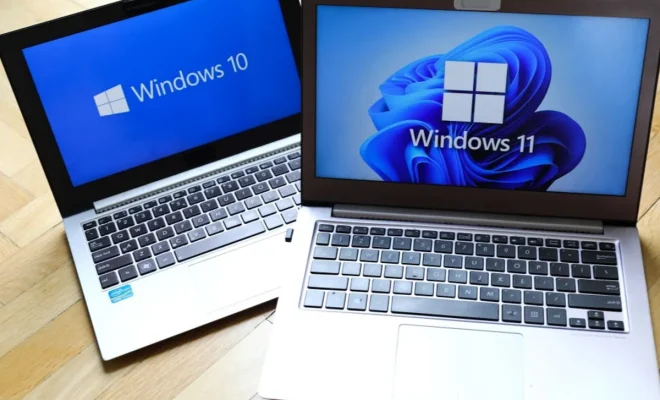
If you’ve ever encountered the 0x800f0831 error on your Windows 10 or 11 computer, you’re probably wondering how to fix it. This error can be frustrating, as it often appears without any clear explanation as to what’s causing it. Fortunately, there are several steps you can take to resolve the issue and get your computer running smoothly once again.

Method 1: Run the Windows Update Troubleshooter

The Windows Update Troubleshooter is a built-in tool that can help diagnose and fix issues with Windows updates. Here’s how to use it:

1. Type “troubleshoot” into the Windows search bar and click on the “Troubleshoot settings” option that appears.

2. Scroll down and click on “Windows Update” in the list of troubleshooters.

3. Click on “Run the troubleshooter” and follow the instructions.

If the troubleshooter finds any issues with your Windows Update settings, it will attempt to fix them automatically. Once it has completed its scan, try installing the update again to see if the error has been resolved.

Method 2: Reset the Windows Update components

If the troubleshooter doesn’t fix the issue, you can try resetting the Windows Update components. Here’s how:

1. Open the Windows Command Prompt by searching for “cmd” in the Windows search bar and selecting “Run as administrator.”

2. Type the following commands one at a time, pressing Enter after each one:

net stop wuauserv
net stop cryptSvc
net stop bits
net stop msiserver

3. Rename the SoftwareDistribution and Catroot2 folders by typing the following commands:

ren C:\Windows\SoftwareDistribution SoftwareDistribution.old
ren C:\Windows\System32\catroot2 Catroot2.old

4. Restart the Windows Update services by typing the following commands:

net start wuauserv
net start cryptSvc
net start bits
net start msiserver

5. Restart your computer.

After restarting your computer, try installing the update again to see if the error has been resolved.

Method 3: Check for faulty hardware

If neither of the above methods work, the error may be caused by faulty hardware. You can check for this by running a hardware diagnostic tool, such as the Windows Memory Diagnostic.

1. Type “Windows Memory Diagnostic” into the Windows search bar and select the option that appears.

2. Follow the instructions to run the diagnostic tool.

If the tool finds any issues with your hardware, you may need to replace the faulty component in order to resolve the issue.

In conclusion, the 0x800f0831 error can be frustrating, but it’s usually fixable. By following the steps outlined above, you should be able to resolve the issue and get your Windows 10 or 11 computer running smoothly once again.


Previous Article

Places to Find a Co-Founder for Your ...

Next Article

Ways to Make Windows 10 Faster and ...

Matthew Lynch

Related articles More from author

  • Assistive Technology

    How to Mute Tabs with One Click in Google Chrome

    June 5, 2023
    By Matthew Lynch
  • Assistive Technology

    How to Convert FLAC to MP3

    June 6, 2023
    By Matthew Lynch
  • Assistive Technology

    How to Fix win32kfull.sys BSOD in Windows 10

    August 5, 2023
    By Matthew Lynch
  • Assistive Technology

    How to Reset Safari to Default Settings

    June 10, 2023
    By Matthew Lynch
  • Assistive Technology

    3 Ways To Tell If You Are Using Classroom Tech Actively

    January 5, 2023
    By Matthew Lynch
  • Assistive Technology

    How to Adjust Your Ring Motion Sensor Range

    June 10, 2023
    By Matthew Lynch

Search

Login & Registration

  • Log in
  • Entries feed
  • Comments feed
  • WordPress.org

Newsletter

Signup for The Tech Edvocate Newsletter and have the latest in EdTech news and opinion delivered to your email address!

About Us

Since technology is not going anywhere and does more good than harm, adapting is the best course of action. That is where The Tech Edvocate comes in. We plan to cover the PreK-12 and Higher Education EdTech sectors and provide our readers with the latest news and opinion on the subject. From time to time, I will invite other voices to weigh in on important issues in EdTech. We hope to provide a well-rounded, multi-faceted look at the past, present, the future of EdTech in the US and internationally.

We started this journey back in June 2016, and we plan to continue it for many more years to come. I hope that you will join us in this discussion of the past, present and future of EdTech and lend your own insight to the issues that are discussed.

Newsletter

Signup for The Tech Edvocate Newsletter and have the latest in EdTech news and opinion delivered to your email address!

Contact Us

The Tech Edvocate
910 Goddin Street
Richmond, VA 23231
(601) 630-5238
[email protected]

Copyright © 2026 Matthew Lynch. All rights reserved.