Export OneNote to PDF: Your Complete Guide
“`html
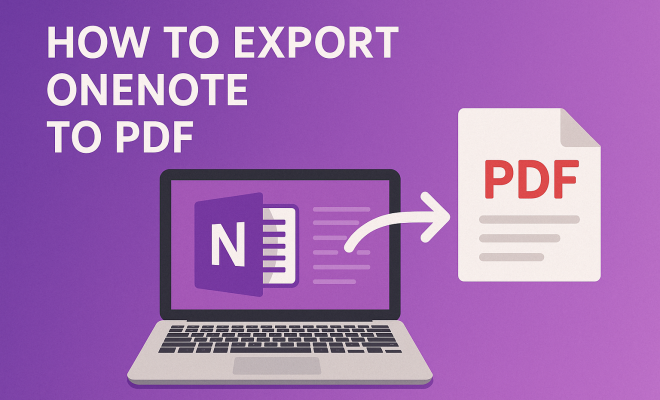
Microsoft OneNote is a powerful digital note-taking application that allows users to organize their thoughts, ideas, and tasks in a flexible manner. However, there may come a time when you need to share those notes in a more universally accessible format. That’s where exporting OneNote to PDF comes into play. In this comprehensive guide, we’ll walk you through the process, explore its benefits, and dive into some tips to optimize your experience.
1. Understanding the Benefits of PDF Format
Before we get into the nitty-gritty of how to export OneNote to PDF, it’s essential to understand why you might want to do this in the first place. The PDF format has several advantages that make it ideal for sharing documents:
- Universal Accessibility: PDFs can be opened on virtually any device or operating system, making it an ideal choice for sharing notes with others.
- Formatting Preservation: When you export a OneNote page to PDF, the formatting, images, and layout remain intact, ensuring that the recipient sees your content exactly as you intended.
- Security Features: PDFs can be encrypted, password-protected, and even set to restrict editing or copying, providing a level of security that standard Word documents may lack.
Given these benefits, exporting your OneNote notes to PDF can greatly enhance collaboration and sharing while maintaining the quality and integrity of your original content.
2. Preparing Your OneNote for Export
Before you dive into the actual process, there are a few preparatory steps to take. First, ensure all your notes are finalized and formatted to your liking. Review the notes for any last-minute edits or additions.
Next, organize your OneNote sections and pages. If you’re exporting an entire notebook, consider which sections are essential for your audience. You can always create a separate notebook specifically for exporting if you’d like to keep your original notes intact. Lastly, ensure that your images and graphics are of high quality, as these will be preserved in the PDF.
3. Exporting a Single Page from OneNote
Exporting a single page is a straightforward process. Here’s how you can do it:
- Open OneNote and go to the page you want to export.
- Click on the File menu in the upper left corner.
- Select Export from the dropdown menu.
- Choose Page under the Export Current section.
- Select PDF as your preferred format.
- Click the Export button.
- Choose a location on your device to save the PDF and give it a name.
- Finally, click Save.
This method is quick and ideal for sharing specific notes without overwhelming the recipient with an entire notebook.
4. Exporting an Entire Section or Notebook
If you need to export more than just a single page, you can easily export an entire section or even an entire notebook. Here’s how to do that:
- Open OneNote and navigate to the section or notebook you want to export.
- Go to the File menu once again.
- Click on Export.
- In the Export Current section, choose Section or Notebook depending on your needs.
- Again, select PDF as the format.
- Hit the Export button.
- Choose the destination on your device and name the file.
- Click Save.
This method is perfect for situations where you need to share a comprehensive collection of notes or a project with collaborators.
5. Understanding PDF Export Options
When you export OneNote to PDF, you’ll encounter various settings and options to customize your output. Most notably, you can choose whether to include tags, ink annotations, and other specific features. Here’s a breakdown of what you can adjust:
- Include Tags: If you’ve tagged notes in OneNote, you may choose to include those tags in the exported PDF, which can be useful for organization and searching.
- Ink Annotations: For users who utilize the drawing feature in OneNote, make sure to check if you want those ink annotations to show up in the PDF. This is especially valuable for sketches or handwritten notes.
- Print Options: Depending on your operating system, you may have print options that affect the quality of your PDF. Higher-quality settings will result in a cleaner look but may increase file size.
Tweaking these export options can help tailor the PDF to fit your specific needs, making it more functional for your audience.
6. Using OneNote Online to Export to PDF
If you prefer using the web version of OneNote, you can still export your notes to PDF. The process is slightly different but just as simple. Here’s how you can do it: (See: PDF format benefits and features.)
- Log into OneNote Online and select the page, section, or notebook you wish to export.
- Click on the File menu.
- Select Print from the dropdown.
- In the print dialog, choose Save as PDF as your printer option.
- Click Print — you’ll be prompted to save the file to your device.
This method is beneficial for users who may not have the desktop version of OneNote or prefer to work in a browser.
7. Common Issues and Troubleshooting Tips
Even with a straightforward process, you may encounter some hiccups while exporting OneNote to PDF. Here are some common issues and how to address them:
- Export Fails: If the export process doesn’t complete successfully, try restarting OneNote or your device. Ensure that your software is up to date.
- Formatting Issues: If the PDF doesn’t look as expected, double-check your OneNote formatting. Sometimes, complex layouts can lead to unexpected outputs.
- Large File Size: If your PDF is too large, consider exporting only specific pages or using lower quality settings in the export options.
By being aware of these potential hurdles, you can save time and frustration while navigating the export process.
8. Advanced Tips for Exporting OneNote to PDF
Once you’re familiar with the basics of exporting, you may want to consider some advanced tips to enhance the quality and usability of your exported PDFs:
8.1 Optimize Images and Media
Make sure that any images or media you’ve included in your OneNote notes are optimized. Large or high-resolution images can significantly increase the file size of the PDF. Use image-editing tools to compress images without losing quality. This not only speeds up the export process but also results in a PDF that is easier to share and store.
8.2 Use PDF Editing Software
After exporting your PDF, you might find that further editing is necessary. Consider using dedicated PDF editing software such as Adobe Acrobat or PDF-XChange Editor. These tools allow for annotations, form filling, and even merging multiple PDFs into one, giving you greater control over the final document.
8.3 Create Interactive PDFs
If your notes include hyperlinks or other interactive elements, ensure these are functioning in the PDF. Test the links after exporting to confirm they lead to the correct destinations. This is particularly valuable for project management or collaborative documents where further resources or references are needed.
9. Real-World Applications of Exporting OneNote to PDF
Exporting OneNote to PDF is not just a convenient feature; it has practical applications in various fields. Here’s how different professionals utilize this functionality:
9.1 Educators
Teachers often find themselves using OneNote for lesson planning, note-taking, and assignments. By exporting these notes to PDF, they can easily share lessons with students or other educators. This is especially useful for remote learning environments where digital resources need to be readily accessible.
9.2 Project Managers
In project management, OneNote serves as a collaborative tool where teams can brainstorm ideas and track progress. Exporting notes that summarize project updates or meetings into PDFs allows for easy distribution among stakeholders, ensuring everyone is on the same page.
9.3 Researchers
Researchers who compile data, references, and analysis in OneNote can export their findings into a PDF format for publishing or sharing with peers. This is particularly crucial for maintaining the integrity of complex data sets where formatting is key to understanding.
10. Comparing OneNote to Other Note-Taking Applications
When it comes to note-taking software, OneNote is just one of many options available. Here’s how it stacks up against some popular alternatives:
10.1 Evernote
Evernote is a robust note-taking application that offers features such as web clipping, tagging, and organizational tools similar to OneNote. However, while OneNote allows for more intricate formatting and layout options, Evernote is praised for its simplicity and straightforward user interface. Exporting notes from Evernote can also be done via PDF, but the process and features can vary slightly.
10.2 Notion
Notion combines note-taking with project management and database capabilities. It provides a versatile workspace that can be customized extensively. However, exporting from Notion can sometimes be less intuitive than OneNote. For users who prioritize layout and design, OneNote may be more favorable. (See: CDC's guidelines on document sharing.)
10.3 Google Keep
Google Keep is lightweight and caters to those who prefer quick note-taking. It lacks the advanced formatting options found in OneNote, making it less suitable for comprehensive notes. Exporting notes from Google Keep to PDF is possible, but the formatting will be far simpler and may not meet the needs of users requiring detailed presentations.
11. FAQs About Exporting OneNote to PDF
Q1: Can I export encrypted OneNote notebooks to PDF?
A1: Yes, you can export encrypted notebooks to PDF. However, the recipient will not be able to access any content that was encrypted without the appropriate password.
Q2: What happens to hyperlinks when I export OneNote to PDF?
A2: Hyperlinks within your OneNote notes generally remain functional in the exported PDF. However, it’s always good to check the links post-export to ensure they direct correctly.
Q3: Is there a way to automate the export process?
A3: Currently, OneNote does not have built-in automation for exporting to PDF. However, users can utilize third-party automation tools or scripts to streamline the process if they frequently export notes.
Q4: Can I include audio or video recordings in the PDF?
A4: No, audio and video recordings from OneNote will not be included in the PDF export. Only text, images, and drawings are preserved.
Q5: How can I ensure the best quality for my exported PDF?
A5: To ensure the best quality, review your OneNote formatting before exporting. Select high-quality print options during the PDF export process, and optimize images beforehand to reduce the file size without compromising quality.
12. Best Practices for Exporting OneNote to PDF
To make the most out of your export process, following best practices can ensure a seamless experience: (See: The importance of PDFs in technology.)
- Regular Backups: Always maintain backups of your OneNote notebooks before exporting, particularly if you’re making significant changes or organizing content. This helps avoid any potential loss of information.
- Consistent Formatting: Before exporting, use consistent formatting across your notes, such as font sizes, colors, and heading styles. This not only enhances readability in the PDF but also gives it a professional touch.
- Test Exports: Before sending the exported PDF to others, do a test export to verify that everything looks correct. Check that all content is captured and that links work as intended.
- Feedback Loop: If you’re using the exported PDFs for collaborative purposes, consider gathering feedback on the format and content from your audience. This can guide future exports and improve communication.
13. Case Studies: How Various Industries Utilize PDF Exports
Here are several case studies showcasing how different industries effectively use the export function from OneNote to PDF:
13.1 Corporate Training
In corporate environments, training materials are often developed and refined in OneNote. Trainers export these notes to PDF format for employee handouts or online training modules. By doing so, they ensure that all participants receive the same materials, maintaining consistency and clarity in information dissemination.
13.2 Healthcare Documentation
In the healthcare sector, professionals utilize OneNote to document patient notes, treatment plans, and research findings. Exporting this information to PDF allows healthcare providers to share patient information with colleagues easily, ensuring confidentiality and integrity of the data.
13.3 Event Planning
Event planners use OneNote to compile notes about venues, vendors, and schedules. Exporting these notes to PDF helps in creating comprehensive event briefs that can be shared with clients and team members, ensuring everyone is aligned and informed.
14. Future Developments and Trends in Note-Taking Software
The landscape of note-taking software is continually evolving, with new features and technologies emerging. Here are some trends worth noting:
14.1 Integration with AI
Many note-taking applications, including OneNote, are beginning to integrate artificial intelligence to enhance user experience. Features such as smart suggestions, automatic summarization, and content organization are becoming commonplace, streamlining the note-taking process.
14.2 Enhanced Collaboration Tools
As remote work becomes more prevalent, applications are improving their collaborative features. OneNote, for example, is focusing on real-time editing and sharing capabilities, allowing multiple users to work on a document simultaneously and see changes in real-time.
14.3 Improved Security Protocols
With increased concerns about data privacy and security, note-taking tools are enhancing their security measures. This includes better encryption methods for exported files and user authentication processes to protect sensitive information.
15. Final Thoughts
Exporting OneNote to PDF is an invaluable skill that can streamline your workflow, enhance collaboration, and ensure that your notes are accessible to anyone. With the steps outlined above, you can easily share your work while preserving the integrity of your original notes.
“`
Trending Now
Frequently Asked Questions
How do I export OneNote to PDF?
To export OneNote to PDF, open your OneNote application, select the page or section you wish to export, click on 'File', then 'Export'. Choose 'PDF' as the format and select your desired options. Finally, click 'Export' and choose the location to save your PDF file.
What are the benefits of exporting OneNote to PDF?
Exporting OneNote to PDF offers several benefits, including universal accessibility, as PDFs can be opened on nearly any device. It also preserves formatting and layout, ensuring your notes appear as intended, and provides security features like encryption and password protection.
Can I export an entire OneNote notebook to PDF?
Yes, you can export an entire OneNote notebook to PDF. Simply select the notebook in OneNote, go to 'File', then 'Export', and choose 'PDF' as the format. You may organize your sections beforehand to ensure only the relevant content is included in the export.
Is it possible to edit a PDF exported from OneNote?
Once you export your OneNote notes to PDF, the document becomes a fixed format that cannot be easily edited like a Word document. However, you can use PDF editing software if you need to make changes, though this may not preserve the original formatting.
What should I do before exporting OneNote to PDF?
Before exporting OneNote to PDF, ensure all your notes are finalized, formatted correctly, and reviewed for any last-minute changes. Organize your sections and pages, and consider creating a separate notebook for exporting if you wish to maintain a clean original version.
What's your take on this? Share your thoughts in the comments below — we read every one.