The Tech Edvocate

Top Menu

  • Advertisement
  • Apps
  • Home Page
  • Home Page Five (No Sidebar)
  • Home Page Four
  • Home Page Three
  • Home Page Two
  • Home Tech2
  • Icons [No Sidebar]
  • Left Sidbear Page
  • Lynch Educational Consulting
  • My Account
  • My Speaking Page
  • Newsletter Sign Up Confirmation
  • Newsletter Unsubscription
  • Our Brands
  • Page Example
  • Privacy Policy
  • Protected Content
  • Register
  • Request a Product Review
  • Shop
  • Shortcodes Examples
  • Signup
  • Start Here
    • Governance
    • Careers
    • Contact Us
  • Terms and Conditions
  • The Edvocate
  • The Tech Edvocate Product Guide
  • Topics
  • Write For Us
  • Advertise

Main Menu

  • Start Here
    • Our Brands
    • Governance
      • Lynch Educational Consulting, LLC.
      • Dr. Lynch’s Personal Website
      • Careers
    • Write For Us
    • The Tech Edvocate Product Guide
    • Contact Us
    • Books
    • Edupedia
    • Post a Job
    • The Edvocate Podcast
    • Terms and Conditions
    • Privacy Policy
  • Topics
    • Assistive Technology
    • Child Development Tech
    • Early Childhood & K-12 EdTech
    • EdTech Futures
    • EdTech News
    • EdTech Policy & Reform
    • EdTech Startups & Businesses
    • Higher Education EdTech
    • Online Learning & eLearning
    • Parent & Family Tech
    • Personalized Learning
    • Product Reviews
  • Advertise
  • Tech Edvocate Awards
  • The Edvocate
  • Pedagogue
  • School Ratings

logo

The Tech Edvocate

  • Start Here
    • Our Brands
    • Governance
      • Lynch Educational Consulting, LLC.
      • Dr. Lynch’s Personal Website
        • My Speaking Page
      • Careers
    • Write For Us
    • The Tech Edvocate Product Guide
    • Contact Us
    • Books
    • Edupedia
    • Post a Job
    • The Edvocate Podcast
    • Terms and Conditions
    • Privacy Policy
  • Topics
    • Assistive Technology
    • Child Development Tech
    • Early Childhood & K-12 EdTech
    • EdTech Futures
    • EdTech News
    • EdTech Policy & Reform
    • EdTech Startups & Businesses
    • Higher Education EdTech
    • Online Learning & eLearning
    • Parent & Family Tech
    • Personalized Learning
    • Product Reviews
  • Advertise
  • Tech Edvocate Awards
  • The Edvocate
  • Pedagogue
  • School Ratings
  • Când ecranul devine salon: atmosfera cazinoului online

  • 100 Best Performance Optimization Apps

  • LG’s Shocking Privacy Scandal: Why Is Apple Partnering on a Smart Doorbell Anyway?

  • The Astonishing New Weight Loss Drugs 2023 Set to Transform Everything

  • The Staggering Cost of Bad Actors: Honest DeFi Protocols Foot the Bill

  • OpenAI’s Secret Weapon: The Screenless AI Device That Could Kill Your iPhone

  • Why These 7 Esports Stocks Could Explode Your Portfolio by 2027

  • The Quiet Revolution: How AI Finance Tools 2026 Are Taking Over Your Money

  • Your Money, AI’s Brain: Why 7 in 10 Americans Are Ready for the Robot Revolution in Finance

  • The Staggering Truth About Student Loan Forgiveness Delays You Won’t Believe

Digital & Mobile Technology
Home›Digital & Mobile Technology›How to Create Hyperlinks in Microsoft Word

How to Create Hyperlinks in Microsoft Word
By Matthew Lynch
June 6, 2023
0
Spread the love

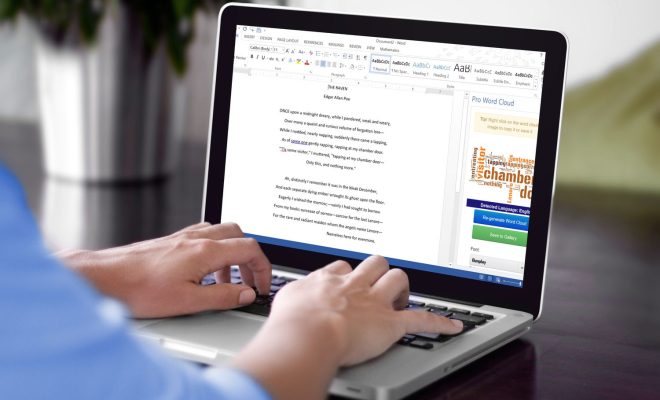
Hyperlinks are an important feature of any text document. They allow readers to easily navigate to other parts of the document or to external materials, such as web pages or files. Hyperlinks can make your Microsoft Word document more interactive and engaging for your readers.

Here are a few simple steps to create hyperlinks in Microsoft Word:

Step 1: Highlight the Text

First, highlight the text you want to turn into a hyperlink. This will usually be the text that describes what the reader can expect to find when they click on the link.

Step 2: Click on the Insert Tab

Next, click on the Insert tab from the ribbon at the top of the screen. This will open a menu with several options.

Step 3: Click on the Hyperlink Button

Look for the “Links” section on the Insert menu and select “Hyperlink.” This will bring up a dialog box where you can enter the destination URL or file location.

Step 4: Enter the URL or File Location

Type or copy and paste the URL or file location into the “Address” field of the dialog box. You can also select a file by clicking the “Browse” button.

Step 5: Preview the Link

Once you have entered the URL or file location, the hyperlink will be automatically generated. You can preview the link by hovering over the highlighted text with your mouse. The full hyperlink should be displayed as a tooltip.

Step 6: Click OK

Finally, click the “OK” button to create the hyperlink. The text you highlighted should now be underlined and clickable. When a reader clicks on the link, they will be taken to the destination URL or file.

Congratulations, you have successfully created a hyperlink in Microsoft Word!

Additional Tips

– If you want to change the color or style of your hyperlinks, you can do so by going to the “Styles” section of the “Home” tab and selecting “Modify.” From there, select “Hyperlink” from the list of styles and make any desired changes.

– Make sure to double-check your hyperlinks before publishing or sharing your document. Broken or incorrect links can be frustrating for readers and make your document seem unprofessional.

Previous Article

Best Ways to Open a PSD File ...

Next Article

What Are Xbox Live and Xbox Live ...

Matthew Lynch

Related articles More from author

  • Digital & Mobile Technology

    What is System Administration?

    May 12, 2023
    By Matthew Lynch
  • Digital & Mobile Technology

    What Is HDMI-CEC and What Does It Do?

    June 23, 2023
    By Matthew Lynch
  • Digital & Mobile Technology

    Does Your iPhone Charge Faster in Low Power Mode? We Found Out for You

    September 8, 2023
    By Matthew Lynch
  • Digital & Mobile Technology

    How to Fix the “Feature Name Microsoft-Hyper-V Is Unknown” 0x800f080c Error

    August 3, 2023
    By Matthew Lynch
  • Digital & Mobile Technology

    How to Fix It When Your Mouse Scroll Is Not Working

    June 1, 2023
    By Matthew Lynch
  • Digital & Mobile Technology

    Best Ways to Read Digital Comics in 2024

    January 30, 2024
    By Matthew Lynch

Search

Login & Registration

  • Log in
  • Entries feed
  • Comments feed
  • WordPress.org

Newsletter

Signup for The Tech Edvocate Newsletter and have the latest in EdTech news and opinion delivered to your email address!

About Us

Since technology is not going anywhere and does more good than harm, adapting is the best course of action. That is where The Tech Edvocate comes in. We plan to cover the PreK-12 and Higher Education EdTech sectors and provide our readers with the latest news and opinion on the subject. From time to time, I will invite other voices to weigh in on important issues in EdTech. We hope to provide a well-rounded, multi-faceted look at the past, present, the future of EdTech in the US and internationally.

We started this journey back in June 2016, and we plan to continue it for many more years to come. I hope that you will join us in this discussion of the past, present and future of EdTech and lend your own insight to the issues that are discussed.

Newsletter

Signup for The Tech Edvocate Newsletter and have the latest in EdTech news and opinion delivered to your email address!

Contact Us

The Tech Edvocate
910 Goddin Street
Richmond, VA 23231
(601) 630-5238
[email protected]

Copyright © 2026 Matthew Lynch. All rights reserved.