The Tech Edvocate

Top Menu

  • Advertisement
  • Apps
  • Home Page
  • Home Page Five (No Sidebar)
  • Home Page Four
  • Home Page Three
  • Home Page Two
  • Home Tech2
  • Icons [No Sidebar]
  • Left Sidbear Page
  • Lynch Educational Consulting
  • My Account
  • My Speaking Page
  • Newsletter Sign Up Confirmation
  • Newsletter Unsubscription
  • Our Brands
  • Page Example
  • Privacy Policy
  • Protected Content
  • Register
  • Request a Product Review
  • Shop
  • Shortcodes Examples
  • Signup
  • Start Here
    • Governance
    • Careers
    • Contact Us
  • Terms and Conditions
  • The Edvocate
  • The Tech Edvocate Product Guide
  • Topics
  • Write For Us
  • Advertise

Main Menu

  • Start Here
    • Our Brands
    • Governance
      • Lynch Educational Consulting, LLC.
      • Dr. Lynch’s Personal Website
      • Careers
    • Write For Us
    • The Tech Edvocate Product Guide
    • Contact Us
    • Books
    • Edupedia
    • Post a Job
    • The Edvocate Podcast
    • Terms and Conditions
    • Privacy Policy
  • Topics
    • Assistive Technology
    • Child Development Tech
    • Early Childhood & K-12 EdTech
    • EdTech Futures
    • EdTech News
    • EdTech Policy & Reform
    • EdTech Startups & Businesses
    • Higher Education EdTech
    • Online Learning & eLearning
    • Parent & Family Tech
    • Personalized Learning
    • Product Reviews
  • Advertise
  • Tech Edvocate Awards
  • The Edvocate
  • Pedagogue
  • School Ratings

logo

The Tech Edvocate

  • Start Here
    • Our Brands
    • Governance
      • Lynch Educational Consulting, LLC.
      • Dr. Lynch’s Personal Website
        • My Speaking Page
      • Careers
    • Write For Us
    • The Tech Edvocate Product Guide
    • Contact Us
    • Books
    • Edupedia
    • Post a Job
    • The Edvocate Podcast
    • Terms and Conditions
    • Privacy Policy
  • Topics
    • Assistive Technology
    • Child Development Tech
    • Early Childhood & K-12 EdTech
    • EdTech Futures
    • EdTech News
    • EdTech Policy & Reform
    • EdTech Startups & Businesses
    • Higher Education EdTech
    • Online Learning & eLearning
    • Parent & Family Tech
    • Personalized Learning
    • Product Reviews
  • Advertise
  • Tech Edvocate Awards
  • The Edvocate
  • Pedagogue
  • School Ratings
  • The Bombshell Truth About Slim Boost Tea: Don’t Buy Until You Read This

  • Jaw-Dropping: Charbroil Bistro Pro Electric Grill Recall — Is Your Grill a Hidden Danger?

  • This Corgi Tech Startup Just Imploded — Here’s How Social Media Wrecked Everything

  • September 2026: The Latest in Tech Authoritarianism – Overturned by Kelly Stonelake

  • GTA 6 Collector’s Box Price: The $400 Outrage That Just Broke Gaming

  • Unbelievable: Gamers Fought Blizzard’s Censorship and Saved Ogre Butts

  • The Radical New Bill That Could Halt AI — And Jails Its Creators

  • This OpenAI Hack Just Exposed a Terrifying New AI Threat

  • This One Leaked Video Just Blew Open New Zealand’s Curriculum Battle

  • The AI Deception: Stanford’s Scandalous Photo Alteration Reignites Representation Debate

Digital & Mobile Technology
Home›Digital & Mobile Technology›How to Connect Two Routers on a Home Network

How to Connect Two Routers on a Home Network
By Matthew Lynch
June 2, 2023
0
Spread the love

In today’s world, where technology has become an integral part of our lives, having a stable and reliable internet connection is of utmost importance. However, there may be instances where one router is not enough to provide adequate coverage in larger homes, leading to issues like poor connection, slow internet speeds, or dead zones. In such scenarios, adding a second router can be an optimal solution. This article provides a step-by-step guide on how to connect two routers on a home network to extend your Wi-Fi coverage.

Before we move forward, let’s understand what we mean by ‘home network’. In simple terms, a home network is a group of devices that are connected to one another through a router or a switch, enabling them to communicate and share resources such as the internet, printers, or files. With two routers, we can create a network that covers a larger area, enhancing the performance and quality of your internet connection.

Here are the steps to connect two routers on your home network:

Step 1: Pick the Right Second Router

First, you need to ensure you have the right router for the job. It must support the same (or higher) standard than the primary router (e.g., Wireless N, AC or AX). A compatible wireless protocol, a similar DHCP IP address range, and subnet mask should work best. Once you have a suitable model, check that it offers an Access Point (AP) mode, as this is the most practical way to add a second router to your home network.

Step 2: Prepare Your Second Router

Once you have the appropriate router, you need to configure it. Connect your computer—using a wired Ethernet cable—to your second router and access your router’s settings by typing in the IP address in a browser window, which is typically located on the underside or back of the router. After you enter the IP, login using your router’s credentials, which may be different from your primary router.

In your second router’s settings, go to the LAN section and change its IP address to an available and unique address within the primary router’s subnet. For example, if the primary router’s IP address is 192.168.1.1, you can switch the second router to 192.168.1.2. Ensure that the DHCP settings of the second router are disabled to prevent IP address conflicts.

Step 3: Configure the Wireless Settings

Next, change your second router’s wireless settings to match the primary router. This means setting the wireless network name (SSID) and password to the same network credentials your primary router uses, so clients switch seamlessly between routers as they move around your home.

Step 4: Set Up the LAN Ports

Once you connect the second router to your network, you can configure the LAN ports. To achieve optimal performance, use the Ethernet ports on the rear of the router, which offer a more stable connection.

Step 5: Connect the Routers

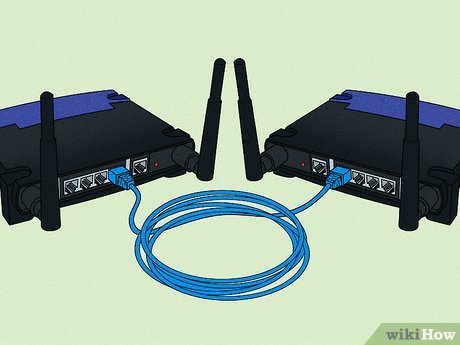
Now that both routers are correctly configured, connect them using an Ethernet cable. Use the WAN port on the second router and connect it to the LAN port of the primary router to connect the two devices, making sure you do not connect any two ‘WAN’ ports.

Step 6: Restart Both Routers

Finally, restart both routers after you connect them to the network. Wait for the Wi-Fi networks to become available again, and test whether you can connect to both routers from anywhere within your home network. Once connected, confirm that you can access the internet from both the primary and the secondary router.

In conclusion, adding a second router to your home network is an effective way to extend your Wi-Fi coverage and reduce dead zones. With the above steps, you can easily connect two routers on your home network and enjoy seamless connectivity throughout your home. By investing a little money and time, you can have a boost in connectivity and enjoy the internet experience you deserve.


Previous Article

How to Test a Webcam

Next Article

How to Connect AirPods to a Lenovo ...

Matthew Lynch

Related articles More from author

  • Digital & Mobile Technology

    Great Alternatives to Philips Hue Smart Lighting

    June 23, 2023
    By Matthew Lynch
  • Digital & Mobile Technology

    How to Set up an Out-Of-Office Vacation Responder in Gmail

    July 4, 2023
    By Matthew Lynch
  • Digital & Mobile Technology

    Samsung Galaxy A50 Review

    June 10, 2023
    By Matthew Lynch
  • Digital & Mobile Technology

    What is a Software Distribution?

    March 20, 2023
    By Matthew Lynch
  • Digital & Mobile Technology

    Access Your Home Assistant Server Remotely With DuckDNS and Let’s Encrypt

    August 1, 2023
    By Matthew Lynch
  • Digital & Mobile Technology

    The Best iPhone Keyboard Apps: Fancy Fonts, Themes, GIFs, and More

    June 5, 2023
    By Matthew Lynch

Search

Login & Registration

  • Log in
  • Entries feed
  • Comments feed
  • WordPress.org

Newsletter

Signup for The Tech Edvocate Newsletter and have the latest in EdTech news and opinion delivered to your email address!

About Us

Since technology is not going anywhere and does more good than harm, adapting is the best course of action. That is where The Tech Edvocate comes in. We plan to cover the PreK-12 and Higher Education EdTech sectors and provide our readers with the latest news and opinion on the subject. From time to time, I will invite other voices to weigh in on important issues in EdTech. We hope to provide a well-rounded, multi-faceted look at the past, present, the future of EdTech in the US and internationally.

We started this journey back in June 2016, and we plan to continue it for many more years to come. I hope that you will join us in this discussion of the past, present and future of EdTech and lend your own insight to the issues that are discussed.

Newsletter

Signup for The Tech Edvocate Newsletter and have the latest in EdTech news and opinion delivered to your email address!

Contact Us

The Tech Edvocate
910 Goddin Street
Richmond, VA 23231
(601) 630-5238
[email protected]

Copyright © 2026 Matthew Lynch. All rights reserved.