The Tech Edvocate

Top Menu

  • Advertisement
  • Apps
  • Home Page
  • Home Page Five (No Sidebar)
  • Home Page Four
  • Home Page Three
  • Home Page Two
  • Home Tech2
  • Icons [No Sidebar]
  • Left Sidbear Page
  • Lynch Educational Consulting
  • My Account
  • My Speaking Page
  • Newsletter Sign Up Confirmation
  • Newsletter Unsubscription
  • Our Brands
  • Page Example
  • Privacy Policy
  • Protected Content
  • Register
  • Request a Product Review
  • Shop
  • Shortcodes Examples
  • Signup
  • Start Here
    • Governance
    • Careers
    • Contact Us
  • Terms and Conditions
  • The Edvocate
  • The Tech Edvocate Product Guide
  • Topics
  • Write For Us
  • Advertise

Main Menu

  • Start Here
    • Our Brands
    • Governance
      • Lynch Educational Consulting, LLC.
      • Dr. Lynch’s Personal Website
      • Careers
    • Write For Us
    • The Tech Edvocate Product Guide
    • Contact Us
    • Books
    • Edupedia
    • Post a Job
    • The Edvocate Podcast
    • Terms and Conditions
    • Privacy Policy
  • Topics
    • Assistive Technology
    • Child Development Tech
    • Early Childhood & K-12 EdTech
    • EdTech Futures
    • EdTech News
    • EdTech Policy & Reform
    • EdTech Startups & Businesses
    • Higher Education EdTech
    • Online Learning & eLearning
    • Parent & Family Tech
    • Personalized Learning
    • Product Reviews
  • Advertise
  • Tech Edvocate Awards
  • The Edvocate
  • Pedagogue
  • School Ratings

logo

The Tech Edvocate

  • Start Here
    • Our Brands
    • Governance
      • Lynch Educational Consulting, LLC.
      • Dr. Lynch’s Personal Website
        • My Speaking Page
      • Careers
    • Write For Us
    • The Tech Edvocate Product Guide
    • Contact Us
    • Books
    • Edupedia
    • Post a Job
    • The Edvocate Podcast
    • Terms and Conditions
    • Privacy Policy
  • Topics
    • Assistive Technology
    • Child Development Tech
    • Early Childhood & K-12 EdTech
    • EdTech Futures
    • EdTech News
    • EdTech Policy & Reform
    • EdTech Startups & Businesses
    • Higher Education EdTech
    • Online Learning & eLearning
    • Parent & Family Tech
    • Personalized Learning
    • Product Reviews
  • Advertise
  • Tech Edvocate Awards
  • The Edvocate
  • Pedagogue
  • School Ratings
  • 100 Best Apps for Spaced Repetition

  • 100 Best Apps for Building a Second Brain

  • 100 Best Apps for Second Brain

  • A Casino Bonus Is Not Its Cash Value: How to Read Reviews Clearly

  • 100 Best Apps for Zettelkasten

  • 100 Best Apps for Bullet Journaling

  • 100 Best Apps for Getting Things Done

  • 100 Best Apps for GTD Method

  • 100 Best Apps for Overcoming Writer’s Block

  • 100 Best Apps for Beating Procrastination

Digital & Mobile Technology
Home›Digital & Mobile Technology›How to Add a Second Monitor in Windows

How to Add a Second Monitor in Windows
By Matthew Lynch
June 1, 2023
0
Spread the love

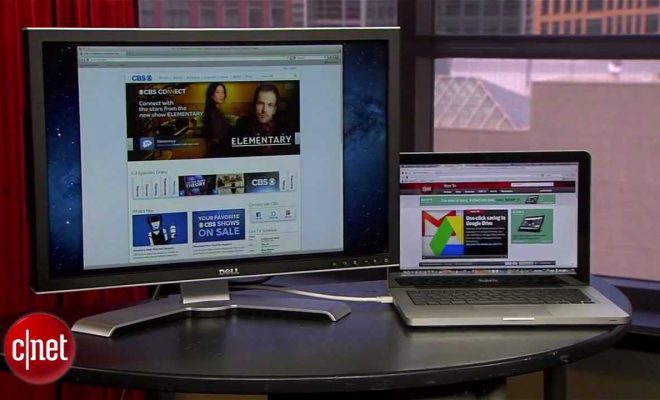
Adding a second monitor to your Windows computer can provide you with more screen real estate and improve your productivity. In this article, we will guide you through the process of setting up a second monitor on your Windows computer.

Step 1: Check your computer’s ports

Before purchasing a second monitor, you need to check the available ports on your computer. Modern desktop computers and laptops usually come with HDMI and DisplayPort connectors. The older models might come with VGA, DVI, or Thunderbolt connectors. Once you have identified the ports available on your computer, you can select a monitor with a corresponding connector.

Step 2: Connect the second monitor

Connecting the second monitor is easy. Simply plug one end of the HDMI, DisplayPort, or VGA cable into the monitor and the other end into your computer. Make sure that the monitor is turned on and set to the input corresponding to the cable you are using.

Step 3: Configure the display settings

After connecting the second monitor, you need to configure the display settings to use it as an extended screen. Right-click anywhere in the desktop area, and select Display Settings. This will open the Windows Settings app.

In the Display settings, you should see both monitors listed. If the two monitors have different resolutions, make sure that you adjust the scaling and text size settings to make them look the same.

To use the second monitor as an extended screen, make sure that the “Extend these displays” option is selected. You can also choose which monitor is your primary monitor by checking “Make this my main display.”

Step 4: Adjust the position of the monitors

After extending the displays, you can adjust the placement of the monitors. In the Display Settings, drag the monitors to arrange them in the desired order.

You can also adjust the orientation of the second monitor. If your second monitor is in portrait mode, you can change the orientation from the Display settings.

Conclusion

Setting up a second monitor on your Windows computer can help you be more productive, and make it easier to multitask. By following these simple steps, you can quickly and easily add a second monitor to your Windows computer.


Previous Article

What Is a Trickle Charger?

Next Article

How to Fix it When the iPhone ...

Matthew Lynch

Related articles More from author

  • Digital & Mobile Technology

    Circle Home Plus Review

    June 15, 2023
    By Matthew Lynch
  • Digital & Mobile Technology

    The Best Smart Ceiling Fans That Work With Alexa

    June 23, 2023
    By Matthew Lynch
  • Digital & Mobile Technology

    What Are Voxels and How Are They Used in 3D Modeling?

    June 12, 2023
    By Matthew Lynch
  • Digital & Mobile Technology

    How to Fix Hulu Error Code p-dev320

    May 31, 2023
    By Matthew Lynch
  • Digital & Mobile Technology

    The 5 Best Remote Access Apps for iPad of 2023

    June 22, 2023
    By Matthew Lynch
  • Digital & Mobile Technology

    How to Make and Share an Amazon Wish List

    June 2, 2023
    By Matthew Lynch

Search

Login & Registration

  • Log in
  • Entries feed
  • Comments feed
  • WordPress.org

Newsletter

Signup for The Tech Edvocate Newsletter and have the latest in EdTech news and opinion delivered to your email address!

About Us

Since technology is not going anywhere and does more good than harm, adapting is the best course of action. That is where The Tech Edvocate comes in. We plan to cover the PreK-12 and Higher Education EdTech sectors and provide our readers with the latest news and opinion on the subject. From time to time, I will invite other voices to weigh in on important issues in EdTech. We hope to provide a well-rounded, multi-faceted look at the past, present, the future of EdTech in the US and internationally.

We started this journey back in June 2016, and we plan to continue it for many more years to come. I hope that you will join us in this discussion of the past, present and future of EdTech and lend your own insight to the issues that are discussed.

Newsletter

Signup for The Tech Edvocate Newsletter and have the latest in EdTech news and opinion delivered to your email address!

Contact Us

The Tech Edvocate
910 Goddin Street
Richmond, VA 23231
(601) 630-5238
[email protected]

Copyright © 2026 Matthew Lynch. All rights reserved.