
The Tech Edvocate

Top Menu

  • Advertisement
  • Apps
  • Home Page
  • Home Page Five (No Sidebar)
  • Home Page Four
  • Home Page Three
  • Home Page Two
  • Home Tech2
  • Icons [No Sidebar]
  • Left Sidbear Page
  • Lynch Educational Consulting
  • My Account
  • My Speaking Page
  • Newsletter Sign Up Confirmation
  • Newsletter Unsubscription
  • Our Brands
  • Page Example
  • Privacy Policy
  • Protected Content
  • Register
  • Request a Product Review
  • Shop
  • Shortcodes Examples
  • Signup
  • Start Here
    • Governance
    • Careers
    • Contact Us
  • Terms and Conditions
  • The Edvocate
  • The Tech Edvocate Product Guide
  • Topics
  • Write For Us
  • Advertise

Main Menu

  • Start Here
    • Our Brands
    • Governance
      • Lynch Educational Consulting, LLC.
      • Dr. Lynch’s Personal Website
      • Careers
    • Write For Us
    • The Tech Edvocate Product Guide
    • Contact Us
    • Books
    • Edupedia
    • Post a Job
    • The Edvocate Podcast
    • Terms and Conditions
    • Privacy Policy
  • Topics
    • Assistive Technology
    • Child Development Tech
    • Early Childhood & K-12 EdTech
    • EdTech Futures
    • EdTech News
    • EdTech Policy & Reform
    • EdTech Startups & Businesses
    • Higher Education EdTech
    • Online Learning & eLearning
    • Parent & Family Tech
    • Personalized Learning
    • Product Reviews
  • Advertise
  • Tech Edvocate Awards
  • The Edvocate
  • Pedagogue
  • School Ratings

logo

The Tech Edvocate

  • Start Here
    • Our Brands
    • Governance
      • Lynch Educational Consulting, LLC.
      • Dr. Lynch’s Personal Website
        • My Speaking Page
      • Careers
    • Write For Us
    • The Tech Edvocate Product Guide
    • Contact Us
    • Books
    • Edupedia
    • Post a Job
    • The Edvocate Podcast
    • Terms and Conditions
    • Privacy Policy
  • Topics
    • Assistive Technology
    • Child Development Tech
    • Early Childhood & K-12 EdTech
    • EdTech Futures
    • EdTech News
    • EdTech Policy & Reform
    • EdTech Startups & Businesses
    • Higher Education EdTech
    • Online Learning & eLearning
    • Parent & Family Tech
    • Personalized Learning
    • Product Reviews
  • Advertise
  • Tech Edvocate Awards
  • The Edvocate
  • Pedagogue
  • School Ratings
  • Viaim Opennote Review: The AI Note-Taker That Disappears Into Your Daily Routine

  • A Visitors Guide to Long Beach (CA), United States

  • A Visitor’s Guide to Fresno (CA), United States

  • A Visitors Guide to New Orleans (LA), United States

  • A Visitors Guide to Sacramento (CA), United States

  • A Visitors Guide to Lyon, France

  • JisuLife Ultra2 Portable Fan: A Powerful Multi-Function Cooling Solution

  • A Visitors Guide to Viña del Mar, Chile

  • A Visitors Guide to Århus, Denmark

  • A Visitors Guide to Bakersfield (CA), United States

How To
Home›How To›How to Add a Download Link

How to Add a Download Link
By Matthew Lynch
March 31, 2024
0
Spread the love

Introduction:

Adding a download link to your website is a simple yet effective way to provide valuable resources to your audience. Whether you’re sharing an eBook, PDF, or any other type of file, following these six easy steps will help you create a download link for your audience with ease.

Step 1: Identify the File

Before you can create a download link, you must know the type of file you want to share. Common file types include PDFs, Word documents, Excel spreadsheets, audio files, and more. Locate the file on your computer or cloud storage and take note of its location.

Step 2: Upload the File

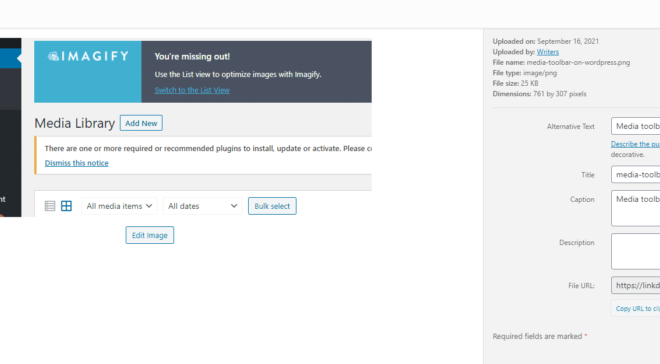
To make the file accessible to others, you need to upload it to a web server or hosting account. Many content management systems (CMS) like WordPress have built-in features to upload media files through their admin dashboard. Alternatively, use an FTP client or hosting control panel like cPanel to upload the file.

Step 3: Copy the File URL

Once uploaded, copy the file’s URL from your CMS or hosting control panel. Ensure that the URL links directly to the file you want users to download. The URL should end with the appropriate file extension (e.g., .pdf, .docx, .mp3).

Step 4: Create an HTML Download Link

Navigate to your website’s HTML editor, whether it’s in a CMS or a code editor. To create a download link using HTML code, insert this line:

“`html

<a href=”FILE_URL” download=”FILENAME”>Download</a>

“`

Replace “FILE_URL” with the actual URL of your uploaded file and “FILENAME” with your desired name for the downloaded file.

Step 5: Style the Download Link

Next, add some flair to your download link by styling it with CSS. To change the link color, style or add other visual effects, wrap the download link in a style tag like so:

“`html

<a href=”FILE_URL” download=”FILENAME” style=”color:blue; font-size: 20px;”>Download</a>

“`

Customize the “color” and “font-size” in the style tag to match your preference.

Step 6: Test the Download Link

Test your new download link by visiting your website, clicking the link, and ensuring that it triggers a file download. This is crucial for accuracy and for providing a seamless user experience.

Conclusion:

Creating and adding a download link to your website doesn’t have to be complicated. These six simple steps ensure that you effectively share valuable resources with your audience in an accessible manner. By providing downloadable content, you’ll boost engagement and establish yourself as a trusted resource for your visitors.


Previous Article

How to Tell a Turtle’s Age: 6 ...

Next Article

How to Launch a Website: 10 Steps

Matthew Lynch

Related articles More from author

  • How To

    How to Use a Face Serum: 13 Steps

    October 19, 2023
    By Matthew Lynch
  • How To

    5 Ways to Stop Your Eye from Itching

    April 5, 2024
    By Matthew Lynch
  • How To

    How to Remove Bathroom Tile: 11 Steps

    December 22, 2023
    By Matthew Lynch
  • How To

    How to Assess a Rib Fracture: 9 Steps

    January 8, 2024
    By Matthew Lynch
  • How To

    How to Clean Up Gasoline: 11 Steps

    January 9, 2024
    By Matthew Lynch
  • How To

    11 Easy Ways to Cure Forearm Pain

    April 7, 2024
    By Matthew Lynch

Search

Login & Registration

  • Register
  • Log in
  • Entries feed
  • Comments feed
  • WordPress.org

Newsletter

Signup for The Tech Edvocate Newsletter and have the latest in EdTech news and opinion delivered to your email address!

About Us

Since technology is not going anywhere and does more good than harm, adapting is the best course of action. That is where The Tech Edvocate comes in. We plan to cover the PreK-12 and Higher Education EdTech sectors and provide our readers with the latest news and opinion on the subject. From time to time, I will invite other voices to weigh in on important issues in EdTech. We hope to provide a well-rounded, multi-faceted look at the past, present, the future of EdTech in the US and internationally.

We started this journey back in June 2016, and we plan to continue it for many more years to come. I hope that you will join us in this discussion of the past, present and future of EdTech and lend your own insight to the issues that are discussed.

Newsletter

Signup for The Tech Edvocate Newsletter and have the latest in EdTech news and opinion delivered to your email address!

Contact Us

The Tech Edvocate
910 Goddin Street
Richmond, VA 23231
(601) 630-5238
[email protected]

Copyright © 2025 Matthew Lynch. All rights reserved.