The Tech Edvocate

Top Menu

  • Advertisement
  • Apps
  • Home Page
  • Home Page Five (No Sidebar)
  • Home Page Four
  • Home Page Three
  • Home Page Two
  • Home Tech2
  • Icons [No Sidebar]
  • Left Sidbear Page
  • Lynch Educational Consulting
  • My Account
  • My Speaking Page
  • Newsletter Sign Up Confirmation
  • Newsletter Unsubscription
  • Our Brands
  • Page Example
  • Privacy Policy
  • Protected Content
  • Register
  • Request a Product Review
  • Shop
  • Shortcodes Examples
  • Signup
  • Start Here
    • Governance
    • Careers
    • Contact Us
  • Terms and Conditions
  • The Edvocate
  • The Tech Edvocate Product Guide
  • Topics
  • Write For Us
  • Advertise

Main Menu

  • Start Here
    • Our Brands
    • Governance
      • Lynch Educational Consulting, LLC.
      • Dr. Lynch’s Personal Website
      • Careers
    • Write For Us
    • The Tech Edvocate Product Guide
    • Contact Us
    • Books
    • Edupedia
    • Post a Job
    • The Edvocate Podcast
    • Terms and Conditions
    • Privacy Policy
  • Topics
    • Assistive Technology
    • Child Development Tech
    • Early Childhood & K-12 EdTech
    • EdTech Futures
    • EdTech News
    • EdTech Policy & Reform
    • EdTech Startups & Businesses
    • Higher Education EdTech
    • Online Learning & eLearning
    • Parent & Family Tech
    • Personalized Learning
    • Product Reviews
  • Advertise
  • Tech Edvocate Awards
  • The Edvocate
  • Pedagogue
  • School Ratings

logo

The Tech Edvocate

  • Start Here
    • Our Brands
    • Governance
      • Lynch Educational Consulting, LLC.
      • Dr. Lynch’s Personal Website
        • My Speaking Page
      • Careers
    • Write For Us
    • The Tech Edvocate Product Guide
    • Contact Us
    • Books
    • Edupedia
    • Post a Job
    • The Edvocate Podcast
    • Terms and Conditions
    • Privacy Policy
  • Topics
    • Assistive Technology
    • Child Development Tech
    • Early Childhood & K-12 EdTech
    • EdTech Futures
    • EdTech News
    • EdTech Policy & Reform
    • EdTech Startups & Businesses
    • Higher Education EdTech
    • Online Learning & eLearning
    • Parent & Family Tech
    • Personalized Learning
    • Product Reviews
  • Advertise
  • Tech Edvocate Awards
  • The Edvocate
  • Pedagogue
  • School Ratings
  • A Visitors Guide to Long Beach (CA), United States

  • A Visitor’s Guide to Fresno (CA), United States

  • A Visitors Guide to New Orleans (LA), United States

  • A Visitors Guide to Sacramento (CA), United States

  • A Visitors Guide to Lyon, France

  • JisuLife Ultra2 Portable Fan: A Powerful Multi-Function Cooling Solution

  • A Visitors Guide to Viña del Mar, Chile

  • A Visitors Guide to Århus, Denmark

  • A Visitors Guide to Bakersfield (CA), United States

  • A Visitors Guide to Aurora (CO), United States

Tech Advice
Home›Tech Advice›Here’s How to Set Up Your New iPhone 14

Here’s How to Set Up Your New iPhone 14
By Matthew Lynch
July 17, 2023
0
Spread the love

Introduction

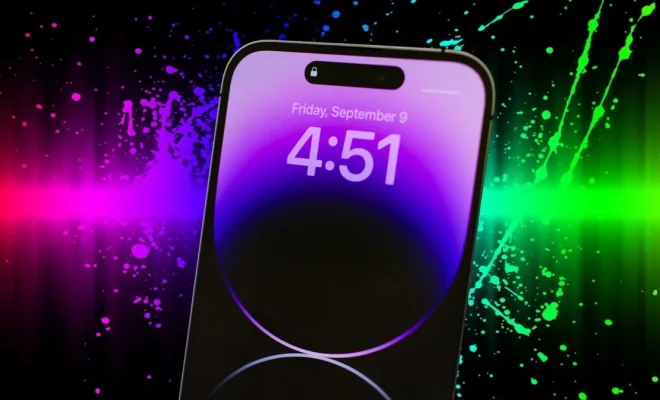
Congratulations on your new iPhone 14! Apple’s latest marvel comes packed with a plethora of features and functions. But before you dive in, setting up your device is essential to unleash its full potential. In this article, we will guide you through the process of setting up your new iPhone 14 step by step.

Step 1: Power On and Get Started

Press and hold the side button until the Apple logo appears, indicating that your iPhone 14 is booting up. Once it’s turned on, choose your preferred language and region.

Step 2: Set Up Quick Start (Optional)

If you have another iOS device running iOS 11 or later, bring it close to your iPhone 14 to enable Quick Start. This feature helps transfer settings and content from your old phone automatically. Ensure both devices have Bluetooth turned on with Wi-Fi enabled, and follow the on-screen prompts.

Step 3: Connect to Wi-Fi or Cellular Data

Connecting your iPhone to Wi-Fi (or cellular data) allows it to activate your device and access necessary updates or services. Choose the preferred network and enter the required password.

Step 4: Set Up Face ID and Passcode

For robust security, set up Face ID and create a six-digit passcode. To configure Face ID, position your face within the frame on screen while moving it in a circular motion as instructed. You may also add an alternate appearance if required.

Step 5: Restore or Transfer Data

You have a few options at this stage:

– Restore data from an iCloud backup.

– Restore data from a Mac or PC backup.

– Use ‘Move to iOS’ app to transfer data from an Android device.

– Set up as a new iPhone.

Follow the prompts according to your chosen method.

Step 6: Configure Settings

Next, you’ll be prompted to configure various settings, including:

– Apple ID: Sign in with your existing Apple ID or create a new one.

– iCloud Keychain: Save passwords, credit card information, and more.

– Siri: Enable Siri and set it up for personalized experiences.

– Screen Time: Set device usage limits and parental controls.

– App Analytics: Choose whether to share app analytics with developers.

Step 7: Install Apps and Customize Your Home Screen

Once the settings are configured, you can download apps from the App Store and arrange them according to your preferences. Don’t forget to explore widgets and custom icons to personalize your home screen further.

Step 8: Set Up Additional Features (Optional)

After completing the initial setup, take advantage of additional features such as:

– Dark Mode or Light Mode.

– Back Tap feature for added accessibility.

– Accessibility settings like VoiceOver or Magnifier.

Conclusion

And you’re all set! Now that your iPhone 14 is configured, you can enjoy its powerful performance and state-of-the-art features. We hope this guide has made the process seamless for you. Happy exploring!


Previous Article

iPhone XR vs. iPhone 8 Plus specs: ...

Next Article

Hey Google, Where Was the Google Assistant ...

Matthew Lynch

Related articles More from author

  • Tech Advice

    Dashboard Warning Lights Explained

    August 19, 2023
    By Matthew Lynch
  • Tech Advice

    2024 Ford Expedition Max Platinum 4dr 4×2 SUV: Trim Details, Reviews, Prices, Specs, and Incentives

    August 21, 2023
    By Matthew Lynch
  • Tech Advice

    The Best Robot Vacuums for Hardwood Floors: Keeping Your Home Spiffy

    October 19, 2023
    By Matthew Lynch
  • Tech Advice

    Disney Swan vs. Dolphin: Which is Best

    October 20, 2023
    By Matthew Lynch
  • Tech Advice

    4 Best 3-Month CD Rates for Savvy Investors

    October 20, 2023
    By Matthew Lynch
  • Tech Advice

    Cheapest SUV to Insure: Everything You Need to Know

    August 19, 2023
    By Matthew Lynch

Search

Login & Registration

  • Register
  • Log in
  • Entries feed
  • Comments feed
  • WordPress.org

Newsletter

Signup for The Tech Edvocate Newsletter and have the latest in EdTech news and opinion delivered to your email address!

About Us

Since technology is not going anywhere and does more good than harm, adapting is the best course of action. That is where The Tech Edvocate comes in. We plan to cover the PreK-12 and Higher Education EdTech sectors and provide our readers with the latest news and opinion on the subject. From time to time, I will invite other voices to weigh in on important issues in EdTech. We hope to provide a well-rounded, multi-faceted look at the past, present, the future of EdTech in the US and internationally.

We started this journey back in June 2016, and we plan to continue it for many more years to come. I hope that you will join us in this discussion of the past, present and future of EdTech and lend your own insight to the issues that are discussed.

Newsletter

Signup for The Tech Edvocate Newsletter and have the latest in EdTech news and opinion delivered to your email address!

Contact Us

The Tech Edvocate
910 Goddin Street
Richmond, VA 23231
(601) 630-5238
[email protected]

Copyright © 2025 Matthew Lynch. All rights reserved.