The Tech Edvocate

Top Menu

  • Advertisement
  • Apps
  • Home Page
  • Home Page Five (No Sidebar)
  • Home Page Four
  • Home Page Three
  • Home Page Two
  • Home Tech2
  • Icons [No Sidebar]
  • Left Sidbear Page
  • Lynch Educational Consulting
  • My Account
  • My Speaking Page
  • Newsletter Sign Up Confirmation
  • Newsletter Unsubscription
  • Our Brands
  • Page Example
  • Privacy Policy
  • Protected Content
  • Register
  • Request a Product Review
  • Shop
  • Shortcodes Examples
  • Signup
  • Start Here
    • Governance
    • Careers
    • Contact Us
  • Terms and Conditions
  • The Edvocate
  • The Tech Edvocate Product Guide
  • Topics
  • Write For Us
  • Advertise

Main Menu

  • Start Here
    • Our Brands
    • Governance
      • Lynch Educational Consulting, LLC.
      • Dr. Lynch’s Personal Website
      • Careers
    • Write For Us
    • The Tech Edvocate Product Guide
    • Contact Us
    • Books
    • Edupedia
    • Post a Job
    • The Edvocate Podcast
    • Terms and Conditions
    • Privacy Policy
  • Topics
    • Assistive Technology
    • Child Development Tech
    • Early Childhood & K-12 EdTech
    • EdTech Futures
    • EdTech News
    • EdTech Policy & Reform
    • EdTech Startups & Businesses
    • Higher Education EdTech
    • Online Learning & eLearning
    • Parent & Family Tech
    • Personalized Learning
    • Product Reviews
  • Advertise
  • Tech Edvocate Awards
  • The Edvocate
  • Pedagogue
  • School Ratings

logo

The Tech Edvocate

  • Start Here
    • Our Brands
    • Governance
      • Lynch Educational Consulting, LLC.
      • Dr. Lynch’s Personal Website
        • My Speaking Page
      • Careers
    • Write For Us
    • The Tech Edvocate Product Guide
    • Contact Us
    • Books
    • Edupedia
    • Post a Job
    • The Edvocate Podcast
    • Terms and Conditions
    • Privacy Policy
  • Topics
    • Assistive Technology
    • Child Development Tech
    • Early Childhood & K-12 EdTech
    • EdTech Futures
    • EdTech News
    • EdTech Policy & Reform
    • EdTech Startups & Businesses
    • Higher Education EdTech
    • Online Learning & eLearning
    • Parent & Family Tech
    • Personalized Learning
    • Product Reviews
  • Advertise
  • Tech Edvocate Awards
  • The Edvocate
  • Pedagogue
  • School Ratings
  • Filtre poskytovateľov a rozpoznateľnosť herných kolekcií v kasínach

  • Razvoj iskanja in filtrov v vse obsežnejših katalogih kazino iger

  • Cinematic Intros Meet Familiar Reel Based Slot Play

  • Eventyrmotiver giver bonussekvenser retning og sammenhæng

  • Sådan former lydoplevelsen forskellige casinospil

  • Kameraføring former oplevelsen af roulette og blackjack på stream

  • Fra enkle browserbaserede casinospil til digitale formater med flere muligheder

  • Fra oldtidens fortællinger til nutidens spiltemaer

  • Čím sa líšia televízne herné formáty od tradičných živých stolov

  • The Astonishing Truth: Why Micro-Credentials Are Crushing Traditional Degrees in Today’s Job Hunt

Digital & Mobile Technology
Home›Digital & Mobile Technology›Getting the “Remote Desktop Can’t Find the Computer” Error? Here’s How to Fix It

Getting the “Remote Desktop Can’t Find the Computer” Error? Here’s How to Fix It
By Matthew Lynch
June 12, 2023
0
Spread the love

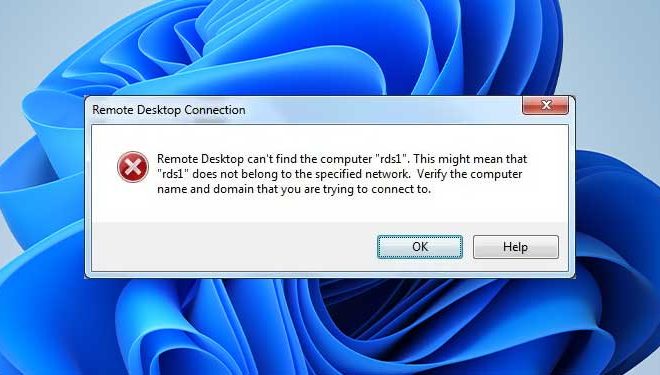
The Remote Desktop feature in Windows enables users to connect to another computer remotely and control it as if they were in front of it. However, sometimes you may get the error message, “Remote Desktop Can’t Find the Computer,” preventing you from accessing the remote desktop. If this happens, there are several ways to fix it.

1. Check the Network Connection

The first step to resolving the remote desktop connection error is to check the network connection. A network issue may prevent the remote desktop from connecting with the target computer. Therefore, make sure that the computer you want to connect to is on the same network, and the network settings are correct.

2. Check the Firewall Settings

A firewall can also block the Remote Desktop application from connecting to the target computer. To fix this, you need to allow the Remote Desktop app through the firewall. To do this, launch the Windows Defender Firewall application, click on “Allow an app or feature through Windows Defender Firewall,” select “Remote Desktop,” and tick “Private” and “Public” checkboxes. Save the settings and try to connect to the remote desktop again.

3. Check Remote Desktop Services

If there are issues with the Remote Desktop Services, you may get the error message in question. To check and restart the Remote Desktop Services, open the Run command by pressing Windows + R keys together, type “services.msc” and click OK. This will open the Services window, where you can locate “Remote Desktop Services” and “Remote Desktop Configuration” services.

Right-click on each of these services, select “Restart,” and wait for them to restart successfully. After restarting these services, try to connect to the remote desktop again to see if the error is resolved.

4. Check Remote Desktop Configuration

Another reason why the Remote Desktop connection may fail is due to incorrect configuration settings. You can check and update the Remote Desktop Configuration settings in the Control Panel. Go to the Control Panel, then System and Security, then System, and click on the “Remote Settings” link. Ensure that the “Allow remote connections to this computer” box is checked, and the users you want to allow access to are added to the Remote Desktop Users group.

5. Restart the System

Sometimes, the easiest way to fix the Remote Desktop connection error is to restart the target computer. This can easily refresh the network and Remote Desktop Services and may solve the problem.

In conclusion, the “Remote Desktop Can’t Find the Computer” error can be caused by various reasons, including network issues, firewall settings, Remote Desktop Services issues, incorrect configurations, and more. However, you can fix it by checking the network connection, firewall settings, Remote Desktop configuration, restarting the Remote Desktop Services, and restarting the system. So, try these solutions one by one until you can successfully connect to the remote desktop.


Previous Article

Fixes If Your Mouse Lags and ...

Next Article

How to Create a Bootable USB on ...

Matthew Lynch

Related articles More from author

  • Compass App on iPhone
    Digital & Mobile TechnologyOnline Learning & eLearning

    How to Use the Compass App on iPhone: A Detailed Guide

    March 25, 2023
    By Matthew Lynch
  • Digital & Mobile Technology

    How to Change the Administrator in Windows 11

    June 4, 2023
    By Matthew Lynch
  • Digital & Mobile Technology

    Best Third-Party YouTube Apps for Mobile You Should Try

    April 10, 2023
    By Matthew Lynch
  • Digital & Mobile Technology

    Google Sky Map Not Working? How to Fix The Problem

    June 4, 2023
    By Matthew Lynch
  • Digital & Mobile Technology

    What Is Surround Sound Audio?

    June 10, 2023
    By Matthew Lynch
  • Digital & Mobile Technology

    How to Write Your First Java GUI Application

    June 15, 2023
    By Matthew Lynch

Search

Login & Registration

  • Log in
  • Entries feed
  • Comments feed
  • WordPress.org

Newsletter

Signup for The Tech Edvocate Newsletter and have the latest in EdTech news and opinion delivered to your email address!

About Us

Since technology is not going anywhere and does more good than harm, adapting is the best course of action. That is where The Tech Edvocate comes in. We plan to cover the PreK-12 and Higher Education EdTech sectors and provide our readers with the latest news and opinion on the subject. From time to time, I will invite other voices to weigh in on important issues in EdTech. We hope to provide a well-rounded, multi-faceted look at the past, present, the future of EdTech in the US and internationally.

We started this journey back in June 2016, and we plan to continue it for many more years to come. I hope that you will join us in this discussion of the past, present and future of EdTech and lend your own insight to the issues that are discussed.

Newsletter

Signup for The Tech Edvocate Newsletter and have the latest in EdTech news and opinion delivered to your email address!

Contact Us

The Tech Edvocate
910 Goddin Street
Richmond, VA 23231
(601) 630-5238
[email protected]

Copyright © 2026 Matthew Lynch. All rights reserved.