
The Tech Edvocate

Top Menu

  • Advertisement
  • Apps
  • Home Page
  • Home Page Five (No Sidebar)
  • Home Page Four
  • Home Page Three
  • Home Page Two
  • Home Tech2
  • Icons [No Sidebar]
  • Left Sidbear Page
  • Lynch Educational Consulting
  • My Account
  • My Speaking Page
  • Newsletter Sign Up Confirmation
  • Newsletter Unsubscription
  • Our Brands
  • Page Example
  • Privacy Policy
  • Protected Content
  • Register
  • Request a Product Review
  • Shop
  • Shortcodes Examples
  • Signup
  • Start Here
    • Governance
    • Careers
    • Contact Us
  • Terms and Conditions
  • The Edvocate
  • The Tech Edvocate Product Guide
  • Topics
  • Write For Us
  • Advertise

Main Menu

  • Start Here
    • Our Brands
    • Governance
      • Lynch Educational Consulting, LLC.
      • Dr. Lynch’s Personal Website
      • Careers
    • Write For Us
    • The Tech Edvocate Product Guide
    • Contact Us
    • Books
    • Edupedia
    • Post a Job
    • The Edvocate Podcast
    • Terms and Conditions
    • Privacy Policy
  • Topics
    • Assistive Technology
    • Child Development Tech
    • Early Childhood & K-12 EdTech
    • EdTech Futures
    • EdTech News
    • EdTech Policy & Reform
    • EdTech Startups & Businesses
    • Higher Education EdTech
    • Online Learning & eLearning
    • Parent & Family Tech
    • Personalized Learning
    • Product Reviews
  • Advertise
  • Tech Edvocate Awards
  • The Edvocate
  • Pedagogue
  • School Ratings

logo

The Tech Edvocate

  • Start Here
    • Our Brands
    • Governance
      • Lynch Educational Consulting, LLC.
      • Dr. Lynch’s Personal Website
        • My Speaking Page
      • Careers
    • Write For Us
    • The Tech Edvocate Product Guide
    • Contact Us
    • Books
    • Edupedia
    • Post a Job
    • The Edvocate Podcast
    • Terms and Conditions
    • Privacy Policy
  • Topics
    • Assistive Technology
    • Child Development Tech
    • Early Childhood & K-12 EdTech
    • EdTech Futures
    • EdTech News
    • EdTech Policy & Reform
    • EdTech Startups & Businesses
    • Higher Education EdTech
    • Online Learning & eLearning
    • Parent & Family Tech
    • Personalized Learning
    • Product Reviews
  • Advertise
  • Tech Edvocate Awards
  • The Edvocate
  • Pedagogue
  • School Ratings
  • A Visitors Guide to Long Beach (CA), United States

  • A Visitor’s Guide to Fresno (CA), United States

  • A Visitors Guide to New Orleans (LA), United States

  • A Visitors Guide to Sacramento (CA), United States

  • A Visitors Guide to Lyon, France

  • JisuLife Ultra2 Portable Fan: A Powerful Multi-Function Cooling Solution

  • A Visitors Guide to Viña del Mar, Chile

  • A Visitors Guide to Århus, Denmark

  • A Visitors Guide to Bakersfield (CA), United States

  • A Visitors Guide to Aurora (CO), United States

How To
Home›How To›Easy Ways to Install AltStore

Easy Ways to Install AltStore
By Matthew Lynch
March 24, 2024
0
Spread the love

In today’s digital world, app stores play a vital role in providing users with the tools they need to streamline their lives and enhance their productivity. When it comes to Apple devices, the App Store may be the first one that comes to mind, but there’s another player in town that has been making waves: AltStore.

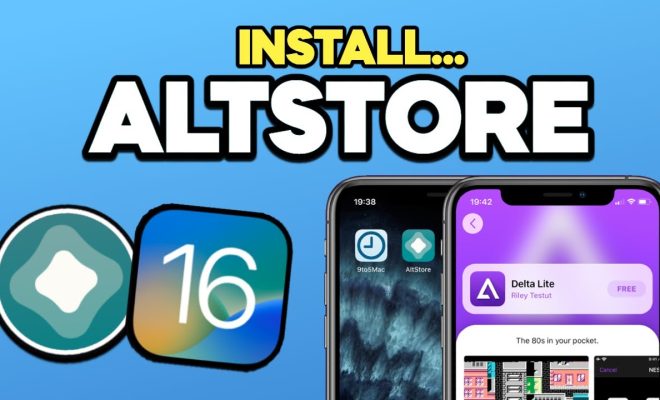
AltStore is an alternative app store that hosts apps not available on the official App Store. It enables users to install and manage apps without the need for jailbreaking or compromising their device’s security. If you’re eager to explore AltStore and its offerings, here’s a simple guide on easy ways to install AltStore on your iOS device.

1. Device Preparation

Before you start installing AltStore, ensure that your device is running iOS 12.2 or higher and that you have the latest version of iTunes installed. This is essential for compatibility between AltStore and your device.

2. Download AltServer

AltServer is a desktop companion application that works with AltStore to manage app installations. To download it, go to altstore.io on your computer (PC or Mac). Choose the appropriate version according to your operating system, download it, and install it following the on-screen instructions.

3. Plugin Your iOS Device

Using your Lightning cable or USB-C cable, connect your iPhone or iPad to your computer. It’s important that both devices are connected during this process for seamless installation.

4. Trust Your iPhone/iPad

When prompted by iTunes on your computer, tap “Trust” on your device to enable communication between the two.

5. Configure AltServer (Windows Users)

If you’re using a Windows PC, make sure that you’ve installed iTunes from Apple’s website and not from Microsoft Store. After installing iTunes from Apple’s website and connecting your device, run AltServer as an administrator by right-clicking on the software and selecting “Run as administrator.”

6. Install AltStore

Open AltServer on your computer, and select “Install AltStore” from the system tray or the Mac menu bar. Choose your iOS device from the list, and input your Apple ID credentials when prompted. This will allow AltServer to sign apps on your behalf.

7. Trust AltStore Certificate

To trust the installed AltStore certificate on your device, go to Settings > General > Device Management on your iPhone or iPad. Tap on your Apple ID under “Developer App,” then tap “Trust” twice to confirm.

8. Launch AltStore

With everything in place, you can now launch AltStore from the home screen of your iOS device. Browse through the available apps and install the ones that suit your needs.

Congratulations! You’ve successfully installed AltStore on your iOS device. Enjoy exploring this alternative app store and its offerings in a safe, secure manner without having to jailbreak your device. Remember to stay updated with the latest version of both AltServer and AltStore for optimal performance and compatibility.


Previous Article

China Airlines: APEX 5-Star, Best Design, Best ...

Next Article

Securing Your Bitcoin (BTC): Best Practices for ...

Matthew Lynch

Related articles More from author

  • How To

    9 Simple Ways to Kiss a Girl at School

    February 15, 2024
    By Matthew Lynch
  • How To

    How to Build a LEGO House: 12 Steps

    January 7, 2024
    By Matthew Lynch
  • How To

    3 Ways to Tell if You Have an Ear Infection

    February 27, 2024
    By Matthew Lynch
  • How To

    How to Apply 1920s Makeup: 15 Steps

    October 22, 2023
    By Matthew Lynch
  • How To

    How to Do Laundry

    February 14, 2024
    By Matthew Lynch
  • How To

    How to Recognize Aspergers in a Toddler

    January 5, 2024
    By Matthew Lynch

Search

Login & Registration

  • Register
  • Log in
  • Entries feed
  • Comments feed
  • WordPress.org

Newsletter

Signup for The Tech Edvocate Newsletter and have the latest in EdTech news and opinion delivered to your email address!

About Us

Since technology is not going anywhere and does more good than harm, adapting is the best course of action. That is where The Tech Edvocate comes in. We plan to cover the PreK-12 and Higher Education EdTech sectors and provide our readers with the latest news and opinion on the subject. From time to time, I will invite other voices to weigh in on important issues in EdTech. We hope to provide a well-rounded, multi-faceted look at the past, present, the future of EdTech in the US and internationally.

We started this journey back in June 2016, and we plan to continue it for many more years to come. I hope that you will join us in this discussion of the past, present and future of EdTech and lend your own insight to the issues that are discussed.

Newsletter

Signup for The Tech Edvocate Newsletter and have the latest in EdTech news and opinion delivered to your email address!

Contact Us

The Tech Edvocate
910 Goddin Street
Richmond, VA 23231
(601) 630-5238
[email protected]

Copyright © 2025 Matthew Lynch. All rights reserved.