Constant Contact not working fix
“`html
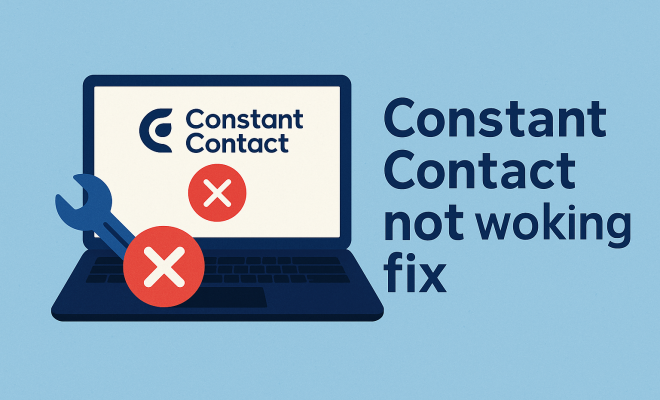
You’ve meticulously crafted that perfect email campaign, spent hours segmenting your audience, and hit ‘send’ with a hopeful sigh. Then, silence. Or worse, error messages. When your Constant Contact isn’t working, it’s not just an inconvenience; it’s a direct hit to your marketing efforts, your brand’s communication, and potentially your bottom line. For small businesses, non-profits, and individual creators, email marketing platforms like Constant Contact are the lifeblood of their outreach. They’re designed to be reliable, intuitive tools that streamline communication, build relationships, and drive engagement. So, when the system falters, it can feel like a genuine crisis.
The good news is that many of the issues users face with Constant Contact are not insurmountable, nor are they necessarily indicative of a catastrophic failure. Often, the problem lies in a misconfiguration, a temporary glitch, or an easily overlooked detail. Understanding the common culprits behind a malfunctioning Constant Contact setup can save you a tremendous amount of frustration and downtime. We’re going to dive deep into why your Constant Contact might not be working as expected and, more importantly, equip you with actionable fixes to get your campaigns back on track.
The Immediate Check: Is Constant Contact Actually Down?
Before you start pulling your hair out or re-installing software, the very first thing you should do when Constant Contact isn’t working is check its system status. This might sound obvious, but it’s astonishing how many users jump straight into troubleshooting their own setup only to find out the issue is on Constant Contact’s end. Think of it like your internet going out – you check your router first, but then you might call your ISP to see if there’s a wider outage. The same logic applies here.
Constant Contact, like any major cloud-based service, maintains a public status page where they report any ongoing outages, performance issues, or scheduled maintenance. A quick search for “Constant Contact status page” will usually lead you directly to it. This page will typically display the operational status of various components, such as email sending, login functionality, API services, and website hosting. If you see a notification indicating a service disruption, then the best course of action is often patience. They’ll be working diligently to resolve it, and there’s nothing you can do on your end until they bring the systems back online. Bookmark this page; it’s an invaluable first stop for any future hiccups.
Understanding Different Types of System Issues
It’s also helpful to distinguish between a full outage and a localized performance issue. A full outage means nobody can access or use the service, typically rare for a platform of Constant Contact’s scale. More common are partial outages or performance degradations affecting specific features or regions. For example, you might be able to log in, but email sending is delayed, or a particular integration isn’t working. The status page usually provides granular details. If the status page shows everything is green, then it’s time to look closer at your own setup and configuration. This initial check prevents wasted time and helps you pinpoint where the real troubleshooting needs to begin.
Browser-Related Headaches: Clearing Cache and Cookies
One of the most frequent, yet often overlooked, reasons your Constant Contact isn’t working correctly stems from your web browser. Browsers are complex pieces of software that store a lot of data – cache, cookies, and various temporary files – to speed up your browsing experience. While this is generally beneficial, sometimes this stored data can become corrupted or outdated, leading to conflicts with modern web applications like Constant Contact.
Think of your browser’s cache as a short-term memory bank. It saves elements of websites you’ve visited so they load faster next time. If Constant Contact updates its website or application interface, your browser might still be trying to load an older, cached version, causing display issues, functionality problems, or even preventing you from logging in. Similarly, cookies store site-specific information, like login sessions and preferences. If a cookie gets corrupted, it can disrupt your interaction with the platform.
How to Perform a Browser Refresh
The fix here is straightforward: clear your browser’s cache and cookies. The exact steps vary slightly depending on your browser (Chrome, Firefox, Edge, Safari), but generally, you’ll find these options in your browser’s settings or privacy section. After clearing, close and reopen your browser completely, then try accessing Constant Contact again. Many seemingly mysterious login failures or unresponsive buttons magically resolve after this simple step. It’s often the first practical troubleshooting step support teams will recommend, and for good reason. It’s a clean slate that forces your browser to download the most current versions of Constant Contact’s assets.
Connectivity Culprits: Internet and Firewall Interference
Even the most sophisticated web application is useless without a stable internet connection. When your Constant Contact isn’t working, don’t immediately assume the platform itself is broken. Your own network environment could be the root cause. Intermittent Wi-Fi, a dropped connection, or even a slow connection speed can lead to timeouts, incomplete page loads, or errors when trying to send emails or save changes. (See: Email marketing overview.) See also video email marketing insights.
Beyond basic internet stability, firewalls and network security settings are common culprits, especially in corporate or small business environments. Firewalls, both software-based (like Windows Defender or macOS Firewall) and hardware-based (your office router’s firewall), are designed to protect your network by blocking suspicious traffic. Sometimes, however, they can be overzealous and inadvertently block legitimate traffic from services like Constant Contact, or interfere with its ability to communicate properly with its servers.
Diagnosing Network and Firewall Issues
To diagnose network issues, try accessing other websites or web services. If they’re also struggling, your internet connection is likely the problem. Rebooting your router and modem can often resolve temporary connection glitches. For firewall issues, it gets a bit trickier. You might need to temporarily disable your firewall (with caution, and only if you understand the risks!) to see if Constant Contact then works. If it does, you’ll need to configure your firewall to allow traffic to and from Constant Contact’s domains and IP addresses. Constant Contact’s support documentation often lists the specific domains or ports that need to be whitelisted. This is particularly relevant if you’re experiencing problems with specific features, like image uploads or email tracking, which rely on external communication.
Login Lapses: Password Resets and Account Issues
It sounds elementary, but login problems are a pervasive reason why users report “Constant Contact not working.” It’s easy to mistype a password, forget which email address you used, or run into issues if your account has been locked for security reasons. The human element, combined with automated security protocols, can sometimes create these roadblocks.
First, double-check your credentials. Are you using the correct email address associated with your Constant Contact account? Is your caps lock on? These simple checks can prevent unnecessary frustration. If you’re confident you’re entering the right details but still can’t get in, it’s time for a password reset. Constant Contact, like most online services, has a robust “Forgot Password” or “Reset Password” mechanism. Follow the prompts, and make sure to check your spam or junk folder for the reset email.
Beyond Password Resets: Account Status
Sometimes, the issue isn’t your password but your account’s status. Has your subscription expired? Is there an outstanding payment? Constant Contact may temporarily suspend access if there are billing issues. Similarly, if your account has been flagged for unusual activity or potential violations of their terms of service (e.g., high bounce rates, spam complaints), access might be restricted. In these cases, you won’t typically see a generic login error; instead, you might get a specific message about your account status. For these scenarios, direct contact with Constant Contact’s customer support is essential. They can provide clarity on your account’s standing and guide you through the steps to regain full access.
Third-Party Integration Troubles: When Connectors Break Down
Modern marketing stacks rarely operate in silos. Constant Contact integrates with a myriad of other tools: CRM systems like Salesforce, e-commerce platforms like Shopify, social media management tools, event registration systems, and more. While these integrations are incredibly powerful, they also introduce potential points of failure. When your Constant Contact isn’t working as expected, especially in the context of data flow or automated actions, a third-party integration could be the weak link.
Imagine you’ve set up an integration where new customer sign-ups from your website (powered by a form builder) are automatically added to a Constant Contact list. If this automation suddenly stops, it could be the form builder, the integration connector itself, or even changes within Constant Contact’s API that are causing the problem. These issues often manifest as data not syncing, actions not triggering, or error messages related to API keys or authentication tokens.
Troubleshooting Integrations
The first step is to isolate the problem. Does Constant Contact work fine when you use it independently (e.g., sending a manual email campaign)? If so, the issue likely lies with the integration. Check the integration’s settings within both Constant Contact and the third-party application. Have any API keys expired or been revoked? Have the permissions changed? Many integrations also have their own status pages or logs that can provide insights into recent data transfers and any errors encountered. Sometimes, simply disconnecting and reconnecting the integration can resolve minor glitches. If the problem persists, consulting the documentation or support for both Constant Contact and the third-party service is crucial. They can often provide specific troubleshooting steps for their connection.
Email Delivery Dilemmas: Sender Reputation and List Hygiene
When your Constant Contact isn’t working in the context of email delivery – meaning your emails aren’t reaching inboxes, or you’re seeing high bounce rates – the problem often shifts from technical access to email deliverability. This is a complex ecosystem influenced by your sender reputation, email content, and the quality of your contact list. It’s not about Constant Contact being broken; it’s about the broader email network rejecting your messages.
Your sender reputation is like a credit score for your email address. Internet Service Providers (ISPs) like Gmail, Outlook, and Yahoo look at factors like how many emails you send, your open rates, click-through rates, and critically, your bounce rates and spam complaint rates. If these metrics are poor, ISPs might start sending your emails directly to spam folders or blocking them entirely. Constant Contact works hard to maintain its own strong sender reputation, but your individual sending practices significantly impact your deliverability. (See: Health communication strategies.)
Improving Deliverability and List Hygiene
A high bounce rate is a major red flag. It indicates you’re sending to invalid or non-existent email addresses. Regularly cleaning your list – removing hard bounces and inactive subscribers – is paramount. Constant Contact automatically handles some of this, but proactive list hygiene on your part is essential. Ensure your contact acquisition methods are opt-in and transparent; never purchase email lists. Furthermore, review your email content. Are you using excessive spammy words? Too many images? Broken links? All these can trigger spam filters. Constant Contact provides tools and analytics to help you monitor your campaign performance, including open rates, click rates, and bounce rates. Pay close attention to these metrics. If they decline, it’s a strong signal that your deliverability is suffering, and steps need to be taken to rebuild your sender reputation.
Template and Content Quirks: HTML, Images, and Links
Sometimes, it’s not the platform itself, but what you’re putting into it. If your Constant Contact isn’t working in terms of how your emails look, display, or function, the issue might be with your email template or the content you’ve added. Email clients are notoriously finicky, and what looks perfect in one might break in another.
Common issues include broken images, malformed links, or display problems due to complex HTML. If you’re using a custom HTML template or pasting content from another source (like a Word document or a webpage), you might be introducing hidden formatting or code that conflicts with Constant Contact’s editor or email client rendering. Images that are too large in file size can slow down loading or get blocked. Incorrect image paths will result in broken image icons. Similarly, poorly formatted links can lead to subscribers being unable to click through to your website, effectively nullifying your call to action.
Best Practices for Content and Templates
Always use Constant Contact’s native drag-and-drop editor and pre-designed templates whenever possible. They are optimized for deliverability and display across various email clients and devices. If you must use custom HTML, ensure it’s clean, validated, and responsive. Test your emails rigorously before sending. Constant Contact provides a preview function and often offers test sends to your own inbox. Send tests to various email clients (Gmail, Outlook, Apple Mail) and devices (desktop, mobile) to catch any rendering issues. Pay attention to image file sizes and ensure all images are hosted on a reliable server. Double-check every link to ensure it’s correct and functional. A little extra time spent on pre-send testing can prevent significant headaches and maintain the professional appearance of your campaigns.
Beyond the Basics: Device and Software Conflicts
While we’ve covered browsers, network, and Constant Contact itself, sometimes the problem lies closer to home: your own device or other software running on it. An outdated operating system, conflicting browser extensions, or even antivirus software can sometimes interfere with web applications.
Browser extensions, while useful, can sometimes be overly aggressive or poorly coded, inadvertently blocking scripts or elements that Constant Contact needs to function. Ad blockers, for example, might block tracking pixels or certain interactive elements within the Constant Contact interface. Similarly, older operating systems might lack the necessary security updates or modern browser support required for optimal performance. Your antivirus software, designed to protect you, might occasionally flag legitimate Constant Contact traffic as suspicious, leading to connection issues or blocked features.
Resolving Device and Software Conflicts
If Constant Contact isn’t working on one specific device but works fine on another, this is a strong indicator of a device-specific problem. Try disabling browser extensions one by one to see if the issue resolves. You can also try using your browser in “incognito” or “private” mode, which usually disables extensions. Make sure your operating system (Windows, macOS, etc.) and your web browser are up to date. Check your antivirus or security software settings to see if Constant Contact’s domains are being blocked or if there’s a “web shield” feature that might be interfering. Temporarily disabling these (again, with caution!) can help diagnose if they’re the root cause. If you find a conflict, you’ll need to adjust the settings within that particular software to allow Constant Contact to operate smoothly.
Constant Contact’s Role in Email Security: SPF, DKIM, DMARC
For more advanced users or those experiencing persistent deliverability issues, understanding email authentication protocols like SPF, DKIM, and DMARC becomes critical. While Constant Contact handles much of the technical heavy lifting, incorrect configurations on your domain can cause problems, making it appear as if “Constant Contact isn’t working” when, in fact, your domain’s email settings are at fault. (See: Email marketing strategies article.)
These protocols are essentially ways to prove that an email coming from your domain is legitimate and authorized.
- SPF (Sender Policy Framework): This record in your domain’s DNS tells receiving mail servers which IP addresses are allowed to send emails on behalf of your domain. If Constant Contact’s sending servers aren’t listed, emails might be flagged as spam.
- DKIM (DomainKeys Identified Mail): This adds a digital signature to your outgoing emails, which receiving servers can verify. It ensures the email hasn’t been tampered with in transit.
- DMARC (Domain-based Message Authentication, Reporting & Conformance): This builds on SPF and DKIM, telling receiving servers what to do with emails that fail authentication (e.g., quarantine, reject).
If these records aren’t set up correctly for Constant Contact to send emails using your domain, your deliverability will suffer significantly, even if Constant Contact itself is technically functioning perfectly.
Configuring Email Authentication
Constant Contact provides specific instructions on how to set up SPF and DKIM records in your domain’s DNS settings. This usually involves adding specific text records (TXT records) to your domain registrar’s control panel (like GoDaddy, Namecheap, etc.). If you’re not comfortable with DNS settings, it’s best to consult with your web host or IT administrator. Incorrect DNS changes can disrupt your website or other email services. Once configured, these records help establish your domain’s trustworthiness, ensuring that emails sent through Constant Contact are properly authenticated and more likely to land in the inbox, not the spam folder. This is a crucial, often overlooked, aspect of robust email marketing.
When All Else Fails: Contacting Constant Contact Support
You’ve checked the status page, cleared your cache, rebooted your router, reset your password, investigated integrations, reviewed your content, and even looked at your device settings and DNS records. If your Constant Contact still isn’t working, or if you’re facing a complex issue that’s beyond your technical comfort zone, it’s time to leverage the expertise of Constant Contact’s customer support team. They are equipped to handle a wide range of problems, from account-specific glitches to deeper technical diagnostics.
Before you reach out, gather as much information as possible. What exactly isn’t working? What error messages are you seeing? When did the problem start? What steps have you already taken to troubleshoot? Screenshots or screen recordings can be incredibly helpful in explaining the issue. The more details you provide upfront, the quicker and more efficiently support can assist you.
Navigating Support Channels
Constant Contact typically offers multiple support channels: phone, live chat, and email. For urgent issues, phone or chat support is often the fastest route. For less time-sensitive or highly technical issues that require detailed explanations, email support might be more appropriate. Their knowledge base and community forums are also excellent resources for finding answers to common questions and learning from other users’ experiences. Don’t hesitate to use these resources; they’re there to help you maximize your use of the platform and overcome any obstacles.
Dealing with a marketing platform that isn’t performing as expected can be incredibly frustrating, especially when deadlines loom. But remember, most issues with “Constant Contact not working” are solvable. By systematically approaching the problem, starting with the broadest checks and narrowing down to specific functionalities, you can often diagnose and fix the problem yourself. And when you can’t, knowing that Constant Contact’s support team is there to lend a hand provides a crucial safety net. Proactive troubleshooting and a little patience will ensure your email marketing efforts remain effective and uninterrupted.
“`
Trending Now
Frequently Asked Questions
Why is my Constant Contact not sending emails?
If your Constant Contact is not sending emails, it could be due to several reasons, including server issues on their end, misconfigured settings, or a temporary glitch. First, check Constant Contact's system status page to see if there are any reported outages.
What should I do if Constant Contact is down?
If Constant Contact is down, the first step is to verify the issue by checking their public status page. If there are no reported outages, troubleshoot your own setup by reviewing your email configurations and internet connection.
How do I troubleshoot Constant Contact issues?
To troubleshoot Constant Contact issues, start by checking for system outages, then review your email setup for any misconfigurations. Also, clear your browser cache or try a different browser, as these can sometimes resolve functionality problems.
Is there a way to check if Constant Contact is experiencing outages?
Yes, you can check if Constant Contact is experiencing outages by visiting their official status page, where they provide real-time updates on any performance issues or downtime.
What are common issues with Constant Contact?
Common issues with Constant Contact include email delivery failures, login problems, and configuration errors. Many of these can be resolved by checking settings, ensuring your account is in good standing, or confirming there are no service outages.
What's your take on this? Share your thoughts in the comments below — we read every one.