Best GarageBand plugins for music production
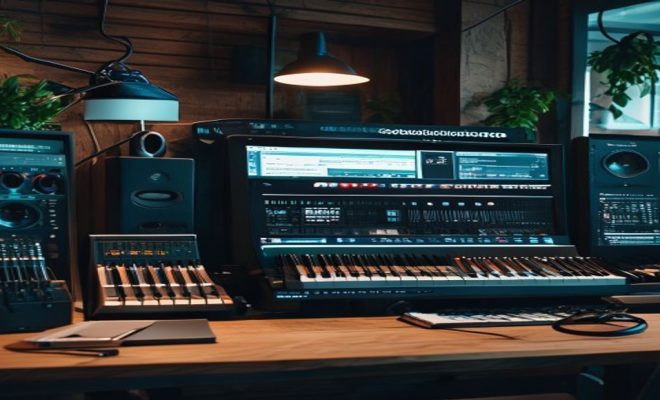
You’ve probably used GarageBand, right? It’s Apple’s incredibly user-friendly digital audio workstation (DAW) that comes free with every Mac and iOS device. For many, it’s the first step into music production, a sandbox where you can experiment with loops, record vocals, and even lay down some virtual drums. But here’s the thing: while GarageBand is fantastic for beginners and quick ideas, it has its limitations. That’s where the magic of GarageBand plugins comes in. These aren’t just little add-ons; they’re powerful tools that can dramatically expand GarageBand’s capabilities, letting you sculpt sounds, add professional-grade effects, and truly elevate your tracks from good to genuinely great.
Think of it like this: GarageBand provides the canvas and basic paints. Plugins are like bringing in a whole new palette of colors, specialized brushes, and even advanced techniques you didn’t know were possible. Whether you’re chasing that perfect vintage guitar tone, needing a richer, more expansive vocal sound, or just want to experiment with sonic textures that aren’t built-in, external plugins are your ticket. They open up a world of creative possibilities, allowing you to achieve a more polished, unique, and professional sound without having to migrate to a more complex and often more expensive DAW like Logic Pro or Ableton Live. Let’s dive into some of the most impactful GarageBand plugins you can integrate into your workflow today.
1. Native Instruments Komplete Start: A Universe of Sounds for Free
When you’re first exploring the world of GarageBand plugins, it can feel a bit overwhelming. There are thousands out there, many with hefty price tags. That’s why Native Instruments Komplete Start is such a revelation. It’s a completely free bundle that provides an incredible foundation for any music producer, especially those working within GarageBand. Native Instruments is a titan in the music software industry, known for its high-quality instruments and effects, and Komplete Start gives you a substantial taste of their ecosystem without spending a dime.
What do you get with Komplete Start? A lot, actually. It includes over 2,000 studio-quality sounds, covering everything from synths and drums to basses and orchestral elements. You’ll find a selection of their renowned Kontakt Player instruments, which are sampling powerhouses, alongside Reaktor Player instruments for cutting-edge synthesis. It also throws in some excellent effects, including a reverb and a delay, which are crucial for adding depth and space to your mixes. For anyone looking to expand GarageBand’s sonic palette significantly, this is an absolute must-have. It’s like unlocking a professional sound library instantly.
2. Neural DSP Archetype: Gojira: The Ultimate Metal Guitar Tone
If you’re a guitarist, particularly one who dabbles in heavier genres like metal or hard rock, you know the struggle of getting a truly crushing, articulate guitar tone. Amps, cabs, pedals – it’s an expensive and often loud pursuit. Enter Neural DSP, a company that has revolutionized digital guitar amplification with their incredibly realistic and powerful plugins. Among their stellar lineup, Archetype: Gojira stands out as a paramount choice, especially for those seeking aggressive, high-gain sounds directly within GarageBand.
Archetype: Gojira isn’t just an amp simulator; it’s an entire suite designed in collaboration with the legendary band Gojira. It features three distinct amplifiers, each capable of delivering different flavors of gain, from tight crunch to searing lead tones. Beyond the amps, you get an array of stompbox effects like an overdrive, a distortion, a phaser, and a chorus, all meticulously modeled. Crucially, it also includes a comprehensive cabinet section with a wide selection of impulse responses (IRs) and microphone options, allowing for incredibly detailed tone shaping. This plugin turns your computer into a fully-fledged metal rig, perfect for recording professional-sounding guitar tracks without ever miking up an actual amp.
3. Valhalla DSP VintageVerb: Lush Reverb for Every Track
Reverb is one of those effects that can make or break a mix. It adds space, depth, and atmosphere, helping instruments and vocals sit together more naturally. While GarageBand has its built-in reverbs, they can sometimes sound a bit generic or lack the character that professional mixes demand. That’s where Valhalla DSP’s VintageVerb comes in. Valhalla DSP is renowned for crafting some of the best-sounding and most affordable reverb plugins on the market, and VintageVerb is a prime example of their expertise.
VintageVerb is designed to emulate classic hardware reverbs from the 1970s and 80s, bringing that warm, dense, and often slightly grainy character to your tracks. It offers twelve distinct reverb algorithms, each with its own unique sonic signature, ranging from plate and hall to chamber and concert hall emulations. The interface is incredibly intuitive, making it easy to dial in the perfect decay time, pre-delay, and tone. For adding a touch of classic sheen to vocals, making drums sound bigger, or giving synths an ethereal glow, VintageVerb is an indispensable tool among GarageBand plugins, offering professional-grade results at a very reasonable price.
4. FabFilter Pro-Q 3: The Surgical EQ You Didn’t Know You Needed
Equalization (EQ) is fundamental to mixing. It’s how you shape the tonal balance of individual tracks, make instruments fit together, and clean up muddy frequencies. GarageBand provides a basic EQ, but for truly precise and transparent adjustments, you’ll want something more powerful. FabFilter Pro-Q 3 is widely regarded as one of the best EQ plugins available, and for good reason. It’s a visual, intuitive, and incredibly flexible tool that becomes indispensable once you start using it.
What makes Pro-Q 3 so special? Its stunning visual interface provides real-time frequency analysis, allowing you to see exactly what you’re doing. You can create up to 24 EQ bands, each with various filter shapes (bell, shelf, notch, pass filters) and adjustable Q factors, giving you surgical control over your sound. It also features dynamic EQ capabilities, which means you can have an EQ band only activate when a certain threshold is met, perfect for taming harsh frequencies that only appear occasionally. With its linear phase mode for mastering, mid/side processing for stereo width control, and intelligent spectrum grab feature, Pro-Q 3 is a comprehensive solution for all your EQ needs, taking your GarageBand mixes to a professional level. (See: Digital audio workstation overview.)
5. iZotope Ozone Elements: Mastering Made Accessible
After you’ve mixed your track in GarageBand, the final step before sharing it with the world is mastering. Mastering is the process of optimizing the overall loudness, tonal balance, and stereo width of a complete mix, ensuring it sounds polished and consistent across various playback systems. This is often an intimidating process, but iZotope Ozone Elements makes it incredibly accessible, even for beginners, and integrates beautifully as one of the most powerful GarageBand plugins for the final stage.
Ozone Elements is the entry-level version of iZotope’s industry-standard mastering suite, and it packs a serious punch for its price. It includes essential modules like an Imager for stereo widening, a Maximizer for increasing loudness without crushing dynamics, and an EQ for final tonal tweaks. What truly sets it apart, especially for those new to mastering, is its AI-powered Master Assistant. This feature analyzes your track and suggests a starting point for your mastering chain, tailored to your genre and desired output (streaming, CD, etc.). While it won’t replace a professional mastering engineer, Ozone Elements provides a fantastic way to give your GarageBand tracks a competitive loudness and polish, making them sound ready for release.
6. Output Portal: Granular Synthesis for Unique Textures
Sometimes, you want to transform a sound entirely, taking it into new, otherworldly realms. That’s where granular synthesis comes in, and Output Portal is an absolute master of this art form. While not strictly a traditional instrument or effect, Portal takes any incoming audio – a drum loop, a vocal sample, a synth pad – and chops it into tiny ‘grains’ that can then be manipulated in myriad ways. If you’re looking to add unique, evolving textures and atmospheres to your GarageBand productions, this plugin is a creative goldmine.
Portal’s interface is visually stunning and remarkably intuitive, considering the complexity of what it’s doing under the hood. You can control grain size, density, pitch, and playback direction, creating everything from shimmering reverses and glitchy stutters to vast, ambient soundscapes. It also includes an extensive suite of built-in effects like delay, reverb, bit crusher, and chorus, allowing you to further sculpt the processed sound. For sound designers, electronic music producers, or anyone simply looking to inject a dose of experimental creativity into their tracks, Portal is a truly inspiring GarageBand plugin that can turn even the most mundane sound into something extraordinary.
7. XLN Audio Addictive Drums 2: Realistic, Powerful Drum Sounds
Drums are the backbone of most popular music, and getting them to sound right is critical. GarageBand’s built-in drum kits and virtual drummer are certainly useful, but they can sometimes lack the punch, realism, and versatility that many producers crave. XLN Audio’s Addictive Drums 2 is a phenomenal solution, offering a vast library of incredibly realistic, high-quality drum sounds that can elevate your GarageBand beats to a professional standard.
Addictive Drums 2 isn’t just a collection of samples; it’s a complete drum production studio. It comes with a core library of meticulously recorded drum kits, each piece captured with multiple microphones and articulations. You can then customize every aspect: swap out individual drums, adjust their tuning and dampening, and even mix the microphone signals. Beyond the raw sounds, it includes a powerful mixer with built-in effects like EQ, compression, reverb, and distortion, allowing you to sculpt your drum sound precisely. It also boasts a massive library of MIDI grooves, making it easy to create realistic drum patterns even if you’re not a drummer yourself. For anyone serious about their rhythm section, Addictive Drums 2 is one of the most impactful GarageBand plugins you can invest in.
8. Waves CLA Vocals: Pro-Grade Vocal Processing
Vocals are often the most important element in a song, and getting them to sit perfectly in a mix can be challenging. Legendary mixing engineer Chris Lord-Alge is known for his punchy, clear, and powerful vocal sounds. Waves Audio, a giant in the plugin world, collaborated with CLA to create the CLA Vocals plugin, a fantastic all-in-one solution for achieving professional vocal tones with minimal fuss. This is an excellent addition to your GarageBand plugins arsenal if you’re recording singers, rappers, or even just spoken word for podcasts.
CLA Vocals bundles six of CLA’s favorite effects into a single, intuitive interface: bass, treble, compression, reverb, delay, and pitch. The beauty of this plugin is that you’re not just getting generic effects; you’re getting CLA’s carefully curated settings and signal flow for these effects. Instead of endless tweaking, you simply dial in the ‘intensity’ of each effect with a single knob, letting CLA’s expertise guide your sound. It’s incredibly fast for getting great results, whether you need a smooth, radio-ready vocal or something more aggressive and upfront. For those who want professional vocal sounds without the deep dive into individual compressors, EQs, and reverbs, CLA Vocals is a game-changer.
9. Soundtoys Little AlterBoy: Creative Vocal Transformations
Sometimes you don’t just want to enhance a vocal; you want to completely transform it. Soundtoys is famous for its unique and creative effects, and Little AlterBoy is a perfect example. This simple yet powerful plugin excels at pitch and formant shifting, allowing you to create robotic voices, gender-bending effects, subtle harmonies, or even hard-tuned, auto-tune style vocals. It’s a fantastic GarageBand plugin for adding character and experimental flair to any vocal track.
The interface is deceptively simple: large knobs for Pitch and Formant, a Drive control for adding saturation, and a Mix knob. The ‘Quantize’ button locks the pitch to a chromatic scale, creating that recognizable hard-tuned effect. But where it truly shines is in its ability to shift formants, which changes the perceived “size” of the voice without altering its pitch. You can make a male vocal sound like a chipmunk or a female vocal sound like a giant with ease. For electronic music, hip-hop, or just plain weird sound design, Little AlterBoy opens up a world of vocal possibilities that GarageBand’s stock tools can’t touch.
Understanding AUv3 and VST/AU Compatibility
Before you get too excited about all these amazing GarageBand plugins, it’s crucial to understand how they integrate with your DAW. GarageBand, being an Apple product, primarily supports Audio Units (AU) plugins on macOS. On iOS, it supports AUv3 (Audio Unit version 3), which is a more modern and sandboxed version of the Audio Unit standard. Most professional plugins you’ll find for Mac are in the AU format, making them directly compatible with GarageBand. (See: GarageBand music production insights.)
You might also hear about VST (Virtual Studio Technology) plugins. VST is another prevalent plugin format, particularly popular on Windows, but many developers offer both AU and VST versions for their Mac software. GarageBand on macOS specifically requires the AU version. So, when you’re looking to download or purchase a plugin, always ensure it comes in the Audio Units (.component) format if you intend to use it with GarageBand on your Mac. For iOS users, look for apps that explicitly state AUv3 compatibility – these will often appear as an effect or instrument option directly within GarageBand for iPad or iPhone.
Installing and Using GarageBand Plugins
Getting your new GarageBand plugins up and running is usually a straightforward process. On macOS, once you download and install a plugin, it typically places the .component file in your system’s Audio Units folder (/Library/Audio/Plug-Ins/Components). GarageBand automatically scans this folder when it launches, so after installation, a simple restart of GarageBand (and sometimes your entire computer) should make the new plugin appear.
To use an instrument plugin (like Komplete Start or Addictive Drums 2), you’ll create a new software instrument track in GarageBand. In the Smart Controls panel, under the ‘Plugins’ section, you’ll see a dropdown menu where you can select your newly installed instrument. For effect plugins (like VintageVerb or Pro-Q 3), you’ll add them to an existing track’s plugin chain. Again, in the Smart Controls, click on an empty slot in the ‘Plugins’ section and browse for your desired effect. It’s a simple drag-and-drop or select-from-menu process that quickly becomes second nature.
Maximizing Performance with External Plugins
While GarageBand is generally efficient, adding multiple demanding GarageBand plugins can start to tax your computer’s CPU and RAM. If you find your playback stuttering or hear crackling noises, there are a few things you can do to optimize performance. Firstly, increase GarageBand’s buffer size in Preferences > Audio/MIDI. A larger buffer introduces more latency but reduces the load on your CPU. Secondly, when you’re done editing a track with a CPU-intensive plugin, consider ‘freezing’ the track. This renders the track with the effects applied into an audio file, temporarily disabling the plugin and freeing up CPU resources. You can always unfreeze it later if you need to make changes.
Another tip is to use send/return effects for reverbs and delays. Instead of putting a separate reverb on every track, create an auxiliary (bus) track, put one instance of your reverb plugin on it, and then send a portion of each track’s signal to that bus. This saves CPU compared to running multiple instances of the same plugin. Finally, ensure your operating system and GarageBand itself are up to date, as Apple often includes performance improvements in software updates.
Choosing the Right Plugins for Your Workflow
With so many GarageBand plugins out there, how do you decide which ones are right for you? It really comes down to your specific needs and the type of music you make. If you’re struggling with thin-sounding vocals, a dedicated vocal processing plugin like CLA Vocals might be a priority. If your drum tracks lack punch, Addictive Drums 2 would be a smart investment. For guitarists, a Neural DSP amp sim can be transformative. Don’t feel pressured to buy everything at once.
Start by identifying your biggest frustrations or areas where GarageBand’s stock tools feel limiting. Is it the lack of realistic instrument sounds? The inability to get a professional mix? Or perhaps you’re looking for unique sound design capabilities? Many developers offer free trials, which are invaluable for testing a plugin in your actual projects and seeing if it truly enhances your workflow before you spend any money. Also, keep an eye out for sales, as many popular plugin companies have frequent discounts throughout the year, especially around holidays.
The Journey Beyond Stock Sounds
The beauty of GarageBand is its accessibility, but the true power of music production often lies in the tools you choose to augment it. These GarageBand plugins aren’t just about making your music sound ‘better’ in a generic sense; they’re about giving you the specific sonic colors and effects you need to realize your unique creative vision. Whether you’re a budding songwriter, an electronic music enthusiast, a metal guitarist, or a podcast producer looking for better vocal processing, there’s a world of plugins waiting to transform your workflow.
Don’t be afraid to experiment. Many developers offer free trials of their full plugins, allowing you to test them out in your own projects before committing to a purchase. Start with the free offerings like Komplete Start, and then gradually explore specialized tools that address your specific needs. The journey of discovering new sounds and effects is one of the most rewarding aspects of music production, and with the right GarageBand plugins, you’ll find yourself creating music you never thought possible within this humble yet powerful DAW. (See: Digital audio workstation in engineering.)
Frequently Asked Questions about GarageBand Plugins
Q1: Are all plugins compatible with GarageBand?
No, not all plugins are compatible. On macOS, GarageBand exclusively supports Audio Units (AU) plugins. It does not support VST (Virtual Studio Technology) plugins, even though VST is very common in the wider DAW world. When downloading or purchasing, always look for the ‘AU’ or ‘Audio Units’ version. For iOS GarageBand, you need AUv3 compatible apps.
Q2: How do I install plugins in GarageBand?
Most macOS plugins come with an installer that automatically places the necessary files in the correct system folder (/Library/Audio/Plug-Ins/Components). Once installed, simply restart GarageBand. The program scans this folder on startup and should then recognize your new plugins. On iOS, AUv3 plugins are typically standalone apps you download from the App Store; once installed, they appear as options within GarageBand.
Q3: Why can’t I see my new plugin in GarageBand?
There are a few common reasons:
- Wrong format: You might have installed a VST version instead of an AU version.
- No restart: GarageBand needs to be restarted after installation to scan for new plugins. Sometimes a full computer restart helps.
- Incorrect installation path: The plugin installer might have placed the files in the wrong location, or you might have moved them manually.
- 32-bit vs. 64-bit: Modern versions of GarageBand (and macOS) are 64-bit. If you have a very old 32-bit plugin, it won’t work.
- Licensing issue: Sometimes a plugin requires activation or a license manager to be running before it shows up.
Q4: Do plugins slow down GarageBand?
Yes, especially CPU-intensive ones. Each plugin requires processing power from your computer. If you use many plugins, or particularly complex ones, you might experience audio dropouts, crackling, or general slowdowns. Tips to mitigate this include increasing GarageBand’s buffer size, ‘freezing’ tracks, and using send/return effects instead of putting the same effect on multiple individual tracks.
Q5: Are there good free GarageBand plugins?
Absolutely! Native Instruments Komplete Start is a prime example, offering a huge collection of instruments and effects. Many companies also offer free ‘light’ versions of their paid plugins, or entirely free utilities like simple EQs, compressors, or saturation tools. Searching for “free AU plugins” or “free AUv3 plugins” will yield many excellent results to get you started without spending money.
Q6: Can I use GarageBand plugins on both Mac and iPhone/iPad?
It depends on the plugin. Mac GarageBand uses AU plugins, while iOS GarageBand uses AUv3 plugins. While some developers offer both Mac and iOS versions of their plugins (often as separate purchases), they are not interchangeable. A plugin you buy for your Mac typically won’t automatically work on your iPad, and vice-versa, unless explicitly stated by the developer.
Q7: What’s the difference between an instrument plugin and an effect plugin?
An instrument plugin (like Komplete Start or Addictive Drums 2) generates sound. You create a software instrument track, select the plugin, and play it via your MIDI keyboard or by programming notes in the piano roll. An effect plugin (like VintageVerb or FabFilter Pro-Q 3) processes existing audio. You add it to an audio track or a software instrument track to alter its sound, such as adding reverb, compression, or EQ.
Trending Now
Frequently Asked Questions
What are the best plugins for GarageBand?
Some of the best plugins for GarageBand include Native Instruments Komplete Start, which offers a free bundle of high-quality instruments and effects. Other notable plugins can enhance your sound design, add professional effects, and expand your creative possibilities, making your music production experience more robust.
How do I install plugins in GarageBand?
To install plugins in GarageBand, download the plugin files, usually in VST or AU format. Then, move the files to the appropriate Audio Units or VST folders on your Mac. Restart GarageBand, and your new plugins should appear in the plugin menu when you create or edit a track.
Can I use third-party plugins with GarageBand?
Yes, you can use third-party plugins with GarageBand. These plugins enhance the software's capabilities, allowing for more advanced sound design and effects. It's essential to ensure that the plugins are compatible with GarageBand and your Mac's operating system.
Are there free plugins for GarageBand?
Absolutely! Many free plugins are available for GarageBand, like Native Instruments Komplete Start. This bundle provides a variety of sounds and effects, making it an excellent choice for beginners looking to expand their music production toolkit without spending money.
What features do GarageBand plugins add?
GarageBand plugins add a range of features, including advanced effects, virtual instruments, and sound manipulation tools. They allow users to achieve professional-grade sound quality, experiment with different sonic textures, and customize their music production workflow to better suit their creative needs.
Agree or disagree? Drop a comment and tell us what you think.