The Tech Edvocate

Top Menu

  • Advertisement
  • Apps
  • Home Page
  • Home Page Five (No Sidebar)
  • Home Page Four
  • Home Page Three
  • Home Page Two
  • Home Tech2
  • Icons [No Sidebar]
  • Left Sidbear Page
  • Lynch Educational Consulting
  • My Account
  • My Speaking Page
  • Newsletter Sign Up Confirmation
  • Newsletter Unsubscription
  • Our Brands
  • Page Example
  • Privacy Policy
  • Protected Content
  • Register
  • Request a Product Review
  • Shop
  • Shortcodes Examples
  • Signup
  • Start Here
    • Governance
    • Careers
    • Contact Us
  • Terms and Conditions
  • The Edvocate
  • The Tech Edvocate Product Guide
  • Topics
  • Write For Us
  • Advertise

Main Menu

  • Start Here
    • Our Brands
    • Governance
      • Lynch Educational Consulting, LLC.
      • Dr. Lynch’s Personal Website
      • Careers
    • Write For Us
    • The Tech Edvocate Product Guide
    • Contact Us
    • Books
    • Edupedia
    • Post a Job
    • The Edvocate Podcast
    • Terms and Conditions
    • Privacy Policy
  • Topics
    • Assistive Technology
    • Child Development Tech
    • Early Childhood & K-12 EdTech
    • EdTech Futures
    • EdTech News
    • EdTech Policy & Reform
    • EdTech Startups & Businesses
    • Higher Education EdTech
    • Online Learning & eLearning
    • Parent & Family Tech
    • Personalized Learning
    • Product Reviews
  • Advertise
  • Tech Edvocate Awards
  • The Edvocate
  • Pedagogue
  • School Ratings

logo

The Tech Edvocate

  • Start Here
    • Our Brands
    • Governance
      • Lynch Educational Consulting, LLC.
      • Dr. Lynch’s Personal Website
        • My Speaking Page
      • Careers
    • Write For Us
    • The Tech Edvocate Product Guide
    • Contact Us
    • Books
    • Edupedia
    • Post a Job
    • The Edvocate Podcast
    • Terms and Conditions
    • Privacy Policy
  • Topics
    • Assistive Technology
    • Child Development Tech
    • Early Childhood & K-12 EdTech
    • EdTech Futures
    • EdTech News
    • EdTech Policy & Reform
    • EdTech Startups & Businesses
    • Higher Education EdTech
    • Online Learning & eLearning
    • Parent & Family Tech
    • Personalized Learning
    • Product Reviews
  • Advertise
  • Tech Edvocate Awards
  • The Edvocate
  • Pedagogue
  • School Ratings
  • Urgent Warning: How AI is Fueling Rampant Skincare Scams Right Now

  • Urgent: This Skincare Trend Is Exploiting Children — And It’s Spreading Fast

  • Seattle Times sues Microsoft and OpenAI, alleging they trained their AI on its journalism

  • Astonishing: Anthropic Axed $6 Billion Deal for Decart — Why?

  • Sega cancelled its “risky” Super Game project as it “would have to grow enormously to match the scale of the service” | GamesIndustry.biz

  • Devastating: Don’t Nod’s €8M Cash Crisis Threatens Studio Future

  • OpenAI Accused of Shocking Attempt to Hijack Euler Proof — The Truth Revealed

  • Meta Child Sexual Abuse Ads: A Disturbing Investigation Unveils Shocking Truths

  • Unveiling the Quiet Crisis: Why Two Mega-Districts Just Banned AI in Education

  • Unveiling the Controversial New Texas Curriculum: A Battle Over History and Identity

Tech Advice
Home›Tech Advice›Add a Signature to Your Microsoft Outlook Emails. Here’s How

Add a Signature to Your Microsoft Outlook Emails. Here’s How
By Matthew Lynch
July 15, 2023
0
Spread the love

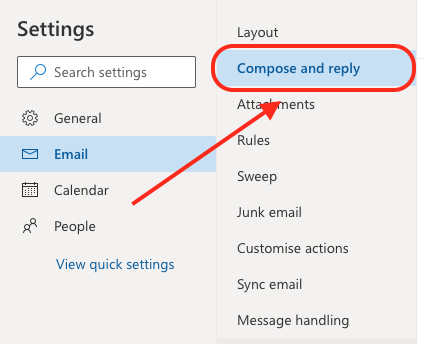
In this digital age, adding a personalized signature to your Microsoft Outlook emails provides a professional touch and makes it easier for recipients to identify the sender. Creating an email signature is simple and can include elements like your name, job title, company, contact information, and even social media profiles. Here’s a step-by-step guide on how to add a signature to your Microsoft Outlook emails.

1. Open Microsoft Outlook.

2. Click on ‘File’ in the upper left corner of the window.

3. In the dropdown menu, select ‘Options.’ A new window titled ‘Outlook Options’ will appear.

4. In the left sidebar of the ‘Outlook Options’ window, click on ‘Mail.’

5. Under the ‘Compose messages’ section, click on the ‘Signatures…’ button.

6. In the ‘Signatures and Stationery’ window that opens up, click on ‘New’ under the ‘Select signature to edit’ section.

7. Enter a name for your new signature in the pop-up dialog box and click ‘OK.’

8. Under the ‘Edit signature’ section, you can now type and format your desired signature content using various

options such as font size, font style, bold/italic/underline formatting, color options, alignment options, and including hyperlinks.

9. You can also add an image or logo by clicking on the picture icon in the editor’s toolbar in the ‘Edit signature’ section.

10. If you want your new signature to be automatically added to new emails or replies/forwards, set it as default from the dropdown menu under ‘Choose default signature’ on top right of Signatures and Stationery window.

11. Click `OK` to save your new signature and close the Signatures and Stationery window

12. Click `OK` once more in Outlook Options to finalize your changes.

That’s it! Your new signature is now created and saved in Microsoft Outlook. From now on, it will be automatically added to your outgoing emails according to the default settings you selected in step 10. If you need to manually add or switch between multiple signatures, you can do so by clicking on ‘Signature’ from the toolbar while composing a new email and selecting the desired signature.

Previous Article

All the ways to host a virtual ...

Next Article

All the Google Easter eggs worth checking ...

Matthew Lynch

Related articles More from author

  • Tech Advice

    2023 Chevy Corvette E-Ray: Dissecting the First Hybrid AWD Vette

    August 11, 2023
    By Matthew Lynch
  • Tech Advice

    Paramount Plus Review: Nostalgia-Rich Streaming Service That Can’t Beat Netflix

    July 24, 2023
    By Matthew Lynch
  • Tech Advice

    TV vs. Projector: Which Big Screen Should You Buy in 2023

    July 16, 2023
    By Matthew Lynch
  • Tech Advice

    2024 Chrysler Pacifica Limited Front-Wheel Drive Passenger Van : Trim Details, Reviews, Prices, Specs, and Incentives

    August 21, 2023
    By Matthew Lynch
  • Tech Advice

    The 2025 Volkswagen ID.7 Goes After the Everyday EV Driver

    September 20, 2023
    By Matthew Lynch
  • Tech Advice

    Mini Cars and Crossovers: Reviews, Pricing, and Specs

    August 19, 2023
    By Matthew Lynch

Search

Login & Registration

  • Log in
  • Entries feed
  • Comments feed
  • WordPress.org

Newsletter

Signup for The Tech Edvocate Newsletter and have the latest in EdTech news and opinion delivered to your email address!

About Us

Since technology is not going anywhere and does more good than harm, adapting is the best course of action. That is where The Tech Edvocate comes in. We plan to cover the PreK-12 and Higher Education EdTech sectors and provide our readers with the latest news and opinion on the subject. From time to time, I will invite other voices to weigh in on important issues in EdTech. We hope to provide a well-rounded, multi-faceted look at the past, present, the future of EdTech in the US and internationally.

We started this journey back in June 2016, and we plan to continue it for many more years to come. I hope that you will join us in this discussion of the past, present and future of EdTech and lend your own insight to the issues that are discussed.

Newsletter

Signup for The Tech Edvocate Newsletter and have the latest in EdTech news and opinion delivered to your email address!

Contact Us

The Tech Edvocate
910 Goddin Street
Richmond, VA 23231
(601) 630-5238
[email protected]

Copyright © 2026 Matthew Lynch. All rights reserved.