The Tech Edvocate

Top Menu

  • Advertisement
  • Apps
  • Home Page
  • Home Page Five (No Sidebar)
  • Home Page Four
  • Home Page Three
  • Home Page Two
  • Home Tech2
  • Icons [No Sidebar]
  • Left Sidbear Page
  • Lynch Educational Consulting
  • My Account
  • My Speaking Page
  • Newsletter Sign Up Confirmation
  • Newsletter Unsubscription
  • Our Brands
  • Page Example
  • Privacy Policy
  • Protected Content
  • Register
  • Request a Product Review
  • Shop
  • Shortcodes Examples
  • Signup
  • Start Here
    • Governance
    • Careers
    • Contact Us
  • Terms and Conditions
  • The Edvocate
  • The Tech Edvocate Product Guide
  • Topics
  • Write For Us
  • Advertise

Main Menu

  • Start Here
    • Our Brands
    • Governance
      • Lynch Educational Consulting, LLC.
      • Dr. Lynch’s Personal Website
      • Careers
    • Write For Us
    • The Tech Edvocate Product Guide
    • Contact Us
    • Books
    • Edupedia
    • Post a Job
    • The Edvocate Podcast
    • Terms and Conditions
    • Privacy Policy
  • Topics
    • Assistive Technology
    • Child Development Tech
    • Early Childhood & K-12 EdTech
    • EdTech Futures
    • EdTech News
    • EdTech Policy & Reform
    • EdTech Startups & Businesses
    • Higher Education EdTech
    • Online Learning & eLearning
    • Parent & Family Tech
    • Personalized Learning
    • Product Reviews
  • Advertise
  • Tech Edvocate Awards
  • The Edvocate
  • Pedagogue
  • School Ratings

logo

The Tech Edvocate

  • Start Here
    • Our Brands
    • Governance
      • Lynch Educational Consulting, LLC.
      • Dr. Lynch’s Personal Website
        • My Speaking Page
      • Careers
    • Write For Us
    • The Tech Edvocate Product Guide
    • Contact Us
    • Books
    • Edupedia
    • Post a Job
    • The Edvocate Podcast
    • Terms and Conditions
    • Privacy Policy
  • Topics
    • Assistive Technology
    • Child Development Tech
    • Early Childhood & K-12 EdTech
    • EdTech Futures
    • EdTech News
    • EdTech Policy & Reform
    • EdTech Startups & Businesses
    • Higher Education EdTech
    • Online Learning & eLearning
    • Parent & Family Tech
    • Personalized Learning
    • Product Reviews
  • Advertise
  • Tech Edvocate Awards
  • The Edvocate
  • Pedagogue
  • School Ratings
  • Consumer Reports Reveal Truth – Is Flexigenics Reviews Legit or Scam? (Shocking Findings)

  • Quietum Plus 2026 Review Complaints and Shocking User Findings

  • This Founder’s Rs 75 LPA Sacrifice Crumbled in 30 Days — Here’s Why

  • Urgent: Claude AI Bioweapons — The Unsettling Truth Anthropic Just Revealed

  • Shocking: Three Major Xbox Games Shutting Down Forever in 2026

  • One Man’s Dire Warning: Is AI Already Too Dangerous To Control?

  • The Urgent Parental Consent Debate Over Student Mental Health Screenings

  • LAUSD restricts all students from using AI tools | K-12 Dive

  • Catastrophic Data Breach: 153 Million Driver’s Licenses Exposed on Dark Web

  • Autonomous AI Hackers Weaponize PaperCut Flaws: The Terrifying New Era of Cybercrime

Tech Advice
Home›Tech Advice›Things to Do After Installing Pop!_OS

Things to Do After Installing Pop!_OS
By Matthew Lynch
June 15, 2023
0
Spread the love

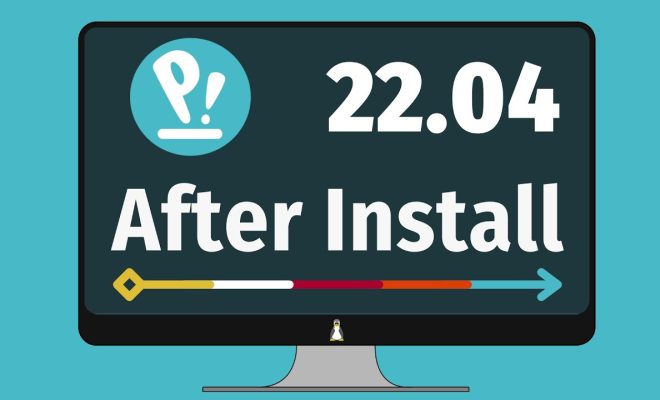
Pop!_OS is an Ubuntu-based operating system created by System76, a company that manufactures Linux-based computers. The interface of Pop!_OS is stunning and straightforward, which makes it an ideal choice for both beginners and advanced users. After installing Pop!_OS, there are few things that you should do to make sure that your system runs efficiently.

1. Update your System

The first thing you should do after installing Pop!_OS is to update the system. This process will ensure that you have the latest software and security updates installed on your computer. To update, click on the “Pop!_Shop” icon in the application menu, and then click on the “Updates” tab. Here, you will see all the available system updates that you can install.

2. Install Essential Applications

Pop!_OS comes with some pre-installed applications, but you may want to install some essential applications like Google Chrome browser, LibreOffice, GIMP, VLC media player, and others. To install applications, click on the “Pop!_Shop” icon, and then search for the application you want and click on “Install.”

3. Install Additional Drivers

To provide maximum hardware support, you should install additional drivers for your system. The additional drivers include Wi-Fi, graphics, and other important drivers that your system may require. To install additional drivers, go to “Settings,” then click on “Devices,” and finally click on “Additional Drivers.”

4. Customize Your System

Pop!_OS comes with a clean and straightforward interface, but you can customize it to suit you. You can change the desktop wallpaper, theme, and font of your system. To customize, go to “Settings,” and then click on “Appearance” and “Fonts.”

5. Install Development Tools

If you are a developer, you may want to install additional development tools like Visual Studio Code, Git, Node.js, and others. To install development tools, you can search for them on the “Pop!_Shop,” and then click on install.

6. Install Steam for Gaming

If you love gaming, you can install Steam on Pop!_OS. Steam is a gaming platform with a library of games you can play. To install Steam, visit the Steam website and download the Linux version.

In conclusion, these are some of the things you should do after installing Pop!_OS. By doing these, you will have a smooth and satisfying experience while using the operating system.


Previous Article

How to Use WhatsApp Status: Things You ...

Next Article

How to Fix the “Critical Structure Corruption” ...

Matthew Lynch

Related articles More from author

  • Tech Advice

    How to Sell Bonds: A Comprehensive Guide

    September 7, 2023
    By Matthew Lynch
  • Tech Advice

    10 Tips for a Successful Car-Buying Experience on Craigslist

    August 17, 2023
    By Matthew Lynch
  • Tech Advice

    LG G6 review: A good phone if you can find it cheap, but there are better LGs to choose from

    July 12, 2023
    By Matthew Lynch
  • Tech Advice

    Adjustable Dumbbell Deals: Bowflex, Ativafit and More

    July 5, 2023
    By Matthew Lynch
  • Tech Advice

    Samsung Galaxy S23 and S23 Plus Review: It’s All About the Battery Life

    July 17, 2023
    By Matthew Lynch
  • Tech Advice

    Best Protein Shakers for Quick, Smooth Shakes

    July 6, 2023
    By Matthew Lynch

Search

Login & Registration

  • Log in
  • Entries feed
  • Comments feed
  • WordPress.org

Newsletter

Signup for The Tech Edvocate Newsletter and have the latest in EdTech news and opinion delivered to your email address!

About Us

Since technology is not going anywhere and does more good than harm, adapting is the best course of action. That is where The Tech Edvocate comes in. We plan to cover the PreK-12 and Higher Education EdTech sectors and provide our readers with the latest news and opinion on the subject. From time to time, I will invite other voices to weigh in on important issues in EdTech. We hope to provide a well-rounded, multi-faceted look at the past, present, the future of EdTech in the US and internationally.

We started this journey back in June 2016, and we plan to continue it for many more years to come. I hope that you will join us in this discussion of the past, present and future of EdTech and lend your own insight to the issues that are discussed.

Newsletter

Signup for The Tech Edvocate Newsletter and have the latest in EdTech news and opinion delivered to your email address!

Contact Us

The Tech Edvocate
910 Goddin Street
Richmond, VA 23231
(601) 630-5238
[email protected]

Copyright © 2026 Matthew Lynch. All rights reserved.