The Tech Edvocate

Top Menu

  • Advertisement
  • Apps
  • Home Page
  • Home Page Five (No Sidebar)
  • Home Page Four
  • Home Page Three
  • Home Page Two
  • Home Tech2
  • Icons [No Sidebar]
  • Left Sidbear Page
  • Lynch Educational Consulting
  • My Account
  • My Speaking Page
  • Newsletter Sign Up Confirmation
  • Newsletter Unsubscription
  • Our Brands
  • Page Example
  • Privacy Policy
  • Protected Content
  • Register
  • Request a Product Review
  • Shop
  • Shortcodes Examples
  • Signup
  • Start Here
    • Governance
    • Careers
    • Contact Us
  • Terms and Conditions
  • The Edvocate
  • The Tech Edvocate Product Guide
  • Topics
  • Write For Us
  • Advertise

Main Menu

  • Start Here
    • Our Brands
    • Governance
      • Lynch Educational Consulting, LLC.
      • Dr. Lynch’s Personal Website
      • Careers
    • Write For Us
    • The Tech Edvocate Product Guide
    • Contact Us
    • Books
    • Edupedia
    • Post a Job
    • The Edvocate Podcast
    • Terms and Conditions
    • Privacy Policy
  • Topics
    • Assistive Technology
    • Child Development Tech
    • Early Childhood & K-12 EdTech
    • EdTech Futures
    • EdTech News
    • EdTech Policy & Reform
    • EdTech Startups & Businesses
    • Higher Education EdTech
    • Online Learning & eLearning
    • Parent & Family Tech
    • Personalized Learning
    • Product Reviews
  • Advertise
  • Tech Edvocate Awards
  • The Edvocate
  • Pedagogue
  • School Ratings

logo

The Tech Edvocate

  • Start Here
    • Our Brands
    • Governance
      • Lynch Educational Consulting, LLC.
      • Dr. Lynch’s Personal Website
        • My Speaking Page
      • Careers
    • Write For Us
    • The Tech Edvocate Product Guide
    • Contact Us
    • Books
    • Edupedia
    • Post a Job
    • The Edvocate Podcast
    • Terms and Conditions
    • Privacy Policy
  • Topics
    • Assistive Technology
    • Child Development Tech
    • Early Childhood & K-12 EdTech
    • EdTech Futures
    • EdTech News
    • EdTech Policy & Reform
    • EdTech Startups & Businesses
    • Higher Education EdTech
    • Online Learning & eLearning
    • Parent & Family Tech
    • Personalized Learning
    • Product Reviews
  • Advertise
  • Tech Edvocate Awards
  • The Edvocate
  • Pedagogue
  • School Ratings
  • Can Kayak book directly

  • How to list hotel on Booking.com

  • How to optimize Airbnb listing

  • How to get more bookings on Booking.com

  • How accurate is Kayak price forecast

  • How does Hopper app work

  • Travelocity vs Hotels.com comparison

  • Is Kayak a booking site or search engine

  • Can Google Flights find error fares

  • How to bundle flights and hotels Travelocity

Assistive Technology
Home›Assistive Technology›How to Do Split Screen on a MacBook Air

How to Do Split Screen on a MacBook Air
By Matthew Lynch
June 14, 2023
0
Spread the love

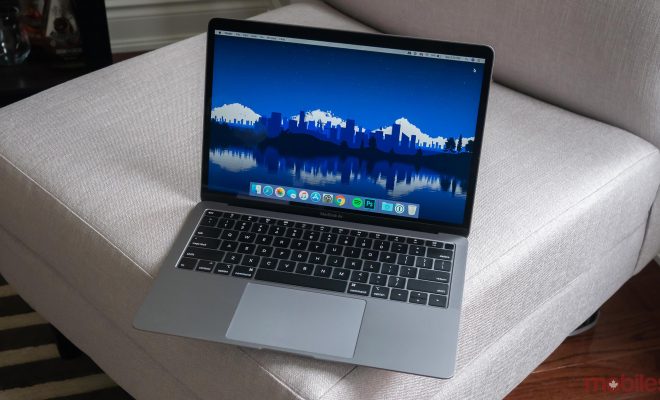
Split-screen is a feature that allows users to open two applications side by side on a single screen. This feature was first introduced by Microsoft Windows, but it is now available on MacBook Air laptops as well. It is an incredibly useful feature that lets you do two things at the same time, without needing to switch between applications. Here is a step-by-step guide on how to do split-screen on a MacBook Air.

Step 1: Open the applications

The first step is to open the applications that you want to view side by side. You can either open them from the dock or use Spotlight search to locate them. Once you have opened the applications, make sure that they are in full-screen mode.

Step 2: Activate Split Screen

To activate the split-screen feature, click and hold the green full-screen button located in the upper-left corner of the window. A menu will appear with several options. Select “Tile Window to Left of Screen” or “Tile Window to Right of Screen” depending on which side you want to use for the split-screen.

Step 3: Adjust Window Sizes

After activating the split-screen feature, you may want to adjust the window sizes to make the most of the available space. You can do this by hovering over the border between the two windows and dragging it to the left or right. You can also adjust the window size by using the shrink or enlarge buttons located in the upper left of each window.

Step 4: Use Both Applications

Once the split-screen feature has been activated, you can use both applications simultaneously. You can type in one app while watching a video on the other. To switch between apps, simply click on the app you want to use.

Step 5: Exit Split Screen

When you have finished using the split-screen feature, you can exit it by clicking on the green full-screen button again and choosing “Exit Full Screen”. This will return your windows to their original size and location.

In conclusion, split-screen is a useful feature that can significantly increase productivity by allowing users to work on multiple tasks simultaneously. On the MacBook Air, it is easy to activate and adjust the window size to suit your needs. So next time you need to work on multiple projects, use the split-screen feature and get more done in less time.

Previous Article

What Does Contrast Ratio Tell You About ...

Next Article

Best Recruiting Apps for Hiring Top Talents

Matthew Lynch

Related articles More from author

  • Assistive Technology

    Windows 10 Start Menu Not Working? Here’s How to Fix It

    June 21, 2023
    By Matthew Lynch
  • Assistive Technology

    How to Fix It When Roku Keeps Buffering

    June 8, 2023
    By Matthew Lynch
  • Assistive Technology

    Common Apple Music Issues and How to Fix Them

    June 14, 2023
    By Matthew Lynch
  • Assistive TechnologyBest of the Best Lists

    The Tech Edvocate’s List of 13 Assistive Technology Apps, Tools and Resources

    July 17, 2017
    By Matthew Lynch
  • Assistive Technology

    How to Delete Clubhouse App Account

    June 12, 2023
    By Matthew Lynch
  • Assistive Technology

    How to Use Instagram’s Notes Feature to Post a Status

    June 15, 2023
    By Matthew Lynch

Search

Login & Registration

  • Log in
  • Entries feed
  • Comments feed
  • WordPress.org

Newsletter

Signup for The Tech Edvocate Newsletter and have the latest in EdTech news and opinion delivered to your email address!

About Us

Since technology is not going anywhere and does more good than harm, adapting is the best course of action. That is where The Tech Edvocate comes in. We plan to cover the PreK-12 and Higher Education EdTech sectors and provide our readers with the latest news and opinion on the subject. From time to time, I will invite other voices to weigh in on important issues in EdTech. We hope to provide a well-rounded, multi-faceted look at the past, present, the future of EdTech in the US and internationally.

We started this journey back in June 2016, and we plan to continue it for many more years to come. I hope that you will join us in this discussion of the past, present and future of EdTech and lend your own insight to the issues that are discussed.

Newsletter

Signup for The Tech Edvocate Newsletter and have the latest in EdTech news and opinion delivered to your email address!

Contact Us

The Tech Edvocate
910 Goddin Street
Richmond, VA 23231
(601) 630-5238
[email protected]

Copyright © 2026 Matthew Lynch. All rights reserved.