The Tech Edvocate

Top Menu

  • Advertisement
  • Apps
  • Home Page
  • Home Page Five (No Sidebar)
  • Home Page Four
  • Home Page Three
  • Home Page Two
  • Home Tech2
  • Icons [No Sidebar]
  • Left Sidbear Page
  • Lynch Educational Consulting
  • My Account
  • My Speaking Page
  • Newsletter Sign Up Confirmation
  • Newsletter Unsubscription
  • Our Brands
  • Page Example
  • Privacy Policy
  • Protected Content
  • Register
  • Request a Product Review
  • Shop
  • Shortcodes Examples
  • Signup
  • Start Here
    • Governance
    • Careers
    • Contact Us
  • Terms and Conditions
  • The Edvocate
  • The Tech Edvocate Product Guide
  • Topics
  • Write For Us
  • Advertise

Main Menu

  • Start Here
    • Our Brands
    • Governance
      • Lynch Educational Consulting, LLC.
      • Dr. Lynch’s Personal Website
      • Careers
    • Write For Us
    • The Tech Edvocate Product Guide
    • Contact Us
    • Books
    • Edupedia
    • Post a Job
    • The Edvocate Podcast
    • Terms and Conditions
    • Privacy Policy
  • Topics
    • Assistive Technology
    • Child Development Tech
    • Early Childhood & K-12 EdTech
    • EdTech Futures
    • EdTech News
    • EdTech Policy & Reform
    • EdTech Startups & Businesses
    • Higher Education EdTech
    • Online Learning & eLearning
    • Parent & Family Tech
    • Personalized Learning
    • Product Reviews
  • Advertise
  • Tech Edvocate Awards
  • The Edvocate
  • Pedagogue
  • School Ratings

logo

The Tech Edvocate

  • Start Here
    • Our Brands
    • Governance
      • Lynch Educational Consulting, LLC.
      • Dr. Lynch’s Personal Website
        • My Speaking Page
      • Careers
    • Write For Us
    • The Tech Edvocate Product Guide
    • Contact Us
    • Books
    • Edupedia
    • Post a Job
    • The Edvocate Podcast
    • Terms and Conditions
    • Privacy Policy
  • Topics
    • Assistive Technology
    • Child Development Tech
    • Early Childhood & K-12 EdTech
    • EdTech Futures
    • EdTech News
    • EdTech Policy & Reform
    • EdTech Startups & Businesses
    • Higher Education EdTech
    • Online Learning & eLearning
    • Parent & Family Tech
    • Personalized Learning
    • Product Reviews
  • Advertise
  • Tech Edvocate Awards
  • The Edvocate
  • Pedagogue
  • School Ratings
  • Miro vs Conceptboard for project management

  • How to use Teamwork for resource management

  • How much does Procore cost per month

  • How to organize Microsoft Planner buckets

  • Is Teamwork good for billable hours

  • Procore vs Buildertrend which is better

  • Airtable project management templates

  • Can Miro track project progress

  • How to use Basecamp for client work

  • Can Lucidchart create swimlane diagrams

Digital & Mobile Technology
Home›Digital & Mobile Technology›How to Fix Error Code 0xc0000001

How to Fix Error Code 0xc0000001
By Matthew Lynch
June 11, 2023
0
Spread the love

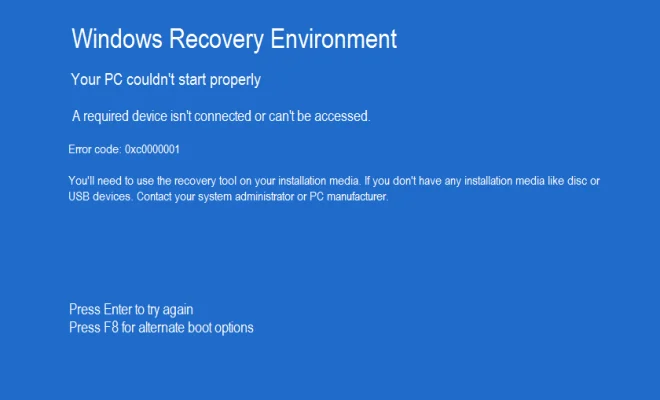
If you encounter the error code 0xc0000001 on your Windows computer or laptop, it can be a frustrating and worrying experience as it can prevent you from accessing your system. The error code usually appears when you try to boot your device and indicates that your boot configuration data (BCD) is corrupted or missing.

Luckily, there are several solutions you can try to fix error code 0xc0000001 and get your computer up and running again.

Solution 1: Repair Startup Files

One of the most common reasons for the error code 0xc0000001 is missing or corrupted startup files. You can try repairing them by following these steps:

Step 1: Boot your computer from the Windows installation media.

Step 2: Click on Repair your computer.

Step 3: Click on Troubleshoot.

Step 4: Click on Advanced options.

Step 5: Click on Automatic Repair.

Solution 2: Rebuild the BCD

Rebuilding the BCD is another effective solution to fix error code 0xc0000001. Follow these steps to rebuild the BCD:

Step 1: Boot your computer from the Windows installation media.

Step 2: Click on Repair your computer.

Step 3: Click on Troubleshoot.

Step 4: Click on Advanced options.

Step 5: Click on Command Prompt.

Step 6: Type the following commands and press Enter after each one:
bootrec /fixmbr
bootrec /fixboot
bootrec /rebuildbcd

Solution 3: Update Drivers

If the above solutions don’t work, it is possible that some of your drivers need updating. Follow these steps to update your drivers:

Step 1: Boot your computer into Safe Mode.

Step 2: Press the Windows key + X and select Device Manager.

Step 3: Right-click on each device and select Update driver.

Solution 4: Reset Your PC

If none of the above solutions work, you can reset your PC to its default state. Please note that this will erase all your files and settings, so make sure you back up your important files before proceeding.

Step 1: Boot your computer from the Windows installation media.

Step 2: Click on Install now.

Step 3: Accept the license terms.

Step 4: Select the Custom installation.

Step 5: Delete all partitions.

Step 6: Select the unallocated space and click on Next.

Step 7: Follow the prompts to complete the installation process.

In conclusion, the error code 0xc0000001 can be a frustrating and worrying experience, but there are several solutions you can try to fix it. We recommend starting with the first solution and working your way through until you find one that works for you. Good luck!


Previous Article

How to Get Verified on Twitch

Next Article

How to Edit Instagram Captions

Matthew Lynch

Related articles More from author

  • Digital & Mobile Technology

    How to Fix It When TNT Won’t Activate on Roku

    June 10, 2023
    By Matthew Lynch
  • Digital & Mobile Technology

    What Would Happen If Bitcoin’s Price Crashes to Zero?

    August 5, 2023
    By Matthew Lynch
  • Digital & Mobile Technology

    Charter/Spectrum Speed Test

    June 10, 2023
    By Matthew Lynch
  • Digital & Mobile Technology

    Ways to Fix a Broken Charger Cable

    June 23, 2023
    By Matthew Lynch
  • Digital & Mobile Technology

    How to Refresh on Mac

    June 6, 2023
    By Matthew Lynch
  • Digital & Mobile Technology

    How to Screen Share With FaceTime on a Mac

    June 7, 2023
    By Matthew Lynch

Search

Login & Registration

  • Log in
  • Entries feed
  • Comments feed
  • WordPress.org

Newsletter

Signup for The Tech Edvocate Newsletter and have the latest in EdTech news and opinion delivered to your email address!

About Us

Since technology is not going anywhere and does more good than harm, adapting is the best course of action. That is where The Tech Edvocate comes in. We plan to cover the PreK-12 and Higher Education EdTech sectors and provide our readers with the latest news and opinion on the subject. From time to time, I will invite other voices to weigh in on important issues in EdTech. We hope to provide a well-rounded, multi-faceted look at the past, present, the future of EdTech in the US and internationally.

We started this journey back in June 2016, and we plan to continue it for many more years to come. I hope that you will join us in this discussion of the past, present and future of EdTech and lend your own insight to the issues that are discussed.

Newsletter

Signup for The Tech Edvocate Newsletter and have the latest in EdTech news and opinion delivered to your email address!

Contact Us

The Tech Edvocate
910 Goddin Street
Richmond, VA 23231
(601) 630-5238
[email protected]

Copyright © 2026 Matthew Lynch. All rights reserved.