The Tech Edvocate

Top Menu

  • Advertisement
  • Apps
  • Home Page
  • Home Page Five (No Sidebar)
  • Home Page Four
  • Home Page Three
  • Home Page Two
  • Home Tech2
  • Icons [No Sidebar]
  • Left Sidbear Page
  • Lynch Educational Consulting
  • My Account
  • My Speaking Page
  • Newsletter Sign Up Confirmation
  • Newsletter Unsubscription
  • Our Brands
  • Page Example
  • Privacy Policy
  • Protected Content
  • Register
  • Request a Product Review
  • Shop
  • Shortcodes Examples
  • Signup
  • Start Here
    • Governance
    • Careers
    • Contact Us
  • Terms and Conditions
  • The Edvocate
  • The Tech Edvocate Product Guide
  • Topics
  • Write For Us
  • Advertise

Main Menu

  • Start Here
    • Our Brands
    • Governance
      • Lynch Educational Consulting, LLC.
      • Dr. Lynch’s Personal Website
      • Careers
    • Write For Us
    • The Tech Edvocate Product Guide
    • Contact Us
    • Books
    • Edupedia
    • Post a Job
    • The Edvocate Podcast
    • Terms and Conditions
    • Privacy Policy
  • Topics
    • Assistive Technology
    • Child Development Tech
    • Early Childhood & K-12 EdTech
    • EdTech Futures
    • EdTech News
    • EdTech Policy & Reform
    • EdTech Startups & Businesses
    • Higher Education EdTech
    • Online Learning & eLearning
    • Parent & Family Tech
    • Personalized Learning
    • Product Reviews
  • Advertise
  • Tech Edvocate Awards
  • The Edvocate
  • Pedagogue
  • School Ratings

logo

The Tech Edvocate

  • Start Here
    • Our Brands
    • Governance
      • Lynch Educational Consulting, LLC.
      • Dr. Lynch’s Personal Website
        • My Speaking Page
      • Careers
    • Write For Us
    • The Tech Edvocate Product Guide
    • Contact Us
    • Books
    • Edupedia
    • Post a Job
    • The Edvocate Podcast
    • Terms and Conditions
    • Privacy Policy
  • Topics
    • Assistive Technology
    • Child Development Tech
    • Early Childhood & K-12 EdTech
    • EdTech Futures
    • EdTech News
    • EdTech Policy & Reform
    • EdTech Startups & Businesses
    • Higher Education EdTech
    • Online Learning & eLearning
    • Parent & Family Tech
    • Personalized Learning
    • Product Reviews
  • Advertise
  • Tech Edvocate Awards
  • The Edvocate
  • Pedagogue
  • School Ratings
  • Outrageous: AppLovin Hit With Lawsuit Over AI Claims — What Investors Need to Know

  • 9 Critical Ways AI Investment Fraud Is Quietly Draining Your Bank Account

  • Is the AI Bubble Bursting? OpenAI’s Funding Woes Revealed

  • Why Millions Are Skipping College for These 7 Online Courses Right Now

  • The Astonishing Truth About PS5 Pro vs Xbox Ally X Financing

  • The Urgent Truth About 2026 Privacy Laws: Why Your Business Could Face Catastrophic Fines

  • Shocking: Esports Pros Reveal the Critical Steps to Protect Your Earnings

  • The Staggering Truth About These New Weight Loss Drugs — And Why You Need to Know

  • The Quiet Crisis: Why Your Auto Loan Interest Rates Are Still Skyrocketing

  • Elvis’s Ghost Haunts AI: The $41 Million Anthropic Copyright Lawsuit Explained

Assistive Technology
Home›Assistive Technology›An Easy Fix for a Magic Mouse Tracking Problem

An Easy Fix for a Magic Mouse Tracking Problem
By Matthew Lynch
June 10, 2023
0
Spread the love

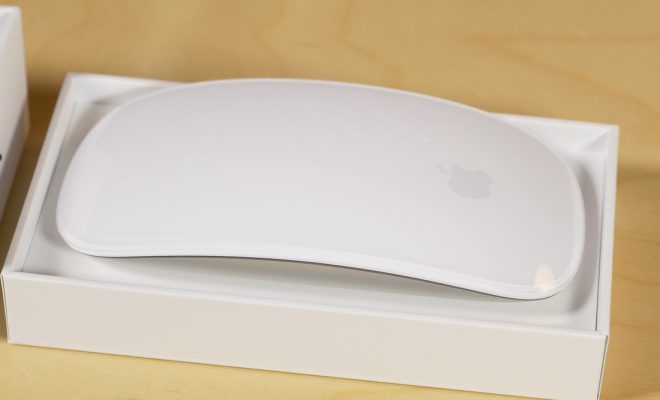
As an avid user of Apple’s Magic Mouse, you know that it’s one of the most comfortable, convenient, and sleek accessories you can use with your Mac. But despite its undeniable benefits, the Magic Mouse sometimes suffers from a tracking problem that can be frustrating and annoying.

The issue is that sometimes the Magic Mouse cursor moves erratically or unpredictably, making it difficult to use or worse, causing you to lose your work. This problem can be due to various factors, such as dirt or dust on the surface you’re using it on, low battery life, or Bluetooth interference.

Fortunately, there’s an easy fix for this tracking problem that you can try before resorting to more drastic measures such as getting a new mouse or resetting your Mac preferences. Here are the steps to follow:

  1. Clean the surface and the Magic Mouse’s sensors

The first step is to make sure that the surface you’re using the Magic Mouse on is clean and free from dust, hair, or other debris that can interfere with its sensors. You can use a soft cloth or a paper towel to wipe off the surface or spray a bit of cleaning solution, such as isopropyl alcohol, on a cloth to clean it more thoroughly.

Next, turn off the Magic Mouse and use a clean, soft cloth or a cotton swab to gently clean the sensors on the bottom of the mouse. Be careful not to scratch or damage the surface. This should help to remove any dirt or debris that’s blocking the sensors from detecting movement accurately.

  1. Replace the batteries or charge the Magic Mouse

Another possible cause of tracking problems is low battery life. If the Magic Mouse cursor moves erratically, it could be because the batteries are running low, or the charge is too low. Try replacing the batteries or charging the mouse and see if that makes a difference.

  1. Disable other Bluetooth devices temporarily

Bluetooth interference can also cause Magic Mouse tracking problems. If you have other Bluetooth devices connected to your Mac, such as speakers, headphones, or a wireless keyboard, try disabling them temporarily and see if that helps. Alternatively, move away from other wireless devices in the area that may be causing interference.

  1. Adjust the tracking speed or acceleration

Finally, if none of the above fixes work, you can try adjusting the tracking speed or acceleration for the Magic Mouse. This setting can often be found in the mouse preferences section under System Preferences.

Increasing the tracking speed may help to reduce the erratic movement of the cursor, while decreasing the acceleration may provide more precision control over the mouse.

In conclusion, the Magic Mouse is a fantastic device that can enhance your productivity and comfort when using your Mac. However, it can sometimes have tracking problems that may interfere with your workflow. By following the steps above, you can quickly and easily address these problems, restoring your Magic Mouse’s smooth movement and accuracy.


Previous Article

How to Reset Safari to Default Settings

Next Article

How to Reformat Your MacBook Pro

Matthew Lynch

Related articles More from author

  • Assistive Technology

    How to Use Twitch With Chromecast

    June 11, 2023
    By Matthew Lynch
  • Assistive Technology

    How to Use localStorage in JavaScript

    June 13, 2023
    By Matthew Lynch
  • Assistive Technology

    How to Make a Group Chat on Snapchat

    June 8, 2023
    By Matthew Lynch
  • Assistive Technology

    What Are Windows Optional Updates, and How Do You Install Them?

    June 10, 2023
    By Matthew Lynch
  • Assistive Technology

    How to Use Live Captions on Your Mac to Transcribe Audio

    June 6, 2023
    By Matthew Lynch
  • Assistive Technology

    How to Turn Off 2-Step Verification on Your Google Account on Android

    June 21, 2023
    By Matthew Lynch

Search

Login & Registration

  • Log in
  • Entries feed
  • Comments feed
  • WordPress.org

Newsletter

Signup for The Tech Edvocate Newsletter and have the latest in EdTech news and opinion delivered to your email address!

About Us

Since technology is not going anywhere and does more good than harm, adapting is the best course of action. That is where The Tech Edvocate comes in. We plan to cover the PreK-12 and Higher Education EdTech sectors and provide our readers with the latest news and opinion on the subject. From time to time, I will invite other voices to weigh in on important issues in EdTech. We hope to provide a well-rounded, multi-faceted look at the past, present, the future of EdTech in the US and internationally.

We started this journey back in June 2016, and we plan to continue it for many more years to come. I hope that you will join us in this discussion of the past, present and future of EdTech and lend your own insight to the issues that are discussed.

Newsletter

Signup for The Tech Edvocate Newsletter and have the latest in EdTech news and opinion delivered to your email address!

Contact Us

The Tech Edvocate
910 Goddin Street
Richmond, VA 23231
(601) 630-5238
[email protected]

Copyright © 2026 Matthew Lynch. All rights reserved.