The Tech Edvocate

Top Menu

  • Advertisement
  • Apps
  • Home Page
  • Home Page Five (No Sidebar)
  • Home Page Four
  • Home Page Three
  • Home Page Two
  • Home Tech2
  • Icons [No Sidebar]
  • Left Sidbear Page
  • Lynch Educational Consulting
  • My Account
  • My Speaking Page
  • Newsletter Sign Up Confirmation
  • Newsletter Unsubscription
  • Our Brands
  • Page Example
  • Privacy Policy
  • Protected Content
  • Register
  • Request a Product Review
  • Shop
  • Shortcodes Examples
  • Signup
  • Start Here
    • Governance
    • Careers
    • Contact Us
  • Terms and Conditions
  • The Edvocate
  • The Tech Edvocate Product Guide
  • Topics
  • Write For Us
  • Advertise

Main Menu

  • Start Here
    • Our Brands
    • Governance
      • Lynch Educational Consulting, LLC.
      • Dr. Lynch’s Personal Website
      • Careers
    • Write For Us
    • The Tech Edvocate Product Guide
    • Contact Us
    • Books
    • Edupedia
    • Post a Job
    • The Edvocate Podcast
    • Terms and Conditions
    • Privacy Policy
  • Topics
    • Assistive Technology
    • Child Development Tech
    • Early Childhood & K-12 EdTech
    • EdTech Futures
    • EdTech News
    • EdTech Policy & Reform
    • EdTech Startups & Businesses
    • Higher Education EdTech
    • Online Learning & eLearning
    • Parent & Family Tech
    • Personalized Learning
    • Product Reviews
  • Advertise
  • Tech Edvocate Awards
  • The Edvocate
  • Pedagogue
  • School Ratings

logo

The Tech Edvocate

  • Start Here
    • Our Brands
    • Governance
      • Lynch Educational Consulting, LLC.
      • Dr. Lynch’s Personal Website
        • My Speaking Page
      • Careers
    • Write For Us
    • The Tech Edvocate Product Guide
    • Contact Us
    • Books
    • Edupedia
    • Post a Job
    • The Edvocate Podcast
    • Terms and Conditions
    • Privacy Policy
  • Topics
    • Assistive Technology
    • Child Development Tech
    • Early Childhood & K-12 EdTech
    • EdTech Futures
    • EdTech News
    • EdTech Policy & Reform
    • EdTech Startups & Businesses
    • Higher Education EdTech
    • Online Learning & eLearning
    • Parent & Family Tech
    • Personalized Learning
    • Product Reviews
  • Advertise
  • Tech Edvocate Awards
  • The Edvocate
  • Pedagogue
  • School Ratings
  • The AI Job Apocalypse: Are Companies Hiding The Real Reason For Mass Layoffs?

  • One Crucial Factor Could Decimate Your US Auto Insurance Rates in 2026

  • Unbelievable: Meta Hit With $25 Billion Fine — Is Your Health Data Next?

  • 10 Crucial AI Literacy Courses Every Parent Needs Now

  • The Unseen Force Quietly Reshaping Rural Life: 7 Satellite Internet Providers Battling for Supremacy

  • Best Buy’s Gamers Hub: The Unbelievable Truth About Its “Rewards” And Discounts

  • 8 Crucial Reasons Why MAI-DxO Just Obliterated Doctors in a Head-to-Head Diagnosis Battle

  • The Brutal Truth About Student Loan Refinancing for New Grads in 2024

  • The Brutal Truth: AI Just Blew Up PHP Security – Here’s How to Survive ‘Black October’

  • Sodium-ion storage maker Peak Energy raises $108 million in GM-led round – PV Magazine

Assistive Technology
Home›Assistive Technology›How to Use Split Screen on Android

How to Use Split Screen on Android
By Matthew Lynch
June 10, 2023
0
Spread the love

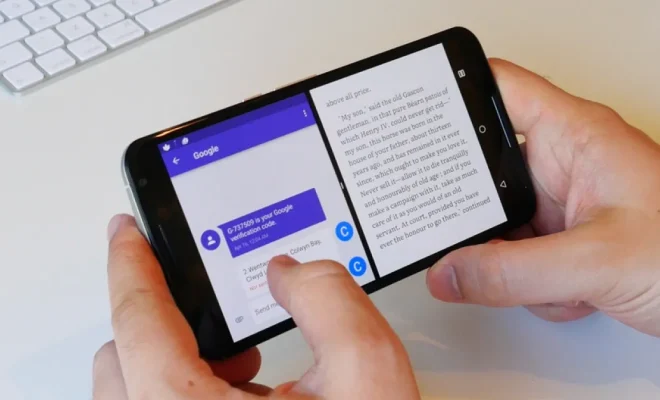
Split screen multitasking is a great feature on Android devices that allows users to run two applications simultaneously on the screen. This feature is particularly beneficial for those who work on multiple applications at the same time or want to watch videos and chat with their friends simultaneously. However, not all Android devices have the same split screen capabilities, and the way you use this feature may vary across different Android versions. In this article, we will guide you through How to Use Split Screen on Android.

Step 1: Open the Apps You Want to Split Screen

The first step in utilizing split-screen mode is to open the two apps that you want to run simultaneously. You can open them from the application drawer or the home screen, or from recently opened apps. Ensure that you have both apps ready to go and that both support split-screen mode.

Step 2: Activate Multi-Tasking

Once the two apps are running, you need to activate the multi-tasking option. If your phone is using Android 7.0 Nougat or newer, split-screen mode is already built-in. To enter split screen view, tap and hold the square Overview button on the right-hand side of the navigation bar. The screen will split into two equal halves. You can also activate split-screen mode by clicking the Recent button, and then tap the app icon on top of the app preview.

Step 3: Resize the Apps

Once split-screen mode is active, you can adjust the size of the two windows by dragging the center divider line up or down. You can also swap the positions of the two apps by pressing and holding on the overlapping app, and then drag it to its desired location.

Step 4: Use the Apps

Now that both apps are running on the screen, you can use them simultaneously. For instance, you can watch a video on YouTube while replying to messages on Messenger or scrolling through Facebook. However, note that not all apps support split-screen mode, and some applications may work better when used alone. You may need to experiment with different apps to find ones that work well together in this mode.

Conclusion

Split screen mode is an excellent feature that allows you to multitask on your Android device easily. With the step-by-step guide above, you can enable split screen mode and adjust the window sizes to your liking. However, be aware that some apps may not work well in split-screen mode, and it may take some experimentation to find apps that work best together.


Previous Article

How to Hide Speaker Wire in the ...

Next Article

How to Restart a Surface Pro

Matthew Lynch

Related articles More from author

  • Assistive Technology

    How to Deactivate or Delete Your Telegram Account

    June 6, 2023
    By Matthew Lynch
  • Assistive Technology

    How To Factory Reset an HP Laptop

    June 8, 2023
    By Matthew Lynch
  • Assistive Technology

    How to Change the Default Font in Windows 10

    June 15, 2023
    By Matthew Lynch
  • Assistive Technology

    How to Reset Wi-Fi Extender to New Router

    June 11, 2023
    By Matthew Lynch
  • Assistive Technology

    How to Turn Off the Microsoft Family Features Pop-Up on Windows 10

    June 23, 2023
    By Matthew Lynch
  • Assistive Technology

    How to Find Friends’ Playlists on Spotify

    June 11, 2023
    By Matthew Lynch

Search

Login & Registration

  • Log in
  • Entries feed
  • Comments feed
  • WordPress.org

Newsletter

Signup for The Tech Edvocate Newsletter and have the latest in EdTech news and opinion delivered to your email address!

About Us

Since technology is not going anywhere and does more good than harm, adapting is the best course of action. That is where The Tech Edvocate comes in. We plan to cover the PreK-12 and Higher Education EdTech sectors and provide our readers with the latest news and opinion on the subject. From time to time, I will invite other voices to weigh in on important issues in EdTech. We hope to provide a well-rounded, multi-faceted look at the past, present, the future of EdTech in the US and internationally.

We started this journey back in June 2016, and we plan to continue it for many more years to come. I hope that you will join us in this discussion of the past, present and future of EdTech and lend your own insight to the issues that are discussed.

Newsletter

Signup for The Tech Edvocate Newsletter and have the latest in EdTech news and opinion delivered to your email address!

Contact Us

The Tech Edvocate
910 Goddin Street
Richmond, VA 23231
(601) 630-5238
[email protected]

Copyright © 2026 Matthew Lynch. All rights reserved.