The Tech Edvocate

Top Menu

  • Advertisement
  • Apps
  • Home Page
  • Home Page Five (No Sidebar)
  • Home Page Four
  • Home Page Three
  • Home Page Two
  • Home Tech2
  • Icons [No Sidebar]
  • Left Sidbear Page
  • Lynch Educational Consulting
  • My Account
  • My Speaking Page
  • Newsletter Sign Up Confirmation
  • Newsletter Unsubscription
  • Our Brands
  • Page Example
  • Privacy Policy
  • Protected Content
  • Register
  • Request a Product Review
  • Shop
  • Shortcodes Examples
  • Signup
  • Start Here
    • Governance
    • Careers
    • Contact Us
  • Terms and Conditions
  • The Edvocate
  • The Tech Edvocate Product Guide
  • Topics
  • Write For Us
  • Advertise

Main Menu

  • Start Here
    • Our Brands
    • Governance
      • Lynch Educational Consulting, LLC.
      • Dr. Lynch’s Personal Website
      • Careers
    • Write For Us
    • The Tech Edvocate Product Guide
    • Contact Us
    • Books
    • Edupedia
    • Post a Job
    • The Edvocate Podcast
    • Terms and Conditions
    • Privacy Policy
  • Topics
    • Assistive Technology
    • Child Development Tech
    • Early Childhood & K-12 EdTech
    • EdTech Futures
    • EdTech News
    • EdTech Policy & Reform
    • EdTech Startups & Businesses
    • Higher Education EdTech
    • Online Learning & eLearning
    • Parent & Family Tech
    • Personalized Learning
    • Product Reviews
  • Advertise
  • Tech Edvocate Awards
  • The Edvocate
  • Pedagogue
  • School Ratings

logo

The Tech Edvocate

  • Start Here
    • Our Brands
    • Governance
      • Lynch Educational Consulting, LLC.
      • Dr. Lynch’s Personal Website
        • My Speaking Page
      • Careers
    • Write For Us
    • The Tech Edvocate Product Guide
    • Contact Us
    • Books
    • Edupedia
    • Post a Job
    • The Edvocate Podcast
    • Terms and Conditions
    • Privacy Policy
  • Topics
    • Assistive Technology
    • Child Development Tech
    • Early Childhood & K-12 EdTech
    • EdTech Futures
    • EdTech News
    • EdTech Policy & Reform
    • EdTech Startups & Businesses
    • Higher Education EdTech
    • Online Learning & eLearning
    • Parent & Family Tech
    • Personalized Learning
    • Product Reviews
  • Advertise
  • Tech Edvocate Awards
  • The Edvocate
  • Pedagogue
  • School Ratings
  • 100 Best Apps for Data Transformation

  • 100 Best Apps for Data Cleaning

  • 100 Best Apps for Data Entry

  • 100 Best Apps for Business Process Automation

  • 100 Best Apps for Operational Efficiency

  • 100 Best Apps for Improving Processes

  • 100 Best Apps for Scaling Operations

  • 100 Best Apps for Community-Led Growth

  • 100 Best Apps for Product-Led Growth

  • 100 Best Apps for User Activation

Digital & Mobile Technology
Home›Digital & Mobile Technology›How to Change Windows Update Settings

How to Change Windows Update Settings
By Matthew Lynch
June 10, 2023
0
Spread the love

One of the most important aspects of owning a computer is keeping it up to date with the latest software and security patches. Microsoft Windows provides regular updates to ensure that your computer is secure and functioning efficiently. However, sometimes these updates can cause inconvenience or interruption to your work. In such cases, changing the Windows Update settings may be necessary.

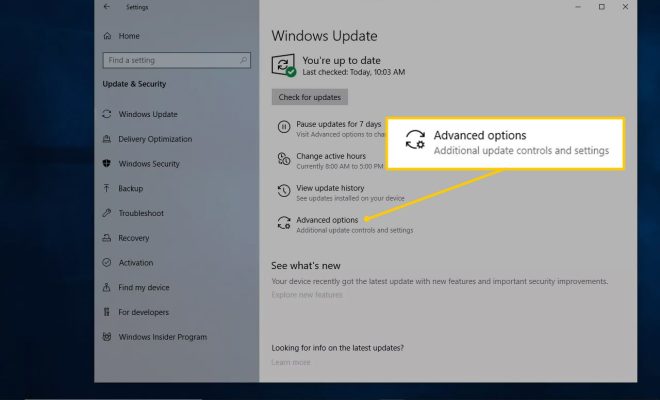
Here are the steps to change the Windows Update settings:

Step 1: Click on Start Menu and click on Settings (gear icon on the left-hand side of the Start Menu). Alternatively, you can search for “Settings” in the search bar located beside the Start Menu.

Step 2: In Settings, click on “Update & Security” which is represented by an icon of a circular arrow.

Step 3: Click on “Windows Update” from the left-hand side of the menu.

Step 4: Click on “Advanced options” which is located under “Update settings.”

Step 5: Here, you will have different options to customize the Windows Update settings as per your preference.

– Pause updates: This option allows you to pause updates temporarily for up to 35 days.
– Choose when updates are installed: This option lets you choose when to install updates. You may select a specific day and time when you won’t get interrupted, or you can choose a specific date in the future.
– Choose how updates are delivered: This option lets you choose how updates are downloaded, i.e., from other computers on the local network, from the internet, or both.
– Show a notification when your PC requires a restart: This option notifies you when your computer requires a restart after installing an update.
– Restart this device as soon as possible when a restart is required: This option enables your computer to restart automatically when it needs to install an update.

Step 6: Once you have made the necessary changes, just click on “Save” to apply these settings.

With this simple procedure, you can now easily change the Windows Update settings as per your convenience. It is important to remember that keeping your computer up to date is essential for both its security and efficiency. Therefore make sure to occasionally check update settings to ensure your computer continues to run smoothly.


Previous Article

HDR: Dolby Vision, HDR10, HLG — What ...

Next Article

Acer Chromebook 15 Review

Matthew Lynch

Related articles More from author

  • Digital & Mobile Technology

    How to Bypass a School Firewall: Tips and Warnings

    June 8, 2023
    By Matthew Lynch
  • Digital & Mobile Technology

    Amazon Echo Dot With Clock (5th Gen) Review: More Than Just the Time

    June 12, 2023
    By Matthew Lynch
  • Digital & Mobile Technology

    Why Apple Is Likely to Launch an iPhone Subscription Program

    June 12, 2023
    By Matthew Lynch
  • Digital & Mobile Technology

    How to Watch Twitch on Roku

    June 1, 2023
    By Matthew Lynch
  • Digital & Mobile Technology

    Google Pixel Watch: Release Date, Price, Specs, and News

    June 1, 2023
    By Matthew Lynch
  • Digital & Mobile Technology

    What Is Ubuntu Remote Desktop? How to Set Up and Use It

    June 23, 2023
    By Matthew Lynch

Search

Login & Registration

  • Log in
  • Entries feed
  • Comments feed
  • WordPress.org

Newsletter

Signup for The Tech Edvocate Newsletter and have the latest in EdTech news and opinion delivered to your email address!

About Us

Since technology is not going anywhere and does more good than harm, adapting is the best course of action. That is where The Tech Edvocate comes in. We plan to cover the PreK-12 and Higher Education EdTech sectors and provide our readers with the latest news and opinion on the subject. From time to time, I will invite other voices to weigh in on important issues in EdTech. We hope to provide a well-rounded, multi-faceted look at the past, present, the future of EdTech in the US and internationally.

We started this journey back in June 2016, and we plan to continue it for many more years to come. I hope that you will join us in this discussion of the past, present and future of EdTech and lend your own insight to the issues that are discussed.

Newsletter

Signup for The Tech Edvocate Newsletter and have the latest in EdTech news and opinion delivered to your email address!

Contact Us

The Tech Edvocate
910 Goddin Street
Richmond, VA 23231
(601) 630-5238
[email protected]

Copyright © 2026 Matthew Lynch. All rights reserved.