The Tech Edvocate

Top Menu

  • Advertisement
  • Apps
  • Home Page
  • Home Page Five (No Sidebar)
  • Home Page Four
  • Home Page Three
  • Home Page Two
  • Home Tech2
  • Icons [No Sidebar]
  • Left Sidbear Page
  • Lynch Educational Consulting
  • My Account
  • My Speaking Page
  • Newsletter Sign Up Confirmation
  • Newsletter Unsubscription
  • Our Brands
  • Page Example
  • Privacy Policy
  • Protected Content
  • Register
  • Request a Product Review
  • Shop
  • Shortcodes Examples
  • Signup
  • Start Here
    • Governance
    • Careers
    • Contact Us
  • Terms and Conditions
  • The Edvocate
  • The Tech Edvocate Product Guide
  • Topics
  • Write For Us
  • Advertise

Main Menu

  • Start Here
    • Our Brands
    • Governance
      • Lynch Educational Consulting, LLC.
      • Dr. Lynch’s Personal Website
      • Careers
    • Write For Us
    • The Tech Edvocate Product Guide
    • Contact Us
    • Books
    • Edupedia
    • Post a Job
    • The Edvocate Podcast
    • Terms and Conditions
    • Privacy Policy
  • Topics
    • Assistive Technology
    • Child Development Tech
    • Early Childhood & K-12 EdTech
    • EdTech Futures
    • EdTech News
    • EdTech Policy & Reform
    • EdTech Startups & Businesses
    • Higher Education EdTech
    • Online Learning & eLearning
    • Parent & Family Tech
    • Personalized Learning
    • Product Reviews
  • Advertise
  • Tech Edvocate Awards
  • The Edvocate
  • Pedagogue
  • School Ratings

logo

The Tech Edvocate

  • Start Here
    • Our Brands
    • Governance
      • Lynch Educational Consulting, LLC.
      • Dr. Lynch’s Personal Website
        • My Speaking Page
      • Careers
    • Write For Us
    • The Tech Edvocate Product Guide
    • Contact Us
    • Books
    • Edupedia
    • Post a Job
    • The Edvocate Podcast
    • Terms and Conditions
    • Privacy Policy
  • Topics
    • Assistive Technology
    • Child Development Tech
    • Early Childhood & K-12 EdTech
    • EdTech Futures
    • EdTech News
    • EdTech Policy & Reform
    • EdTech Startups & Businesses
    • Higher Education EdTech
    • Online Learning & eLearning
    • Parent & Family Tech
    • Personalized Learning
    • Product Reviews
  • Advertise
  • Tech Edvocate Awards
  • The Edvocate
  • Pedagogue
  • School Ratings
  • OpenAI’s GPT-6 Cyber: A Dangerous New AI Threat or Our Ultimate Digital Guardian?

  • This Game-Changing Natural Ozempic Alternative Just Blew Up on Social Media

  • Bónuszösszeg, ingyen pörgetés és befizetési feltétel: üdvözlő és befizetés nélküli kaszinóajánlatok magyar játékosoknak

  • 9 Critical Reasons Why Athexio Might Be The Investment You Need (Or Should Avoid)

  • A Single Breakthrough Could Finally Kill Range Anxiety for Millions of EV Owners

  • Your Money, Their AI: The Secret Agents Invading Bank Accounts

  • US Battery as a Service Market Shifts Toward Fleet-Based Energy

  • The Startling Truth: Why Americans Distrust AI with Their Health

  • This Crucial Deadline for Banks Is Closer Than You Think

  • Baffling: CrowdStrike’s $500 Million AI Bet Reshapes Cybersecurity

Digital & Mobile Technology
Home›Digital & Mobile Technology›6 Ways to Open the Task Manager in Windows 11

6 Ways to Open the Task Manager in Windows 11
By Matthew Lynch
June 9, 2023
0
Spread the love

Task Manager is a feature that often comes in handy when your system is acting up, and you need to troubleshoot problems. Task Manager in Windows 11 is a tool that allows users to view and close running applications, monitor system performance, and manage startup programs. Therefore, it is necessary to know how to open Task Manager in Windows 11. In this article, we will explore six ways to open Task Manager on Windows 11.

Method 1: Using Keyboard Shortcut:

The easiest way to open the Task Manager is by using the keyboard shortcut. Press the “Ctrl + Shift + Esc” key combination simultaneously. This shortcut will open the Task Manager window directly.

Method 2: Right-click on the Taskbar:

Another simple way to open the Task Manager is by right-clicking on the Taskbar of your Windows 11 operating system. Once the menu appears, select the “Task Manager” option, and it will launch the Task Manager window.

Method 3: Search Bar:

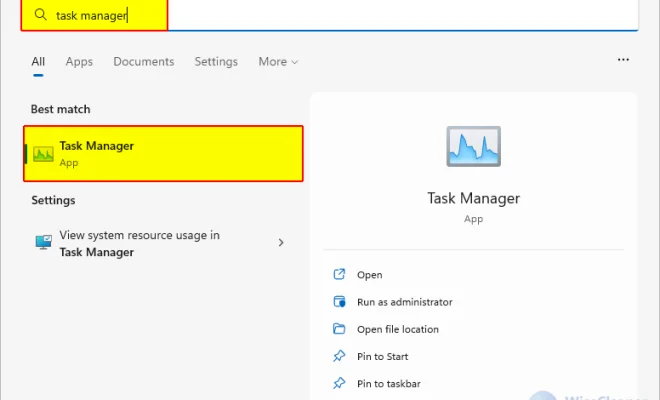
Windows 11 features a new search bar that allows users to search for files, folders, applications, and settings easily. To open the Task Manager using the search bar, type “Task Manager” into the search bar, and select the first option that appears.

Method 4: Run Command:

You can also open the Task Manager on Windows 11 by using the Run command. Press the “Win + R” key combination, which will open the Run dialog box. Type “Taskmgr” into the text box and press “Enter” or click “OK,” and the Task Manager window will open.

Method 5: Using the Task Manager Shortcut:

Windows 11 also has a built-in Task Manager shortcut. Click on the “Start” menu, and scroll down until you find the “Windows System” folder. Click the folder to expand it, and you will see the “Task Manager” shortcut. Click on the shortcut to open the Task Manager window.

Method 6: Using Task Manager from the Settings App:

Finally, you can also access the Task Manager through the Settings app on Windows 11. Click on the “Start” menu and click on the settings icon. In the Settings app, select the “System” option, and then select “Task Manager” from the menu under the “About” section.

In conclusion, these are the six ways to open the Task Manager on Windows 11. The Task Manager is an important tool that allows users to monitor the performance of the system and troubleshoot potential issues. With these methods, users can open the Task Manager easily and quickly, making it a breeze to manage apps and processes on Windows 11.


Previous Article

Error Code 0xc00000e: What It Is and ...

Next Article

How to Pin Documents to the Taskbar ...

Matthew Lynch

Related articles More from author

  • Digital & Mobile Technology

    Unify and Make Sense of Your Games Collections With Playnite on Windows

    August 1, 2023
    By Matthew Lynch
  • Digital & Mobile Technology

    The Difference Between Graphic and Parametric Equalizers

    June 10, 2023
    By Matthew Lynch
  • Digital & Mobile Technology

    Minimize Outlook Email to the System Tray for Efficiency

    June 4, 2023
    By Matthew Lynch
  • Digital & Mobile Technology

    You Can Now Buy a Nothing Phone (1) in the US, but Should You?

    June 14, 2023
    By Matthew Lynch
  • Digital & Mobile Technology

    How to Block Unwanted Emails From Senders in Yahoo Mail

    July 6, 2023
    By Matthew Lynch
  • Digital & Mobile Technology

    Why Are Raspberry Pis So Expensive?

    June 26, 2023
    By Matthew Lynch

Search

Login & Registration

  • Log in
  • Entries feed
  • Comments feed
  • WordPress.org

Newsletter

Signup for The Tech Edvocate Newsletter and have the latest in EdTech news and opinion delivered to your email address!

About Us

Since technology is not going anywhere and does more good than harm, adapting is the best course of action. That is where The Tech Edvocate comes in. We plan to cover the PreK-12 and Higher Education EdTech sectors and provide our readers with the latest news and opinion on the subject. From time to time, I will invite other voices to weigh in on important issues in EdTech. We hope to provide a well-rounded, multi-faceted look at the past, present, the future of EdTech in the US and internationally.

We started this journey back in June 2016, and we plan to continue it for many more years to come. I hope that you will join us in this discussion of the past, present and future of EdTech and lend your own insight to the issues that are discussed.

Newsletter

Signup for The Tech Edvocate Newsletter and have the latest in EdTech news and opinion delivered to your email address!

Contact Us

The Tech Edvocate
910 Goddin Street
Richmond, VA 23231
(601) 630-5238
[email protected]

Copyright © 2026 Matthew Lynch. All rights reserved.