The Tech Edvocate

Top Menu

  • Advertisement
  • Apps
  • Home Page
  • Home Page Five (No Sidebar)
  • Home Page Four
  • Home Page Three
  • Home Page Two
  • Home Tech2
  • Icons [No Sidebar]
  • Left Sidbear Page
  • Lynch Educational Consulting
  • My Account
  • My Speaking Page
  • Newsletter Sign Up Confirmation
  • Newsletter Unsubscription
  • Our Brands
  • Page Example
  • Privacy Policy
  • Protected Content
  • Register
  • Request a Product Review
  • Shop
  • Shortcodes Examples
  • Signup
  • Start Here
    • Governance
    • Careers
    • Contact Us
  • Terms and Conditions
  • The Edvocate
  • The Tech Edvocate Product Guide
  • Topics
  • Write For Us
  • Advertise

Main Menu

  • Start Here
    • Our Brands
    • Governance
      • Lynch Educational Consulting, LLC.
      • Dr. Lynch’s Personal Website
      • Careers
    • Write For Us
    • The Tech Edvocate Product Guide
    • Contact Us
    • Books
    • Edupedia
    • Post a Job
    • The Edvocate Podcast
    • Terms and Conditions
    • Privacy Policy
  • Topics
    • Assistive Technology
    • Child Development Tech
    • Early Childhood & K-12 EdTech
    • EdTech Futures
    • EdTech News
    • EdTech Policy & Reform
    • EdTech Startups & Businesses
    • Higher Education EdTech
    • Online Learning & eLearning
    • Parent & Family Tech
    • Personalized Learning
    • Product Reviews
  • Advertise
  • Tech Edvocate Awards
  • The Edvocate
  • Pedagogue
  • School Ratings

logo

The Tech Edvocate

  • Start Here
    • Our Brands
    • Governance
      • Lynch Educational Consulting, LLC.
      • Dr. Lynch’s Personal Website
        • My Speaking Page
      • Careers
    • Write For Us
    • The Tech Edvocate Product Guide
    • Contact Us
    • Books
    • Edupedia
    • Post a Job
    • The Edvocate Podcast
    • Terms and Conditions
    • Privacy Policy
  • Topics
    • Assistive Technology
    • Child Development Tech
    • Early Childhood & K-12 EdTech
    • EdTech Futures
    • EdTech News
    • EdTech Policy & Reform
    • EdTech Startups & Businesses
    • Higher Education EdTech
    • Online Learning & eLearning
    • Parent & Family Tech
    • Personalized Learning
    • Product Reviews
  • Advertise
  • Tech Edvocate Awards
  • The Edvocate
  • Pedagogue
  • School Ratings
  • 100 Best Apps for Data Backup

  • 100 Best Apps for Data Migration

  • 100 Best Apps for Data Transformation

  • 100 Best Apps for Data Cleaning

  • 100 Best Apps for Data Entry

  • 100 Best Apps for Business Process Automation

  • 100 Best Apps for Operational Efficiency

  • 100 Best Apps for Improving Processes

  • 100 Best Apps for Scaling Operations

  • 100 Best Apps for Community-Led Growth

Digital & Mobile Technology
Home›Digital & Mobile Technology›How to Format an SD Card to FAT32

How to Format an SD Card to FAT32
By Matthew Lynch
June 1, 2023
0
Spread the love

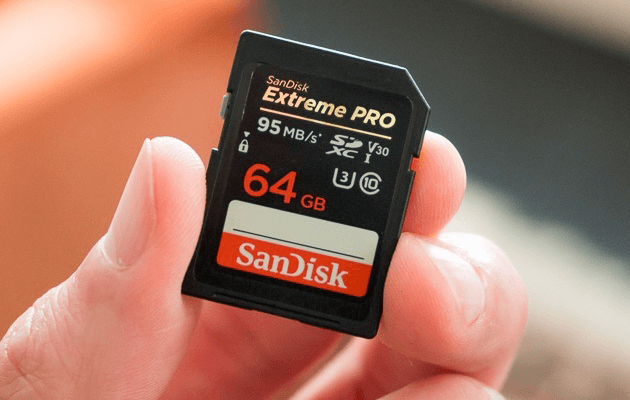
An SD card is a small, portable, and convenient storage device that is widely used in digital cameras, smartphones, tablets, and other electronic gadgets. It is a quick and efficient way to store, transfer, and access data like photos, videos, music, and documents. However, sometimes you need to format an SD card to a particular file system, such as FAT32, to make sure it works properly with your device. If you’re unsure about how to format an SD card to FAT32, this article will guide you through the process step by step.

What is FAT32?

FAT32 is a file system that stands for File Allocation Table 32. It is a popular and widely supported format that can be used with Windows, Mac, Linux, and other operating systems. FAT32 allows for files up to 4 GB in size and a maximum partition size of 2 TB, which is suitable for most SD cards. It is also compatible with most devices that use SD cards, such as cameras, game consoles, and media players.

Step 1: Backup your data

Before you format your SD card, you should back up your important data. Formatting an SD card will erase all its contents and your data will be lost permanently. You can transfer your files to a computer, a cloud storage service, or another SD card to prevent data loss.

Step 2: Connect your SD card to a computer

Insert your SD card into a card reader or an SD slot on your computer. Your computer should recognize the SD card and show it as a removable drive in the file explorer or the desktop. Make a note of the drive letter assigned to your SD card, such as E:/ or F:/.

Step 3: Open the Disk Management tool

To format your SD card to FAT32, you need to use the Disk Management tool in Windows. You can access it by right-clicking on the Start button or pressing Windows + X and selecting Disk Management from the menu. Alternatively, you can search for Disk Management in the Start menu or the search bar. The Disk Management tool displays all the connected disks and their partitions.

Step 4: Select the SD card partition

In the Disk Management tool, find your SD card partition among the listed disks and volumes. The SD card partition should be labeled as Removable. Right-click on the partition and select Format from the context menu. The Format dialog box appears.

Step 5: Format the SD card to FAT32

In the Format dialog box, choose FAT32 as the file system. You can also enter a name for the volume, such as SD Card, in the Volume label field. Make sure Quick Format is checked, as it will speed up the formatting process. Click on Start to begin the formatting. This may take a few minutes, depending on the size of your SD card.

Step 6: Eject the SD card safely

Once the formatting is complete, you can close the Format dialog box and the Disk Management tool. Right-click on the SD card partition and select Eject from the context menu. This will safely remove the SD card from your computer and prevent data corruption or loss.

Conclusion

Formatting an SD card to FAT32 is a simple and essential task that ensures your SD card is compatible with your device and its operating system. By following these steps, you can format your SD card to FAT32 quickly and easily. Remember to back up your data before formatting and eject your SD card safely to avoid any damage or loss.


Previous Article

What Is a Bezel and What Does ...

Next Article

How to Open a Snapchat Without It ...

Matthew Lynch

Related articles More from author

  • Digital & Mobile Technology

    Reasons Why Using Illegal IPTV Streams Is a Bad Idea

    June 22, 2023
    By Matthew Lynch
  • Digital & Mobile Technology

    Is a Used Mac Mini Worth Buying?

    June 4, 2023
    By Matthew Lynch
  • Digital & Mobile Technology

    How to Make a Slideshow on Google Photos

    April 29, 2023
    By Matthew Lynch
  • Digital & Mobile Technology

    QHD vs. 4K: Which One Is Better for Your TV or Monitor?

    June 23, 2023
    By Matthew Lynch
  • Digital & Mobile Technology

    How to Find Your Computer’s IP Address on a Windows 11 PC

    May 28, 2023
    By Matthew Lynch
  • Digital & Mobile Technology

    I Have Apple Music. Do I Need iTunes Match?

    June 4, 2023
    By Matthew Lynch

Search

Login & Registration

  • Log in
  • Entries feed
  • Comments feed
  • WordPress.org

Newsletter

Signup for The Tech Edvocate Newsletter and have the latest in EdTech news and opinion delivered to your email address!

About Us

Since technology is not going anywhere and does more good than harm, adapting is the best course of action. That is where The Tech Edvocate comes in. We plan to cover the PreK-12 and Higher Education EdTech sectors and provide our readers with the latest news and opinion on the subject. From time to time, I will invite other voices to weigh in on important issues in EdTech. We hope to provide a well-rounded, multi-faceted look at the past, present, the future of EdTech in the US and internationally.

We started this journey back in June 2016, and we plan to continue it for many more years to come. I hope that you will join us in this discussion of the past, present and future of EdTech and lend your own insight to the issues that are discussed.

Newsletter

Signup for The Tech Edvocate Newsletter and have the latest in EdTech news and opinion delivered to your email address!

Contact Us

The Tech Edvocate
910 Goddin Street
Richmond, VA 23231
(601) 630-5238
[email protected]

Copyright © 2026 Matthew Lynch. All rights reserved.