The Tech Edvocate

Top Menu

  • Advertisement
  • Apps
  • Home Page
  • Home Page Five (No Sidebar)
  • Home Page Four
  • Home Page Three
  • Home Page Two
  • Home Tech2
  • Icons [No Sidebar]
  • Left Sidbear Page
  • Lynch Educational Consulting
  • My Account
  • My Speaking Page
  • Newsletter Sign Up Confirmation
  • Newsletter Unsubscription
  • Our Brands
  • Page Example
  • Privacy Policy
  • Protected Content
  • Register
  • Request a Product Review
  • Shop
  • Shortcodes Examples
  • Signup
  • Start Here
    • Governance
    • Careers
    • Contact Us
  • Terms and Conditions
  • The Edvocate
  • The Tech Edvocate Product Guide
  • Topics
  • Write For Us
  • Advertise

Main Menu

  • Start Here
    • Our Brands
    • Governance
      • Lynch Educational Consulting, LLC.
      • Dr. Lynch’s Personal Website
      • Careers
    • Write For Us
    • The Tech Edvocate Product Guide
    • Contact Us
    • Books
    • Edupedia
    • Post a Job
    • The Edvocate Podcast
    • Terms and Conditions
    • Privacy Policy
  • Topics
    • Assistive Technology
    • Child Development Tech
    • Early Childhood & K-12 EdTech
    • EdTech Futures
    • EdTech News
    • EdTech Policy & Reform
    • EdTech Startups & Businesses
    • Higher Education EdTech
    • Online Learning & eLearning
    • Parent & Family Tech
    • Personalized Learning
    • Product Reviews
  • Advertise
  • Tech Edvocate Awards
  • The Edvocate
  • Pedagogue
  • School Ratings

logo

The Tech Edvocate

  • Start Here
    • Our Brands
    • Governance
      • Lynch Educational Consulting, LLC.
      • Dr. Lynch’s Personal Website
        • My Speaking Page
      • Careers
    • Write For Us
    • The Tech Edvocate Product Guide
    • Contact Us
    • Books
    • Edupedia
    • Post a Job
    • The Edvocate Podcast
    • Terms and Conditions
    • Privacy Policy
  • Topics
    • Assistive Technology
    • Child Development Tech
    • Early Childhood & K-12 EdTech
    • EdTech Futures
    • EdTech News
    • EdTech Policy & Reform
    • EdTech Startups & Businesses
    • Higher Education EdTech
    • Online Learning & eLearning
    • Parent & Family Tech
    • Personalized Learning
    • Product Reviews
  • Advertise
  • Tech Edvocate Awards
  • The Edvocate
  • Pedagogue
  • School Ratings
  • Unbelievable: This One Ad Sparked Mass Fury — And It’s Not What You Think

  • Urgent: 25,000 Dressers Recalled on Amazon, Wayfair – A Fatal Flaw You Need to Know

  • This Wild AI Startup Feud Is Exposing the Dark Side of Viral Marketing

  • Unbelievable: Judges Just Upheld the Trump Blacklisting of a Major AI Startup

  • The Scandalous PapaSmithy Apology: Why Fans Are Still Furious About FlyQuest’s Controversial Video

  • Macau Gaming Dispute Escalates to Classroom Knife Attack: A Troubling Warning

  • School Surveys & Student Privacy: A Parent Guide for 2026

  • The Billion-Dollar Blunder: Why AI Detection Software Is Failing Our Students

  • China’s 5-Minute EV Charge: The Staggering Truth America Ignores

  • This Astonishing Nikon AI Controversy Exposes Science’s New Frontier

Digital & Mobile Technology
Home›Digital & Mobile Technology›How to Connect Meta (Oculus) Quest 2 to a PC Wirelessly

How to Connect Meta (Oculus) Quest 2 to a PC Wirelessly
By Matthew Lynch
May 31, 2023
0
Spread the love

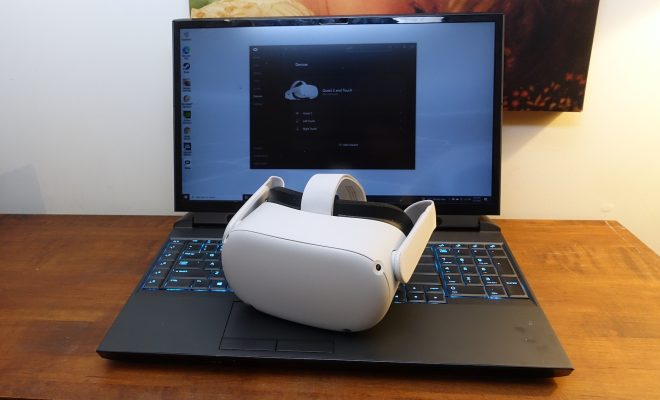
The Meta Quest 2 is an excellent virtual reality headset that can provide you with an immersive experience of different virtual worlds. However, you might be wondering how to connect it to your PC wirelessly. In this article, we will guide you through the steps involved and help you connect your Meta Quest 2 to your PC.

Step 1: Update your Meta Quest 2

Before connecting your Meta Quest 2 to your PC wirelessly, it is vital to ensure that it is updated to the latest firmware. The latest update enables the wireless connection feature on Quest 2. Therefore, connect it to a reliable Wi-Fi network and update it if needed.

Step 2: Download and install the Oculus PC app

The Oculus PC app is essential software that allows your Meta Quest 2 to connect wirelessly to your PC. Download and install the app on your computer by visiting the Oculus website (https://www.oculus.com/setup/).

Once you have installed the Oculus PC app, open it and log in to your Oculus account.

Step 3: Enable Developer Mode on your Meta Quest 2

Developer mode allows you to connect your Meta Quest 2 to your PC wirelessly. To enable Developer mode on your Meta Quest 2, follow these steps:

1. Turn on your Meta Quest 2 and put it on your head.
2. Open the Settings menu and scroll down to click on the About option.
3. Look for the Build Number option and tap it seven times in succession. This gesture will activate the Developer Mode on your Meta Quest 2.
4. Return to the Settings menu and scroll down to click on the Developer option.
5. Activate the slider at the top of the screen labeled Developer Mode.
6. Your Meta Quest 2 is now in Developer mode, and you are ready to connect it to your PC wirelessly.

Step 4: Connect your Meta Quest 2 to your PC wirelessly

To connect your Meta Quest 2 to your PC wirelessly, follow these steps:

1. Put on your Meta Quest 2 and open the quick settings menu by tapping the Oculus button on the right controller.
2. Scroll down to click on the Settings menu.
3. Choose the Device option.
4. Activate the slider next to Allow App Testing from Unknown Sources.
5. Make sure that your PC and your Meta Quest 2 are connected to the same Wi-Fi network.
6. Open the Oculus PC app on your computer and click on the Devices tab.
7. Click on the Quest and Quest 2 option, then choose the Setup option.
8. Follow the instructions on the screen, and your Meta Quest 2 should now be wirelessly connected to your PC.

Conclusion

Connecting your Meta Quest 2 to your PC wirelessly is a straightforward process that requires a few steps. Ensure that you have updated your Meta Quest 2 to the latest firmware and installed the Oculus PC app on your computer. Also, enable Developer mode on your Meta Quest 2 and connect it to the same Wi-Fi network as your PC. Finally, follow the step-by-step instructions to link your Meta Quest 2 to your PC wirelessly. Enjoy your virtual reality experience with Meta Quest 2!


Previous Article

How to Make an Enchantment Table in ...

Next Article

How to Use Bluestacks to Run Android ...

Matthew Lynch

Related articles More from author

  • Digital & Mobile Technology

    How to Use (or Disable) the Windows Ink Workspace on Windows 11

    May 30, 2023
    By Matthew Lynch
  • Digital & Mobile Technology

    How to Set Up Microsoft Family Safety Features in Windows 11

    May 8, 2023
    By Matthew Lynch
  • Digital & Mobile Technology

    How to Use Windows 11’s Auto HDR Feature

    June 15, 2023
    By Matthew Lynch
  • Digital & Mobile Technology

    How to Connect Chromecast to a Mobile Hotspot

    June 4, 2023
    By Matthew Lynch
  • Digital & Mobile Technology

    Connecting your laptop to a TV is easier than you think

    April 12, 2023
    By Matthew Lynch
  • Digital & Mobile Technology

    Quotation Marks on Search Engines: How to Use Them

    June 15, 2023
    By Matthew Lynch

Search

Login & Registration

  • Log in
  • Entries feed
  • Comments feed
  • WordPress.org

Newsletter

Signup for The Tech Edvocate Newsletter and have the latest in EdTech news and opinion delivered to your email address!

About Us

Since technology is not going anywhere and does more good than harm, adapting is the best course of action. That is where The Tech Edvocate comes in. We plan to cover the PreK-12 and Higher Education EdTech sectors and provide our readers with the latest news and opinion on the subject. From time to time, I will invite other voices to weigh in on important issues in EdTech. We hope to provide a well-rounded, multi-faceted look at the past, present, the future of EdTech in the US and internationally.

We started this journey back in June 2016, and we plan to continue it for many more years to come. I hope that you will join us in this discussion of the past, present and future of EdTech and lend your own insight to the issues that are discussed.

Newsletter

Signup for The Tech Edvocate Newsletter and have the latest in EdTech news and opinion delivered to your email address!

Contact Us

The Tech Edvocate
910 Goddin Street
Richmond, VA 23231
(601) 630-5238
[email protected]

Copyright © 2026 Matthew Lynch. All rights reserved.