The Tech Edvocate

Top Menu

  • Advertisement
  • Apps
  • Home Page
  • Home Page Five (No Sidebar)
  • Home Page Four
  • Home Page Three
  • Home Page Two
  • Home Tech2
  • Icons [No Sidebar]
  • Left Sidbear Page
  • Lynch Educational Consulting
  • My Account
  • My Speaking Page
  • Newsletter Sign Up Confirmation
  • Newsletter Unsubscription
  • Our Brands
  • Page Example
  • Privacy Policy
  • Protected Content
  • Register
  • Request a Product Review
  • Shop
  • Shortcodes Examples
  • Signup
  • Start Here
    • Governance
    • Careers
    • Contact Us
  • Terms and Conditions
  • The Edvocate
  • The Tech Edvocate Product Guide
  • Topics
  • Write For Us
  • Advertise

Main Menu

  • Start Here
    • Our Brands
    • Governance
      • Lynch Educational Consulting, LLC.
      • Dr. Lynch’s Personal Website
      • Careers
    • Write For Us
    • The Tech Edvocate Product Guide
    • Contact Us
    • Books
    • Edupedia
    • Post a Job
    • The Edvocate Podcast
    • Terms and Conditions
    • Privacy Policy
  • Topics
    • Assistive Technology
    • Child Development Tech
    • Early Childhood & K-12 EdTech
    • EdTech Futures
    • EdTech News
    • EdTech Policy & Reform
    • EdTech Startups & Businesses
    • Higher Education EdTech
    • Online Learning & eLearning
    • Parent & Family Tech
    • Personalized Learning
    • Product Reviews
  • Advertise
  • Tech Edvocate Awards
  • The Edvocate
  • Pedagogue
  • School Ratings

logo

The Tech Edvocate

  • Start Here
    • Our Brands
    • Governance
      • Lynch Educational Consulting, LLC.
      • Dr. Lynch’s Personal Website
        • My Speaking Page
      • Careers
    • Write For Us
    • The Tech Edvocate Product Guide
    • Contact Us
    • Books
    • Edupedia
    • Post a Job
    • The Edvocate Podcast
    • Terms and Conditions
    • Privacy Policy
  • Topics
    • Assistive Technology
    • Child Development Tech
    • Early Childhood & K-12 EdTech
    • EdTech Futures
    • EdTech News
    • EdTech Policy & Reform
    • EdTech Startups & Businesses
    • Higher Education EdTech
    • Online Learning & eLearning
    • Parent & Family Tech
    • Personalized Learning
    • Product Reviews
  • Advertise
  • Tech Edvocate Awards
  • The Edvocate
  • Pedagogue
  • School Ratings
  • Zola Suite pricing 2026

  • How to become Airbnb Superhost

  • Yelp Elite status how to get

  • Rocket Matter vs CosmoLex comparison

  • Lawyaw vs Documate which is better

  • How to use Yelp for marketing

  • How many templates in Lawyaw

  • Can TripAdvisor reviews be edited

  • How to manage documents in Zola Suite

  • Filevine vs Litify features

Digital & Mobile Technology
Home›Digital & Mobile Technology›How to Add Axis Titles in a Microsoft Excel Chart

How to Add Axis Titles in a Microsoft Excel Chart

By Matthew Lynch
May 17, 2023
0
Spread the love

When creating a chart in Microsoft Excel, it is essential to provide clarity for the viewer. One way to achieve this is by adding axis titles. Axis titles provide information about the data represented on the X and Y axis. In this article, we will walk through the steps to add axis titles in a Microsoft Excel chart.

Step 1: Create a chart

The first step is to create a chart in Microsoft Excel. To do this, select the data you want to include in your chart. Click on the ‘Insert’ tab, and then select a chart type from the ‘Charts’ group. A chart will now appear on the worksheet.

Step 2: Select the chart

To add axis titles, we must first select the chart. Click anywhere on the chart to activate it. If you’re not sure if the chart is selected, it will have an active border around it.

Step 3: Add axis titles

To add axis titles, we need to access the ‘Chart Elements’ menu. We can do this by clicking on the plus sign that appears next to the chart when it is selected. This will open the ‘Chart Elements’ menu.

Step 4: Select the Axis Titles option

From the ‘Chart Elements’ menu, scroll down to find the ‘Axis Titles’ option. Select this option, and you will see two sub-options: ‘Primary Horizontal Axis Title’ and ‘Primary Vertical Axis Title.’ Choose the axis you want to title and click on it.

Step 5: Type in the title

Once you have selected the axis you want to title, you can type in the title in the text box provided. You can include any text you want, but it is recommended to keep the title brief and informative. For example, if you are adding an X-axis title for a chart that shows sales over time, you might title it ‘Date.’

Step 6: Customize the title

Finally, you can customize the appearance of your axis title. Select the title, and a new ‘Format’ tab will appear on the ribbon. From here, you can customize the font, font size, color, and other formatting options. You can also choose to rotate the title or move it to a different part of the chart.

In conclusion, adding axis titles in a Microsoft Excel chart is essential for providing clarity to the viewer. By following these simple steps, you can easily add and customize axis titles to your chart. Providing informative axis titles will help your viewers to better understand your data and draw conclusions from it.


Previous Article

How to Add Bluetooth to Your Computer

Next Article

How to Add Bots to Your Discord ...

Matthew Lynch

Related articles More from author

  • Digital & Mobile Technology

    What Is DNS (Domain Name System)?

    June 23, 2023
    By Matthew Lynch
  • Digital & Mobile Technology

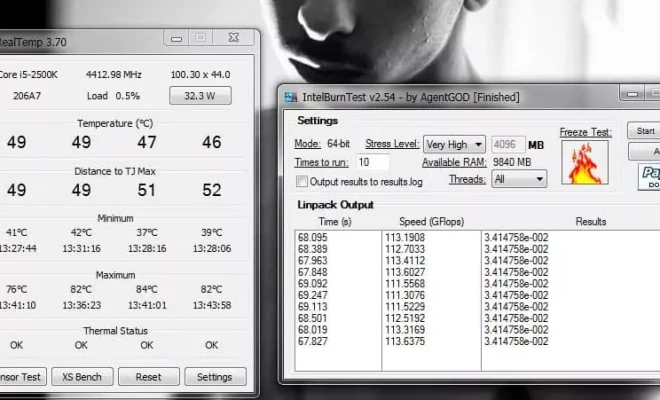
    Useful Tools to Stress Test Your CPU

    April 10, 2023
    By Matthew Lynch
  • Digital & Mobile Technology

    How to Create a Wiki With Google Sites

    July 31, 2023
    By Matthew Lynch
  • Digital & Mobile Technology

    What Does Speaker Sensitivity Mean and Why Is It Important?

    June 4, 2023
    By Matthew Lynch
  • Digital & Mobile Technology

    How to Open a PowerPoint Document in Google Docs

    April 30, 2023
    By Matthew Lynch
  • Digital & Mobile Technology

    Safest Free Software Download Sites for Windows

    August 4, 2023
    By Matthew Lynch

Search

Login & Registration

  • Log in
  • Entries feed
  • Comments feed
  • WordPress.org

Newsletter

Signup for The Tech Edvocate Newsletter and have the latest in EdTech news and opinion delivered to your email address!

About Us

Since technology is not going anywhere and does more good than harm, adapting is the best course of action. That is where The Tech Edvocate comes in. We plan to cover the PreK-12 and Higher Education EdTech sectors and provide our readers with the latest news and opinion on the subject. From time to time, I will invite other voices to weigh in on important issues in EdTech. We hope to provide a well-rounded, multi-faceted look at the past, present, the future of EdTech in the US and internationally.

We started this journey back in June 2016, and we plan to continue it for many more years to come. I hope that you will join us in this discussion of the past, present and future of EdTech and lend your own insight to the issues that are discussed.

Newsletter

Signup for The Tech Edvocate Newsletter and have the latest in EdTech news and opinion delivered to your email address!

Contact Us

The Tech Edvocate
910 Goddin Street
Richmond, VA 23231
(601) 630-5238
[email protected]

Copyright © 2026 Matthew Lynch. All rights reserved.