The Tech Edvocate

Top Menu

  • Advertisement
  • Apps
  • Home Page
  • Home Page Five (No Sidebar)
  • Home Page Four
  • Home Page Three
  • Home Page Two
  • Home Tech2
  • Icons [No Sidebar]
  • Left Sidbear Page
  • Lynch Educational Consulting
  • My Account
  • My Speaking Page
  • Newsletter Sign Up Confirmation
  • Newsletter Unsubscription
  • Our Brands
  • Page Example
  • Privacy Policy
  • Protected Content
  • Register
  • Request a Product Review
  • Shop
  • Shortcodes Examples
  • Signup
  • Start Here
    • Governance
    • Careers
    • Contact Us
  • Terms and Conditions
  • The Edvocate
  • The Tech Edvocate Product Guide
  • Topics
  • Write For Us
  • Advertise

Main Menu

  • Start Here
    • Our Brands
    • Governance
      • Lynch Educational Consulting, LLC.
      • Dr. Lynch’s Personal Website
      • Careers
    • Write For Us
    • The Tech Edvocate Product Guide
    • Contact Us
    • Books
    • Edupedia
    • Post a Job
    • The Edvocate Podcast
    • Terms and Conditions
    • Privacy Policy
  • Topics
    • Assistive Technology
    • Child Development Tech
    • Early Childhood & K-12 EdTech
    • EdTech Futures
    • EdTech News
    • EdTech Policy & Reform
    • EdTech Startups & Businesses
    • Higher Education EdTech
    • Online Learning & eLearning
    • Parent & Family Tech
    • Personalized Learning
    • Product Reviews
  • Advertise
  • Tech Edvocate Awards
  • The Edvocate
  • Pedagogue
  • School Ratings

logo

The Tech Edvocate

  • Start Here
    • Our Brands
    • Governance
      • Lynch Educational Consulting, LLC.
      • Dr. Lynch’s Personal Website
        • My Speaking Page
      • Careers
    • Write For Us
    • The Tech Edvocate Product Guide
    • Contact Us
    • Books
    • Edupedia
    • Post a Job
    • The Edvocate Podcast
    • Terms and Conditions
    • Privacy Policy
  • Topics
    • Assistive Technology
    • Child Development Tech
    • Early Childhood & K-12 EdTech
    • EdTech Futures
    • EdTech News
    • EdTech Policy & Reform
    • EdTech Startups & Businesses
    • Higher Education EdTech
    • Online Learning & eLearning
    • Parent & Family Tech
    • Personalized Learning
    • Product Reviews
  • Advertise
  • Tech Edvocate Awards
  • The Edvocate
  • Pedagogue
  • School Ratings
  • Robotaxis Aren’t Always A Smooth Ride – Here’s What Passengers Should Look Out For

  • Catastrophic: 4 Million VW & Audi Cars Face Sudden Steering Failure – Is Yours One of Them?

  • Mind-Blowing: JWST Spots Water Near Milky Way’s Black Hole – How Is This Possible?

  • Revealed: The Unseen Cost of AI That’s Shaking the Stock Market Today

  • The customer isn’t always right. At least according to Lufthansa’s viral complaint clapback.

  • Navigating the Challenges of Neurodiversity Support in Schools

  • The Best European Cities for Graduates to Live and Work

  • States With the Biggest School Enrollment Drops Revealed

  • Empowering Future Innovators: The Role of STEAM Education in Tribal Communities

  • The Personal Liability of Founders in AI Misrepresentation Cases

Online Learning & eLearning
Home›Online Learning & eLearning›How to Zip a File on Mac and PC

How to Zip a File on Mac and PC
By Matthew Lynch
March 27, 2023
0
Spread the love

Zip files are an efficient way to compress and securely share large files over the internet. Whether you’re on a Mac or PC, zipping files is an easy process. In this article, we’ll show you how to zip a file on both Mac and PC.

Zipping Files on Mac:

1. Locate the file or folder you want to zip. You can do this by going into Finder and navigating to the file or folder.

2. Once you’ve selected the file, right-click on it and hover over “Compress”. Then select “Compress yyyy” — yyyy being the name of the file or folder.

3. Wait for your Mac to create your zipped file. This can take a few seconds to a few minutes depending on the size of the original file.

4. Once the process is completed, you will find the zipped file alongside the original file or folder.

That’s it! Your file is successfully compressed and ready to share.

Zipping Files on PC:

1. Locate the file or folder you want to zip. You can do this by going into Windows Explorer and navigating to the file or folder.

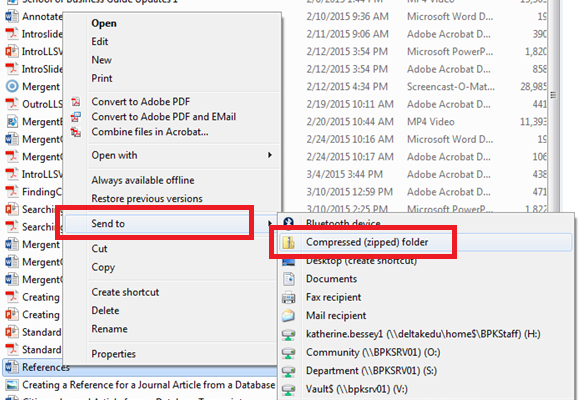
2. Right-click on the file or folder you want to compress and hover over “Send to”. Then select “Compressed (zipped) folder”.

3. Your PC will create a new zipped folder, which will be located alongside your original file.

4. Once the process is completed, you’ll be able to find the zipped file in the same folder as your original.

Congratulations! You now know how to zip files on both Mac and PC.

Benefits of Zipping Files:

There are many benefits to zipping files. One of the most obvious is that compressed files take up less space, making it easier to share them over the internet. This is especially useful when transferring files via email or other online platforms.

Additionally, zipping files reduces the risk of data corruption, providing a safer way to store, share, and transport sensitive files.

Conclusion:

Zipping files is an easy and effective way to compress large files and make them more easily sharable. Whether you’re using a Mac or PC, the steps to zip a file are straightforward, making it an ideal tool for both personal and professional use. So, use zipping as your go-to tool for sharing your larger files more efficiently and securely


Previous Article

How to Write In MLA Format In ...

Next Article

How to Zip and Unzip Files and ...

Matthew Lynch

Related articles More from author

  • Online Learning & eLearning

    Recipe Generator Tools to Eat Well and Avoid Food Waste

    June 6, 2023
    By Matthew Lynch
  • Online Learning & eLearning

    Online Learning Voice Over: How To Make Your Online Learning Project Sound Excellent

    March 21, 2023
    By Matthew Lynch
  • Adult EducationHigh SchoolHigher EducationMiddle School EducationOnline Learning & eLearning

    How an LMS Can Help Teachers Keep Older Students Engaged

    July 9, 2021
    By Matthew Lynch
  • Elementary EducationOnline Learning & eLearning

    The 10 Best Documentaries on Netflix

    March 30, 2023
    By Matthew Lynch
  • Online Learning & eLearning

    What Questions Should You Ask to Receive Actionable Online Class Feedback?

    April 14, 2022
    By Matthew Lynch
  • Elementary EducationOnline Learning & eLearning

    The Best Format for Your External Hard Drive

    May 28, 2023
    By Matthew Lynch

Search

Login & Registration

  • Log in
  • Entries feed
  • Comments feed
  • WordPress.org

Newsletter

Signup for The Tech Edvocate Newsletter and have the latest in EdTech news and opinion delivered to your email address!

About Us

Since technology is not going anywhere and does more good than harm, adapting is the best course of action. That is where The Tech Edvocate comes in. We plan to cover the PreK-12 and Higher Education EdTech sectors and provide our readers with the latest news and opinion on the subject. From time to time, I will invite other voices to weigh in on important issues in EdTech. We hope to provide a well-rounded, multi-faceted look at the past, present, the future of EdTech in the US and internationally.

We started this journey back in June 2016, and we plan to continue it for many more years to come. I hope that you will join us in this discussion of the past, present and future of EdTech and lend your own insight to the issues that are discussed.

Newsletter

Signup for The Tech Edvocate Newsletter and have the latest in EdTech news and opinion delivered to your email address!

Contact Us

The Tech Edvocate
910 Goddin Street
Richmond, VA 23231
(601) 630-5238
[email protected]

Copyright © 2026 Matthew Lynch. All rights reserved.