Can I use CCleaner on Mac?

When you’ve been using computers for a while, certain names just stick with you. For many Windows users, CCleaner is one of those names. It’s been a go-to utility for decades, promising to free up disk space, speed up sluggish systems, and generally keep things tidy. But what happens when you make the jump to a Mac? Does that familiar name still hold the same sway? Can you even use CCleaner for Mac, and if so, is it truly the best tool for keeping your Apple machine running smoothly?
It’s a question that pops up a lot, especially from folks transitioning from the PC world. You’re used to a certain way of doing things, a certain suite of tools, and it’s natural to look for equivalents on your new platform. While CCleaner does indeed have a version tailored for macOS, the underlying philosophy of system maintenance on a Mac is often quite different from Windows. Understanding these differences is key to deciding whether CCleaner for Mac is the right fit for your digital housekeeping.
A Brief History of CCleaner: From Windows Workhorse to Cross-Platform Player
Let’s rewind a bit and talk about CCleaner’s origins. Piriform, the company behind it, first launched the tool back in 2004. In the Wild West days of Windows XP and Vista, system optimization tools were legion, but many were snake oil. CCleaner quickly gained a reputation for being effective, straightforward, and, critically, free. It targeted temporary files, browser caches, redundant registry entries (a Windows-specific headache), and generally helped users reclaim precious disk space and often improve performance.
Its widespread adoption on Windows was phenomenal. It became a utility almost synonymous with ‘cleaning your PC.’ However, as its popularity grew, so did its ambition. Piriform eventually released versions for Android and, yes, macOS. The idea was to bring that same trusted cleaning capability to other ecosystems. But porting a utility designed for the intricacies of Windows to the fundamentally different architecture of macOS isn’t just a matter of changing the user interface. It requires a deep understanding of how each operating system handles files, caches, and system processes.
The Evolution and Acquisition by Avast
In 2017, a significant turning point arrived when Avast, the cybersecurity giant, acquired Piriform. This acquisition brought both resources and, for some users, a degree of trepidation. Avast integrated CCleaner into its broader portfolio of security and utility software. While this meant more development power and wider distribution, it also raised questions about the future direction of the software, its independence, and whether it would retain its lean, focused ethos. This is a common concern when smaller, beloved utilities get absorbed by larger corporations – sometimes the simplicity and core functionality get diluted.
So, Can You Use CCleaner on Mac? The Straightforward Answer
Yes, absolutely. There is an official version of CCleaner for Mac available for download directly from the CCleaner website. It’s not some third-party imitation or a workaround; it’s a legitimate product developed by the same team (now under Avast) that built the Windows version. So, if you’re wondering if it’s even an option, the answer is a resounding yes.
However, the mere existence of the software doesn’t automatically mean it’s the best or most necessary solution for macOS. It means you can use it, but the more nuanced question is whether you should. This distinction is crucial, as macOS has its own philosophy of system maintenance, which often differs significantly from Windows.
What Does CCleaner for Mac Actually Do? Core Features Explained
Just like its Windows counterpart, CCleaner for Mac aims to free up disk space and potentially improve system performance by removing various types of unnecessary files. Here’s a breakdown of its primary functions:
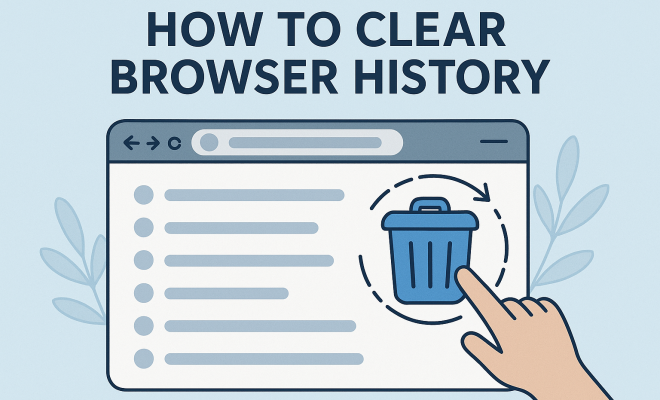
- Browser Cleaning: This is a big one for most users. CCleaner can clear out temporary internet files, cookies, browsing history, download history, and cache from popular browsers like Safari, Chrome, Firefox, and Opera. Over time, these files can accumulate, consuming gigabytes of space and, in some cases, contributing to slower browser performance.
- System Cleaning: This category targets files generated by macOS itself. It includes things like temporary files created by applications, system logs, trash contents, and broken permissions (though macOS has become much better at handling permissions automatically).
- Application Cleaning: Many applications leave behind caches and temporary files. CCleaner can identify and remove these, helping to slim down app-related clutter.
- Startup Items Management: On both Windows and Mac, too many applications launching automatically at startup can significantly slow down your boot time. CCleaner provides a simple interface to disable or remove these unwanted startup items.
- Uninstaller Tool: While macOS has a straightforward drag-to-trash method for uninstalling apps, this often leaves behind preference files and support folders. CCleaner’s uninstaller aims to do a more thorough job, removing associated files along with the main application.
- Duplicate File Finder: This feature, often found in the Pro version, scans your hard drive for identical files and allows you to delete the duplicates, a common culprit for wasted storage space.
These features sound useful, right? And for many, they are. The interface is generally intuitive, making it easy for even less tech-savvy users to perform basic cleaning tasks. (See: Wikipedia page on CCleaner.)
The macOS Philosophy: Why Macs "Clean Themselves" Differently
Here’s where the conversation gets interesting. Apple designed macOS with a pretty robust set of self-maintenance routines. Unlike older versions of Windows, which often felt like they needed constant tinkering, macOS is generally quite good at managing its own resources and cleaning up after itself. Let’s look at a few key differences:
Automatic Cache Management
macOS actively manages system and application caches. It’s designed to purge older, less-used cache files automatically when disk space is needed or when certain criteria are met. You don’t typically need a third-party tool to tell it when to do this; it’s part of the operating system’s core design. While some caches can grow large, they’re often there for a reason – to speed up access to frequently used data. Indiscriminate deletion can sometimes lead to a momentary slowdown as the system rebuilds those caches.
Robust Permissions Repair
In older versions of macOS (pre-El Capitan), ‘repairing disk permissions’ was a common troubleshooting step. However, modern macOS versions use a different file system (APFS) and have significantly improved permission management. The system protects its core files much more aggressively, and the need for manual permission repair tools has largely diminished. This is a good example of Apple building self-correction into the OS.
Efficient Uninstallation
While CCleaner offers an uninstaller, the drag-to-trash method on macOS, combined with the way applications are packaged (often as self-contained bundles), is surprisingly effective. For more thorough removal, tools like AppCleaner (a free, lightweight utility) often do a fantastic job of finding associated files without the broader system-wide cleaning ambitions of CCleaner.
The "Other" Storage Category
One of the most frustrating aspects for Mac users looking to free up space is the mysterious "Other" category in storage management. This category can encompass a vast array of files: disk images, archives, personal user data, application support files, system files that aren’t neatly categorized, and much more. While CCleaner can help with some of this, it often doesn’t fully address the "Other" problem, which frequently requires manual digging or more specialized tools. This builds on top ebook readers.
Potential Downsides and Concerns with "Cleaner" Apps on Mac
While CCleaner for Mac can be helpful, there are some legitimate concerns and potential downsides to consider when using any system optimization tool on macOS:
Unnecessary Deletion and Cache Rebuilding
Aggressively deleting all caches might seem like a good idea, but caches exist to speed things up. When you delete them, your system and applications have to rebuild them from scratch, which can temporarily slow down performance until the caches are repopulated. In some cases, critical application caches might be deleted, leading to unexpected behavior or even data loss if not handled carefully.
Bloatware and Feature Creep
As mentioned, CCleaner is now part of Avast. While it remains a useful tool, there’s always a risk of feature creep – the addition of more and more features that might not be necessary for everyone, potentially making the application heavier or more complex than its original simple purpose. This can also lead to bundling with other Avast products, which some users might not want.
Security Incidents and Trust Issues
This is a critical point that cannot be overlooked. In 2017, the Windows version of CCleaner was compromised by hackers. A malicious version containing malware (specifically, the Floxif and Nyetya malware) was distributed to millions of users. While this incident primarily affected the Windows version and was swiftly addressed, it undeniably cast a shadow over the brand’s security reputation. Later, in 2018, there was another incident where a legitimate update pushed by Avast contained a "spyware" module that collected user data without explicit consent. These incidents highlight the importance of trust when installing software that has deep access to your system.
For Mac users, who often value security and privacy, these past incidents are a significant consideration. While the company has taken steps to improve its security protocols, it’s a reminder that even trusted software can become a vector for problems.
The "Placebo Effect" of Cleaning
Sometimes, the perceived performance boost after running a cleaner app is more psychological than real. A Mac that’s already running well might not see any noticeable improvement. For truly sluggish Macs, the problem often lies deeper than just temporary files – it could be an aging hard drive (especially HDDs, less so SSDs), insufficient RAM, or a resource-hogging application. A cleaner app won’t fix those fundamental hardware or software issues. (See: CDC on computer hygiene and maintenance.)
Alternatives to CCleaner for Mac: Native Tools and Other Utilities
If you’re looking to optimize your Mac, you have a wealth of options, both built into macOS and available from third-party developers, many of which are specifically designed for the Apple ecosystem.
Native macOS Tools: The First Line of Defense
- Optimized Storage: This is Apple’s built-in solution for managing storage. Go to Apple menu > About This Mac > Storage > Manage. Here, you’ll find options to Store in iCloud, Optimize Storage (automatically delete watched TV shows and movies), Empty Trash Automatically, and Reduce Clutter by reviewing large files. This is often the most effective and safest first step.
- Activity Monitor: Found in Applications > Utilities, Activity Monitor lets you see which applications and processes are consuming the most CPU, memory, energy, disk, and network resources. This is invaluable for identifying true performance bottlenecks, not just temporary files.
- Finder (Manual Deletion): Don’t underestimate the power of simply looking through your Downloads folder, your Desktop, and your Documents. Manually deleting old installers, duplicate files, and large media files you no longer need is often the most impactful cleaning you can do.
- Browser Settings: All major browsers have built-in options to clear history, cache, and cookies. You don’t need a separate app just for this. Learn where these settings are in Safari, Chrome, or Firefox.
Reputable Third-Party Mac Cleaners (Use with Caution)
If you still feel the need for a dedicated cleaner, here are a couple of well-regarded alternatives that focus specifically on macOS, often with a more cautious approach to what they delete:
- CleanMyMac X: This is perhaps the most popular premium Mac cleaner. It offers a comprehensive suite of tools, including smart cleaning, malware removal, uninstaller, large file finder, and system maintenance scripts. It’s generally well-designed and has a good reputation, though it is a paid product and can be overkill for some users.
- AppCleaner: As mentioned earlier, this free, lightweight utility is excellent for uninstalling applications and their associated files thoroughly. It’s focused on one task and does it very well without trying to do too much.
- DaisyDisk: This tool is fantastic for visualizing disk usage. It presents your hard drive as an interactive sunburst map, making it incredibly easy to see where your space is going and identify large, unnecessary files for manual deletion. It’s not an automatic cleaner, but a powerful diagnostic tool.
The key with any third-party tool is to research it thoroughly, understand what it does, and only download it from the official developer’s website.
When Might CCleaner for Mac Be Useful?
Despite the caveats, there are specific scenarios where CCleaner for Mac could still be a reasonable choice:
- Cross-Platform Familiarity: If you’re a long-time Windows user who has just switched to Mac and you’re already very comfortable with CCleaner, using its Mac version might offer a sense of familiarity and ease of use that other tools don’t immediately provide. It lowers the learning curve for basic cleaning tasks.
- Quick Browser Cache Clearing: For users who frequently switch browsers or need a quick way to clear all browser-related clutter from a single interface, CCleaner’s browser cleaning function can be convenient.
- Basic Startup Item Management: If you find your Mac booting slowly and you suspect too many apps are launching at startup, CCleaner offers a simple way to manage these. While macOS has its own ways to control login items (in System Settings/Preferences), CCleaner presents them in a clear, consolidated view.
- For Less Tech-Savvy Users: For individuals who prefer a simple, all-in-one button solution and aren’t comfortable digging through system folders or using command-line tools, CCleaner offers a guided approach to basic maintenance.
However, even in these situations, it’s worth considering the alternatives mentioned above, particularly Apple’s built-in tools, which are inherently safer and often just as effective for typical maintenance.
Maximizing Your Mac’s Performance Without Third-Party Cleaners
The truth is, for most Mac users, the best approach to maintaining a fast and efficient system doesn’t involve constantly running cleaning apps. It’s more about good habits and utilizing the robust features already present in macOS:
Regularly Review Your Downloads and Desktop
These two locations often become digital dumping grounds. Make it a habit to go through them once a week or month. Delete old installers, temporary files, and documents you no longer need. A cluttered desktop can actually consume system resources, as macOS renders each icon.
Uninstall Unused Applications Properly
Don’t just drag the app icon to the trash. For a more thorough job, use a dedicated uninstaller like AppCleaner, or if you’re comfortable, check the application’s developer website for specific uninstall instructions. Many apps create support files in ~/Library/Application Support/ or preference files in ~/Library/Preferences/.
Manage Your Photos and Videos
Media files are often the biggest culprits for consuming disk space. Use Apple Photos’ built-in optimization features (if you use iCloud Photos) or offload older media to external drives or cloud storage. Reviewing and deleting duplicate or unwanted photos and videos can free up huge amounts of space. (See: New York Times article on computer cleaning.)
Empty Your Trash Regularly
This sounds obvious, but many people forget that files in the Trash still take up space. You can also enable the "Empty Trash Automatically" option in macOS storage management.
Keep macOS and Applications Updated
Apple regularly releases updates that include performance enhancements, bug fixes, and security improvements. Keeping your OS and all your applications up to date ensures you’re running the most optimized versions available.
Consider Hardware Upgrades for Older Macs
If your Mac is truly struggling, especially an older model, a software cleaner won’t magically transform it. Upgrading RAM (if possible) or switching from a traditional hard drive to an SSD can provide a far more significant and lasting performance boost than any cleaning software.
The Verdict: Is CCleaner for Mac a Must-Have?
So, back to our original question: Can you use CCleaner for Mac, and should you? The answer to the first part is a clear yes. The answer to the second part is more nuanced, but for most users, it leans towards ‘probably not a must-have’ and potentially ‘use with caution.’
While CCleaner for Mac does offer some genuinely useful functions, particularly for clearing browser data and managing startup items, macOS itself has evolved significantly. Its built-in tools for storage management, combined with good user habits, can achieve many of the same results without the need for additional software. The past security incidents associated with CCleaner, though addressed, are also a factor that shouldn’t be ignored, especially when dealing with software that has deep system access.
If you’re migrating from Windows and find comfort in its familiarity, CCleaner for Mac might be a gentle introduction to Mac maintenance. However, for a truly optimized and secure Mac experience, understanding and utilizing Apple’s native tools, coupled with a proactive approach to managing your files, will likely serve you better in the long run. Sometimes, the best cleaning tool is simply a mindful user.
Trending Now
Frequently Asked Questions
Can I use CCleaner on Mac?
Yes, CCleaner does have a version specifically designed for macOS. It aims to help Mac users free up disk space and improve system performance, similar to its functionality on Windows.
Is CCleaner for Mac effective?
While CCleaner for Mac can be useful for cleaning temporary files and caches, the overall philosophy of system maintenance on macOS differs from Windows. Users should consider whether its features align with their specific needs.
What does CCleaner do on a Mac?
CCleaner for Mac helps remove unnecessary files, such as browser caches and temporary files, to free up disk space and potentially enhance system speed. However, it does not target registry entries, which are specific to Windows.
How does CCleaner for Mac compare to other cleaning tools?
CCleaner for Mac is a popular choice, but its effectiveness compared to other tools may vary. Users should explore different options and reviews to find the best cleaning tool for their specific Mac maintenance needs.
Is it safe to use CCleaner on Mac?
CCleaner is generally considered safe for Mac users. However, as with any software, it's important to download it from the official site and to be mindful of what files you choose to delete to avoid losing important data.
What did we miss? Let us know in the comments and join the conversation.