How to record Google Meet meetings?
“`html
Google Meet has become an indispensable tool for collaboration, whether you’re working remotely, attending virtual classes, or catching up with friends and family. But what happens when you need to revisit a crucial discussion, share insights with someone who couldn’t attend, or simply keep a record for compliance? That’s where the ability to record Google Meet meetings comes into play. It’s a feature that, when used correctly, can significantly boost productivity, ensure accountability, and serve as an invaluable resource for future reference. Yet, many users aren’t fully aware of the nuances involved, from who can actually initiate a recording to the various methods available, both official and unofficial.
Understanding how to effectively record Google Meet meetings isn’t just about clicking a button; it involves knowing the prerequisites, respecting privacy, and choosing the right tool for your specific needs. This isn’t a one-size-all scenario, as different Google Workspace editions offer varying capabilities, and third-party solutions present their own set of advantages and considerations. We’re going to dive deep into all these aspects, ensuring that by the end of this guide, you’ll be able to confidently capture your Google Meet sessions, making the most out of every virtual interaction.
1. The Official Way: Google Workspace Editions and Permissions
Let’s start with the most straightforward method: using Google Meet’s built-in recording feature. This isn’t universally available, and that’s a crucial point many people miss. Google has integrated recording capabilities directly into specific Google Workspace (formerly G Suite) editions. If you’re using a free personal Google account, you won’t find this option. It’s reserved for business, education, and enterprise users who subscribe to certain paid tiers.
Specifically, the ability to record Google Meet meetings is typically available to users with Google Workspace Essentials, Business Standard, Business Plus, Enterprise Essentials, Enterprise Standard, Enterprise Plus, Education Plus, and the Teaching and Learning Upgrade. There are also some legacy G Suite Business and Enterprise editions that retain this feature. If you’re an administrator, you can control who in your organization has permission to record. For individual users, if you don’t see the record button, it’s likely due to your Google Workspace edition or your administrator’s settings.
2. Who Can Record a Google Meet Meeting?
Even within the eligible Google Workspace editions, not everyone in a meeting can hit the record button. There are specific roles and conditions that grant this permission. Generally, the meeting organizer is always able to record. This makes sense, as they are typically the one responsible for setting up and managing the meeting’s content and attendees. Co-hosts, a relatively newer feature in Google Meet, also usually have the ability to record, giving organizers more flexibility in managing larger sessions.
Beyond the organizer and co-hosts, anyone from the same organization as the organizer can typically record, provided their Google Workspace administrator has granted them the necessary permissions. However, guests from outside the organization (those joining with a personal Google account or from a different Workspace domain) are usually unable to initiate a recording. This is a critical security and privacy measure, preventing unauthorized external parties from capturing internal discussions. So, if you’re an external consultant or a guest speaker, don’t expect to see that record button.
3. Step-by-Step: Recording with Google Meet’s Native Feature
Once you’ve confirmed you have the necessary permissions and a compatible Google Workspace edition, recording a Google Meet meeting is remarkably simple. First, make sure you’re in the meeting and ready to start capturing content. You’ll want to ensure all participants are aware they’re being recorded – more on that in a moment. Look for the ‘Activities’ icon (it often looks like geometric shapes, a triangle, square, and circle) in the bottom right corner of your Meet interface. Click on that. (classroom applications of Google Meet)
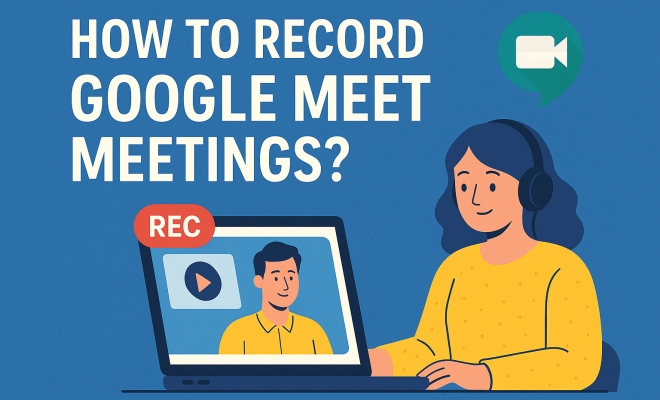
Within the ‘Activities’ panel, you should see an option labeled ‘Recording’. Click on ‘Recording’, and then you’ll see the ‘Start recording’ button. A pop-up will appear, reminding you to get consent from all participants. Confirm you understand, and then click ‘Start’. You’ll notice a small red ‘REC’ icon appear in the top left corner of the screen, indicating that the meeting is actively being recorded. To stop recording, simply go back to the ‘Activities’ panel, click ‘Recording’, and then ‘Stop recording’. Confirm your choice, and Google Meet will begin processing the recording.
4. Accessing and Sharing Your Google Meet Recordings
After you stop recording a Google Meet meeting, what happens to the file? Google processes the recording, and once it’s ready, it automatically saves it to the meeting organizer’s Google Drive. Specifically, it lands in a folder titled ‘Meet Recordings’. This process usually takes a few minutes, but for longer meetings, it could be longer. You’ll typically receive an email notification when the recording is ready, which includes a link directly to the file in your Drive.
From Google Drive, you have all the standard sharing options available. You can share the recording with specific individuals, create a shareable link, or even embed it in a Google Site or other platform. Remember to manage permissions carefully when sharing, ensuring that only authorized individuals can view or download the recording. This central storage in Google Drive makes it incredibly convenient for archiving, retrieval, and distribution within an organization. (See: CDC guidelines for virtual meetings.)
5. Privacy and Consent: Crucial Considerations When You Record Google Meet Meetings
This is perhaps the most critical, yet often overlooked, aspect of recording virtual meetings: privacy and consent. Legally and ethically, you generally need to inform all participants that a meeting is being recorded, and in many jurisdictions, you need their explicit consent. Google Meet does provide a visual indicator (the red ‘REC’ icon) and a notification when a recording starts, but relying solely on this might not be enough depending on local laws and company policies.
Before you even click ‘Start recording’, it’s best practice to verbally announce that the meeting will be recorded and why. Give participants an opportunity to voice concerns or, if necessary, leave the meeting if they’re uncomfortable. For sensitive discussions, consider if recording is truly necessary. Always refer to your organization’s internal policies and local data privacy regulations (like GDPR in Europe or CCPA in California) to ensure full compliance. Transparency builds trust, and it’s always better to be upfront about recording.
6. Third-Party Tools: When Google Meet’s Native Feature Isn’t Enough
What if you don’t have a Google Workspace edition that supports native recording, or you need more advanced features than what Google Meet offers out-of-the-box? This is where third-party recording tools shine. There’s a wide array of software available that can capture your screen and audio, essentially recording anything that appears on your computer. These tools are particularly useful for personal accounts or smaller businesses that don’t subscribe to the higher-tier Google Workspace plans.
Popular options include screen recorders like OBS Studio (free and open-source, but with a steeper learning curve), Loom (great for quick sharing and short videos), Camtasia (professional-grade editing features), and even built-in screen recorders on Windows (Xbox Game Bar) and macOS (QuickTime Player or Command+Shift+5). The advantage here is versatility; you can record specific windows, portions of your screen, or your entire desktop. The downside is that these recordings are local files on your computer, and you’ll have to manually share them.
7. Using OBS Studio to Record Google Meet Meetings (Advanced)
For those who want a free, powerful, and highly customizable solution, OBS Studio is an excellent choice, though it does require a bit more setup. First, download and install OBS Studio. When you open it, you’ll see a ‘Scenes’ panel and a ‘Sources’ panel. To record your Google Meet, you’ll typically add a ‘Display Capture’ source (to capture your entire screen) or a ‘Window Capture’ source (to capture just the Google Meet window).
You’ll also need to add an ‘Audio Output Capture’ source to record the sound coming from Google Meet, and potentially an ‘Audio Input Capture’ if you want to record your own microphone. Configure your output settings (File > Settings > Output) to choose your recording path and format (MP4 is generally recommended for compatibility). Once set up, simply click ‘Start Recording’ in OBS Studio before your Google Meet session begins, and ‘Stop Recording’ when you’re done. This method gives you immense control over resolution, frame rate, and audio mixing, but demands a bit of technical comfort. See also student data privacy insights.
8. Browser Extensions for Recording Google Meet
Another convenient category of third-party tools comes in the form of browser extensions. These extensions integrate directly into your web browser (like Chrome, which is Google Meet’s preferred browser) and often provide a one-click solution for screen recording. Examples include extensions like Loom, Screencastify, and Vidyard. They typically reside as an icon in your browser’s toolbar.
To use them, you usually click the extension icon, select whether you want to record your current tab, a specific application window, or your entire desktop, and then hit record. Many of these extensions also offer basic editing capabilities and cloud storage for your recordings, making sharing straightforward. While incredibly convenient, always be mindful of the permissions these extensions request and choose reputable ones to avoid potential privacy issues or security vulnerabilities. They are an excellent middle ground between Google’s native feature and full-fledged desktop screen recorders.
9. Troubleshooting Common Recording Issues
Even with the best tools and intentions, you might run into issues when you try to record Google Meet meetings. One of the most common problems is the absence of the ‘Record’ button. As we discussed, this is almost always due to your Google Workspace edition or administrator permissions. Double-check with your IT department or Workspace administrator if you believe you should have access.
Another frequent problem is poor audio or video quality in the recording. For native Google Meet recordings, ensure your internet connection is stable during the meeting. For third-party screen recorders, check your microphone and speaker settings, make sure no other applications are hogging resources, and verify your recording software’s output settings (bitrate, resolution). Sometimes, simply restarting your browser or computer can resolve minor glitches. If a recording fails to process or save, check your Google Drive storage limits; a full Drive can prevent new files from being saved.
10. Best Practices for Effective Google Meet Recordings
Beyond the technical ‘how-to,’ there are some best practices that will make your Google Meet recordings truly useful. First, always plan ahead. Decide if a recording is necessary, and if so, inform participants well in advance. Consider creating a brief agenda and sticking to it, as this makes recordings easier to navigate later. For longer meetings, suggest taking notes of key timestamps for important discussions, which can serve as a quick reference guide.
After the meeting, don’t just let the recording sit in Drive. Rename the file with a clear, descriptive title (e.g., ‘Team Sync – Project Alpha – 2023-10-27’). If possible, add a brief summary or key takeaways to the file description. For critical recordings, consider transcribing them using AI tools or manual methods, as searchable text can be incredibly powerful. Finally, periodically review your stored recordings and delete those that are no longer needed, both to free up storage and to adhere to data retention policies. Effectively using recordings can transform them from simple archives into powerful knowledge assets for your team or organization. (See: New York Times article on video conferencing.)
11. The Evolution of Meeting Recording: From Audio Tapes to AI Transcriptions
It’s fascinating to consider how far meeting recording has come. Not too long ago, “recording a meeting” meant setting up a bulky cassette recorder in the middle of a conference table, hoping the batteries wouldn’t die and the audio would be clear enough to decipher. Then came digital audio recorders, a step up in clarity and storage, but still requiring manual transcription or playback. The advent of video conferencing brought us the ability to capture visuals, but early solutions were often clunky, requiring dedicated hardware or complex software setups.
Today, the landscape is entirely different. Native cloud-based solutions like Google Meet’s recording feature handle the heavy lifting of capture, processing, and storage. What’s truly revolutionary is the integration of artificial intelligence. Many advanced recording platforms, and even some third-party tools, now offer automated transcription, speaker identification, and even sentiment analysis. Imagine not just a recording, but a searchable transcript of every word spoken, instantly available. This isn’t just about archiving; it’s about creating an easily digestible, searchable knowledge base from your conversations. The ability to quickly find a specific decision point or action item without scrubbing through an hour-long video is a game-changer for productivity.
12. Impact on Hybrid Work Environments: Bridging the Asynchronous Gap
The rise of hybrid and remote work models has made the ability to record Google Meet meetings even more critical. In a world where team members are spread across different time zones and have varying schedules, synchronous meetings can be a challenge. Recordings act as a powerful bridge for asynchronous collaboration. Someone in London can attend a meeting live, while a colleague in Sydney can watch the recording a few hours later, catching up without having to wake up in the middle of the night.
Beyond just time zones, recordings also cater to different learning styles. Some people grasp information better when they can re-watch a presentation, pause, and take notes at their own pace. It also democratizes access to information; if someone was unable to attend due to a conflict, illness, or simply a full calendar, they aren’t left out of the loop. They can access the full context of discussions, decisions, and action items, ensuring everyone stays aligned, regardless of their physical location or real-time availability. This fosters a more inclusive and efficient work environment, allowing teams to collaborate effectively even when they’re not all in the same room or online at the same moment.
13. Security Considerations Beyond Permissions: Data Retention and Compliance
While we touched on privacy and consent, there’s a deeper layer of security and compliance that organizations need to consider when they record Google Meet meetings. It’s not just about who can record or view, but also how long these recordings are kept and where they reside. Every organization should have a clear data retention policy for meeting recordings, outlining how long different types of meetings (e.g., internal team syncs, client presentations, HR interviews) should be stored before being deleted.
Storing sensitive recordings indefinitely can create unnecessary risk. If a recording contains confidential client information, proprietary company data, or personal employee details, it becomes a data asset that needs careful management. Compliance frameworks like HIPAA (for healthcare), PCI DSS (for financial data), and various industry-specific regulations often dictate strict rules around data storage, access, and deletion. IT administrators play a vital role in setting up Google Workspace retention policies, ensuring recordings are automatically deleted after a specified period, or archived securely if legally required. Regular audits of who has access to the ‘Meet Recordings’ folder in Google Drive are also crucial to prevent unauthorized access and maintain data integrity.
14. Future Trends: Enhanced AI, Virtual Reality, and Interactive Playback
The future of recording virtual meetings is incredibly exciting, with several emerging technologies poised to enhance the experience. We’re already seeing basic AI transcriptions, but imagine more sophisticated AI that can automatically summarize key discussion points, identify action items with assigned owners, and even flag moments of high engagement or tension in a meeting. This would turn a raw recording into an executive summary, saving immense amounts of time. This builds on Google Meet tips for educators.
Virtual reality (VR) and augmented reality (AR) could also play a role. While not directly about recording, future meeting platforms might allow participants to experience recorded meetings in a more immersive, interactive way, perhaps even revisiting a virtual meeting room environment. Interactive playback features are also on the horizon: think clickable agendas within the video, allowing viewers to jump directly to specific topics, or integrated polls and Q&A sessions that appear synchronized with the original recording. These advancements promise to make recorded meetings not just archives, but dynamic, intelligent resources that actively contribute to knowledge sharing and productivity.
Frequently Asked Questions About Recording Google Meet Meetings
Q1: Can I record a Google Meet meeting if I’m using a personal Gmail account?
No, unfortunately, the native recording feature in Google Meet is not available for personal (free) Gmail accounts. It’s exclusive to specific paid Google Workspace editions like Business Standard, Enterprise, or Education Plus. If you’re on a personal account, you’ll need to use a third-party screen recording tool or browser extension.
Q2: Where do Google Meet recordings get saved?
Once a native Google Meet recording finishes processing, it’s automatically saved to the meeting organizer’s Google Drive, specifically in a folder named “Meet Recordings.” The organizer typically receives an email notification with a link to the recording once it’s ready.
Q3: How long does it take for a Google Meet recording to be available?
The processing time for a Google Meet recording varies depending on the length of the meeting and current server load. For shorter meetings, it might be just a few minutes, but longer sessions (e.g., over an hour) could take significantly longer, sometimes up to several hours. You’ll get an email when it’s ready.
Q4: Do all participants get notified when a Google Meet meeting is being recorded?
Yes, Google Meet automatically displays a visual indicator (a red ‘REC’ icon) and a notification to all participants when a recording starts. However, it’s considered best practice to verbally announce that you’re starting a recording to ensure everyone is aware and has the opportunity to consent or leave.
Q5: Can I edit a Google Meet recording after it’s saved?
Google Meet’s native recording feature doesn’t include editing tools. The recording is saved as an MP4 file. If you need to edit it (e.g., trim sections, remove pauses, add text), you’ll need to download the file from Google Drive and use a separate video editing software like Google Photos, Adobe Premiere, Camtasia, or even a free tool like DaVinci Resolve.
Q6: What happens if the meeting organizer leaves the meeting while it’s being recorded?
The recording will continue even if the organizer leaves the meeting, as long as there are other participants present. The recording will only stop if the last person leaves the meeting or if someone manually stops the recording. The recording will still be saved to the original organizer’s Google Drive.
Q7: Can guests from outside my organization record a Google Meet meeting?
Generally, no. The ability to record is usually restricted to the meeting organizer, co-hosts, and individuals from the same Google Workspace organization as the organizer, provided they have the necessary administrator permissions. External guests typically do not have the option to initiate a recording.
Q8: Is there a limit to how long I can record a Google Meet meeting?
While there isn’t a strict time limit on the length of a single Google Meet recording set by Google, practical limitations like Google Drive storage space and the time it takes to process very long recordings might come into play. Most Google Workspace editions offer ample storage, so this isn’t usually an issue for typical meetings.
Mastering the ability to record Google Meet meetings is a valuable skill in today’s virtual-first world. Whether you’re leveraging Google’s built-in features or exploring robust third-party alternatives, the key is to approach it thoughtfully, with an eye towards both utility and responsible data handling. By following these guidelines, you’ll be well-equipped to capture, manage, and utilize your virtual discussions to their fullest potential.
“`
Trending Now
Frequently Asked Questions
How do I record a Google Meet meeting?
To record a Google Meet meeting, you need to use the built-in recording feature available in certain Google Workspace editions. Once in the meeting, click on the 'More' option (three dots) in the bottom right corner, then select 'Record meeting.' Ensure you have the necessary permissions and inform participants that the meeting is being recorded.
Who can record Google Meet meetings?
Only users with specific Google Workspace editions, such as Business Standard, Business Plus, Enterprise, and certain Education accounts, can record Google Meet meetings. Free personal Google accounts do not have access to this feature.
Can I record Google Meet meetings on a free account?
No, Google Meet's recording feature is not available for free personal Google accounts. It is reserved for users with paid Google Workspace subscriptions, which include business and education plans that support recording.
Where do Google Meet recordings get saved?
Google Meet recordings are automatically saved to the Google Drive of the account that initiated the recording. You can find them in a folder named 'Meet Recordings,' allowing easy access for sharing and reviewing past meetings.
Are there any privacy concerns with recording Google Meet meetings?
Yes, privacy is a key consideration when recording Google Meet meetings. Participants should be informed before recording begins, as it is important to respect their privacy and comply with legal regulations regarding consent for recording conversations.
Agree or disagree? Drop a comment and tell us what you think.