How to fix microphone echo in headset
“`html
Microphone echo in headsets can be a frustrating issue, especially during important video calls or immersive gaming sessions. If you’ve ever found yourself in a meeting where your own voice keeps bouncing back at you or in a game where teammates can’t hear you properly because of echo, you know just how disruptive it can be. Fortunately, there are several methods to fix microphone echo in headset scenarios. Here are eight effective strategies to try.
1. Check Your Headset Position
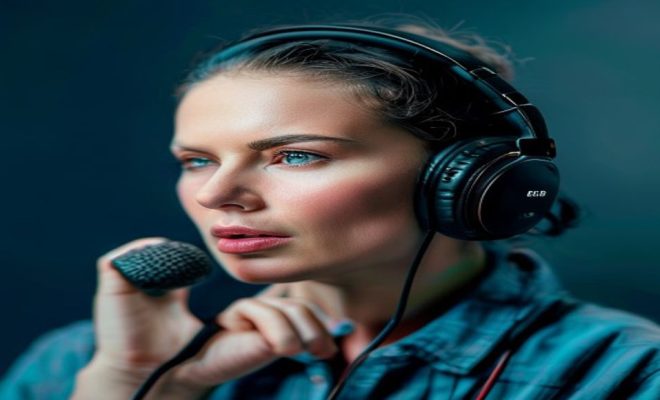
Sometimes, the simplest solutions are the most effective. Your headset might be positioned too close to the speakers, which can cause the microphone to pick up sound from the output speakers. To fix microphone echo in headset scenarios, ensure that your microphone is positioned correctly. If you’re using a headset with an adjustable microphone, try moving it closer to your mouth but away from the speakers. Ideally, your microphone should be a few inches away to minimize any feedback from the speakers.
If you find that adjusting the position doesn’t help, consider switching to a headset designed for noise cancellation. These headsets are specifically engineered to reduce background noise, including echo, which can significantly improve sound quality during communication.
2. Lower Speaker Volume
Another common culprit of microphone echo is high speaker volume. When your speakers are too loud, they can easily bleed into the microphone, causing that annoying echo effect. Try lowering the volume on your speakers to see if that resolves the issue.
In addition, if you’re using a traditional audio setup rather than a headset, consider using headsets with built-in microphones that allow for better sound isolation. This setup can help eliminate echo by ensuring that your microphone is less sensitive to nearby speaker output.
3. Enable Noise Cancellation Features
Many modern headsets come equipped with noise cancellation features, both in hardware and software. Enabling these features can significantly help to fix microphone echo in headset situations. Noise cancellation works by using microphones to pick up surrounding sounds and then generating sound waves that counteract those noises, effectively canceling them out.
Check the software that came with your headset; many manufacturers provide applications that allow you to enable or adjust noise cancellation levels. Make sure these settings are activated during calls or gaming sessions to enhance your audio experience.
4. Adjust Sound Settings in Your Operating System
Your operating system likely includes a range of sound settings that can help mitigate echo problems. Access the sound settings on your computer and look for the microphone properties. Here, you can adjust levels such as the microphone boost or sensitivity settings. Reducing the microphone sensitivity can prevent it from picking up unwanted sounds from the speakers.
For Windows users, navigate to the Control Panel, select ‘Sound’, then go to the ‘Recording’ tab, and find your microphone. Click on ‘Properties’ and adjust settings under the ‘Levels’ and ‘Enhancements’ tabs accordingly. Mac users can also find similar settings in the ‘Sound’ preferences under the ‘Input’ tab to adjust microphone levels.
5. Use Headphones Instead of Speakers
If you’re still experiencing echo issues, consider switching from speakers to headphones. This change can drastically minimize echo since you’ll be preventing the sound from the speakers from being picked up by the microphone. In essence, headphones provide a more personal listening experience, ensuring that other sounds in the environment don’t interfere with your audio quality.
Furthermore, many headsets are designed specifically to work with microphones, enhancing voice clarity and reducing echo, making them a great choice for gaming and conference calls. (See: CDC on environmental health.)
6. Update Audio Drivers
Outdated or corrupted audio drivers can cause various sound issues, including microphone echo. Keeping your audio drivers up-to-date is crucial for optimal performance and can often resolve existing problems. Check the manufacturer’s website for your sound card or headset for the latest drivers.
On Windows, you can update your audio drivers through the Device Manager. Right-click on ‘Start’, select ‘Device Manager’, expand ‘Audio inputs and outputs’, right-click your microphone, and choose ‘Update driver’. Follow the prompts to ensure you have the latest drivers installed. Regularly doing this can prevent echo and other audio-related issues.
7. Use a Different USB Port
If you’re using a USB headset, sometimes the port itself can be the issue. USB ports can become overloaded or malfunction, leading to audio issues like echo. If you’re encountering problems, try plugging your headset into a different USB port on your computer.
Additionally, if you’re using a USB hub, consider connecting your headset directly to the computer instead. This can help ensure a more stable connection and can potentially eliminate any echo caused by poor signal transmission through the hub.
8. Consider Upgrading Your Headset
If you’ve tried all the above strategies but still struggle with microphone echo, it might be time to consider upgrading your headset. Look for headsets that specifically advertise features aimed at reducing echo, such as dual microphones or advanced noise-cancellation technology. These features can significantly enhance your audio experience.
Additionally, pay attention to user reviews and expert opinions when selecting a new headset. Testing the headset before purchasing—if possible—can also help ensure that you find a product that meets your needs without echo issues.
9. Understanding the Physics of Echo
To fully grasp why microphone echo occurs, it’s essential to understand the physics behind sound waves. When you speak into the microphone, your voice creates sound waves that travel in the air. If these sound waves bounce off surfaces—like walls or furniture—before reaching the microphone, it results in an echo. This phenomenon is amplified in rooms with hard surfaces, which reflect sound rather than absorb it.
To combat this, consider soundproofing your environment. Soft furnishings, carpets, and wall hangings can absorb sound waves, reducing the likelihood of echo. For those recording or conducting calls in an echo-prone space, the arrangement of furniture can also play a crucial role in sound quality. Rearranging your setup to include more soft materials can create a more conducive audio environment.
10. Investing in Acoustic Panels
If you often find yourself in situations where microphone echo is a recurring problem, investing in acoustic panels may be worthwhile. These panels are specifically designed to absorb sound and reduce echo. They can be placed strategically on walls to optimize sound quality, especially in home offices or gaming setups.
Acoustic panels come in a variety of colors and designs, allowing you to enhance your space aesthetically while effectively tackling sound issues. They can be particularly beneficial in rooms that are primarily hard-surfaced, such as those with tiled floors or large windows.
11. Using Software Solutions for Echo Cancellation
In addition to hardware modifications, various software solutions are available that can significantly reduce microphone echo. Applications like Krisp, RTX Voice, and other audio processing tools utilize advanced algorithms to filter out unwanted noise and echo during calls or recordings. These software solutions can be particularly useful for those who frequently participate in online meetings or live streams.
Many of these applications provide customizable settings, allowing you to adjust the level of echo cancellation to suit your environment and preferences. They can also work in tandem with your existing headset, improving audio quality without the need for extensive hardware changes.
12. Common Headset Features That Help Reduce Echo
When purchasing a new headset with echo reduction in mind, there are several features you should consider: (See: New York Times on microphone setup.)
- Directional Microphones: These are designed to pick up sound from a specific direction—ideally from your mouth—while minimizing noise from other sources.
- Dual Microphone Systems: Many modern headsets incorporate two microphones to effectively cancel out background noise and echo, enhancing voice clarity.
- Wind Shielding: Some headsets have built-in windshields that help reduce echo caused by air movement, especially useful for outdoor use.
- Active Noise Cancellation: This feature electronically reduces background noise, allowing the microphone to focus on your voice alone.
13. Frequently Asked Questions (FAQ)
What causes microphone echo in headsets?
Microphone echo occurs when the sound output from speakers is picked up by the microphone, often exacerbated by the position of the headset, high speaker volume, or inadequate noise cancellation features.
How can I test if my headset is echoing?
You can test for echo by making a call or recording yourself speaking. Play back the audio and listen for any feedback or echo. Additionally, having a friend listen in during a call can help you identify echo issues.
Are there specific environments that exacerbate microphone echo?
Yes, environments with hard surfaces, such as tiled floors, bare walls, or large windows, can exacerbate microphone echo. Soft materials like carpets, curtains, and cushions can help absorb sound and reduce echo.
Do all headsets have noise cancellation?
No, not all headsets come with noise cancellation features. If echo reduction is a priority for you, it’s best to look for headsets specifically marketed with this feature.
Can I fix microphone echo without buying new hardware?
Yes, many echo problems can be resolved with software adjustments, environmental changes, or settings in your operating system. Often, simply repositioning your microphone and adjusting volume levels can lead to significant improvements.
Is acoustic treatment expensive?
Acoustic treatment can vary widely in cost. Basic solutions, like soundproofing foam or DIY panels, can be relatively inexpensive, while professional-grade acoustic treatment can be more costly. However, even small investments can yield noticeable improvements in sound quality.
What should I do if nothing seems to work?
If you’ve tried all the above methods and still experience echo, contacting your headset manufacturer for support may be a good next step. They can provide specific troubleshooting steps or inform you about known issues with your model.
14. More Advanced Troubleshooting Techniques
If you’ve exhausted basic fixes and still can’t shake off that annoying echo, there are some advanced troubleshooting techniques worth trying. One approach is to use a sound level meter app to measure decibel levels in your environment. This can help you identify if your surroundings are contributing to echo problems. If you find high levels of background noise, consider using soundproofing curtains or rugs to dampen the sound.
Another technique is to experiment with different audio formats. For instance, switching from a stereo sound format to mono can sometimes reduce echo, as it simplifies audio input and output paths.
15. Expert Perspectives on Microphone Echo Issues
Listening to audio professionals can provide valuable insights into addressing microphone echo effectively. According to audio engineer Mike D. from Studio Sound, “A significant part of managing echo is understanding the interaction between your microphone and environment. If the room is too reflective, no gadget will fix the issue completely.” He recommends always starting with a controlled environment, as that’s the foundation of good audio quality. (See: ScienceDirect on noise cancellation.)
Sound designer Linda S. also emphasizes that “the quality of your microphone plays a crucial role. Upgrading to a high-quality condenser microphone can yield a remarkable improvement in audio clarity and minimize echo.” This advice holds particularly true for those heavily involved in podcasting or professional audio recording.
16. Common Myths About Microphone Echo
There are several myths surrounding microphone echo that can lead users to ineffective solutions. One common misconception is that using a higher-quality headset automatically eliminates echo issues. While good quality equipment helps, it should be paired with proper room acoustics and settings adjustments.
Another myth is that echo is solely a hardware problem. Users often overlook the impact of their environment. Echo is as much about the space you’re in as it is about the equipment you’re using. Understanding this can guide you toward more effective solutions.
17. Environmental Modifications to Reduce Echo
Making modifications to your physical environment can hugely impact how sound behaves in the space, thereby reducing echo. Adding furniture, such as bookshelves filled with books, can help absorb sound. The more irregular the surfaces, the better they will scatter sound waves, further minimizing echo.
Additionally, arranging your workspace with soft coverings—like throw pillows or a large area rug—can make a noticeable difference. If you’re setting up a recording space, consider using furniture layouts that create barriers against sound reflection.
18. Investing in Quality Equipment
While many solutions can mitigate echo, investing in quality equipment may ultimately provide the best long-term results. Look for headsets with high sensitivity and low self-noise specifications. Brands like Shure and Audio-Technica have models praised for their noise handling capabilities.
Moreover, consider exploring USB microphones that are designed to combat echo specifically. These often come with their own set of acoustic treatment features, making them ideal for content creators and remote workers alike.
In summary, fixing microphone echo in headsets is often a matter of adjusting settings, hardware positioning, and potentially upgrading your equipment. Don’t let echo disrupt your important conversations or gaming experiences; try the above strategies and enjoy clearer, cleaner audio.
“`
Trending Now
Frequently Asked Questions
Why does my headset microphone echo?
Microphone echo in headsets typically occurs when the microphone picks up sound from nearby speakers. This can happen if the headset is positioned too close to the speakers or if the speaker volume is set too high, causing the sound to bleed into the microphone.
How can I reduce echo on my headset microphone?
To reduce echo, you can adjust the position of your microphone, lower the speaker volume, or use noise-canceling headsets. Ensuring the microphone is a few inches away from the speakers can also minimize feedback and improve sound quality.
What settings can I change to fix microphone echo?
You can enable noise cancellation features if your headset supports it, lower the speaker volume, and adjust the microphone position. These settings help reduce the chances of the microphone picking up sound from the speakers, thus minimizing echo.
Is it possible to fix echo during video calls?
Yes, fixing echo during video calls can often be achieved by adjusting your headset's position, lowering speaker volume, and using headsets with built-in noise cancellation. These adjustments help ensure clearer communication without disruptive feedback.
What type of headset is best to avoid microphone echo?
Headsets designed with noise-cancellation features are ideal for avoiding microphone echo. These headsets are engineered to minimize background noise and prevent the microphone from picking up sound from the speakers, improving overall audio quality.
Agree or disagree? Drop a comment and tell us what you think.