How to restart frozen smartwatch
“`html
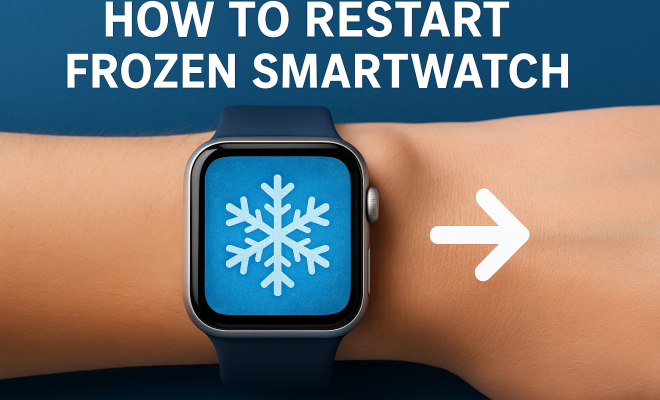
If you’ve ever found yourself staring at a frozen smartwatch, you know how frustrating it can be. Like any tech device, smartwatches are not immune to glitches and freezes. Whether it’s due to an app malfunction, a software bug, or simply too many tasks running simultaneously, a frozen smartwatch can leave you scrambling for solutions. But don’t worry! Here’s a comprehensive guide on how to restart a frozen smartwatch effectively, along with tips to prevent future freezes.
1. Understanding Why Smartwatches Freeze
To tackle the issue head-on, it’s essential to understand why smartwatches freeze in the first place. Most often, the root cause lies in software issues. An overload of running applications can lead to a devices’ CPU being overwhelmed, resulting in a freeze. Other times, a simple bug in the operating system can cause unexpected behavior. Additionally, low battery levels can contribute to performance issues. Knowing these factors can guide you in troubleshooting effectively.
Hardware problems can also play a role. If your smartwatch has suffered physical damage or has a malfunctioning component, it might freeze regardless of how well the software is functioning. Understanding the underlying cause can help you decide whether a simple restart can fix the issue or if you’ll need further assistance.
2. Basic Restart Methods for Different Brands
Different brands of smartwatches have their own methods for restarting. Here are the basic restart methods for some of the most popular brands:
- Apple Watch: Press and hold the side button until the power off slider appears. Drag the slider, and once the watch powers down, press and hold the side button again until the Apple logo appears.
- Samsung Galaxy Watch: Press and hold the Home button until the Power off menu appears. Tap Power off, wait for the device to shut down, then press and hold the Home button again until the Samsung logo appears.
- Fossil Smartwatches: Press and hold the power button until the watch vibrates and the Fossil logo appears.
These methods work most of the time, but if your watch is completely unresponsive, you may need to resort to more specific techniques.
3. Force Restart: When Standard Methods Fail
Sometimes, your smartwatch may not respond to regular restart methods. In these cases, a force restart is necessary. A force restart clears the memory and helps eliminate any persistent bugs. Here’s how you can do it:
- Apple Watch: Press and hold both the side button and the Digital Crown until you see the Apple logo.
- Samsung Galaxy Watch: Press and hold the Power and Volume Down buttons until the watch vibrates.
- Wear OS Watches: Press and hold the power button until the watch restarts.
This technique can be particularly helpful if your smartwatch has become completely unresponsive. However, remember that force restarting should be a last resort, used only when other methods fail.
4. Software Updates: A Preventive Measure
Keeping your smartwatch’s software up-to-date is crucial for optimal performance. Software updates often come with bug fixes and improvements that can help prevent freezing issues. Most smartwatches will notify you when an update is available, but you can also check manually through the settings menu. Here’s how: (See: common smartwatch issues and solutions.)
- Apple Watch: Open the Apple Watch app on your iPhone, go to My Watch > General > Software Update.
- Samsung Galaxy Watch: Open the Galaxy Wearable app on your phone, tap Watch software update.
- Wear OS Watches: Open the Settings app on your watch, scroll to System > About > System updates.
Updating your smartwatch regularly not only enhances its performance but also secures it against potential vulnerabilities that could lead to freezing issues.
5. Managing Apps to Reduce Freezing
Another effective way to restart your frozen smartwatch is to manage the applications installed on it. Some apps may consume excessive battery or memory, leading to potential freezes. If your smartwatch has a limited amount of RAM, installing too many apps can cause conflicts and performance issues. Here are some tips for effective app management:
- Remove unused apps to free up space and resources.
- Limit background app activity, ensuring only essential apps run at all times.
- Regularly update your apps for better performance.
A good practice is to periodically review the apps installed on your device and assess their necessity. This can help maintain optimal performance and reduce the likelihood of freezes.
6. Battery Maintenance: Keeping Your Device Alive
Battery health plays a significant role in your smartwatch’s overall performance. A weak battery can lead to unexpected shutdowns and freezes. Taking care of your smartwatch battery includes:
- Avoiding extreme temperatures, which can significantly affect battery performance.
- Charging your smartwatch regularly to prevent it from running out of battery suddenly.
- Using the charger that came with your device to ensure safe charging.
By ensuring your smartwatch battery is in good shape, you’ll likely reduce the chances of encountering freezing issues.
7. Resetting Your Smartwatch: A Last Resort
If all methods to restart your frozen smartwatch have failed, you can consider performing a factory reset. This process restores the smartwatch to its original settings, erasing all data and applications. It’s essential to back up any important data before proceeding. Here’s how to reset some common smartwatches:
- Apple Watch: Open the Settings app, go to General > Reset > Erase All Content and Settings.
- Samsung Galaxy Watch: Go to Settings > General > Reset.
- Wear OS Watches: Open Settings, then go to System > Disconnect and reset.
Keep in mind that this should be your last option, as it will erase everything on the device. However, it can often resolve persistent issues that other methods cannot.
8. When to Seek Professional Help
Sometimes, despite your best efforts, your smartwatch may still be frozen or malfunctioning. If you’ve tried all the above methods without success, it might be time to seek professional help. Consider these indicators:
- Your smartwatch is still unresponsive even after a factory reset.
- You notice physical damage or defects that could be causing the issue.
- It’s been a long time since your last software update.
Most manufacturers offer customer service or repair options that can provide further assistance. Contacting them can give you insights into warranty options or troubleshooting steps that you may not have considered.
9. Staying Ahead of Future Freezes
Prevention is always better than cure. To avoid future freezing issues, consider the following proactive measures: (See: ergonomics and smartwatch usage.)
- Establish a regular maintenance routine for your smartwatch, including software updates and battery checks.
- Familiarize yourself with the specific functions of your smartwatch to better understand its capabilities and limitations.
- Stay informed about known issues with your specific model and apply any recommended fixes promptly.
By employing these strategies, you can increase the longevity and reliability of your smartwatch, ensuring that you get the most out of it.
10. Advanced Troubleshooting Techniques
If you find yourself dealing with a frozen smartwatch more frequently than you’d like, you might need to consider deeper troubleshooting. Here are some advanced techniques that could help:
- Check for App Compatibility: If you’ve recently installed an app before the freezing started, it may be incompatible with your smartwatch’s operating system. Uninstalling the app could help restore normal functionality.
- Clear Cache: Some smartwatches allow you to clear app caches. This can free up memory and improve performance. Check your specific watch’s manual to see if this option is available.
- Safe Mode: Some smartwatches, particularly those running Android or Wear OS, have a safe mode that starts the device with only essential apps. This can help determine if a third-party app is causing problems. You can typically enter safe mode by holding the power button and selecting the safe mode option.
11. Frequently Asked Questions (FAQ)
What should I do if my smartwatch is still frozen after trying all restart methods?
If your smartwatch remains unresponsive after trying the standard and force restart methods, performing a factory reset may be necessary. If that doesn’t work, consider seeking professional help from the manufacturer.
How can I tell if my smartwatch is frozen or just in a low-power state?
Check if the screen is blank but responsive. Try tapping the screen or pressing buttons to see if it reacts. If there’s no response after a brief wait, it’s likely frozen.
Can third-party apps cause my smartwatch to freeze?
Yes, third-party apps can sometimes conflict with the smartwatch’s operating system or consume too many resources, leading to freezes. Regularly updating or removing unneeded apps can help prevent this.
Is there a way to protect my smartwatch from freezing issues?
Yes, regularly update your device’s software, manage your installed apps carefully, and maintain battery health to reduce the likelihood of freezing issues.
How often should I update my smartwatch?
It’s best to update your smartwatch’s software whenever a new version is available. Manufacturers often release updates to fix bugs and improve performance, so staying current is key. (See: impact of software bugs on devices.)
What are the signs of a battery issue in my smartwatch?
Common signs include unexpected shutdowns, rapid battery drain, and difficulty charging. If you notice these issues, it may be time to replace the battery or consider a battery health check.
Can I perform a factory reset remotely?
Some smartwatches allow remote management features through companion apps on your phone, which may include the ability to reset the device. However, this varies by brand and model.
12. Additional Considerations: Understanding Your Smartwatch’s Limitations
Smartwatches, while incredibly useful, do come with limitations that can affect their performance. Understanding these constraints can help you use your device more effectively and reduce the chances of freezing.
- Storage Capacity: Many smartwatches have limited storage for apps and data. If you exceed this limit, you may experience performance issues. Regularly check your storage and delete unnecessary files or apps.
- RAM Limitations: If your smartwatch has a low amount of RAM, running multiple apps simultaneously can cause it to freeze or become sluggish. Try to limit active applications to ensure smooth operation.
- Heat Exposure: Excessive heat can cause your smartwatch to malfunction. Avoid wearing it while exercising in extreme temperatures or while exposed to direct sunlight for prolonged periods.
13. Understanding Different Operating Systems
Smartwatches run on different operating systems, each with its own quirks and features. Understanding these can help you navigate issues more effectively:
- Apple Watch (watchOS): Known for its seamless integration with iOS devices, but it can sometimes struggle with battery life if too many apps are running.
- Wear OS by Google: Offers flexibility and a wide range of apps, but users often report lagging performance, especially if running several apps simultaneously.
- Samsung Tizen: Generally stable and efficient, but occasional bugs can arise with app updates, leading to freezes.
- Fitbit OS: Primarily focused on fitness tracking, its limited app support can sometimes make it less versatile compared to others.
14. Community Support and User Forums
Sometimes, the best advice comes from fellow smartwatch users. Online forums and community support groups can provide insights into common issues and solutions:
- Reddit: Subreddits such as r/smartwatch and r/AppleWatch are treasure troves of user experiences and troubleshooting tips.
- Manufacturer Communities: Many brands have official forums where users can share tips, report bugs, and get official responses.
- Tech Blogs: Websites dedicated to smartwatch reviews and advice often feature user comments and troubleshooting guides that can be incredibly helpful.
15. Conclusion: Keeping Your Smartwatch Functional
Smartwatches can be invaluable tools for daily life, but they require regular maintenance and attention to prevent freezing issues. By understanding the reasons behind freezes and implementing the tips outlined in this guide, you can ensure that your smartwatch remains a reliable companion. From basic restarts to advanced troubleshooting, having a strategy in place will help you tackle any issue that arises. So the next time you encounter a frozen smartwatch, you’ll be well-equipped to handle it!
“`
Trending Now
Frequently Asked Questions
What should I do if my smartwatch is frozen?
If your smartwatch is frozen, try performing a basic restart. Most brands have specific methods for restarting. For example, on an Apple Watch, press and hold the side button until the power off slider appears, then drag it to turn off. For Samsung Galaxy Watches, hold the Home button until the Power off menu appears and select Power off.
Why does my smartwatch keep freezing?
Smartwatches can freeze due to various reasons, including software bugs, too many apps running simultaneously, or low battery levels. Hardware issues, such as physical damage or malfunctioning components, can also lead to freezes. Understanding these factors can help in troubleshooting.
How can I prevent my smartwatch from freezing?
To prevent your smartwatch from freezing, ensure that you regularly update its software, limit the number of apps running simultaneously, and maintain a sufficient battery level. Additionally, avoid exposing the device to physical damage to minimize hardware issues.
Are there different restart methods for different smartwatch brands?
Yes, different smartwatch brands have their own specific restart methods. For instance, Apple Watches require you to hold the side button, while Samsung Galaxy Watches use the Home button to access the power menu. Always refer to your device's manual for the correct procedure.
What are the signs that my smartwatch needs to be restarted?
Common signs that your smartwatch may need a restart include unresponsiveness, freezing on the home screen, apps crashing frequently, or slow performance. If you experience these issues, a restart might help restore functionality.
What did we miss? Let us know in the comments and join the conversation.