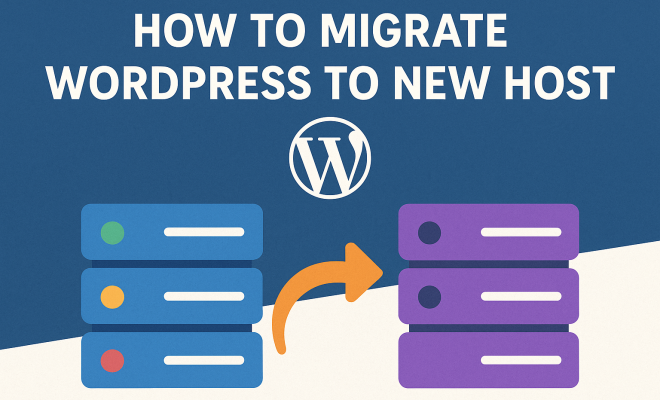
How to migrate WordPress to new host
“`html
Migrating your WordPress site to a new host can be a daunting task if you’re not familiar with the intricacies involved. Whether you’re seeking better performance, increased security, or just a change of scenery, knowing how to migrate WordPress to a new host is crucial. This guide will walk you through the entire process, ensuring that your migration is smooth and hassle-free.
1. Understanding Why You Need to Migrate
Before diving into the actual migration process, it’s vital to understand the underlying reasons for making the switch. There are several factors that might compel you to migrate your WordPress site:
- Performance Issues: If your current host has slow loading times or frequent downtimes, it’s time to consider a change.
- Cost-Effectiveness: You might find better pricing or value in a different hosting plan that offers more features at a lower cost.
- Better Support: Customer support can make or break your hosting experience. If your current host lacks responsive and knowledgeable support, a migration might be necessary.
- Scalability: As your site grows, you may need a host that can accommodate increased traffic and storage needs.
Understanding these factors helps you make an informed decision on the necessity of migration.
2. Choosing the Right Hosting Provider
When it comes to migrating WordPress to a new host, the first step is choosing a provider that aligns with your needs. Here are some critical factors to consider:
- Performance: Look for hosts that offer solid uptime guarantees and fast loading speeds.
- Security Features: Ensure the provider includes security features like SSL certificates, firewalls, and regular backups.
- Scalability: Choose a host that can grow with your site to avoid future migrations.
- Support Options: Opt for a host with 24/7 customer support, preferably through multiple channels.
Take the time to compare hosting plans and read reviews to find a host that meets your criteria. This initial research can save you headaches down the road.
3. Preparing for Migration
Once you’ve selected a new hosting provider, it’s time to prepare for the migration process. Start by backing up your WordPress site:
- Full Backup: Use plugins like UpdraftPlus or BackupBuddy to create a complete backup of your files and database.
- Export Content: Utilize the built-in export tool in WordPress to download your content in XML format.
Backing up your site ensures that you have a recovery option should anything go wrong during the migration.
4. Transferring Files to the New Host
With your backup in place, you can now start transferring your WordPress files to the new host. This involves several steps:
- Upload Files: Connect to your new host via FTP using clients like FileZilla. Upload all your WordPress files from your backup.
- Database Migration: Create a new database on your new host. Import your SQL backup file using phpMyAdmin or a similar tool.
Ensure that all files are uploaded correctly and that the database is accurately imported. This step is crucial for your site to function as expected on the new host.
5. Updating the wp-config.php File
One of the most critical steps in migrating WordPress to a new host is updating the wp-config.php file. This file contains essential information about your database connection: (See: CDC – Importance of website security.)
- Database Name: Update this to reflect the name of the new database.
- Database User: Change this to the new database user created on the new host.
- Database Password: Don’t forget to update the password to match the new database.
Any errors in this file could lead to connectivity issues, so double-check your edits before moving on.
6. Testing the New Site
After the migration, it’s essential to test your site on the new host to ensure everything is functioning correctly. Here’s how:
- Access the Site: Use your new URL or the temporary URL provided by your new host to access your site.
- Check for Errors: Look for broken links, missing images, or any functionality issues.
- Verify Plugins and Themes: Ensure that all installed plugins and your theme function as intended.
Running these tests before making the final switch will help you catch any issues early on.
7. Updating Domain DNS Settings
Once you’ve verified that your new site is working correctly, it’s time to update your domain’s DNS settings to point to the new host. You can do this by:
- Accessing Domain Registrar: Log into your account where you purchased your domain.
- Updating DNS Records: Change the A record to the new IP address provided by your new host.
- Propagation Wait: Be prepared to wait up to 48 hours for changes to propagate globally.
Updating your DNS settings can be tricky, but it’s crucial for ensuring that visitors can access your site at its new location.
8. Final Cleanup and Optimization
After everything is up and running, take the time to clean up your old host and optimize your new site:
- Remove Old Files: Make sure to delete any unnecessary files or backups from your old host to save space.
- Optimize Performance: Use caching plugins and image optimization tools to improve site speed on the new host.
- Monitor Performance: Keep an eye on your site’s performance over the following weeks to catch any lingering issues.
Cleaning up ensures that you’re not only leaving your old host properly but also setting yourself up for success on the new host.
9. Seeking Professional Help
If all of this seems overwhelming, consider hiring a professional to handle the migration for you. Many hosting providers offer migration services, and third-party professionals can also assist. Here are some benefits of seeking help:
- Expertise: Professionals have experience and know the common pitfalls, leading to a smoother transition.
- Time-Saving: Instead of spending hours on the process, you can focus on other aspects of your business.
- Post-Migration Support: Many services include a period of support to address any issues that arise afterward.
While this will incur a cost, the peace of mind and efficiency can be well worth it.
10. Common Migration Challenges
Even with careful planning, you may encounter some challenges during the migration process. Here are a few common issues and how to address them:
- Database Connection Errors: If your site cannot connect to the new database, double-check the wp-config.php file for accuracy. Ensure that the database name, user, and password are correct.
- Incompatible Themes or Plugins: Sometimes, themes or plugins may not function properly after migration. Make sure to check for updates or compatibility issues with your new hosting environment.
- SSL Certificate Problems: If you’re using HTTPS, ensure your SSL certificate is installed correctly on the new host. You may need to reissue it based on the new server’s settings.
Being aware of these potential issues can help you troubleshoot effectively and minimize downtime. (See: New York Times – Technology and hosting trends.)
11. SEO Considerations During Migration
Migrating your WordPress site requires attention not just to the technical aspects but also to the SEO implications. Here are some key points to keep in mind:
- Maintain URL Structure: If possible, keep the same URL structure to avoid broken links and SEO penalties. If you must change URLs, set up 301 redirects to guide both users and search engines to the new locations.
- Update Your Sitemap: Once migration is complete, update your sitemap and submit it to search engines. This helps them crawl your new site more efficiently.
- Monitor Traffic and Rankings: Keep an eye on your website’s traffic and keyword rankings post-migration. Use tools like Google Analytics to track any fluctuations and address issues as they arise.
A well-executed migration can help improve your site’s performance and maintain its search engine rankings.
12. Frequently Asked Questions (FAQ)
Q1: How long does it take to migrate a WordPress site?
A: The duration varies based on your site’s size and complexity. A straightforward migration can take a few hours, while larger sites might take longer. Always set aside additional time for troubleshooting.
Q2: Will I lose my SEO rankings during migration?
A: If done correctly, you shouldn’t lose your SEO rankings. Ensure that URLs remain the same, and implement 301 redirects if changes are necessary. Monitor your traffic closely to identify any issues promptly.
Q3: Can I migrate my WordPress site without downtime?
A: It’s challenging to avoid downtime completely, but you can minimize it by performing the migration while traffic is low and ensuring everything works on the new host before switching your DNS settings.
Q4: What if I encounter problems after migration?
A: If you face issues post-migration, don’t panic. Check error messages for guidance, and consult your hosting provider for assistance. You can also refer to WordPress support forums for community help.
Q5: Do I need to back up my site before migrating?
A: Absolutely! Backing up your entire WordPress site is essential to ensure you have a recovery option in case something goes wrong during the migration process.
13. Post-Migration Best Practices
Once your migration is complete, there are several best practices to ensure your new host is set up for success:
- Regular Backups: Set up a regular backup schedule to protect your site against data loss.
- Update WordPress and Plugins: Keep your WordPress installation, themes, and plugins up to date to enhance security and performance.
- Monitor Site Performance: Use tools like Google PageSpeed Insights or GTmetrix to keep track of your site’s speed and performance regularly.
- Engage with Your Audience: Monitor your site’s analytics to understand visitor behavior and engagement, and make necessary adjustments to improve user experience.
By following these best practices, you’ll ensure that your WordPress site thrives in its new environment.
14. Advanced Migration Techniques
For those who are comfortable with technical aspects or managing larger sites, here are some advanced techniques to consider when migrating your WordPress site: (See: Wikipedia – Web hosting overview.)
- Using Command-Line Tools: For developers, using WP-CLI (WordPress Command Line Interface) can ease the migration process. It allows you to perform tasks like database exporting/importing and plugin installation directly from the command line.
- Staging Environment: Before fully migrating your site, consider setting up a staging environment on your new host. This allows you to test changes without affecting your live site.
- Using Migration Plugins: There are several dedicated migration plugins (like Duplicator or All-in-One WP Migration) that can automate much of the process, making it easier and less prone to errors.
Advanced migrations can save time and reduce the risk of human error, especially if you’re managing a complex site with custom configurations.
15. Success Stories: Real-Life Migration Experiences
Hearing from others can provide insight and reassurance about the migration process. Here are a couple of success stories from website owners who successfully migrated their WordPress sites:
Case Study 1: A small eCommerce store was facing performance issues due to high traffic. After conducting thorough research, they migrated to a managed WordPress hosting provider. The result? Page load times decreased significantly by 50%, leading to higher sales and improved customer satisfaction.
Case Study 2: A nonprofit organization struggled with their previous host’s support. After migrating to a new host with 24/7 support, they reported that their issues were resolved much faster, allowing them to focus on their mission rather than technical troubles.
These stories highlight how a well-planned migration can lead to improved performance, support, and overall satisfaction.
16. Conclusion: Embracing the Migration Journey
In the ever-evolving world of web hosting, migrating your WordPress site to a new host may seem intimidating, but it’s an opportunity to leverage better technology and support. With careful planning, thorough testing, and an understanding of potential challenges, you can ensure a successful transition. Whether you choose to handle the migration yourself or seek professional assistance, the key is to be proactive and prepared.
By following the steps laid out in this guide and considering the additional insights provided, you can enjoy a smooth migration experience and the benefits that come with a better host. Embrace the journey and watch your site thrive in its new environment.
“`
Trending Now
Frequently Asked Questions
What are the reasons to migrate a WordPress site?
There are several reasons to migrate a WordPress site, including performance issues like slow loading times, cost-effectiveness with better pricing or features, improved customer support, and scalability to accommodate site growth. Understanding these factors can help you decide if migration is necessary.
How do I choose a new hosting provider for WordPress?
When choosing a new hosting provider for WordPress, consider performance metrics like uptime and loading speed, security features such as SSL certificates and backups, scalability options for future growth, and support availability. Comparing hosting plans and reading reviews can also guide your decision.
What factors should I consider when migrating my WordPress site?
Key factors to consider when migrating your WordPress site include the performance of the new host, security features offered, scalability for future needs, and the quality of customer support. Evaluating these elements ensures a smooth migration process.
Is it difficult to migrate a WordPress site to a new host?
Migrating a WordPress site to a new host can be daunting, especially for beginners. However, with a structured approach and understanding of the process, including backups and DNS changes, it can be accomplished smoothly with minimal hassle.
What should I do before migrating my WordPress site?
Before migrating your WordPress site, it's essential to back up your existing site, choose a reliable new host, and familiarize yourself with the migration process. Understanding your reasons for migration and planning accordingly can help make the transition smoother.
What did we miss? Let us know in the comments and join the conversation.