How to sync notes across devices
“`html
In our increasingly digital world, having the ability to sync notes across devices is nothing short of essential. Whether you’re a student juggling classes, a professional managing multiple projects, or someone just trying to keep life organized, note syncing can significantly enhance productivity and streamline your daily activities. This article will explore how to effectively sync notes across a variety of devices, delve into the tools available, and provide practical insights that can transform the way you manage your notes.
1. The Importance of Syncing Notes
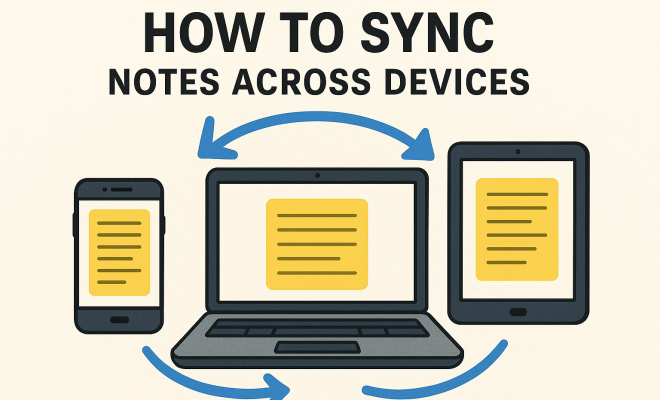
Syncing notes across devices isn’t just a convenience; it’s a necessity for many. Imagine taking notes on your laptop during a meeting and needing to reference them later on your tablet or smartphone. Without syncing, you might find yourself frantically searching for that information, wasting time that could be better spent elsewhere. This seamless transition allows for flexibility, enabling you to access vital information anytime, anywhere.
Moreover, syncing notes can enhance collaboration. In an age where teamwork often happens remotely, sharing notes and ideas in real-time is crucial. Being able to sync notes across devices means that whether you’re using a PC, Mac, or mobile device, you can collaborate with colleagues or classmates effortlessly.
2. Popular Tools for Note Syncing
There are a plethora of applications designed to help you sync notes across devices. Some of the most popular include:
- Evernote: Known for its versatility, Evernote allows users to take notes in various formats, including text, images, and audio. Its powerful search function makes it easy to find information quickly.
- Microsoft OneNote: This tool integrates seamlessly with other Microsoft Office applications, offering a familiar interface for those already within the Microsoft ecosystem. OneNote’s organization features, such as notebooks and sections, help keep things tidy.
- Google Keep: For those who prefer simplicity, Google Keep provides a straightforward interface that allows for quick note-taking and syncing across devices. Its integration with Google services adds to its appeal.
- Notion: A rising star in the productivity world, Notion offers a comprehensive workspace that includes note-taking, databases, task management, and more. Its flexibility makes it suitable for a variety of users.
Each of these tools offers unique features and caters to different user preferences. The key is to identify which tool aligns best with your workflow and needs.
3. How Syncing Works: Behind the Scenes
To understand how to sync notes across devices effectively, it’s useful to know how syncing works at a technical level. Most note-taking applications use cloud storage to keep your data synchronized. When you create or modify a note on one device, that change is uploaded to the cloud. Then, when you access the app on another device, it downloads the latest version of your notes from the cloud.
This cloud-based approach ensures that your notes are always up to date regardless of which device you use. However, it’s worth noting that syncing can only be as good as your internet connection. A stable and fast connection ensures that notes sync quickly and reliably, while a slow or unstable connection can lead to delays.
4. Setting Up Syncing: A Step-by-Step Guide
Getting started with syncing notes across devices is typically straightforward, but there are some steps you’ll want to follow to ensure a smooth experience:
- Choose Your App: Start by selecting the note-taking application that best suits your needs. Consider factors like ease of use, features, and compatibility with your devices.
- Create an Account: Most syncing apps require you to create an account. This account will be linked to your cloud storage, ensuring all your notes can be accessed from any device.
- Install the App on All Devices: Download the note-taking app on each device you plan to use. Ensure that you are logged into the same account on all devices.
- Start Syncing: Begin taking notes! Most apps have a built-in sync feature that will automatically update your notes across devices. You can usually find this option in the settings menu.
Following these steps should set you on the right path to achieving a seamless note-taking experience across multiple devices. (See: best note-taking apps.)
5. Best Practices for Note Syncing
While syncing notes across devices can be a breeze, there are some best practices that can help you use these tools more effectively:
- Organize Your Notes: Use folders, tags, or categories to keep your notes structured. This organization makes it easier to search for and retrieve information.
- Regularly Backup Your Notes: While most note-taking apps sync automatically, it’s wise to periodically back up your notes to prevent any potential data loss.
- Update Your Apps: Keeping your note-taking app updated ensures you have access to the latest features and security patches, which can improve performance and reliability.
- Utilize Offline Mode: Many applications offer offline capabilities. This feature allows you to continue working without an internet connection, syncing your notes once you’re back online.
By following these best practices, you can enhance your overall note-taking experience and avoid common pitfalls.
6. Troubleshooting Sync Issues
Even with the best tools, syncing issues can occasionally arise. Here are some common problems and how to address them:
- Delayed Syncing: If you notice that notes aren’t syncing as quickly as expected, check your internet connection. A weak connection can delay the syncing process.
- Missing Notes: If notes appear to be missing, ensure you’re logged into the correct account across all devices. Sometimes notes might be stored locally rather than synced to the cloud.
- Version Conflicts: If you edit a note simultaneously on different devices, you might encounter version conflicts. Most applications will prompt you to choose which version to keep, but it’s good to be aware of this possibility.
Understanding how to troubleshoot these common issues can save you time and frustration, allowing you to focus on what matters: your notes.
7. Exploring Advanced Features
Many modern note-taking applications offer advanced features that can enhance the way you sync notes across devices. For instance, some apps allow you to:
- Collaborate in Real-Time: Some tools, like Notion and Google Keep, enable multiple users to edit notes simultaneously, which is invaluable for group projects or brainstorming sessions.
- Integrate with Other Apps: Many note-taking apps integrate with other productivity tools, allowing you to create a seamless workflow. For example, Evernote can connect with Google Drive, making it easy to attach files to your notes.
- Utilize Templates: Some note-taking platforms offer templates for various types of notes, such as meeting notes, to-do lists, or study guides. Templates can save you time and ensure consistency across your notes.
These advanced features can significantly enhance your productivity and make note-taking more efficient.
8. Future Trends in Note Syncing
The landscape of note-taking and syncing is evolving rapidly. As technology continues to advance, we can expect several trends to shape how we sync notes across devices:
- AI Integration: Artificial intelligence is beginning to play a role in note-taking apps, with features like smart suggestions, automatic organization, and even voice recognition. This can make the process of taking notes even smoother.
- Increased Focus on Security: With the rise of cloud storage, security has become a top priority. Expect to see stronger encryption methods and privacy options in note-taking apps to protect your data.
- Augmented Reality (AR): AR technology could transform how we interact with notes. Imagine overlaying notes onto your physical environment or using AR glasses to have information displayed in real-time as you work.
Staying informed about these trends will help you choose the right tools and methods for syncing your notes as technology continues to advance.
9. Choosing the Right Platform for Your Needs
When it comes to choosing a platform for syncing notes across devices, it’s important to evaluate your specific needs. Are you a student focused primarily on taking lecture notes? Perhaps a simple app like Google Keep will suit you. On the other hand, if you’re a business professional managing complex projects, you might benefit from the advanced organizational features of Notion or OneNote.
Consider the following factors: (See: impact of technology on productivity.)
- User Interface: A clean and intuitive interface can enhance your productivity. If you find an application cluttered or difficult to navigate, it might hinder your ability to take effective notes.
- Collaboration Features: If you often work in teams, look for apps that offer robust collaboration tools. Real-time editing and commenting can be game-changers in collaborative environments.
- Cross-Platform Compatibility: Ensure the app works seamlessly across all your devices. Some apps may perform better on certain operating systems, so check user reviews or conduct tests if possible.
- Cost: Many note-taking apps offer free versions with limited features, along with premium plans. Evaluate if the additional features justify the cost based on how often you’ll use them.
By taking the time to assess your personal or professional requirements, you can select a syncing platform that truly enhances your note-taking experience.
10. Case Studies: Successful Note Syncing in Action
Real-world examples can provide valuable insights into how effective note syncing can transform workflows. Here are a couple of scenarios:
Case Study 1: The Student
Emma, a university student, struggled to keep track of her lecture notes spread across her laptop, tablet, and phone. After switching to Notion, she created a centralized workspace that included her lecture notes, assignments, and study materials. By using Notion’s tagging system, she organized her notes by course, making it easy to find relevant information. The ability to sync notes across devices meant she could review her materials on the go, leading to improved grades and a more organized study approach.
Case Study 2: The Remote Team
A marketing team at a tech company faced challenges in collaborating on campaign ideas. After implementing Microsoft OneNote, team members started sharing their notes in real-time. They set up a shared notebook where brainstorming sessions were documented live. Each team member could access and contribute to the notes from their devices, leading to a more cohesive and efficient planning process. The integrated task list helped them keep track of responsibilities, proving that effective note syncing can drive teamwork and productivity.
11. FAQ: Syncing Notes Across Devices
Q1: Can I sync notes across devices without an internet connection?
A: Most note-taking apps require an internet connection to sync notes initially. However, many offer offline capabilities, allowing you to work on notes without being connected. Once you reconnect, your changes will sync automatically.
Q2: Will my notes remain private if I sync them across devices?
A: This depends on the app you choose. Reputable note-taking services use encryption to protect your data both during transfer and while at rest. Always check the privacy policies and security features of any app you plan to use.
Q3: What happens if I edit the same note on two devices at once?
A: Most modern note-taking applications have mechanisms to handle version conflicts. They may prompt you to choose which version to keep or combine changes. It’s best to avoid editing the same note simultaneously on multiple devices to minimize confusion.
Q4: Are there any costs associated with note syncing apps?
A: Many note-taking apps offer free versions with basic features. However, advanced functionalities, large storage capacities, and team collaboration options often come at a premium. Always review the pricing structure to see what fits your budget and needs.
Q5: How can I ensure my notes are backed up?
A: While most syncing apps automatically back up your notes to the cloud, it’s wise to periodically export or save copies of important notes locally on your device or an external storage solution. Additionally, check the app’s backup settings to ensure they meet your needs. (See: collaboration in digital environments.)
12. Enhancing Your Note Syncing Experience
To further elevate your note syncing experience, consider these additional strategies:
- Use Cross-Device Shortcuts: Familiarize yourself with keyboard shortcuts for your note-taking app. This can speed up your workflow and make accessing features quicker, especially when switching between devices.
- Set Reminders: Many note apps allow you to set reminders for tasks or important notes. Utilize this feature to keep your to-do list manageable and timely across all your devices.
- Regularly Review and Clean Up: Periodically go through your notes to remove outdated or irrelevant information. This will help you maintain clarity and focus, making it easier to find the notes you need.
- Explore Integrations: Take advantage of integrations with other apps, such as calendars or task managers. This can create a unified system that enhances your productivity and keeps everything in sync.
13. Real-World Applications of Note Syncing
Syncing notes across devices has practical applications in numerous fields. Here are a few examples:
Education
Students can benefit immensely from syncing notes across their devices. For instance, a student who attends lectures on their laptop can access their notes on their smartphone while commuting. This continuity allows for effective review sessions, ensuring important concepts are reinforced.
Business
In the corporate world, project managers can share updates with their teams instantly. By syncing notes from their desktop to mobile devices, managers can ensure that everyone is on the same page, making real-time decisions based on the most current data.
Creative Professionals
Writers and artists often find inspiration on the go. By using note-syncing apps, they can jot down ideas wherever they are, whether it’s during a meeting or while traveling. This allows for a seamless transition from brainstorming to execution.
14. Final Thoughts on Syncing Notes Across Devices
Syncing notes across devices transforms how we interact with our information. It allows for greater flexibility, encourages collaborative work, and can significantly improve productivity. By implementing the strategies and tools discussed in this article, you can harness the power of note syncing to streamline your workflow, making sure that your notes are always accessible and organized, no matter where you are or what device you use.
“`
Trending Now
Frequently Asked Questions
How can I sync notes across different devices?
To sync notes across different devices, you can use applications like Evernote, Microsoft OneNote, or Google Keep. These tools automatically sync your notes in real-time, allowing you to access them from any device, whether it's a laptop, tablet, or smartphone.
What are the benefits of syncing notes?
Syncing notes provides several benefits, including easy access to important information from any device, enhanced collaboration with others, and improved organization. This capability allows you to manage your notes efficiently, whether you’re in a meeting or on the go.
Which apps are best for syncing notes?
Some of the best apps for syncing notes include Evernote for its versatility, Microsoft OneNote for seamless integration with Office, and Google Keep for its simplicity and ease of use. Each of these tools offers unique features to enhance your note-taking experience.
Can I sync notes without an internet connection?
Most note-syncing applications require an internet connection to sync across devices. However, some apps like Microsoft OneNote allow you to access notes offline, syncing changes once you reconnect to the internet.
Is note syncing secure?
Note syncing can be secure, especially when using reputable applications that offer encryption and strong privacy settings. It's important to choose tools that prioritize data security to protect your notes from unauthorized access.
What’s your take on this? Share your thoughts in the comments below — we read every one.