How to block sender in Gmail
“`html
1. Understanding the Need to Block Senders
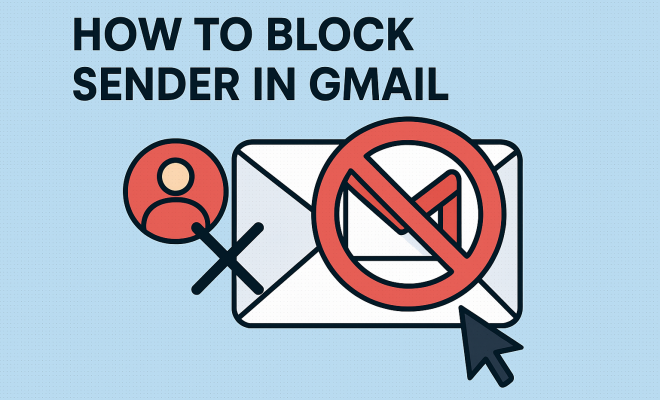
In the digital age, managing your email effectively is crucial. With the influx of spam, promotional messages, and unwanted communications, it’s no surprise that many users find themselves overwhelmed. If you’re receiving constant emails from a particular sender that disrupt your daily workflow or simply annoy you, there’s a solution: you can block sender in Gmail. This feature not only helps in decluttering your inbox but also enhances your email experience by ensuring you only receive messages that matter.
Blocking a sender in Gmail is an essential skill for anyone who values their time and productivity. By using this feature, you decrease the chances of being distracted by non-essential communications, allowing you to focus on what’s important. Moreover, this isn’t merely about spam; sometimes, blocking senders can be necessary for personal space or privacy, especially if you’re receiving unwanted correspondence.
2. Identifying Spam and Unwanted Senders
Before you act, it’s important to identify what constitutes spam or unwanted messages. Spam emails often include unsolicited advertisements, phishing attempts, or irrelevant newsletters. However, not all unwanted emails are necessarily spam; they could be from acquaintances, organizations, or even former colleagues whose messages have become bothersome over time.
Recognizing patterns in your email can help you pinpoint these senders. For instance, if you receive regular promotional emails from a retailer whose offers you never engage with, it might be time to block them. Similarly, if someone is sending repeated personal messages that you find intrusive, it’s reasonable to take action. Understanding the type of emails that clutter your inbox will empower you to make well-informed decisions about who to block.
3. Step-by-Step: How to Block a Sender in Gmail
Blocking a sender in Gmail is straightforward. Here’s a step-by-step guide:
- Open Gmail: Log into your Gmail account using your preferred web browser or the mobile app.
- Select the Email: Find an email from the sender you wish to block.
- Access More Options: Click on the three dots in the top right corner of the email message. This will open a dropdown menu.
- Block the Sender: Click on the ‘Block [Sender Name]’ option. A confirmation message will pop up, confirming that you want to block this sender.
- Final Confirmation: Click ‘Block’ to finalize the action. Gmail will now filter future emails from this sender directly into the Spam folder.
This process is effective and can be reversed at any time if you change your mind. Simply find any email from the blocked sender, click the three vertical dots, and select ‘Unblock [Sender Name]’.
4. What Happens When You Block a Sender?
Once you’ve decided to block sender in Gmail, you might wonder what actually happens to their messages. When a sender is blocked, their future emails are directed straight to your Spam folder, where they won’t appear in your primary inbox. This means you won’t receive notifications for these messages, and they will not clutter your main communication space.
However, it’s worth noting that blocking a sender doesn’t delete any existing emails from them that are already in your inbox. You can still access these emails in your Spam folder, but they will not be visible in your primary inbox view. This feature is particularly useful if you want to maintain a record of previous communications for reference while avoiding any new messages from that sender.
5. Unblocking a Sender: How and When?
There might be times when you need to restore communication with someone you’ve previously blocked. Perhaps they’ve changed their messaging habits, or you’ve decided that their correspondence is no longer intrusive. Unblocking a sender in Gmail is just as simple as blocking them.
To unblock a sender, navigate to your Spam folder, find any email from the blocked sender, and click on the three dots in the top right corner. Select ‘Unblock [Sender Name]’ from the dropdown menu. This action will allow future emails from this sender to appear in your primary inbox again. It’s a straightforward process that keeps your options open. (See: Understanding email spam.)
6. Managing Your Spam Folder: Best Practices
Even after blocking senders, managing your Spam folder effectively is essential. Gmail’s spam filter does a commendable job of directing unwanted emails, but you might still want to periodically check this folder to ensure legitimate emails haven’t landed there by mistake.
It’s also a good practice to empty your Spam folder regularly. Gmail automatically deletes spam messages older than 30 days, but taking the initiative to clear out spam helps keep your email account organized. Furthermore, if you notice consistent spam from particular senders, take the time to report them. This not only helps your inbox but can assist other Gmail users in avoiding the same issues.
7. Advanced Techniques: Filters and Labels
While blocking a sender is effective, Gmail offers additional tools that can further enhance your email management. One such tool is the use of filters, which allow you to automatically sort or delete emails based on specific criteria, such as the sender’s address or keywords in the subject line.
To set up a filter, go to the search bar in Gmail, click on the down arrow, and input the desired criteria. For example, you can filter all emails from a specific domain or those containing certain words. You can choose to delete these emails automatically, skip the inbox, or apply a label for easy tracking. Filters can save you time and help maintain a clean inbox, making it easier to focus on the emails that truly matter.
In addition to filters, labels are another powerful feature in Gmail. Labels can help you categorize emails even further, enabling you to prioritize and manage your messages effectively. By combining labels and filters, you can create a robust email management system that suits your specific needs.
8. When Blocking Isn’t Enough: Reporting Spam
Sometimes, blocking a sender isn’t sufficient, especially if you continue to receive unwanted emails from them. In these cases, reporting spam might be necessary. Reporting helps Gmail improve its spam filters and prevents future emails from reaching not only your inbox but also the inboxes of other users.
To report spam, select the email from the sender you want to report, click on the exclamation mark icon at the top of the email, and confirm that you want to report it. This action sends the email to Google’s spam team for review, which can help improve the overall email experience for everyone.
9. Exploring the Impact of Spam Emails
Spam emails can have a more significant impact than just cluttering your inbox. They may harbor malicious links, phishing attempts, or scams that can compromise your personal information. In fact, according to a study published by the cybersecurity firm McAfee, spam emails can account for over 45% of all emails sent globally. This staggering number illustrates just how prevalent unwanted communications are and the need for users to be proactive in managing their inboxes.
Additionally, the presence of spam can lead to decreased productivity. A survey by the email management company, Boomerang, found that up to 20% of employees’ time is wasted each week sifting through unwanted emails. With so many hours lost, blocking unwanted senders becomes more than just a convenience—it’s a necessity for maintaining efficiency in both personal and professional arenas.
10. Expert Perspectives on Email Management
Experts in email productivity suggest a multi-faceted approach to managing your inbox. Productivity guru David Allen, author of “Getting Things Done,” emphasizes the importance of processing your emails regularly to minimize stress and maximize focus. “If you don’t have a system to manage your emails,” he notes, “you’ll end up drowning in a sea of information.” This is where the ability to block senders in Gmail and use organizational tools like filters and labels come into play.
Dr. Julie Gurner, a psychologist specializing in productivity, adds that the emotional toll of unwanted emails can reduce your overall job satisfaction. “Spam and unwanted communication can create a sense of overwhelm,” she explains, “which affects how you feel about your work.” By taking control of your inbox, you reclaim not just your time but also your mental space. (See: Impact of digital distractions.)
11. Frequently Asked Questions (FAQ)
What types of emails can I block in Gmail?
You can block any email address that you receive messages from, whether they are spam, promotional offers, or personal communications. However, keep in mind that blocking does not apply to emails from social networks or promotions that are part of your subscriptions.
Can I block multiple senders at once?
Unfortunately, Gmail does not allow users to block multiple senders in one action. Each sender must be blocked individually. However, you can set up filters to manage emails from multiple senders more efficiently.
Will blocking a sender prevent them from contacting me via other means, such as Google Hangouts?
No, blocking a sender in Gmail only applies to email communications. It does not prevent them from reaching you through other platforms like Google Hangouts or Google Chat. If necessary, you may need to block them on those platforms separately.
What should I do if I accidentally block a sender?
If you accidentally block a sender, you can easily unblock them by going to your Spam folder, locating the email from the blocked sender, and selecting ‘Unblock [Sender Name]’ from the dropdown menu under the three dots. This reinstates their messages to your primary inbox.
Are there any risks associated with blocking senders?
The primary risk of blocking senders is missing important communications. It’s crucial to ensure that you’re only blocking senders who you are confident do not need to contact you. Regularly review your Spam folder to check for any legitimate emails that may have been misclassified.
How can I report spam emails effectively?
To report spam effectively, select the email you wish to report, click the exclamation mark icon, and confirm your action. This sends the email to Google’s spam team for review, helping enhance Gmail’s filtering system and protecting other users from similar unwanted messages.
12. Common Misconceptions About Blocking Senders
It’s easy to fall for a few myths when it comes to blocking email senders. One common misconception is that blocking a sender will prevent them from ever contacting you again. While their future emails will go to your Spam folder, they still can reach out to you through other means. So, if the person is persistent, they may find alternative ways to communicate.
Another myth is that blocking someone is a permanent action that cannot be undone. As mentioned earlier, unblocking a sender is just as simple as blocking them. This flexibility allows you to reassess your decisions and adapt to changing situations without hassle.
13. The Psychological Effects of Email Clutter
The impact of cluttered inboxes extends beyond just frustration; it can affect mental well-being as well. Research indicates that a messy inbox can lead to increased stress and anxiety. A study published in the journal “Computers in Human Behavior” found that individuals with disorganized email systems reported feeling overwhelmed by their digital communications. (See: How to block email senders.)
Taking control of your email by blocking unwanted senders can be a significant step toward reducing this stress. Knowing you have a clean, manageable inbox helps foster a sense of accomplishment and reduces feelings of being overwhelmed by digital noise. Email management isn’t just a time-saving measure; it’s also an act of self-care.
14. Alternative Email Management Tools
While Gmail provides robust features for blocking and filtering, there are also third-party tools that can help streamline your email management. Applications like Unroll.me allow you to unsubscribe from multiple mailing lists at once, effectively decluttering your inbox. Similarly, tools like Clean Email can help you manage your emails by allowing bulk actions, including blocking and unsubscribing.
These tools can complement Gmail’s built-in features and provide you with additional options for managing unwanted communications. By utilizing various tools, you can create a more tailored email experience that fits your unique needs and preferences.
15. Proactive Steps to Avoid Unwanted Emails
Preventing spam before it hits your inbox can be just as important as managing what you already have. One of the best strategies is to think carefully about where you share your email address. Signing up for newsletters, promotions, or even entering contests can sometimes lead to an influx of unwanted emails.
Consider using a secondary email address for less important sign-ups. This way, you can keep your primary inbox clearer and only receive communications that genuinely matter. Additionally, when signing up for new services, look for options to opt-out of marketing communications. Being proactive can save you time and hassle down the line.
16. Conclusion: Take Control of Your Gmail Experience
Taking the steps to block sender in Gmail is just one piece of the puzzle in managing your digital communication effectively. By understanding how to identify unwanted senders, utilizing blocking and reporting features, and implementing filters and labels, you can reclaim control over your inbox.
As our world becomes increasingly dependent on email communication, mastering these skills is essential for maintaining productivity and peace of mind. Remember, your inbox should serve you, not the other way around, and with these tools at your disposal, that goal is entirely achievable.
“`
Trending Now
Frequently Asked Questions
How do I block a sender in Gmail?
To block a sender in Gmail, open an email from the sender you wish to block, click the three vertical dots in the upper right corner of the email, and select 'Block [Sender].' This will prevent their future emails from appearing in your inbox.
What happens when I block someone on Gmail?
When you block someone on Gmail, their emails will be automatically sent to your Spam folder. You will no longer receive notifications for their messages, helping to keep your inbox clutter-free.
Can I unblock a sender in Gmail?
Yes, you can unblock a sender in Gmail by going to your Spam folder, opening an email from the blocked sender, clicking the three dots, and selecting 'Unblock [Sender].' This will allow their future emails to appear in your inbox again.
Why would I want to block a sender in Gmail?
Blocking a sender in Gmail is useful for managing spam, promotional emails, or unwanted personal messages. It helps declutter your inbox and improves your email experience by ensuring you only receive important communications.
How can I identify spam emails in Gmail?
To identify spam emails in Gmail, look for unsolicited advertisements, irrelevant newsletters, or repetitive messages from senders you don't engage with. Recognizing these patterns will help you efficiently manage and block unwanted correspondences.
Have you experienced this yourself? We’d love to hear your story in the comments.