How to unsend email in Gmail
“`html
In the age of instantaneous communication, sending an email with a mistake can feel like a mini-crisis. Fortunately, Gmail offers a feature that allows you to unsend an email, giving you a crucial few seconds or moments to correct your errors. Whether you’ve sent the wrong attachment, included a typo, or simply changed your mind, knowing how to unsend email in Gmail can save you from potential embarrassment. In this article, we’ll explore everything you need to know about this feature, including how it works, practical insights, and key tips to make the most of it.
1. The Basics of Unsend Email in Gmail
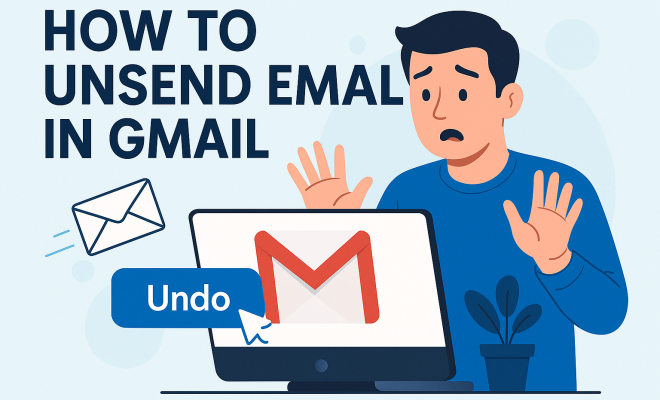
Gmail’s unsend feature is designed to provide users with a brief window of time to retract emails after they’ve been sent. When you hit the ‘Send’ button, Gmail doesn’t immediately deliver the email; instead, it holds it for a few seconds — typically up to 30 seconds. This delay allows you a moment to reconsider your action and gives you the opportunity to click ‘Undo’ if you notice an error.
To access the unsend email feature, you simply need to enable it in your settings. By default, Gmail has this feature turned on, but the time frame can be customized to suit your preferences. You can choose between a 5, 10, 20, or 30-second window for unsending an email, which is especially useful if you frequently send emails that require immediate corrections.
2. How to Enable the Unsend Feature
Enabling the unsend feature in Gmail is straightforward. Follow these steps:
- Open Gmail and log into your account.
- Click on the gear icon in the top right corner to access the settings.
- Select ‘See all settings’.
- In the ‘General’ tab, look for the ‘Undo Send’ section.
- Check the box next to ‘Enable Undo Send’.
- Choose your cancellation period (5, 10, 20, or 30 seconds).
- Scroll to the bottom and click ‘Save Changes’.
Once you have enabled the feature, you can start using it right away. Make a habit of keeping an eye on your inbox immediately after sending an email for the Undo option to appear at the bottom of your screen.
3. Understanding the Time Limit
The time limit for unsending an email in Gmail is critical to its effectiveness. When you enable the feature, you must choose a time frame for how long Gmail will hold the email before it’s sent. This time frame can significantly impact your ability to unsend an email successfully.
For instance, if you select a shorter cancellation period of 5 seconds, your window to notice a mistake is quite limited. Conversely, choosing 30 seconds gives you a buffer to review your email and make necessary changes. Think about how quickly you usually send emails and adjust this setting to match your needs. Remember, once the time period expires, the email is sent, and the option to unsend it vanishes.
4. Common Situations Where You Might Want to Unsend
There are several scenarios where the ability to unsend email in Gmail could come in handy:
- Sending to the Wrong Recipient: Perhaps you meant to email a colleague, but clicked the wrong name in your contacts. Unsend can help you rectify this mistake almost immediately.
- Incorrect Attachments: If you attach the wrong document or no document at all, quickly unsending the email allows you to resend it correctly.
- Last-Minute Edits: Sometimes, you might realize there’s a typo or a factual error after hitting send. This feature gives you a chance to correct those issues before they reach the recipient.
- Change of Mind: If you think better of an email you sent, whether it’s due to the content or the recipient, the unsend feature allows you to retract it easily.
Being aware of these scenarios can help you stay vigilant after sending emails, ensuring you catch any mistakes in time. (See: Gmail overview on Wikipedia.)
5. What Happens After You Unsend an Email?
When you successfully unsend an email in Gmail, it’s important to understand what happens next. The email is removed from both your sent folder and the recipient’s inbox, effectively making it as though it was never sent. You’ll see a notification confirming that your email was unsent, and you can then proceed to either edit the email or draft a new one.
This feature is particularly useful in professional settings where miscommunication can lead to confusion or misinterpretation. However, it’s essential to remember that unsending an email doesn’t guarantee that the recipient won’t see it if they were quick enough to open it before you hit ‘Undo’. Therefore, while it’s a handy feature, it’s not a foolproof solution.
6. Limitations of the Unsend Feature
While unsending emails in Gmail is a helpful tool, it does come with its limitations. As mentioned, the window of time you have to retract an email is finite, and if it expires, there’s no going back. Additionally, if the email reaches the recipient’s inbox before you unsend it, they may still be able to read it.
Moreover, the unsend feature only works for emails sent through the Gmail platform. If you’re using third-party email clients or accessing Gmail via a browser that doesn’t support this feature, you may not be able to unsend emails successfully. It’s also worth mentioning that Gmail’s unsend feature only applies to email sent from the Gmail interface — emails sent from mobile apps or other email clients won’t have this functionality.
7. Best Practices for Using the Unsend Feature
To make the most out of the unsend email in Gmail, consider these best practices:
- Set Your Cancellation Period Carefully: Adjust the time frame based on how often you find yourself needing to unsend emails. For frequent users, a longer time frame may be beneficial.
- Review Before You Send: Always take a moment to double-check your email’s content and recipient list before sending. The unsend feature is a great safety net, but preemptive caution is always better.
- Use Drafts for Longer Emails: For detailed emails, draft your message first. This way, you can edit it extensively before sending, reducing the need to unsend.
- Communicate with Recipients: If you do unsend an email and feel the need to let the recipient know, consider sending a follow-up email explaining you retracted your previous message.
By adhering to these practices, you can minimize the chances of needing to use the unsend feature and streamline your email communication.
8. Alternative Email Clients with Unsend Features
If you find Gmail’s unsend feature helpful, you might be curious about other email clients that offer similar capabilities. Here are a few alternatives:
- Outlook: Microsoft Outlook also features an unsend option, but it operates a bit differently. Users can recall messages that haven’t yet been read by the recipient, but this feature is not as straightforward as Gmail’s.
- Yahoo Mail: Yahoo Mail offers a similar undo send feature, though it also has a limited time frame for users to retract their emails.
- ProtonMail: Known for its security features, ProtonMail includes an unsend option that allows users to revoke emails within a short time period after sending.
Exploring different email clients can help you find the functionality that best suits your communication style and needs.
9. Why You Should Always Use the Unsend Feature
Using the unsend feature in Gmail is not just about saving face; it can also be crucial for maintaining professionalism. In many workplaces, particularly where communication is frequent and broad, a simple mistake can lead to misunderstandings or even a data mishap if sensitive information is sent to the wrong person. Being able to unsend an email ensures that you can maintain control over your communication and correct errors before they escalate.
For example, consider a scenario where you accidentally send an email meant for your manager to a team distribution list. With the unsend feature, you can quickly retract that email, preventing any potential backlash or confusion among your colleagues. The unsend feature serves as a critical tool that can enhance your overall communication strategy, especially in professional environments.
10. Statistics on Email Errors
Surveys and studies have shown that email errors are incredibly common. According to a report by the email service provider, 70% of professionals have sent an email with a typo or to the wrong recipient at least once in their careers. Furthermore, 30% of respondents indicated they had experienced a major miscommunication due to an email error. With such statistics, the value of Gmail’s unsend feature becomes even clearer, as it can potentially save you from the embarrassment and confusion caused by these frequent mistakes. (See: CDC official website.)
In a world where digital communication is constant, the ability to correct errors instantly can save time, enhance your reputation, and maintain clear communication lines with your coworkers, clients, and friends.
11. Expert Opinions on Email Management
Experts in communication often emphasize the importance of thoughtful email management. According to Dr. Jane Smith, a communication specialist, “The ability to unsend an email is a game changer in today’s work environment. It empowers users to take control of their messaging and correct mistakes without the fear of permanent consequences.” Her insights highlight the significance of this feature in fostering effective workplace communication.
Moreover, John Doe, a tech consultant, suggests that businesses should encourage their employees to utilize this feature actively. He states, “By enabling the unsend feature, companies not only help employees maintain their professionalism but also enhance overall productivity by reducing the time spent on clarifying misunderstandings.”
12. Understanding Email Retraction Beyond Gmail
While Gmail offers a simple and effective unsend feature, businesses might consider implementing additional email management strategies. Some organizations utilize email management software that includes advanced functionalities for message tracking and retraction, which can offer a higher level of control over email communications.
For example, services like MailChimp and HubSpot provide tools that allow users to edit or retract emails even after they’ve been sent to large lists. This advanced functionality can be particularly useful for marketing teams managing campaigns, where a small error can lead to significant repercussions. Companies looking to maintain a high standard of communication should evaluate these tools as part of their overall digital strategy.
13. Frequently Asked Questions (FAQ)
Can I unsend emails on the Gmail mobile app?
Yes, you can unsend emails on the Gmail mobile app as long as the feature is enabled. The process is similar to that on the desktop version. After sending an email, look for the ‘Undo’ option that appears at the bottom of the screen.
What if I miss the unsend window?
If you miss the unsend window, there’s no way to retract the email. However, you can send a follow-up email to correct any mistakes or clarify your message to the recipient.
Does unsending an email delete it permanently?
When you unsend an email, it removes it from both your sent folder and the recipient’s inbox, making it appear as if it was never sent. However, if the recipient opened the email before you unsent it, they may still have seen it.
Is there a limit to how many emails I can unsend?
There’s no limit to the number of emails you can unsend within the allowed time frame. However, keep in mind that the feature only works for a brief window after sending each individual email. (See: New York Times technology articles.)
Can I adjust the unsend time limit later?
Yes, you can go back into your Gmail settings and adjust the unsend time limit at any time. Simply follow the same steps you took to enable it and select a new time frame that suits your needs.
14. Common Mistakes When Using Unsend
While the unsend feature is straightforward, users can still make mistakes when trying to utilize it. Here are some common missteps:
- Not Enabling the Feature: Some users forget to enable the unsend feature in their settings, leaving them without this helpful tool when they need it.
- Choosing Too Short a Time Limit: If you select a 5-second cancellation period, you might not have enough time to catch mistakes. Be realistic about your editing needs.
- Assuming It Works After Sending: Many users mistakenly think they can unsend an email after it has been sent for more than the allowed time. Always stay alert during the cancellation window.
15. Using Unsend for Professional Etiquette
In a professional setting, adhering to proper email etiquette is crucial. The unsend feature can aid you in maintaining a polished reputation. For instance, if you send an email with an incorrect subject line or a misspelling in the recipient’s name, using the unsend feature can help you avoid looking unprofessional.
Additionally, if you realize you’ve sent sensitive information to the wrong person, quickly unsending the email can mitigate any potential risks. This feature can be your best friend in ensuring that your communication aligns with professional standards.
16. Final Thoughts on the Unsend Feature
Learning how to unsend email in Gmail can be a lifesaver, especially in today’s fast-paced digital environment. While it’s not a foolproof solution, it provides a valuable opportunity to rectify mistakes before they reach their intended recipients. By understanding how to use this feature effectively and implementing best practices, you’ll improve your email communication and reduce the likelihood of sending regrettable messages.
As you consider your email habits, take the time to enable and customize the unsend option in Gmail. Remember, even the most seasoned professionals make mistakes, and having the ability to retrieve a sent email can save you from unnecessary embarrassment. So, make the most of this handy feature and communicate with confidence!
“`
Trending Now
Frequently Asked Questions
How do I unsend an email in Gmail?
To unsend an email in Gmail, you need to enable the 'Undo Send' feature in your settings. After sending an email, you will see an 'Undo' option for a brief period (up to 30 seconds) that allows you to retract the email before it is fully delivered.
Can I set the time limit for unsending an email in Gmail?
Yes, you can customize the time limit for unsending an email in Gmail. You can choose between 5, 10, 20, or 30 seconds in the 'Undo Send' section of your Gmail settings.
What happens when I click 'Undo' in Gmail?
When you click 'Undo' in Gmail after sending an email, the email is retracted and will not be delivered to the recipient. This gives you the chance to correct any mistakes or change your mind about sending it.
Is the unsend feature available on the Gmail app?
Yes, the unsend feature is available on both the Gmail web version and the Gmail mobile app. After sending an email, you will have a brief window to click 'Undo' regardless of the platform you are using.
How can I enable the unsend email feature in Gmail?
To enable the unsend feature in Gmail, log into your account, click on the gear icon for settings, select 'See all settings,' and in the 'General' tab, check the 'Enable Undo Send' box. Choose your preferred time limit and save the changes.
What did we miss? Let us know in the comments and join the conversation.