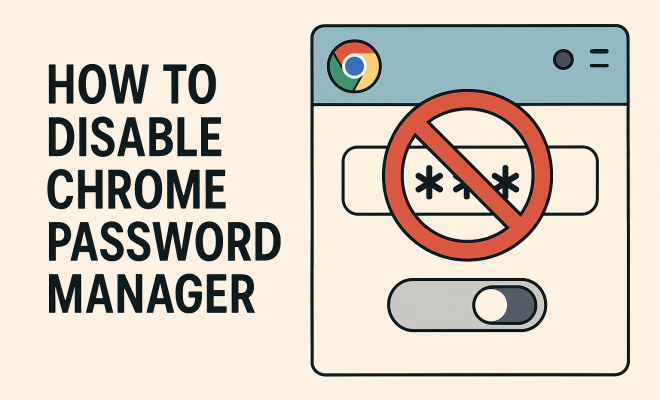
How to disable Chrome password manager
“`html
Introduction: In a world where digital security is a top priority, understanding how to manage your passwords effectively is crucial. While Chrome’s built-in password manager offers convenience, some users prefer to disable it to maintain privacy or utilize alternative password management solutions. If you want to disable Chrome password manager, you’re in the right place. This guide covers everything you need to know, from the basics to practical insights.
1. Understanding Chrome Password Manager
Chrome’s password manager is an integrated feature designed to store and manage your login credentials securely. When you enter a username and password on a website, Chrome prompts you to save that information, allowing you to autofill it on future visits. However, this convenience comes with potential risks. If someone gains access to your device, they could easily access all your saved passwords.
Moreover, while Chrome’s password manager uses encryption to protect your data, it’s not infallible. Security breaches and data leaks can put your sensitive information at risk. As a result, many users seek to disable this feature to enhance their personal security or switch to third-party password managers that offer advanced options.
2. Why Disable Chrome Password Manager?
There are several reasons you might want to disable Chrome’s password manager. First, using a dedicated password manager can provide features like stronger encryption, secure password sharing, and password generation. These dedicated services often include additional layers of security beyond what Chrome offers.
Second, if you share your device with others, keeping your passwords stored in Chrome could lead to unintentional access. Disabling the password manager means you won’t have to worry about someone else logging into your accounts. Lastly, privacy concerns arise when using any integrated system; disabling Chrome’s password manager can be a proactive step in protecting your online identity.
3. Step-by-Step Guide to Disable Chrome Password Manager
If you’ve decided it’s time to disable Chrome password manager, follow these simple steps:
- Open Chrome Settings: Launch Google Chrome and click the three dots in the upper right corner. From the dropdown menu, select “Settings.”
- Navigate to Autofill: In the left sidebar, click on “Autofill.” This section includes options for managing passwords, payment methods, and addresses.
- Select Passwords: Click on “Passwords.” Here, you’ll see a list of saved passwords and options for managing them.
- Disable Offer to Save Passwords: Toggle off the option that says “Offer to save passwords.” This will prevent Chrome from prompting you to save passwords in the future.
- Disable Auto Sign-in: You can also toggle off the “Auto Sign-in” feature, which allows Chrome to automatically sign you into websites without entering your credentials.
Completing these steps will effectively disable Chrome’s password manager. However, it’s also wise to clear any saved passwords if you no longer want them stored.
4. How to Clear Saved Passwords
Once you’ve disabled the password manager, you may want to clear previously saved passwords. Here’s how to do that:
- Access Passwords: Return to the “Passwords” section in Chrome settings.
- View Saved Passwords: You’ll see a list of saved passwords. Click on the eye icon next to a password to view it.
- Remove Passwords: Click the three dots next to each saved password and select “Remove.” You can do this for each password you want to delete.
Remember, clearing your saved passwords means you’ll need to manually enter them in the future, so consider writing them down or transferring them to an alternative password manager.
5. Alternative Password Management Solutions
Disabling the Chrome password manager opens up the opportunity to explore alternative password management solutions. Some popular options include LastPass, 1Password, Dashlane, and Bitwarden. Each of these services offers unique features that can enhance your password security. (See: importance of digital security.)
For example, LastPass provides a secure vault for your passwords, a security challenge feature to help you spot weak passwords, and multi-factor authentication for added security. On the other hand, Bitwarden is an open-source option that is both free and highly regarded for its transparency and security features. Choosing the right password manager will depend on your specific needs and preferences.
6. Understanding the Security Risks
Even with the Chrome password manager disabled, it’s essential to understand that security risks remain. Using the same password across multiple sites can expose you to significant threats. If one site is compromised, hackers can gain access to other accounts using that password.
Therefore, practicing good password hygiene is crucial. This includes using unique passwords for every account, enabling two-factor authentication whenever possible, and regularly updating your passwords. Being proactive about your online security helps safeguard your personal information.
7. Tips for Strong Password Creation
Creating strong passwords is a vital component of protecting your online identity. A good password should be at least 12 characters long and include a mix of uppercase letters, lowercase letters, numbers, and special characters. Avoid using easily guessable information like birthdays or pet names.
Consider using phrases or sentences that are easy for you to remember but hard for others to guess. For instance, combining random words or creating a memorable sentence can serve as an effective password. Additionally, make use of password managers’ password generation tools, which can create complex passwords that meet all security criteria.
8. When to Reconsider Using Chrome Password Manager
While you might disable Chrome’s password manager now, there are scenarios where reconsidering its use could be beneficial. If you find it cumbersome to remember passwords and manage them manually, the convenience of Chrome’s password manager might outweigh the risks.
Also, if you predominantly use Chrome across multiple devices, having passwords saved in the browser can streamline your experience. It’s essential to weigh the pros and cons based on your usage patterns, device security, and personal comfort with the risks involved.
9. The Future of Password Management
As technology evolves, so does password management. The future may see the rise of biometric authentication methods, such as fingerprint or facial recognition, becoming more mainstream. Google is already testing features like passkeys, which offer a more secure way to log in without traditional passwords.
Staying informed about these developments can help you make better decisions about your password security. Continuously evaluate your security posture and adapt to new technologies that enhance safety without sacrificing convenience.
10. Final Thoughts
Disabling Chrome password manager is a personal decision that can significantly affect your online security and convenience. While the built-in manager offers ease of use, understanding the potential risks and taking proactive steps to protect your passwords is crucial.
By following the steps outlined in this guide, you can disable the Chrome password manager and explore alternative solutions. Remember, the goal is to find a balance between security and convenience that works for you. As you move forward, keep in mind the evolving landscape of digital security and stay adaptive to ensure your online safety.
11. Comparing Chrome Password Manager with Popular Alternatives
When evaluating whether to disable Chrome’s password manager, it’s helpful to compare it with some popular alternatives. Each has its pros and cons, tailored to different user needs. Let’s break down some key features of these alternatives. (See: password manager security risks.)
- LastPass: Known for its user-friendly interface, LastPass provides a free version that allows storing passwords across multiple devices. It also includes features like password sharing and security alerts for compromised sites. However, some users have reported concerns over its data breaches in the past.
- 1Password: This password manager focuses on security with its end-to-end encryption and zero-knowledge policy, meaning even the company can’t access your data. It’s an excellent choice for families or teams due to its sharing features. The downside is that it doesn’t have a free version.
- Dashlane: With an intuitive design, Dashlane offers features like a built-in VPN and dark web monitoring. It excels in user experience but can be more expensive than other options, especially for premium features.
- Bitwarden: As an open-source password manager, Bitwarden stands out for its transparency and cost-effectiveness. It offers a free version with most features included, making it a solid choice for budget-conscious users. However, its interface may not be as polished as some of its competitors.
Evaluating these features can help you make an informed choice about whether to keep using Chrome’s password manager or switch to a dedicated password management service.
12. The Importance of Keeping Software Updated
Whether you use Chrome’s password manager or a third-party solution, keeping your software updated is crucial for security. Many security vulnerabilities are discovered after release, and developers often patch these holes in updates. By regularly updating your browser or password manager, you ensure you’re protected against known threats.
In addition to updating software, being vigilant about browser extensions is vital. Some extensions can introduce vulnerabilities or track your online behavior. Only use extensions from reputable sources and regularly review your installed extensions to remove those you no longer need.
13. Common FAQs About Disabling Chrome Password Manager
What happens if I disable Chrome password manager?
Disabling Chrome’s password manager will stop it from saving any new passwords or auto-filling existing ones. You will need to enter your login credentials manually on websites.
Can I still use Chrome without the password manager?
Absolutely! Chrome will function normally without the password manager. You can still browse the web, bookmark sites, and use all other features without the password management functionality.
Is it safe to use alternative password managers?
Many dedicated password managers have robust security features, including encryption and two-factor authentication. However, it’s essential to evaluate each option carefully. Look for services with a solid reputation and positive user reviews.
How do I know if my passwords are secure?
You can use password manager features that analyze the security of your passwords. Tools like LastPass and Dashlane include security audits that reveal weak or reused passwords. Additionally, consider changing passwords regularly and using unique ones for different accounts.
What should I do if I forget my passwords after disabling Chrome’s manager?
If you forget your passwords after disabling Chrome’s manager, you can try to recover them via the email associated with the account or use password recovery options available on websites. Alternatively, if you used another password manager, check if those passwords were imported there.
Are there any risks in using Chrome’s password manager?
Yes, using any password manager carries some risk, including potential data breaches. While Chrome uses encryption to protect your passwords, it is still an integrated system that could be vulnerable to attacks. Weighing these risks against convenience is essential.
14. Exploring the Features of Popular Password Managers
As you weigh options for password management, it’s essential to take a closer look at what each alternative offers. Here’s a breakdown of specific features that stand out in popular password managers: (See: encryption and data protection.)
- LastPass: In addition to its password vault, LastPass offers features like dark web monitoring, which alerts you if your information has been compromised online. It also allows you to categorize passwords into folders for easier access.
- 1Password: It has a Travel Mode that hides sensitive data when traveling, ensuring your information remains private in case your device is lost or stolen. This is particularly useful for frequent travelers.
- Dashlane: Dashlane not only allows for secure password storage but also provides a unique feature called Password Health, which evaluates how strong or weak your passwords are and provides recommendations for improvement.
- Bitwarden: It allows users to self-host their password vaults for those concerned about privacy. This option gives advanced users more control over their data while still providing a user-friendly interface.
Taking the time to understand these features can help you decide which password management solution aligns best with your individual needs and security requirements.
15. Best Practices for Password Sharing
Sometimes you may need to share passwords with family members or coworkers. However, sharing passwords can expose you to risks if not done correctly. Here are some best practices:
- Use Secure Sharing Features: Many password managers offer secure sharing options that encrypt passwords when sent. Use these features instead of sharing passwords directly.
- Limit Access: Only share passwords that are necessary. If someone else doesn’t need access to a particular account, don’t share it.
- Regularly Update Shared Passwords: If you share a password, make it a habit to update it periodically. This reduces the risk of long-term exposure if the shared information falls into the wrong hands.
- Educate Others: If you’re sharing passwords with family or coworkers, educate them on the importance of password security and the risks associated with careless handling of credentials.
16. The Role of Two-Factor Authentication
In addition to strong passwords, implementing two-factor authentication (2FA) adds another layer of security. Here’s why you should consider it:
2FA requires an additional form of verification beyond just the password—often a code sent to your phone or generated by an app. This means that even if someone manages to access your password, they still need the second factor to log in.
Many services, including Google, Facebook, and banking websites, support 2FA. Always enable this feature wherever possible. It enhances your account’s security significantly and helps protect against unauthorized access.
17. Recognizing Phishing Attempts
Even with robust password management, you’re still vulnerable to phishing attempts. Recognizing these scams can save you from being a victim. Here are a few tips:
- Check the URL: Always verify the URL of the website you’re visiting. Phishing sites often mimic legitimate ones but have subtle URL differences.
- Look for HTTPS: Secure websites will have ‘HTTPS’ at the beginning of their URL. While this isn’t a foolproof method, it adds a layer of trust.
- Be Wary of Unsolicited Emails: If you receive emails asking for personal information or directing you to a login page, approach them with skepticism. Always navigate directly to the website instead of clicking on links.
18. Wrapping Up
Deciding whether to disable Chrome’s password manager or not is a nuanced choice that depends on your personal preferences, security needs, and convenience factors. By understanding the implications and exploring alternative options, you can find a password management solution that best fits your lifestyle. Whether you go the route of a dedicated password manager or stick with Chrome’s built-in features, the key takeaway is to stay informed and proactive about your digital security.
“`
Trending Now
Frequently Asked Questions
How do I disable the password manager in Chrome?
To disable the password manager in Chrome, go to Settings, then select 'Autofill' and click on 'Passwords'. Toggle off the option that says 'Offer to save passwords' to prevent Chrome from saving your credentials.
What are the risks of using Chrome's password manager?
Using Chrome's password manager can pose risks such as unauthorized access if your device is compromised. Additionally, while it uses encryption, data leaks and breaches can still occur, potentially exposing your saved passwords.
Why should I use a third-party password manager instead of Chrome?
Third-party password managers often provide advanced features such as stronger encryption, secure password sharing, and password generation. They typically offer additional security measures that can enhance your overall digital safety compared to Chrome's built-in manager.
Can I still use Chrome without the password manager?
Yes, you can use Chrome without the password manager. Disabling it will not affect your browsing experience, but you will need to manually enter your login credentials or use a different password management solution.
Is it safe to store passwords in Chrome?
While Chrome's password manager uses encryption to protect your data, it is not entirely foolproof. Security breaches can occur, so if privacy and security are a concern, consider disabling it and using a dedicated password manager instead.
Agree or disagree? Drop a comment and tell us what you think.