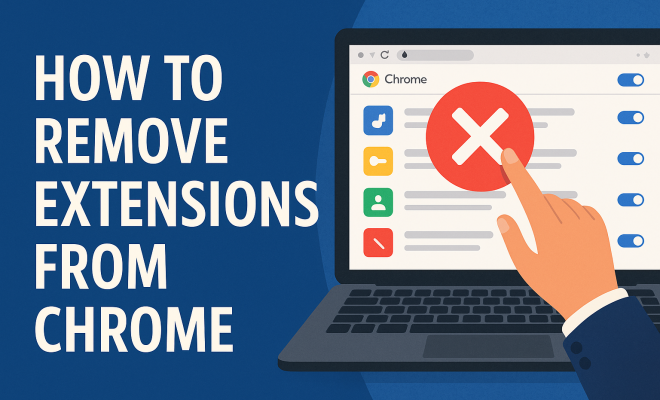
How to remove extensions from Chrome
“`html
Google Chrome is one of the most popular web browsers in the world, known for its speed, simplicity, and vast library of extensions. While extensions can enhance your browsing experience by adding functionality, they can also slow down your browser or create security risks. Knowing how to remove Chrome extensions is essential for maintaining optimal performance and security. This guide will walk you through the process, provide background information on extensions, and share practical insights to enhance your Chrome experience.
1. Understanding Chrome Extensions
Chrome extensions are small software programs that customize the browsing experience. They allow users to tailor Chrome’s functionality and behavior to fit their individual needs. Available in the Chrome Web Store, these extensions can range from ad blockers to productivity tools, RSS readers, and password managers. As of late 2023, there are over 200,000 extensions available, highlighting the demand for personalized web experiences.
However, with great power comes great responsibility. Extensions can access your browsing data and might inadvertently compromise your security. Some may even slow down your browser, leading to a less enjoyable experience. Thus, it’s essential to regularly evaluate which extensions you truly need and to remove Chrome extensions that are no longer useful or pose a risk.
2. Why You Should Consider Removing Extensions
Removing unnecessary extensions can have several advantages. First and foremost, it can significantly improve your browser’s performance. Too many extensions can lead to increased loading times and can consume system resources, making your PC run slower. Reducing the number of active extensions ensures that your browser runs smoothly and efficiently.
Secondly, maintaining your online security is critical. Extensions can compromise your privacy, either by collecting your data or by being poorly maintained and vulnerable to attacks. A study conducted by the cybersecurity firm Avast found that around 10% of Chrome extensions could pose potential security threats. Regularly reviewing and removing extensions that you no longer use is a proactive step towards protecting your personal information.
3. How to Remove Chrome Extensions: Step-by-Step
Removing extensions from Chrome is a straightforward process. Here’s how you can do it:
- Step 1: Open your Google Chrome browser.
- Step 2: Click on the three vertical dots in the upper-right corner to open the menu.
- Step 3: Hover over “More tools” and then click on “Extensions” from the submenu.
- Step 4: You’ll see a list of all your installed extensions. Each one will have an option to disable or remove it.
- Step 5: To remove an extension, click the “Remove” button next to it.
- Step 6: Confirm the removal by clicking “Remove” again in the pop-up window.
That’s it! The extension is now uninstalled from your Chrome browser.
4. Managing Extensions for Better Performance
Sometimes, you might not want to completely remove Chrome extensions but rather disable them temporarily. This can be useful for testing whether an extension is causing issues or if you simply need to declutter your browser without uninstalling everything. The same menu where you found the “Remove” buttons includes the option to toggle an extension on or off.
By disabling extensions that you don’t currently need, you maintain your browser’s performance without permanently losing the functionality. This is especially useful for specialized tools that you might use infrequently. Simply return to the Extensions page to re-enable them whenever necessary.
5. Identifying Problematic Extensions
Sometimes, an extension you thought was harmless could be the source of performance issues or security concerns. If you notice that your browser is running slowly, crashing, or behaving unusually, consider these steps to identify problematic extensions: (See: Understanding browser security risks.)
- Monitor Performance: Use Chrome’s built-in Task Manager (Shift + Esc) to see which extensions are consuming the most resources. This can help identify extensions that may be causing slowdowns.
- Disable One at a Time: If you suspect an extension is causing problems, disable them one at a time and check your browser’s performance after each change.
- Read Reviews: Check the Chrome Web Store for reviews and ratings. Extensions with poor ratings or negative feedback may not be trustworthy.
Being proactive about monitoring and managing your extensions is key to maintaining a good browsing experience.
6. Security Considerations When Using Extensions
Extensions can pose various security risks, from data leaks to malware infections. For instance, in 2022, a malicious Chrome extension was discovered, which hijacked users’ personal information. Therefore, only download extensions from reputable developers and ensure they have a good track record.
Additionally, regularly check the permissions requested by your extensions. If an extension asks for more permissions than it needs, it may be a red flag. For example, an ad blocker shouldn’t require access to your browsing history. Be vigilant and regularly review the permissions of your installed extensions to safeguard your data.
7. Alternative Methods for Managing Extensions
While removing extensions through Chrome’s settings is the most direct method, there are alternative approaches you can consider:
- Chrome Cleanup Tool: If you suspect that an extension has caused issues, consider using the Chrome Cleanup Tool. This tool scans your browser for harmful software and can help identify problematic extensions.
- Using Third-Party Software: Various third-party tools can manage browser extensions. Always choose reputable software to avoid introducing more problems.
These alternatives can provide additional layers of management and security to your browsing experience.
8. Best Practices for Managing Chrome Extensions
To maintain a clean and efficient browser, consider these best practices:
- Limit the Number of Extensions: Only keep extensions that you use regularly. Less is often more when it comes to extensions.
- Regularly Audit Installed Extensions: Set a schedule, maybe quarterly, to review your installed extensions to determine if you still need them.
- Stay Updated: Ensure your extensions are updated to the latest versions. Updates often include security patches that help protect your data.
Implementing these practices will help you enjoy a smoother and safer browsing experience.
9. Final Thoughts on Removing Chrome Extensions
In conclusion, knowing how to remove Chrome extensions is vital for anyone looking to optimize their browsing experience. Extensions can enhance your browser’s functionality, but having too many or using untrustworthy ones can lead to a myriad of problems. Regularly evaluate your extensions, remove those you no longer find useful, and remain vigilant about security. By taking these steps, you’ll not only improve your browser’s performance but also protect your personal data from potential threats.
10. FAQ: Common Questions About Chrome Extensions
What are Chrome extensions?
Chrome extensions are small software programs that enhance the functionality of the Google Chrome browser. They can add features, improve productivity, and customize user experience, making browsing more efficient and enjoyable.
How do I find and install new Chrome extensions?
You can browse for new extensions by navigating to the Chrome Web Store. Here, you can search for specific extensions or explore categories to find tools that suit your needs. (See: Overview of browser extensions.)
Can removing an extension cause data loss?
Generally, removing an extension does not lead to data loss, especially if the extension merely enhances your browsing experience and does not store data externally. However, if the extension was tied to a service you use (like a password manager), you should ensure your data is backed up before removal.
How do I know if an extension is safe?
To determine if an extension is safe, check its user reviews, ratings, and the number of downloads. Look for extensions developed by reputable companies. Additionally, you can review the permissions they request to see if they align with their functionality.
What should I do if I encounter issues after installing an extension?
If you experience problems after installing an extension, try to disable it first. If the issues persist, consider removing the extension altogether. You can also report the issue to the developer through the Chrome Web Store.
Is there a limit to the number of extensions I can install?
While there is no official limit to the number of extensions you can install in Chrome, having too many can lead to performance issues. It’s best to limit your extensions to those that you actively use and need.
Can I manage extensions across multiple devices?
If you are signed in to Chrome with your Google account and have sync enabled, your extensions will be synchronized across all devices where you use Chrome. This means that if you remove an extension on one device, it will also be removed from your other devices.
11. The Future of Chrome Extensions
As technology evolves, so does the landscape of browser extensions. With the increasing focus on security, developers are being encouraged to create safer, more efficient extensions. The advent of Manifest V3 has also introduced changes aimed at improving performance and security while giving users better control over what their extensions can do.
In the coming years, we can expect more advanced functionalities, such as AI-driven extensions that learn and adapt to user behaviors to provide a personalized browsing experience. However, with these advancements, the importance of managing and removing Chrome extensions remains crucial. Users must remain vigilant to ensure that the extensions they install do not compromise their browsing experience or security.
12. Removing Extensions in Different Chrome Environments
When using Chrome in different environments, such as on mobile devices or in a work setting, the process of removing extensions can differ slightly. For example:
- Mobile Chrome: Currently, Chrome for Android does not support extensions the same way the desktop version does. Users can manage features through settings but won’t encounter extensions in the traditional sense. Users seeking similar functionality often rely on built-in features or alternative apps.
- Chrome OS (Chromebooks): The method for managing extensions on Chromebooks is similar to that on desktops. Open the Chrome browser, navigate to the menu, and select “Extensions.” Here, users can remove or manage their extensions as needed.
- Enterprise Environments: In corporate settings, IT departments may pre-install extensions or restrict users from adding certain ones. Employees should follow company policies regarding extensions and consult their IT department for guidance on removing or managing installed extensions.
Understanding how to navigate these different environments can help ensure that you’re managing your browsing experience effectively, regardless of where you are. (See: Chrome extensions and security concerns.)
13. Case Studies: The Impact of Extensions on Browser Performance
To illustrate the significance of managing Chrome extensions, consider the following case studies:
Case Study 1: The Overloaded Browser
A user installed 15 extensions to enhance their productivity, such as a to-do list, screen capture tool, and various social media tools. Over time, the browser became sluggish, and the user experienced frequent crashes. After conducting a performance review, they decided to remove eight extensions that they hadn’t used in weeks. Post-removal, the browser performance improved significantly, with faster load times and increased responsiveness.
Case Study 2: Security Breach
In another situation, a small business owner added multiple extensions for password management and financial tracking. One extension turned out to be malicious, leading to a data breach. The owner was able to identify and remove the harmful extension after noticing unusual behavior in their browser. This case highlights the critical need for vigilance when managing extensions and the potential risks of neglecting security practices.
These case studies demonstrate how the number and quality of installed extensions can dramatically affect both performance and security. Regularly auditing and removing extensions can prevent similar issues.
14. Expert Tips for Safe Extension Usage
To help you navigate the complex world of Chrome extensions, here are some expert tips:
- Research Before You Install: Always read reviews and check ratings before adding any new extension. Look for the developer’s track record and see if they have other popular, well-reviewed extensions.
- Review Permissions: Pay attention to the permissions an extension requests. If it seems excessive for its intended purpose, look for alternatives.
- Keep Your Browser Updated: Regularly updating Chrome ensures you have the latest security features and improvements. This can help mitigate some risks associated with extensions.
- Use Incognito Mode: When trying out new extensions, consider using Chrome’s incognito mode. This allows you to test them without affecting your main browsing experience.
- Uninstall Unused Extensions Promptly: If you find that an extension is no longer meeting your needs, don’t hesitate to remove it right away. Your browsing experience should be as streamlined as possible.
Following these expert tips can help you maintain a safe and efficient Chrome experience.
15. Conclusion: Empower Yourself with Knowledge
With the right knowledge and tools at your disposal, managing your Chrome extensions can be a straightforward task. By understanding how to remove Chrome extensions, identify troublesome ones, and maintain a lean browser, you can ensure that your online experience is not only enjoyable but also secure. Regularly assessing your extensions and staying informed about best practices is essential in today’s digital world. Embrace the power of customization with caution and enjoy a smoother, safer browsing journey.
“`
Trending Now
Frequently Asked Questions
How do I remove extensions from Chrome?
To remove extensions from Chrome, open the browser and click on the three vertical dots in the upper right corner. Go to 'More tools' and select 'Extensions.' Find the extension you want to remove and click 'Remove.' Confirm the action, and the extension will be uninstalled from your browser.
Why should I remove Chrome extensions?
Removing unnecessary Chrome extensions can improve your browser's performance by reducing loading times and freeing up system resources. Additionally, it enhances your online security by minimizing the risk of data collection and vulnerabilities associated with poorly maintained extensions.
Can I disable extensions instead of removing them?
Yes, you can disable Chrome extensions without removing them. To do this, go to the 'Extensions' page in Chrome, find the extension you want to disable, and toggle the switch off. This will deactivate the extension without uninstalling it, allowing you to reactivate it later if needed.
What are Chrome extensions?
Chrome extensions are small software programs that enhance the functionality of the Chrome browser. They can perform various tasks, such as blocking ads, managing passwords, or providing productivity tools, and are available for download from the Chrome Web Store.
How can extensions affect my browsing experience?
Extensions can significantly enhance your browsing experience by adding useful features, but they can also slow down your browser or pose security risks. It's important to regularly evaluate and remove extensions you no longer need to maintain optimal performance and security.
What’s your take on this? Share your thoughts in the comments below — we read every one.