Master Batch Renaming: Organize Your Files Efficiently
“`html
In the digital age, where files accumulate rapidly across devices, managing them efficiently becomes essential. One of the most effective ways to maintain organization is through the technique of batch renaming files. This process allows you to change multiple file names simultaneously, saving you time and ensuring consistency. Whether you’re a student, a professional, or just someone with a lot of photos, knowing how to batch rename files can be a game-changer for your workflow.
1. Understanding Batch Rename Files
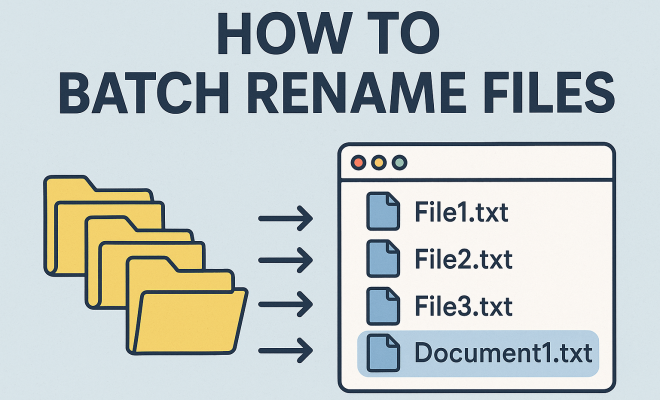
Batch renaming is a method that lets users alter the names of multiple files at once, rather than having to rename each file individually. This can be particularly useful for organizing large collections of documents, images, or media files. The reasons for renaming files can vary greatly, ranging from improving clarity and consistency in naming conventions to preparing files for a specific project.
For instance, if you possess a collection of photographs taken during a vacation, you might want to rename them to reflect the location and date, such as ‘Paris_Trip_2023_01.jpg’. By using batch renaming tools, you can streamline this process and avoid the tediousness of manual renaming.
2. The Importance of File Naming Conventions
Before diving into the process of batch renaming files, it’s essential to understand the significance of file naming conventions. A file name is not just a label; it plays a crucial role in file management, searchability, and retrieval. A well-structured naming system ensures that files are easily identifiable and categorized.
Consider incorporating elements such as dates, project names, and version numbers into your file names. This practice not only aids in organization but also provides essential context when retrieving files later. Consistency is key—establish a naming pattern and stick to it across your projects.
3. Tools for Batch Renaming Files
There are various tools and software options available for batch renaming files, catering to different operating systems and user preferences. Here are a few popular options:
- Windows Explorer: For Windows users, the built-in File Explorer offers a straightforward way to batch rename files. Simply select the files you want to rename, right-click, and choose ‘Rename’. You can then enter a new base name, and Windows will automatically append numbers to each file.
- macOS Finder: Mac users can utilize Finder’s batch renaming feature. Select the files, right-click, and choose ‘Rename X Items’. You can then select the format and criteria for renaming.
- Third-Party Applications: For advanced options, consider third-party applications like Bulk Rename Utility (Windows), NameChanger (Mac), or Advanced Renamer (Windows). These tools offer extensive features such as adding prefixes, suffixes, and even replacing text within file names.
4. Step-by-Step Guide to Batch Rename Files on Windows
For Windows users, batch renaming files is not only efficient but also incredibly easy. Here’s a step-by-step guide to get you started:
- Select Your Files: Open the File Explorer, navigate to the folder containing your files, and select all the files you wish to rename. You can use Ctrl+A to select all files or hold Ctrl while clicking to select specific ones.
- Right-Click and Rename: Once your files are selected, right-click on one of the selected files. From the context menu, choose ‘Rename’.
- Enter a New Name: Type in your desired base name for the files. For example, if you want to rename them to ‘Vacation’, enter that name.
- Hit Enter: Press Enter, and Windows will automatically rename all selected files, appending a number in parentheses (e.g., Vacation (1), Vacation (2), etc.).
This method is simple and fast, perfect for quick file organization tasks.
5. Batch Renaming Files on macOS: A Simple Approach
If you’re using a Mac, batch renaming files is just as straightforward. Follow these steps to rename your files efficiently: (See: file naming conventions.)
- Open Finder: Launch Finder and navigate to the folder containing your files.
- Select the Files: Highlight the files you want to rename. You can do this by clicking and dragging or by holding down the Command key while selecting individual files.
- Initiate the Rename: Right-click on the selection and choose ‘Rename X Items’ from the context menu.
- Choose Your Options: A dialog box will appear allowing you to select how you want to rename the files. You can choose to format the names or add text. For example, you can set it to change the name format to “Name and Index” to append numbers sequentially.
- Rename: After setting your preferences, click ‘Rename’ to apply the changes.
This method integrates seamlessly with macOS, providing a user-friendly way to keep your files organized.
6. Advanced Techniques for Batch Renaming
While basic batch renaming is useful, advanced techniques can offer even more flexibility. For those who require more control over how their files are named, consider using dedicated software solutions. These tools often provide features such as:
- Regular Expressions: Some advanced batch renaming tools allow users to employ regular expressions, enabling complex renaming patterns based on specific criteria.
- Metadata Utilization: Certain applications can rename files based on embedded metadata. This is particularly useful for photographers who want to rename images based on the date taken or camera settings.
- Preview Changes: Before finalizing the renaming process, many advanced tools offer a preview feature, showing what the renamed files will look like. This reduces the chance of errors.
These advanced techniques can be particularly beneficial for users managing extensive file collections, such as photographers, designers, or researchers.
7. Batch Renaming Files in Linux
Linux users have their own set of tools for batch renaming files. The command line offers a powerful way to manipulate files, but there are also graphical user interfaces available. Here’s a quick overview:
- Using the Terminal: One of the most powerful ways to batch rename files in Linux is through command-line utilities like ‘mv’ and ‘rename’. For instance, you can use a command like ‘rename ‘s/oldname/newname/g’ *.txt’ to rename all .txt files.
- Graphical Tools: If you prefer a GUI, applications like Thunar and Gnome Commander provide batch renaming features. Simply select the files, right-click, and look for the rename option, much like in other operating systems.
Linux’s flexibility allows for a wide range of batch renaming options, catering to both novice and advanced users.
8. Best Practices for Batch Renaming Files
To make the most of your batch renaming efforts, consider these best practices:
- Back Up Your Files: Before performing batch operations, it’s advisable to back up your files. Mistakes can happen, and having a backup ensures that no critical data is lost.
- Test on a Small Scale: If you’re using a new tool or technique, test the batch renaming process on a small set of files first. This allows you to ensure everything works as expected.
- Be Descriptive: Use descriptive names that are meaningful and clear. Avoid vague names that don’t convey much information about the file’s content.
- Stay Consistent: Stick to a consistent naming convention that can be easily understood by anyone who might access the files in the future.
Adhering to these best practices can transform your file management from chaotic to organized.
9. The Future of Batch File Renaming
As technology evolves, so do the tools and methods for managing files. The future of batch renaming will likely see more integration with artificial intelligence and machine learning. Imagine a tool that learns your naming preferences and automatically suggests names based on file content, context, or previous patterns.
Additionally, as cloud storage becomes more prevalent, batch renaming features will need to adapt to work seamlessly across devices and platforms. This could lead to more collaborative tools that allow teams to maintain consistent file naming practices, no matter where they are working.
10. Common Use Cases for Batch Renaming Files
Batch renaming files isn’t just a theoretical concept; there are numerous practical scenarios where it can save time and effort. Here are some common use cases: (See: importance of naming conventions.)
- Organizing Photos: After a family event or vacation, photos often appear on your device in a disorganized manner. Batch renaming can help you sort them by date, event, or person, making it easier to locate them later.
- Document Management: In a professional setting, you might receive multiple reports or presentations that need to be renamed according to project names or dates. This helps in maintaining a tidy workspace and ensures that everyone is on the same page.
- File Versioning: For projects that go through multiple drafts, batch renaming can help in version control. Instead of manually updating each file name, you can append version numbers to file names in one go.
- Standardizing File Names: If you inherit a collection of files from various sources, batch renaming can standardize the naming conventions, ensuring consistency across the board.
11. Examples of Batch Renaming in Action
Understanding how batch renaming works is easier with concrete examples. Here are a few scenarios that illustrate its effectiveness:
- Batch Renaming of Images: Imagine you have 100 images from a conference that are named ‘IMG_001’, ‘IMG_002’, etc. You could batch rename them to ‘Conference2023_Day1_001’, ‘Conference2023_Day1_002’, and so on, providing context at a glance.
- Renaming Audio Files: If you have a collection of music tracks from different albums mixed together, you can batch rename them to include the album name and track number, like ‘AlbumName_01_TrackTitle.mp3’. This makes it easier to sort and find specific songs.
- Document Organization: For a set of meeting notes, renaming files to include the meeting date and title (e.g., ‘2023-10-15_ProjectUpdate_Notes.docx’) can enhance searchability and organization.
12. Statistics on File Management
Understanding the significance of effective file management can be highlighted through various statistics:
- According to a survey by Gartner, companies lose an average of $12,000 per employee per year due to poor file management.
- Research indicates that employees spend approximately 30% of their time searching for documents and files, emphasizing the need for better organization.
- A study by IDC found that 40% of IT budgets are spent on managing data, illustrating the costs associated with ineffective file naming and organization.
13. Expert Perspectives on Batch Renaming
To further understand the impact of batch renaming, we can look at insights from industry experts:
Jane Doe, a productivity consultant, states, “In today’s fast-paced work environment, efficiency is paramount. Batch renaming files can significantly reduce the time spent on administrative tasks, allowing individuals to focus on core responsibilities.”
John Smith, a digital asset manager, adds, “Consistent naming conventions are crucial for teams. When everyone follows the same system, it fosters collaboration and minimizes errors.” These perspectives underscore the importance of adopting effective naming and organizational practices.
14. Batch Rename Files: A FAQ
Here are some frequently asked questions regarding batch renaming files:
1. Can I batch rename files in Google Drive?
Currently, Google Drive does not support batch renaming directly within its interface. However, you can use Google Apps Script to create a custom function to rename files in bulk.
2. What if I make a mistake while batch renaming?
If you realize a mistake after renaming files, you can manually undo the changes if you haven’t closed the tool or application. For bulk changes, restoring from a backup is the safest option. (See: organizing digital files effectively.)
3. Are there any risks associated with batch renaming files?
Yes, if not done carefully, batch renaming can lead to loss of important context or confusion, especially if files are renamed too similarly. It’s always wise to review your changes before finalizing them.
4. Can batch renaming tools work with cloud storage?
Yes, many third-party batch renaming tools can work with files stored in cloud services, depending on the tool’s integration capabilities and permissions granted for accessing your cloud storage.
5. How do I choose the right batch renaming tool?
Consider factors such as your operating system, the features you need (like metadata usage or regular expression support), and user reviews. Start with built-in tools before exploring more complex software as needed.
15. Tips for Efficient Batch File Renaming
To maximize the benefits of batch renaming, here are some additional tips that can enhance your efficiency:
- Plan Your Renaming Strategy: Before starting the renaming process, take a moment to outline how you want your files to be named. This could include determining the order of elements (e.g., date first, then project name) and ensuring that your naming scheme is logical and user-friendly.
- Utilize Template Features: Many batch renaming tools offer template features that allow you to set a standard format for file names. This can save you time and reduce the likelihood of errors.
- Incorporate Version History: If you frequently update files, consider including version numbers in your file names (e.g., ‘Report_V1.pdf’, ‘Report_V2.pdf’). This practice helps in keeping track of changes and prevents confusion over which file is the most current.
- Use Bulk Actions Wisely: When renaming is part of a larger workflow, make sure to integrate it with other bulk actions like moving or categorizing files. This holistic approach can streamline your entire file management process.
16. Real-Life Scenarios of Batch Renaming
Batch renaming is useful across various fields. Here are some real-life scenarios illustrating its application:
- Event Photographers: After a wedding or corporate event, photographers often have thousands of images. Batch renaming can quickly organize these photos by client name, date, and event type, enhancing client delivery and future searches.
- Educators: Teachers often receive assignment submissions in various formats. By batch renaming the files according to student names and the assignment title, they can streamline grading and feedback processes.
- Software Developers: In software development, version control is essential. Developers can batch rename files to include version numbers, making it easier to track changes and updates.
17. Final Thoughts on Batch Renaming Files
Mastering the art of batch renaming files is indispensable for anyone dealing with a significant number of digital assets. By understanding the tools available, implementing best practices, and keeping an eye on future innovations, you’ll enhance your productivity and ensure your files are organized for easy access. Embracing batch renaming not only saves time but also fosters a more professional and efficient workflow.
“`
Trending Now
Frequently Asked Questions
What is batch renaming of files?
Batch renaming is a technique that allows users to change the names of multiple files simultaneously, rather than renaming each file one by one. This method is particularly useful for organizing large collections of documents, images, or media files, improving clarity and consistency in naming conventions.
Why is file naming important?
File naming is crucial for effective file management, searchability, and retrieval. A well-structured naming system makes files easily identifiable and categorized, helping users find and manage their files efficiently. Incorporating elements like dates and project names aids in organization and context.
How can I batch rename files?
To batch rename files, you can use various tools and software options designed for this purpose. These tools allow you to apply naming conventions, such as adding dates or project names, to multiple files at once, streamlining the renaming process and saving time.
What tools are available for batch renaming files?
There are various tools and software available for batch renaming files, including built-in operating system features, third-party applications, and online services. These tools provide different functionalities, allowing users to customize their renaming process based on their specific needs.
How do I create a consistent file naming convention?
To create a consistent file naming convention, establish a clear pattern that includes relevant elements like dates, project names, and version numbers. Stick to this pattern across all your projects to ensure easy identification and retrieval of files in the future.
What’s your take on this? Share your thoughts in the comments below — we read every one.