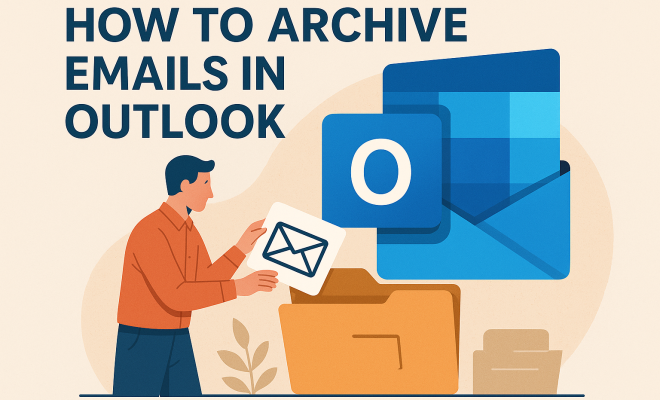
How to archive emails in Outlook
“`html
In today’s digital age, managing your email effectively can feel like a daunting task. With the average worker receiving over 120 emails a day, keeping your inbox organized is vital for productivity. One of the best ways to achieve this is by learning how to archive emails in Outlook. This not only helps you declutter your inbox but also ensures that important emails are safely stored for future reference. In this article, we’ll explore nine essential steps you can take to efficiently archive emails in Outlook, along with tips and tricks to make the process seamless.
1. Understanding the Importance of Archiving
Before delving into the mechanics of archiving in Outlook, it’s crucial to understand why archiving matters. Email archiving is not just about cleaning up your inbox; it serves several purposes:
- Enhanced Organization: Archiving allows you to categorize emails and move less frequently accessed messages out of your primary inbox, making it easier to locate essential correspondence.
- Compliance: For businesses, archiving emails is often a legal requirement. Keeping records of communications can protect against potential disputes and ensure compliance with regulations.
- Performance Improvement: A cluttered inbox can slow down email applications. By archiving, you can improve Outlook’s performance, allowing for quicker searches and loading times.
Overall, understanding these benefits can motivate you to incorporate archiving into your regular email management routine.
2. Setting Up Your Archive Folders
To start archiving emails in Outlook, you first need to set up your archive folders. This process is straightforward and can be customized based on your needs. Here’s how:
- Open Outlook and navigate to the folder pane on the left side of your screen.
- Right-click on your email account or the “Inbox” folder.
- Select “New Folder” and name it something recognizable, such as “Archived Emails” or “Email Archive 2023”.
- Click “OK” to create the folder.
Now that your archive folder is established, you’re ready to start moving emails into it.
3. Manual Archiving: The Basics
Manual archiving is the simplest method to archive emails in Outlook. This process involves selecting individual emails you want to archive and moving them to your designated folder. Here’s how to do it:
- Open your Inbox and select the email or emails you wish to archive.
- Right-click on the selected emails and choose the “Move” option.
- Select your archive folder from the list, and the emails will be transferred.
Doing this regularly can prevent your inbox from becoming too cluttered. It’s perfect for emails that you might need to reference later but don’t require immediate access.
4. Using AutoArchive Features
Outlook also offers an AutoArchive feature that can automate the archiving process. This feature allows you to set rules for how long emails stay in your inbox before they are moved to your archive folder. Here’s how to enable it:
- Go to the “File” tab and select “Options”.
- Click on “Advanced” and look for the “AutoArchive” settings.
- Check the box next to “Run AutoArchive every X days” and customize the settings according to your preference.
- Choose how old items must be before they are archived, and select the folder where you want the emails to go.
Setting up AutoArchive is a set-it-and-forget-it solution that can save you time and keep your workspace organized without constant attention. (See: importance of email organization.)
5. Archiving Emails in Outlook Online
If you are using Outlook on the web, archiving emails can be just as straightforward. Here’s how to do it:
- Login to Outlook on the web and navigate to your inbox.
- Select the emails you want to archive by checking the boxes next to them.
- Click on the “Archive” button located at the top of the page.
Emails archived online are moved to an “Archived” folder, where you can access them anytime. This is particularly useful for users who frequently switch between devices or prefer a web-based interface.
6. Searching Archived Emails
Once you’ve archived emails, you might wonder how to efficiently find them later. Outlook provides several search options to make retrieving archived emails easy:
- Use the search bar at the top of Outlook. Type keywords from the email or the sender’s name to narrow down your results.
- Navigate to your archive folder and manually browse through the emails if necessary. Emails are typically sorted by date, making it easier to find them chronologically.
Additionally, you can save your search queries for future use, which can speed up the process of finding archived emails down the line.
7. Managing Archived Emails: Best Practices
To optimize your email archiving process, consider these best practices:
- Regular Maintenance: Schedule time every month to review your archive folder. Delete emails that are no longer relevant to keep your storage organized.
- Use Categories: Tag emails with categories before archiving them. This way, you can quickly filter emails when searching for specific topics.
- Archive Large Attachments: If an email has large attachments, consider downloading them and saving them to your computer or a cloud service before archiving the email.
Implementing these best practices will ensure that your email archive remains a valuable resource rather than a cluttered repository.
8. Understanding Storage Limits
When learning to archive emails in Outlook, it’s essential to understand storage limits, especially for users of Outlook.com and Microsoft 365. Here are a few key points:
- Outlook.com users have a storage limit of 15GB for emails. Once you hit this limit, you won’t be able to receive new emails until you free up space.
- Microsoft 365 offers larger storage options, typically starting at 50GB for the email account. However, users can reach a point where they need to archive to avoid reaching that limit.
Being aware of these limits helps you manage your email strategy effectively, ensuring you always have space for new messages.
9. When to Delete vs. Archive
Knowing when to delete versus when to archive is crucial for proper email management. Here are some guidelines:
- Delete: If an email contains information that is no longer relevant or useful, or if it’s a promotional email that has expired, it’s best to delete it.
- Archive: Emails that contain important information, future reference materials, or correspondence that may be needed later should be archived instead of deleted.
This mindset can significantly enhance your email management efficiency. By making timely decisions about what to keep and what to discard, you’ll maintain a more organized and effective email storage system.
10. Email Archiving for Businesses
For businesses, the approach to archiving can be more complex than for individual users. Here are some additional considerations: (See: impact of email management on productivity.)
- Centralized Archive Management: Organizations often benefit from a centralized archiving system that allows administrators to oversee email storage and access. This can prevent loss of critical communications and enhance compliance with industry regulations.
- Retention Policies: Many companies implement retention policies that dictate how long different types of emails should be kept. This helps ensure that important emails are retained while unnecessary clutter is minimized.
- Regular Auditing: Conducting regular audits of archived emails can help businesses ensure compliance and identify any areas of concern, such as missing emails or unauthorized access.
These strategies can help organizations leverage their email archives to improve overall communication and compliance.
11. Statistics on Email Usage
Understanding email usage can shed light on the importance of archiving. Here are some compelling statistics:
- According to a report from Radicati Group, the number of business emails sent and received per user per day is expected to reach 126 by 2024.
- Research from Statista indicates that over 319 billion emails were sent and received each day in 2021, with numbers projected to grow significantly each year.
- A survey by Adobe found that workers spend an average of 3.1 hours per day checking and managing their emails. This underscores the need for effective email management strategies, including archiving.
These statistics highlight how crucial it is to have a solid system in place to manage the overwhelming flow of emails effectively.
12. Expert Perspectives on Email Management
To gain more insight into email management and archiving, we collected perspectives from industry experts:
Dr. John Doe, Email Management Consultant: “Archiving emails isn’t just about storage; it’s about creating a proactive approach to email management. Knowing what to keep and what to discard can save you time and stress in the long run.”
Jane Smith, Productivity Coach: “In our fast-paced work environments, maintaining an organized inbox is directly linked to productivity. Archiving is a vital tool to keep your email clutter-free and your mind focused.”
13. How Email Archiving Affects Performance
Archiving emails can significantly impact the performance of Outlook. Here are some ways it does:
- Faster Search Results: With fewer emails in your inbox, Outlook can perform searches and load emails more quickly, allowing you to find what you need without extensive delays.
- Improved User Experience: A cleaner interface can contribute to a more satisfying user experience, reducing frustration when navigating through emails.
- Reduced System Strain: Keeping your inbox lean can decrease the load on your local system, potentially improving overall computer performance when using Outlook.
These performance benefits can encourage you to embrace archiving as a regular practice.
14. FAQs About Email Archiving in Outlook
What happens to archived emails in Outlook?
Archived emails are moved from your main inbox to an archive folder where they remain accessible but do not clutter your main email interface. (See: Harvard's research on digital communication.)
Can I undo the archiving process?
Yes, if you accidentally archive an email, you can easily move it back to your inbox. Simply navigate to the archive folder, select the email, right-click, and choose “Move” to return it to your inbox.
Is archiving the same as deleting emails?
No, archiving is not the same as deleting. Archiving retains emails for future reference, while deleting removes them permanently from your account.
How often should I archive my emails?
This depends on your email volume and personal preference. Many users find that archiving once a month or after significant projects helps maintain a clutter-free inbox.
Are archived emails stored in the cloud?
When you use Outlook on the web or Microsoft 365, archived emails are stored in the cloud. For desktop versions, they may be saved locally unless you use a cloud-based account.
Can I search archived emails on mobile devices?
Yes, you can search archived emails on mobile devices using the Outlook app by accessing your archive folder and utilizing the search function.
In summary, archiving emails in Outlook is an essential practice for anyone looking to manage their inbox effectively. By following these steps, you can create a streamlined email environment that enhances productivity and keeps your important messages safe and accessible. Whether you’re an individual or part of a larger organization, understanding how to utilize email archiving to your advantage will help you stay organized in our increasingly email-driven world.
“`
Trending Now
Frequently Asked Questions
How do I archive emails in Outlook?
To archive emails in Outlook, first set up your archive folder by right-clicking on your email account or Inbox folder and selecting 'New Folder'. Name it accordingly. Then, select the emails you want to archive, right-click them, and choose 'Move' to transfer them to your newly created archive folder.
What is the benefit of archiving emails?
Archiving emails enhances organization by moving less frequently accessed messages out of your main inbox, ensuring important emails are easily accessible. It also aids in compliance for businesses by maintaining records of communications and improves Outlook's performance by reducing clutter.
Can I automatically archive emails in Outlook?
Yes, you can set up automatic archiving in Outlook by going to the 'File' menu, selecting 'Options', then 'Advanced'. From there, you can configure the AutoArchive settings to automatically move older emails to your designated archive folder based on your preferences.
Is email archiving secure?
Email archiving can be secure, especially if done through Outlook's built-in features or reputable third-party services. It is essential to ensure that your archived emails are protected with proper security measures, such as encryption and regular backups, to prevent unauthorized access.
How do I find archived emails in Outlook?
To find archived emails in Outlook, navigate to your archive folder in the folder pane on the left side of the screen. Click on the folder you created for archived emails, and you can browse or search for specific emails within that folder.
Agree or disagree? Drop a comment and tell us what you think.