The Tech Edvocate

Top Menu

  • Advertisement
  • Apps
  • Home Page
  • Home Page Five (No Sidebar)
  • Home Page Four
  • Home Page Three
  • Home Page Two
  • Home Tech2
  • Icons [No Sidebar]
  • Left Sidbear Page
  • Lynch Educational Consulting
  • My Account
  • My Speaking Page
  • Newsletter Sign Up Confirmation
  • Newsletter Unsubscription
  • Our Brands
  • Page Example
  • Privacy Policy
  • Protected Content
  • Register
  • Request a Product Review
  • Shop
  • Shortcodes Examples
  • Signup
  • Start Here
    • Governance
    • Careers
    • Contact Us
  • Terms and Conditions
  • The Edvocate
  • The Tech Edvocate Product Guide
  • Topics
  • Write For Us
  • Advertise

Main Menu

  • Start Here
    • Our Brands
    • Governance
      • Lynch Educational Consulting, LLC.
      • Dr. Lynch’s Personal Website
      • Careers
    • Write For Us
    • The Tech Edvocate Product Guide
    • Contact Us
    • Books
    • Edupedia
    • Post a Job
    • The Edvocate Podcast
    • Terms and Conditions
    • Privacy Policy
  • Topics
    • Assistive Technology
    • Child Development Tech
    • Early Childhood & K-12 EdTech
    • EdTech Futures
    • EdTech News
    • EdTech Policy & Reform
    • EdTech Startups & Businesses
    • Higher Education EdTech
    • Online Learning & eLearning
    • Parent & Family Tech
    • Personalized Learning
    • Product Reviews
  • Advertise
  • Tech Edvocate Awards
  • The Edvocate
  • Pedagogue
  • School Ratings

logo

The Tech Edvocate

  • Start Here
    • Our Brands
    • Governance
      • Lynch Educational Consulting, LLC.
      • Dr. Lynch’s Personal Website
        • My Speaking Page
      • Careers
    • Write For Us
    • The Tech Edvocate Product Guide
    • Contact Us
    • Books
    • Edupedia
    • Post a Job
    • The Edvocate Podcast
    • Terms and Conditions
    • Privacy Policy
  • Topics
    • Assistive Technology
    • Child Development Tech
    • Early Childhood & K-12 EdTech
    • EdTech Futures
    • EdTech News
    • EdTech Policy & Reform
    • EdTech Startups & Businesses
    • Higher Education EdTech
    • Online Learning & eLearning
    • Parent & Family Tech
    • Personalized Learning
    • Product Reviews
  • Advertise
  • Tech Edvocate Awards
  • The Edvocate
  • Pedagogue
  • School Ratings
  • Can Clio accept client payments

  • How to dispatch jobs in FieldAware

  • Can ServiceTitan do call booking

  • How to onboard construction workers BambooHR

  • Is FieldAware worth it for contractors

  • How many users in Jobber

  • Can JobNimbus track leads

  • How to create estimates in Housecall Pro

  • How many users in mHelpDesk

  • How to track certifications in BambooHR construction

Tech News
Home›Tech News›How You Can Restore The Windows 10 File Explorer In Windows 11

How You Can Restore The Windows 10 File Explorer In Windows 11

By Matthew Lynch
July 14, 2024
0
Spread the love

If you’re frustrated with the new file explorer design in Windows 11, you’re not alone. Many users have been vocal about their dissatisfaction with the changes made to the file explorer in the latest version of Windows. While Microsoft has introduced some new features and improvements, the new design has been met with criticism from many users who prefer the classic File Explorer experience.

In this article, we’ll show you how to restore the Windows 10 File Explorer in Windows 11, giving you the option to switch back to the classic Explorer if you’re not a fan of the new design.

What’s Changed in Windows 11 File Explorer?

The new File Explorer in Windows 11 features a more modern and streamlined design, with a vertical layout and a focus on AI-powered recommendations and a new “Home” tab. While these changes were intended to improve the user experience, they have been met with mixed reviews from users.

Why Restore the Windows 10 File Explorer?

If you’re not a fan of the new design, you may be wondering why you would want to restore the Windows 10 File Explorer. There are several reasons why you might want to switch back to the classic design:

You prefer the familiarity of the old design: If you’re used to using the Windows 10 File Explorer, you may find it more comfortable and intuitive to switch back to the classic design.
You’re not a fan of the new features: Some users may not see the value in the new features introduced in the Windows 11 File Explorer, such as the “Home” tab and the AI-powered recommendations.
You’re experiencing compatibility issues: Some users have reported compatibility issues with certain software or hardware that may not work properly with the new File Explorer.

How to Restore the Windows 10 File Explorer in Windows 11

Fortunately, restoring the Windows 10 File Explorer in Windows 11 is a relatively straightforward process. Here’s how to do it:

1. Open the Settings app on your Windows 11 device. You can do this by clicking on the Start menu and selecting “Settings” from the list of options.
2. In the Settings app, click on the “Personalization” option from the left-hand menu.
3. In the Personalization window, click on the “Themes” tab.
4. Under the “Themes” tab, click on the “System settings” option.
5. In the System settings window, click on the “File Explorer” option.
6. In the File Explorer settings window, toggle the “Use the Windows 10 File Explorer” switch to the “On” position.
7. Click on the “Save changes” button to apply the changes.

What to Expect After Restoring the Windows 10 File Explorer

After restoring the Windows 10 File Explorer, you’ll notice that the classical design will be restored, including the familiar navigation pane and layout. You’ll also have access to the same features and functionality as before, including the ability to pin frequently used folders and files.

Conclusion

In conclusion, restoring the Windows 10 File Explorer in Windows 11 is a simple process that can be done with just a few clicks. If you’re not a fan of the new design or are experiencing compatibility issues, restoring the classic File Explorer can provide a more familiar and intuitive experience. Remember to toggle the “Use the Windows 10 File Explorer” switch to the “On” position to restore the classic design.


 

Previous Article

Study Of AI As A Creative Writing ...

Next Article

Barbora Krejčíková Wins Her First Wimbledon Singles ...

Matthew Lynch

Related articles More from author

  • Tech News

    Cape Coral Housing Market: Prices Dropping in 2026

    June 7, 2026
    By Matthew Lynch
  • Tech News

    How to Fix It When Outlook Won’t Open in Windows

    February 19, 2024
    By Matthew Lynch
  • Tech News

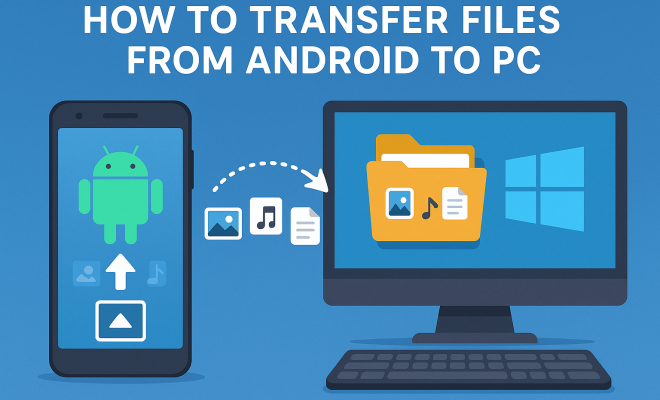
    How to transfer files from Android to PC

    June 15, 2026
    By Matthew Lynch
  • Tech News

    Nuggets Outshine Trail Blazers in Thrilling Showdown

    March 23, 2026
    By Matthew Lynch
  • Tech News

    Streaming and Digital Rentals Should Include Special Features

    July 14, 2024
    By Matthew Lynch
  • Tech News

    2026’s Top 10 Breakthroughs in Neurology & Anti-Aging Science

    April 9, 2026
    By Matthew Lynch

Search

Login & Registration

  • Log in
  • Entries feed
  • Comments feed
  • WordPress.org

Newsletter

Signup for The Tech Edvocate Newsletter and have the latest in EdTech news and opinion delivered to your email address!

About Us

Since technology is not going anywhere and does more good than harm, adapting is the best course of action. That is where The Tech Edvocate comes in. We plan to cover the PreK-12 and Higher Education EdTech sectors and provide our readers with the latest news and opinion on the subject. From time to time, I will invite other voices to weigh in on important issues in EdTech. We hope to provide a well-rounded, multi-faceted look at the past, present, the future of EdTech in the US and internationally.

We started this journey back in June 2016, and we plan to continue it for many more years to come. I hope that you will join us in this discussion of the past, present and future of EdTech and lend your own insight to the issues that are discussed.

Newsletter

Signup for The Tech Edvocate Newsletter and have the latest in EdTech news and opinion delivered to your email address!

Contact Us

The Tech Edvocate
910 Goddin Street
Richmond, VA 23231
(601) 630-5238
[email protected]

Copyright © 2026 Matthew Lynch. All rights reserved.