The Tech Edvocate

Top Menu

  • Advertisement
  • Apps
  • Home Page
  • Home Page Five (No Sidebar)
  • Home Page Four
  • Home Page Three
  • Home Page Two
  • Home Tech2
  • Icons [No Sidebar]
  • Left Sidbear Page
  • Lynch Educational Consulting
  • My Account
  • My Speaking Page
  • Newsletter Sign Up Confirmation
  • Newsletter Unsubscription
  • Our Brands
  • Page Example
  • Privacy Policy
  • Protected Content
  • Register
  • Request a Product Review
  • Shop
  • Shortcodes Examples
  • Signup
  • Start Here
    • Governance
    • Careers
    • Contact Us
  • Terms and Conditions
  • The Edvocate
  • The Tech Edvocate Product Guide
  • Topics
  • Write For Us
  • Advertise

Main Menu

  • Start Here
    • Our Brands
    • Governance
      • Lynch Educational Consulting, LLC.
      • Dr. Lynch’s Personal Website
      • Careers
    • Write For Us
    • The Tech Edvocate Product Guide
    • Contact Us
    • Books
    • Edupedia
    • Post a Job
    • The Edvocate Podcast
    • Terms and Conditions
    • Privacy Policy
  • Topics
    • Assistive Technology
    • Child Development Tech
    • Early Childhood & K-12 EdTech
    • EdTech Futures
    • EdTech News
    • EdTech Policy & Reform
    • EdTech Startups & Businesses
    • Higher Education EdTech
    • Online Learning & eLearning
    • Parent & Family Tech
    • Personalized Learning
    • Product Reviews
  • Advertise
  • Tech Edvocate Awards
  • The Edvocate
  • Pedagogue
  • School Ratings

logo

The Tech Edvocate

  • Start Here
    • Our Brands
    • Governance
      • Lynch Educational Consulting, LLC.
      • Dr. Lynch’s Personal Website
        • My Speaking Page
      • Careers
    • Write For Us
    • The Tech Edvocate Product Guide
    • Contact Us
    • Books
    • Edupedia
    • Post a Job
    • The Edvocate Podcast
    • Terms and Conditions
    • Privacy Policy
  • Topics
    • Assistive Technology
    • Child Development Tech
    • Early Childhood & K-12 EdTech
    • EdTech Futures
    • EdTech News
    • EdTech Policy & Reform
    • EdTech Startups & Businesses
    • Higher Education EdTech
    • Online Learning & eLearning
    • Parent & Family Tech
    • Personalized Learning
    • Product Reviews
  • Advertise
  • Tech Edvocate Awards
  • The Edvocate
  • Pedagogue
  • School Ratings
  • The Brutal Truth: Why 75% of Fintech Startups Collapse in 5 Years

  • This AI Company’s Staggering 14 Million Record Data Leak Is Just The Beginning

  • New York Rep Introduces Bill That Could Keep Games Playable for Longer – PCMag

  • Mind-Blowing: These AI Investment Funds Are Crushing the Market — Here’s How

  • The AI Detector Deception: Why Universities Are Pulling the Plug

  • Stunning: New Student Loan Repayment Rules Could Hike Payments for Millions

  • Shocking: California’s Billion-Dollar Clean Transit Initiative Drove Nowhere

  • Why EV Charging Reliability Soared Despite Cratering Sales

  • A new lithium-ion battery breakthrough could lead to cells that deliver more power for longer — they might be useful for everything from EVs to gaming laptops to robots to drones | TechRadar

  • One Breakthrough: How AI is Reshaping Medicine Faster Than Anyone Imagined

Tech Advice
Home›Tech Advice›How to Run Windows From a USB Drive

How to Run Windows From a USB Drive
By Matthew Lynch
July 23, 2023
0
Spread the love

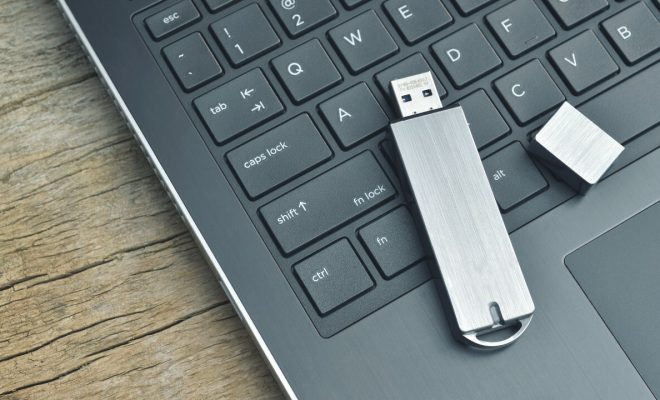
In today’s fast-paced world, having the flexibility to take your digital work environment with you is essential. Running Windows from a USB drive allows you to access your files, applications, and settings from any compatible computer. This comprehensive guide will walk you through the process of setting up a bootable USB drive so you can run Windows on the go.

Step 1: Gather the Necessary Tools and Materials

Before we get started, make sure you have the following:

1. A high-quality USB flash drive with at least 8 GB of storage space.

2. A Windows computer or access to one (this will be used to create the bootable USB drive).

3. A genuine copy of the Windows ISO file. You can download one directly from Microsoft’s website.

Step 2: Format the USB Drive

First, plug your USB drive into your computer. To properly prepare it for use as a bootable Windows-drive, you will need to format it. Follow these steps:

1. Open ‘This PC’ (formerly ‘My Computer’) on your Windows system.

2. Locate and right-click on your USB drive and select ‘Format’.

3. In the Format window, choose NTFS as the file system, enable ‘Quick Format,’ and click ‘Start’.

4. Wait for the formatting process to complete.

Step 3: Create a Bootable Windows USB Drive

Now it’s time to create a bootable Windows USB drive using third-party software such as Rufus or Microsoft’s own Media Creation Tool.

Using Rufus:

1. Download and install Rufus from their official website.

2. Launch Rufus and select your USB drive from the ‘Device’ dropdown.

3. Click on ‘Select’ next to ‘Boot selection’ and browse for your downloaded Windows ISO file.

4. Press ‘Start’ once you have selected the correct ISO file.

5. Rufus will ask you to confirm that you’re okay with deleting all data on the USB drive. Click ‘OK’ to proceed.

6. Allow Rufus to create your bootable Windows USB drive; this may take a few minutes.

Using the Media Creation Tool:

1. Visit Microsoft’s website and download the Windows Media Creation Tool.

2. Install and run the tool on your computer.

3. Choose ‘Create installation media…’ and click ‘Next’.

4. Select your desired language, Windows edition, and system architecture, and click ‘Next’.

5. Pick ‘USB flash drive’ and click ‘Next’.

6. Select your USB drive from the list of available drives and click ‘Next’.

Once done, your bootable Windows USB drive will be ready for use.

Step 4: Boot from the USB Drive

Now that we’ve prepared our bootable USB drive, it’s time to actually run Windows from it.

1. Safely eject the USB drive from your computer.

2. Insert the USB drive into the target computer and restart it.

3. As the computer boots up, press the appropriate key to enter its BIOS or UEFI settings (common keys include F2, F10, F12, DEL).

4. Locate your boot priority settings and move the USB drive to be the first boot device.

5. Save changes and exit the BIOS or UEFI settings.

6. The computer should now boot from your USB drive, loading Windows as if it were installed directly on your system.

And there you have it – you can now run Windows from a USB drive whenever needed! This portable solution will allow you to work on a familiar digital environment no matter where you are or what machine is available to you.


Previous Article

How to Share Files and Folders in ...

Next Article

How to Run Windows Apps on Your ...

Matthew Lynch

Related articles More from author

  • Tech Advice

    2023 Chevrolet Camaro SUV: What We Know So Far

    August 22, 2023
    By Matthew Lynch
  • Tech Advice

    Why Apple Vision Pro’s $3,499 Price Makes More Sense Than You Think

    July 14, 2023
    By Matthew Lynch
  • Tech Advice

    5 Best-Performing Biotech Stocks to Watch in 2021

    October 20, 2023
    By Matthew Lynch
  • Tech Advice

    Ring Alarm Security Kit Review: A Low-Cost Yet Reliable DIY System

    July 10, 2023
    By Matthew Lynch
  • Tech Advice

    Alienware m18 Review: A Big and Bold Gaming Beast

    July 13, 2023
    By Matthew Lynch
  • Tech Advice

    Affordable Quality Sleep: The Best Cheap Mattresses on the Market

    July 7, 2023
    By Matthew Lynch

Search

Login & Registration

  • Log in
  • Entries feed
  • Comments feed
  • WordPress.org

Newsletter

Signup for The Tech Edvocate Newsletter and have the latest in EdTech news and opinion delivered to your email address!

About Us

Since technology is not going anywhere and does more good than harm, adapting is the best course of action. That is where The Tech Edvocate comes in. We plan to cover the PreK-12 and Higher Education EdTech sectors and provide our readers with the latest news and opinion on the subject. From time to time, I will invite other voices to weigh in on important issues in EdTech. We hope to provide a well-rounded, multi-faceted look at the past, present, the future of EdTech in the US and internationally.

We started this journey back in June 2016, and we plan to continue it for many more years to come. I hope that you will join us in this discussion of the past, present and future of EdTech and lend your own insight to the issues that are discussed.

Newsletter

Signup for The Tech Edvocate Newsletter and have the latest in EdTech news and opinion delivered to your email address!

Contact Us

The Tech Edvocate
910 Goddin Street
Richmond, VA 23231
(601) 630-5238
[email protected]

Copyright © 2026 Matthew Lynch. All rights reserved.