The Tech Edvocate

Top Menu

  • Advertisement
  • Apps
  • Home Page
  • Home Page Five (No Sidebar)
  • Home Page Four
  • Home Page Three
  • Home Page Two
  • Home Tech2
  • Icons [No Sidebar]
  • Left Sidbear Page
  • Lynch Educational Consulting
  • My Account
  • My Speaking Page
  • Newsletter Sign Up Confirmation
  • Newsletter Unsubscription
  • Our Brands
  • Page Example
  • Privacy Policy
  • Protected Content
  • Register
  • Request a Product Review
  • Shop
  • Shortcodes Examples
  • Signup
  • Start Here
    • Governance
    • Careers
    • Contact Us
  • Terms and Conditions
  • The Edvocate
  • The Tech Edvocate Product Guide
  • Topics
  • Write For Us
  • Advertise

Main Menu

  • Start Here
    • Our Brands
    • Governance
      • Lynch Educational Consulting, LLC.
      • Dr. Lynch’s Personal Website
      • Careers
    • Write For Us
    • The Tech Edvocate Product Guide
    • Contact Us
    • Books
    • Edupedia
    • Post a Job
    • The Edvocate Podcast
    • Terms and Conditions
    • Privacy Policy
  • Topics
    • Assistive Technology
    • Child Development Tech
    • Early Childhood & K-12 EdTech
    • EdTech Futures
    • EdTech News
    • EdTech Policy & Reform
    • EdTech Startups & Businesses
    • Higher Education EdTech
    • Online Learning & eLearning
    • Parent & Family Tech
    • Personalized Learning
    • Product Reviews
  • Advertise
  • Tech Edvocate Awards
  • The Edvocate
  • Pedagogue
  • School Ratings

logo

The Tech Edvocate

  • Start Here
    • Our Brands
    • Governance
      • Lynch Educational Consulting, LLC.
      • Dr. Lynch’s Personal Website
        • My Speaking Page
      • Careers
    • Write For Us
    • The Tech Edvocate Product Guide
    • Contact Us
    • Books
    • Edupedia
    • Post a Job
    • The Edvocate Podcast
    • Terms and Conditions
    • Privacy Policy
  • Topics
    • Assistive Technology
    • Child Development Tech
    • Early Childhood & K-12 EdTech
    • EdTech Futures
    • EdTech News
    • EdTech Policy & Reform
    • EdTech Startups & Businesses
    • Higher Education EdTech
    • Online Learning & eLearning
    • Parent & Family Tech
    • Personalized Learning
    • Product Reviews
  • Advertise
  • Tech Edvocate Awards
  • The Edvocate
  • Pedagogue
  • School Ratings
  • The Gemini in Classroom vs Traditional Tools Debate: A Staggering Reversal

  • Why Your Tech Job Isn’t Safe: The AI Uprising Is Just Getting Started

  • Why Google’s AI Policy Just Sparked a Massive Uproar in Schools

  • Unmasking Java4Shell: The 9 Tools Enterprises Need Now to Fight CVE-2026-114938

  • Unbelievable: Waymo’s Freeway Suspension Is Far Worse Than You Think

  • The Brutal Truth About New EU Cybersecurity Rules You Can’t Afford to Miss

  • Cum compari bonusurile de bun venit ale cazinourilor online din România: valoare, rulaj și termene

  • Unbelievable: South Korea’s AI Cheating Scandal Forces Glasses Inspections

  • 7 Disturbing Truths About the Latest AI Data Breach

  • This Ancient Builder’s $150M AI Bet Could Redefine Construction

Digital & Mobile Technology
Home›Digital & Mobile Technology›How to Connect Sonos Beam to TV

How to Connect Sonos Beam to TV
By Matthew Lynch
July 28, 2023
0
Spread the love

Sonos Beam is one of the most advanced soundbars available in the market today. It delivers high quality and immersive sound, making it perfect for movie nights, gaming, or even listening to music. In addition, it offers convenience, enabling users to connect it to TVs for an enhanced audio experience. If you’re struggling to connect your Sonos Beam to your TV, here is a step-by-step guide to help you out:

1. Check compatibility

Before you embark on connecting your Sonos Beam to your TV, it’s essential to check whether the two devices are compatible. The Beam connects to your TV through an HDMI ARC (Audio Return Channel) port. Most modern TVs come with an ARC port, but it’s important to ensure that yours does. If your TV doesn’t have an ARC port, you can use an optical cable instead.

2. Connect the HDMI ARC cable

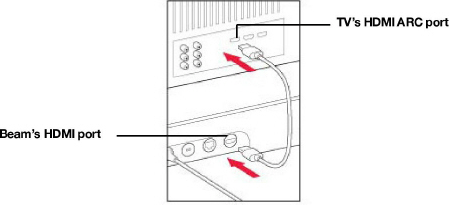
Once you’ve confirmed that your TV has an ARC port and your Sonos Beam has a power connection, the next step is to connect the two devices with an HDMI ARC cable. Connect one end of the HDMI ARC cable to the Sonos Beam’s HDMI ARC port (labeled ‘HDMI ARC’). Connect the other end to the corresponding port on your TV. You should use the HDMI cable included in the Sonos Beam’s original packaging.

3. Turn on HDMI-CEC

HDMI-CEC or Consumer Electronics Control is a feature in modern television sets that allows you to control all connected devices with a single remote. To ensure that the Sonos Beam works perfectly, you need to activate HDMI-CEC. The process of turning on HDMI-CEC will vary depending on your TV’s manufacturer. You can refer to your TV owner’s manual to know how to do it.

4. Set up your Sonos Beam

Once you’ve connected your TV and Sonos Beam and turned on HDMI-CEC, you’ll need to set up your Sonos Beam. Download and install the Sonos app on your mobile device, then follow the prompts to set up the Beam. Ensure that you connect the app to your home WiFi network as well.

5. Configure sound settings

Finally, configure the audio settings on your TV. Navigate to the audio settings and select the Sonos Beam as the default sound output device. You can also adjust the EQ settings to suit your preferences or select from pre-configured settings for movies, music, and more.

In conclusion, connecting your Sonos Beam to your TV is a straightforward process that requires little technical knowledge. With the steps above, you can have your soundbar up and running, providing an enhanced audio experience for all your entertainment needs.


Previous Article

How to Encrypt Your Mac

Next Article

A Guide for Underfunded Colleges and Universities

Matthew Lynch

Related articles More from author

  • Digital & Mobile Technology

    The Best Linux Distros for Privacy-Focused Users

    June 14, 2023
    By Matthew Lynch
  • Digital & Mobile Technology

    How Much Power Does My Windows PC Use? Here’s How to Find Out

    June 23, 2023
    By Matthew Lynch
  • Digital & Mobile Technology

    All About Pixilation

    June 22, 2023
    By Matthew Lynch
  • Digital & Mobile Technology

    How to Fix the “Liquid Detected in Lightning Connector” Alert on Your iPhone

    August 5, 2023
    By Matthew Lynch
  • Digital & Mobile TechnologyTech Advice

    Counting Calories Isn’t the Easy Weight-Loss Hack You May Think It Is

    July 7, 2023
    By Matthew Lynch
  • Digital & Mobile Technology

    How to Remove Facebook Birthdays From Your Calendar

    July 6, 2023
    By Matthew Lynch

Search

Login & Registration

  • Log in
  • Entries feed
  • Comments feed
  • WordPress.org

Newsletter

Signup for The Tech Edvocate Newsletter and have the latest in EdTech news and opinion delivered to your email address!

About Us

Since technology is not going anywhere and does more good than harm, adapting is the best course of action. That is where The Tech Edvocate comes in. We plan to cover the PreK-12 and Higher Education EdTech sectors and provide our readers with the latest news and opinion on the subject. From time to time, I will invite other voices to weigh in on important issues in EdTech. We hope to provide a well-rounded, multi-faceted look at the past, present, the future of EdTech in the US and internationally.

We started this journey back in June 2016, and we plan to continue it for many more years to come. I hope that you will join us in this discussion of the past, present and future of EdTech and lend your own insight to the issues that are discussed.

Newsletter

Signup for The Tech Edvocate Newsletter and have the latest in EdTech news and opinion delivered to your email address!

Contact Us

The Tech Edvocate
910 Goddin Street
Richmond, VA 23231
(601) 630-5238
[email protected]

Copyright © 2026 Matthew Lynch. All rights reserved.