The Tech Edvocate

Top Menu

  • Advertisement
  • Apps
  • Home Page
  • Home Page Five (No Sidebar)
  • Home Page Four
  • Home Page Three
  • Home Page Two
  • Home Tech2
  • Icons [No Sidebar]
  • Left Sidbear Page
  • Lynch Educational Consulting
  • My Account
  • My Speaking Page
  • Newsletter Sign Up Confirmation
  • Newsletter Unsubscription
  • Our Brands
  • Page Example
  • Privacy Policy
  • Protected Content
  • Register
  • Request a Product Review
  • Shop
  • Shortcodes Examples
  • Signup
  • Start Here
    • Governance
    • Careers
    • Contact Us
  • Terms and Conditions
  • The Edvocate
  • The Tech Edvocate Product Guide
  • Topics
  • Write For Us
  • Advertise

Main Menu

  • Start Here
    • Our Brands
    • Governance
      • Lynch Educational Consulting, LLC.
      • Dr. Lynch’s Personal Website
      • Careers
    • Write For Us
    • The Tech Edvocate Product Guide
    • Contact Us
    • Books
    • Edupedia
    • Post a Job
    • The Edvocate Podcast
    • Terms and Conditions
    • Privacy Policy
  • Topics
    • Assistive Technology
    • Child Development Tech
    • Early Childhood & K-12 EdTech
    • EdTech Futures
    • EdTech News
    • EdTech Policy & Reform
    • EdTech Startups & Businesses
    • Higher Education EdTech
    • Online Learning & eLearning
    • Parent & Family Tech
    • Personalized Learning
    • Product Reviews
  • Advertise
  • Tech Edvocate Awards
  • The Edvocate
  • Pedagogue
  • School Ratings

logo

The Tech Edvocate

  • Start Here
    • Our Brands
    • Governance
      • Lynch Educational Consulting, LLC.
      • Dr. Lynch’s Personal Website
        • My Speaking Page
      • Careers
    • Write For Us
    • The Tech Edvocate Product Guide
    • Contact Us
    • Books
    • Edupedia
    • Post a Job
    • The Edvocate Podcast
    • Terms and Conditions
    • Privacy Policy
  • Topics
    • Assistive Technology
    • Child Development Tech
    • Early Childhood & K-12 EdTech
    • EdTech Futures
    • EdTech News
    • EdTech Policy & Reform
    • EdTech Startups & Businesses
    • Higher Education EdTech
    • Online Learning & eLearning
    • Parent & Family Tech
    • Personalized Learning
    • Product Reviews
  • Advertise
  • Tech Edvocate Awards
  • The Edvocate
  • Pedagogue
  • School Ratings
  • A Visitors Guide to Reading/Wokingham, United Kingdom

  • A Visitors Guide to Colorado Springs (CO), United States

  • U.S. Stock Futures Rebound Amid AI Concerns and Tariff Threats

  • Consumer Confidence Report Takes Center Stage in Upcoming Economic Data Releases

  • Market Turmoil: Dow Jones Faces Significant Decline Amid Tariff Announcements

  • ValkaAI Secures €12 Million to Revolutionize Interactive AI Avatars

  • Nimble Way Secures $47 Million to Enhance AI Agents with Real-Time Web Data Access

  • Profound Secures $96 Million in Series C Funding to Revolutionize AI-Driven Brand Visibility

  • Navigating the Complexities of AI Reporting Legislation in Canada

  • Supreme Court Decision Limits Trump’s Tariff Power Amid Ongoing Trade Policy Uncertainty

Digital & Mobile Technology
Home›Digital & Mobile Technology›How to Use a Wii U Gamepad With a PC

How to Use a Wii U Gamepad With a PC
By Matthew Lynch
June 26, 2023
0
Spread the love

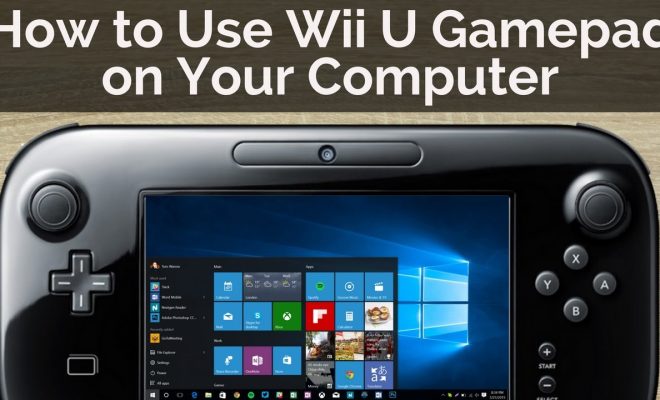
The Wii U Gamepad is a uniquely designed controller that comes with the Wii U console. It has a touch screen display and can be used as a standalone controller or as a secondary display for games.

While the Gamepad is primarily designed for use with the Wii U console, it is possible to use it with your PC. Here’s a guide on how to do so:

1. Download the Wii U Gamepad utility software

The first step is to download the utility software that will allow your PC to recognize the Gamepad. You can download this software from the official Nintendo website.

2. Install the software

Once you’ve downloaded the software, you’ll need to install it on your PC. Simply follow the on-screen instructions to complete the installation process.

3. Connect the Gamepad to your PC

Next, you’ll need to connect the Gamepad to your PC. To do this, you’ll need a special USB cable that comes with the Wii U console. Connect one end of the cable to the Gamepad and the other end to your PC.

4. Configure the Gamepad

Once the Gamepad is connected to your PC, you’ll need to configure it. Open the Wii U Gamepad utility software and follow the on-screen instructions to set up the controller.

5. Use the Gamepad with your PC

Once the Gamepad is set up, you can use it to play games on your PC. Most modern PC games will recognize the Gamepad automatically, and you can use it to control the game just like you would with any other controller.

If a game does not recognize the Gamepad automatically, you may need to configure the controller settings manually. This can be done within the game’s settings menu.

Overall, using the Wii U Gamepad with your PC is a great way to get the most out of this unique controller. Whether you’re looking to play games with a touch screen display or simply want a different controller option, the Wii U Gamepad is a great choice.

Previous Article

Your Nintendo Switch Won’t Connect to the ...

Next Article

Minecraft Platforms and Their Differences

Matthew Lynch

Related articles More from author

  • Digital & Mobile Technology

    Keyboard Shortcuts: Google Chrome for Windows

    June 9, 2023
    By Matthew Lynch
  • Digital & Mobile Technology

    Best Head-Up Displays in Any Car Right Now

    September 8, 2023
    By Matthew Lynch
  • Digital & Mobile Technology

    Free Online Fax Services

    May 30, 2023
    By Matthew Lynch
  • Digital & Mobile Technology

    How to Turn On Hibernate Mode on Windows 11

    June 12, 2023
    By Matthew Lynch
  • Digital & Mobile Technology

    Ways to Fix Inaccessible Screen Resolution Settings on Windows

    June 15, 2023
    By Matthew Lynch
  • Digital & Mobile Technology

    How to Archive All Old Emails in Gmail and Reach Inbox Zero

    June 4, 2023
    By Matthew Lynch

Search

Login & Registration

  • Register
  • Log in
  • Entries feed
  • Comments feed
  • WordPress.org

Newsletter

Signup for The Tech Edvocate Newsletter and have the latest in EdTech news and opinion delivered to your email address!

About Us

Since technology is not going anywhere and does more good than harm, adapting is the best course of action. That is where The Tech Edvocate comes in. We plan to cover the PreK-12 and Higher Education EdTech sectors and provide our readers with the latest news and opinion on the subject. From time to time, I will invite other voices to weigh in on important issues in EdTech. We hope to provide a well-rounded, multi-faceted look at the past, present, the future of EdTech in the US and internationally.

We started this journey back in June 2016, and we plan to continue it for many more years to come. I hope that you will join us in this discussion of the past, present and future of EdTech and lend your own insight to the issues that are discussed.

Newsletter

Signup for The Tech Edvocate Newsletter and have the latest in EdTech news and opinion delivered to your email address!

Contact Us

The Tech Edvocate
910 Goddin Street
Richmond, VA 23231
(601) 630-5238
[email protected]

Copyright © 2025 Matthew Lynch. All rights reserved.